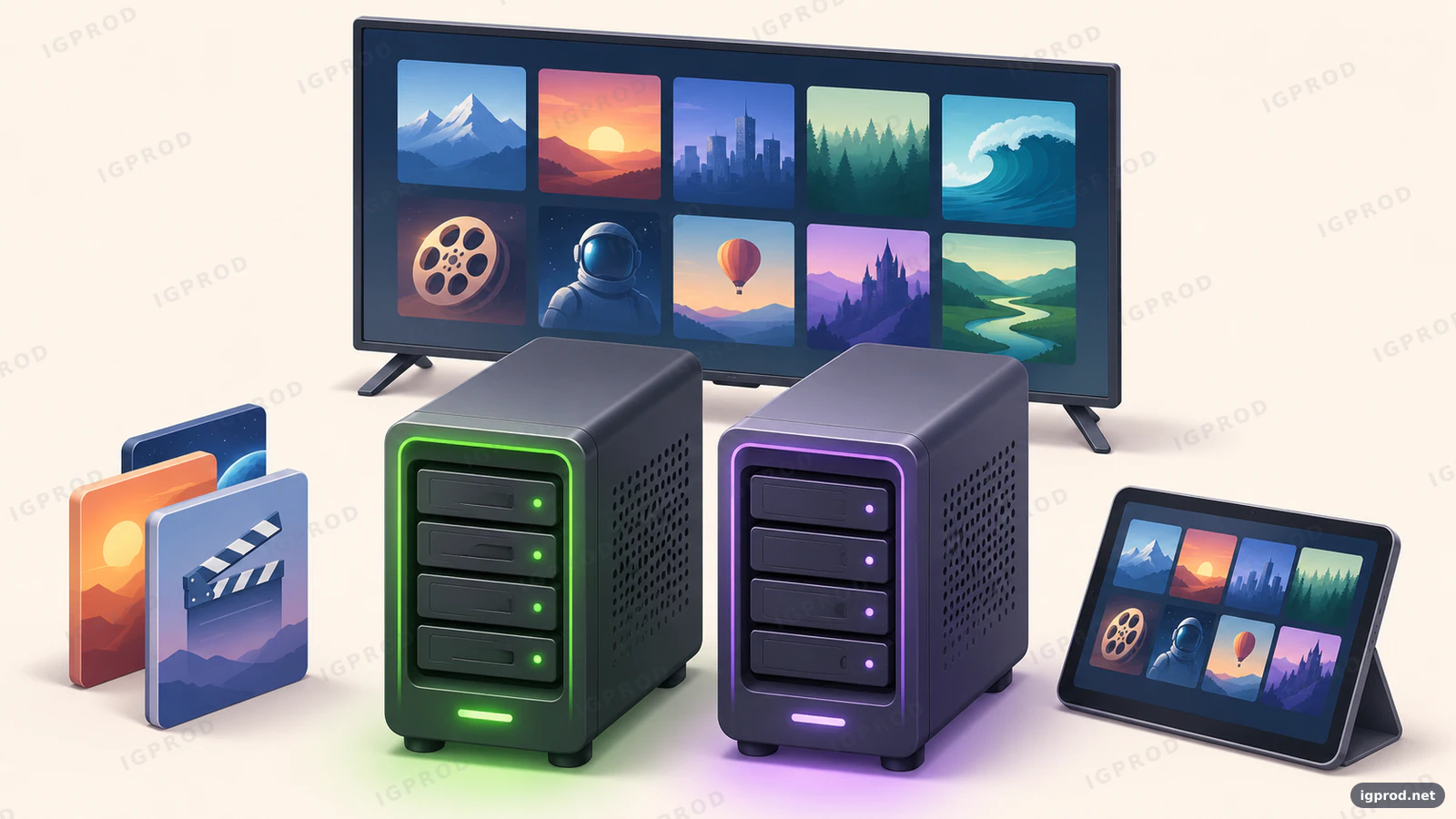
Choose Jellyfin if you want an open-source media server without paid feature licenses. Choose Emby if its player on your actual devices, or a specific Premiere feature, makes the cost worthwhile. Before moving your household, try both with the same sample files and separate configurations: client compatibility matters more than a universal winner.
You will need:
- A few video files you own or are entitled to use.
- A supported server and the phones, TVs or computers you actually watch on.
- A backup of any existing media-server configuration.
- For the optional Docker trial: a Linux host with Docker Engine and the Compose plugin already installed, internet access for image downloads, and a browser on the same local network.
The server organizes and serves your files. A client is the app or browser that plays them. Neither product supplies a subscription catalogue of films.
Emby vs Jellyfin: which should you choose?
| Decision | Jellyfin | Emby |
|---|---|---|
| Server licensing | Free and open source; no premium feature tier | Proprietary; free server with paid extras |
| Browser playback | Available without a feature subscription | Full playback free |
| Hardware video conversion | No feature-license charge; compatible hardware required | Usually Premiere; device exceptions below |
| Live TV and recording | No feature-license charge; compatible source required | Premiere |
| Offline downloads | Depends on client capabilities | Premiere and a supported client |
| Moving an existing library | Can rescan your media; needs its own database | Keep its configuration separate during a trial |
Jellyfin is the straightforward starting point when avoiding subscriptions or retaining access to the server source code is essential. Its project documentation explicitly rules out premium feature licenses. Free software still needs storage, electricity and suitable hardware.
Emby deserves a trial when someone in your household prefers a particular Emby client. Verify the result on that device before paying. If your existing setup already works, a different licensing model alone does not establish that migration will improve playback. For another option, compare Jellyfin with Plex.
What is free, and what does Emby Premiere cost?
As checked on 12 November 2026, Emby Premiere costs USD $4.99 monthly, $54 yearly, or $119 for a one-time lifetime license. These standard options are for one household with a 30-device limit. That is not a promise of 30 simultaneous streams. Check the current terms before buying.
Premiere gates hardware transcoding, HDR tone mapping during transcoding, Live TV/DVR and downloads. The hardware-acceleration exceptions listed by Emby are Nvidia Shield and WD NAS devices. An app unlock is different from Premiere: unlocking mobile playback does not unlock all server extras. See the official feature matrix.
Jellyfin includes Live TV and recording without a license fee, but you still need a compatible tuner or an authorized playlist and programme guide. Neither product supplies broadcast rights or tuner hardware; see Jellyfin's Live TV requirements.
Which apps work on your TV, phone or computer?
Check each exact device model, operating-system version and store region. An app's availability does not guarantee support for every codec, subtitle format or download feature.
| Emby client | Full playback licensing |
|---|---|
| PC/mobile browser | Free |
| iOS/Android mobile app | App unlock or Premiere; otherwise one-minute playback |
| Windows/Linux/macOS desktop apps and consoles | Premiere |
| Android on TV/Fire TV | Free for up to five TV devices |
| Roku/Apple TV/LG/Samsung | Free |
These are the matrix's current playback rules; additional functions have separate requirements. Do not assume every Emby phone or TV app needs the same purchase.
Start your Jellyfin device check with the client download directory. The directory's inclusion rules require free and open-source clients, but their features differ. A separately chosen commercial third-party player can have its own price.
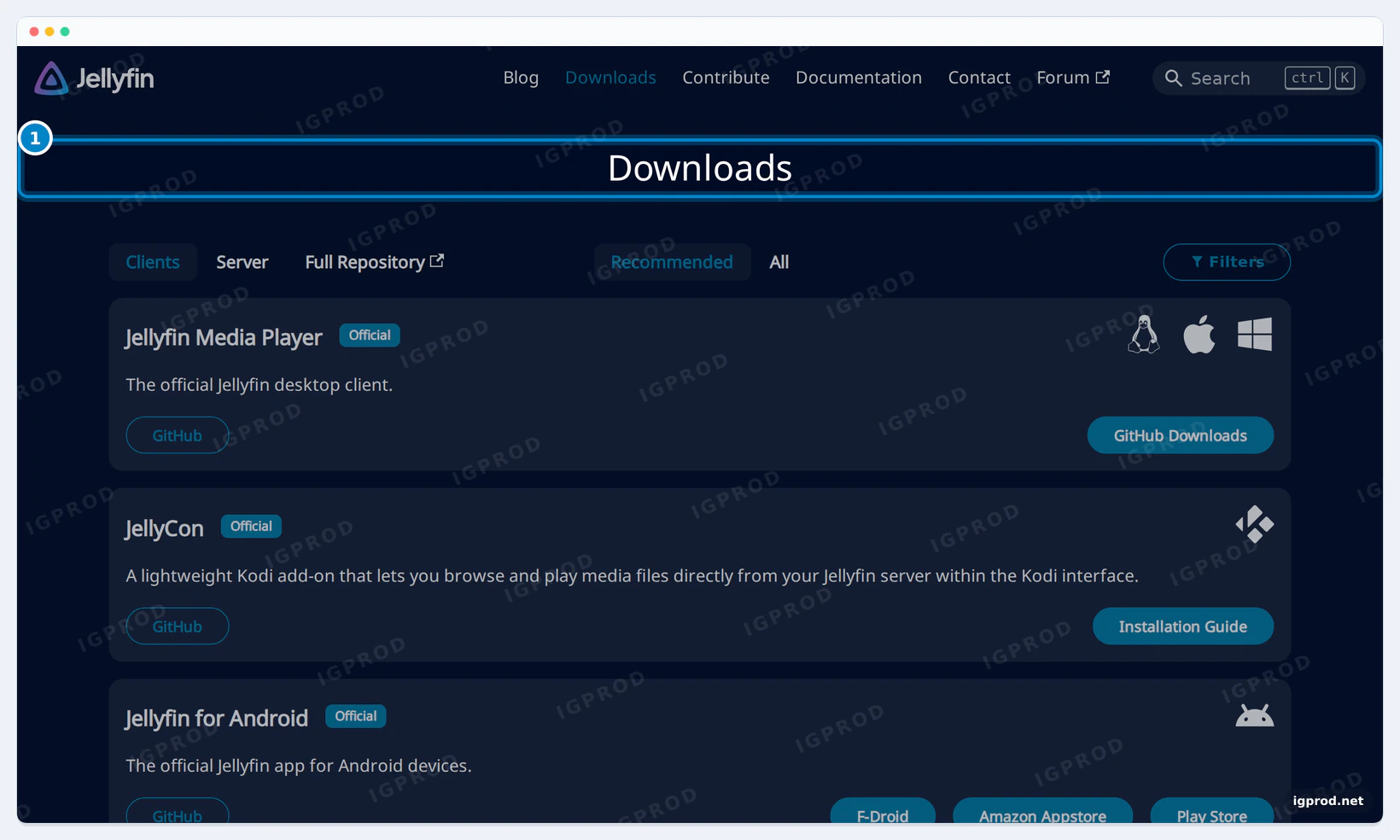
For a household test, include seeking, resume, alternate audio and the subtitles you normally use. If watching while travelling matters, check whether that specific client can download and play a file without a network connection.
Does Jellyfin or Emby handle transcoding better?
There is no measured speed winner in this comparison. Playback load depends on the source file, client, connection and server hardware. Buying a feature license cannot make an unsupported GPU decode a particular format.
- Direct Play: the client receives the original file without conversion.
- Remux: the server changes the file's container, without re-encoding its video or audio.
- Direct Stream: audio is converted while the original video is retained.
- Video transcoding: video is converted to a compatible format or lower bitrate.
These distinctions follow Jellyfin's playback documentation. A compatible client can avoid expensive video conversion; a browser with different codec support may need it for the same file.
Jellyfin's GPU acceleration has no premium license requirement. It still needs supported hardware, drivers and container access to the device. Follow the instructions for your GPU. The Docker example below deliberately includes no GPU configuration.
Image subtitles such as PGS can require burning subtitles into the video, increasing CPU work even with GPU acceleration. For a problematic file, compare playback without subtitles, with compatible SRT text subtitles, and with a client that supports the original format. Emby's hardware guide explains this limitation. For 4K HDR, also check the actual picture and tone-mapping behavior on your display.
Try Emby and Jellyfin side by side with Docker
For a graphical or native installation, start with Emby's installation guide or Jellyfin's installation documentation for your platform. The following optional route is for Linux Docker; it is not a Synology DSM dashboard walkthrough. New to containers? Read our Docker basics first.
We tested Docker startup on 12 November 2026 with jellyfin/jellyfin:12.4 and emby/embyserver:4.10.2.0. Jellyfin completed its setup wizard and reached the sign-in screen; Emby reached its welcome screen. This did not test a successful sign-in, media scans, playback, GPU acceleration, paid features, Synology hardware or remote streaming.
1. Prepare a separate trial folder
On your Linux Docker host, open a terminal and run:
mkdir -p media-server-trial/media
cd media-server-trial
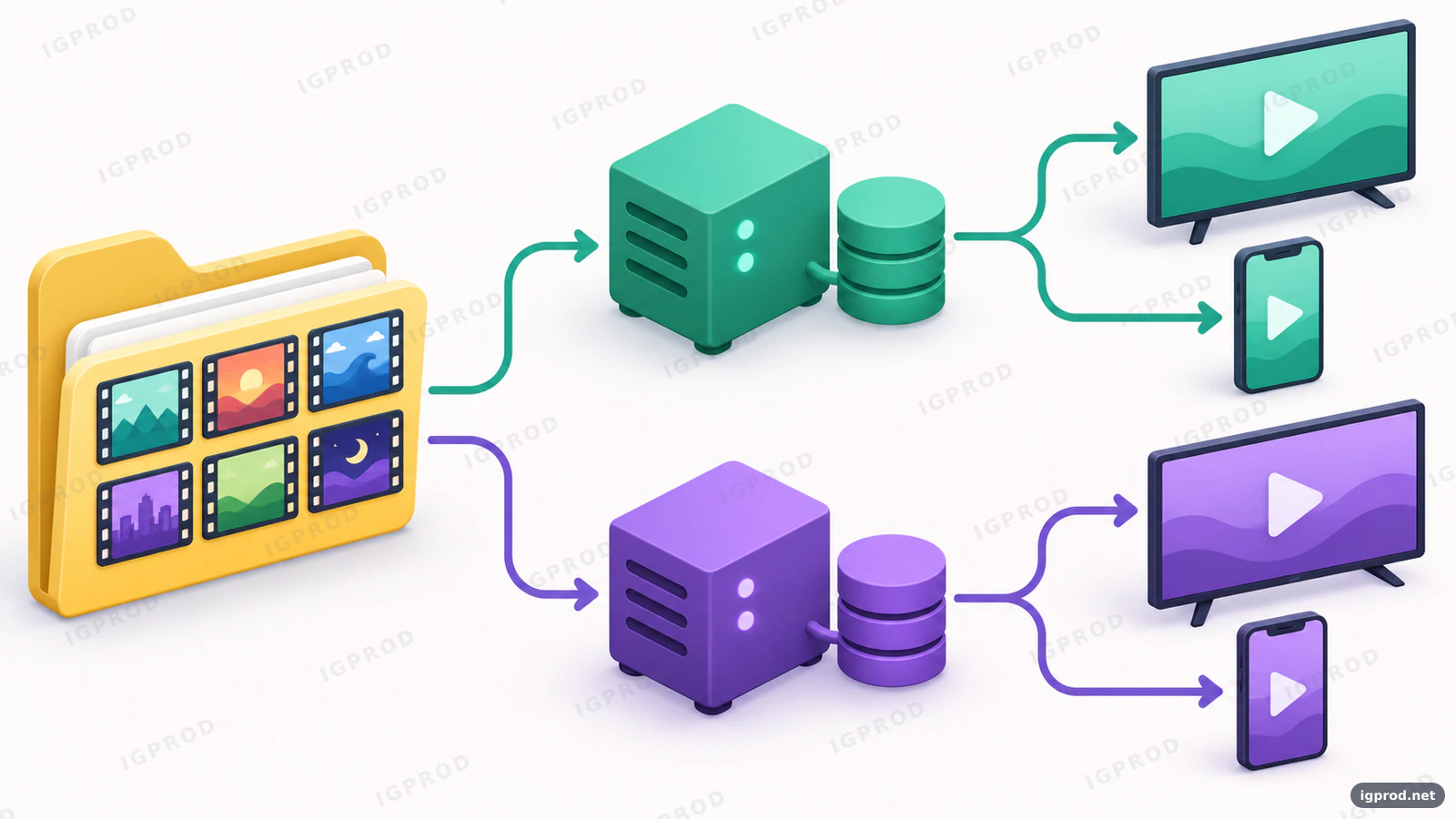
The command creates a new project folder containing media. Copy a few permitted sample files into that subfolder using your normal file-transfer method. Leave your existing server configuration untouched.
2. Save the complete Compose file
Run nano compose.yaml in that folder, paste the following, save with Ctrl+O and Enter, then exit with Ctrl+X. Any plain-text editor works. Compose describes the containers and storage in one file; our Docker Compose explanation covers the basics.
# Linux Docker trial: save as compose.yaml in a new empty project folder.
# Create ./media and put a few legally owned test files in it first.
services:
  jellyfin:
    image: jellyfin/jellyfin:12.4
    restart: unless-stopped
    ports:
      - "8096:8096" # Jellyfin: http://192.168.1.10:8096
    volumes:
      - jellyfin_config:/config
      - jellyfin_cache:/cache
      - ./media:/media:ro # Read-only: neither app can change the source files.
  emby:
    image: emby/embyserver:4.10.2.0
    restart: unless-stopped
    ports:
      - "8097:8096" # Emby: different host port, same internal HTTP port.
    volumes:
      - emby_config:/config
      - ./media:/media:ro
volumes:
  jellyfin_config:
  jellyfin_cache:
  emby_config:
A container runs the packaged app. A named volume retains its settings when the container is replaced. The media mount exposes your project's media folder inside each app as /media; ro makes that access read-only. It protects source files from app changes but does not replace a backup.
A port mapping's left number belongs to your host; its right number belongs to the app. Both products use internal HTTP port 8096, so Emby uses host port 8097 to avoid a conflict. If your existing server already occupies 8096, change the trial Jellyfin mapping to 8098:8096 and use 8098 in its browser address.
These official images use different user/permission settings; do not blindly add LinuxServer-image environment variables. The file follows the official Jellyfin container layout and Emby Docker image guidance.
3. Start both apps and check their state
docker compose config
docker compose up -d
docker compose ps
The first command should print the expanded configuration without a validation error. The second downloads missing images and starts the apps. The last should show both services running; allow startup time before opening the browser. If either exits, inspect:
docker compose logs --tail=100 jellyfin embyFrom another device on the same local network, use http://192.168.1.10:8096 for Jellyfin and http://192.168.1.10:8097 for Emby. Replace the example address with your Docker host's address. These HTTP addresses are for the local trial.
4. Name Jellyfin and create its administrator
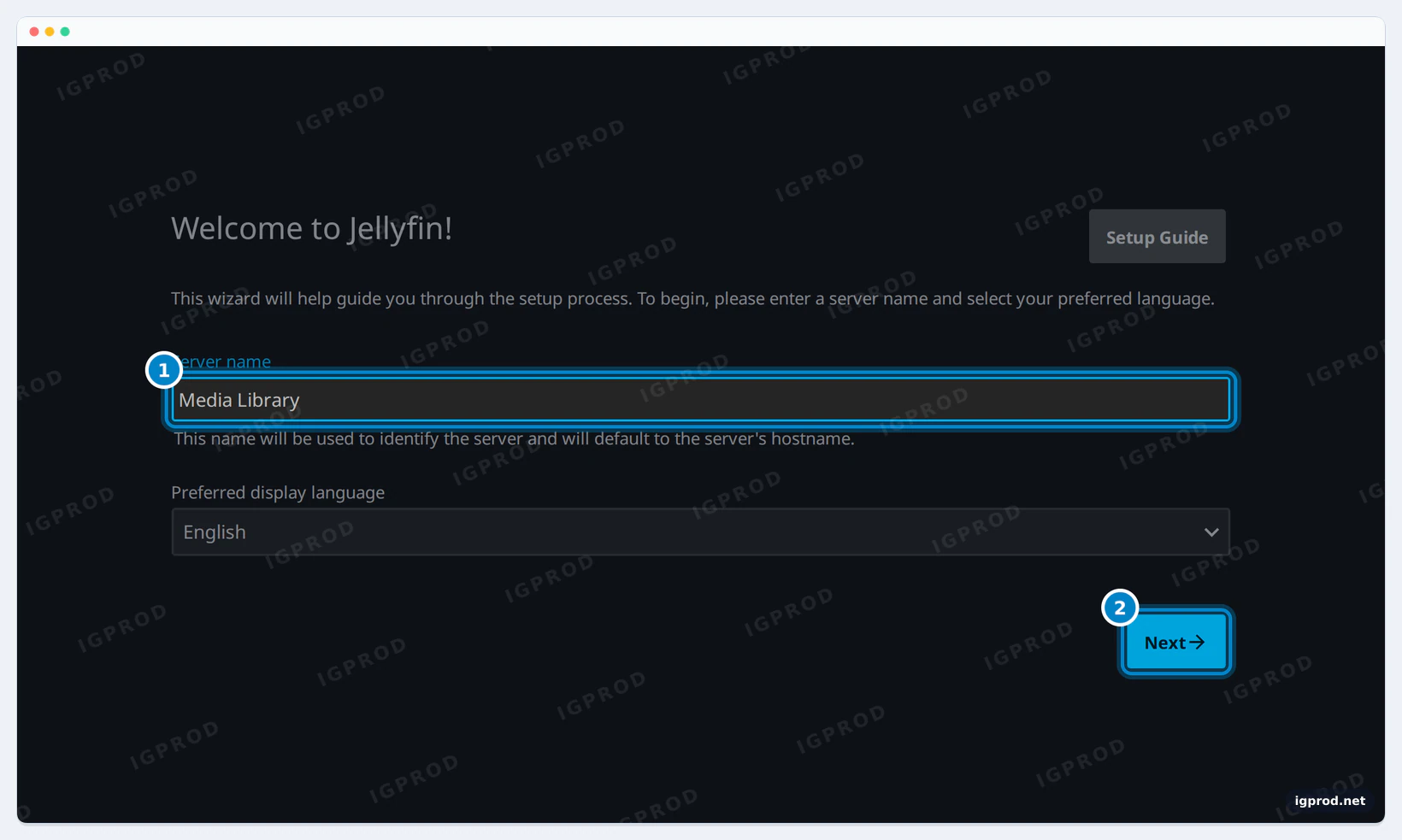
At Jellyfin's welcome page, enter a friendly name such as Media Library, choose your display language, then select Next. The next screen asks for the administrator account.
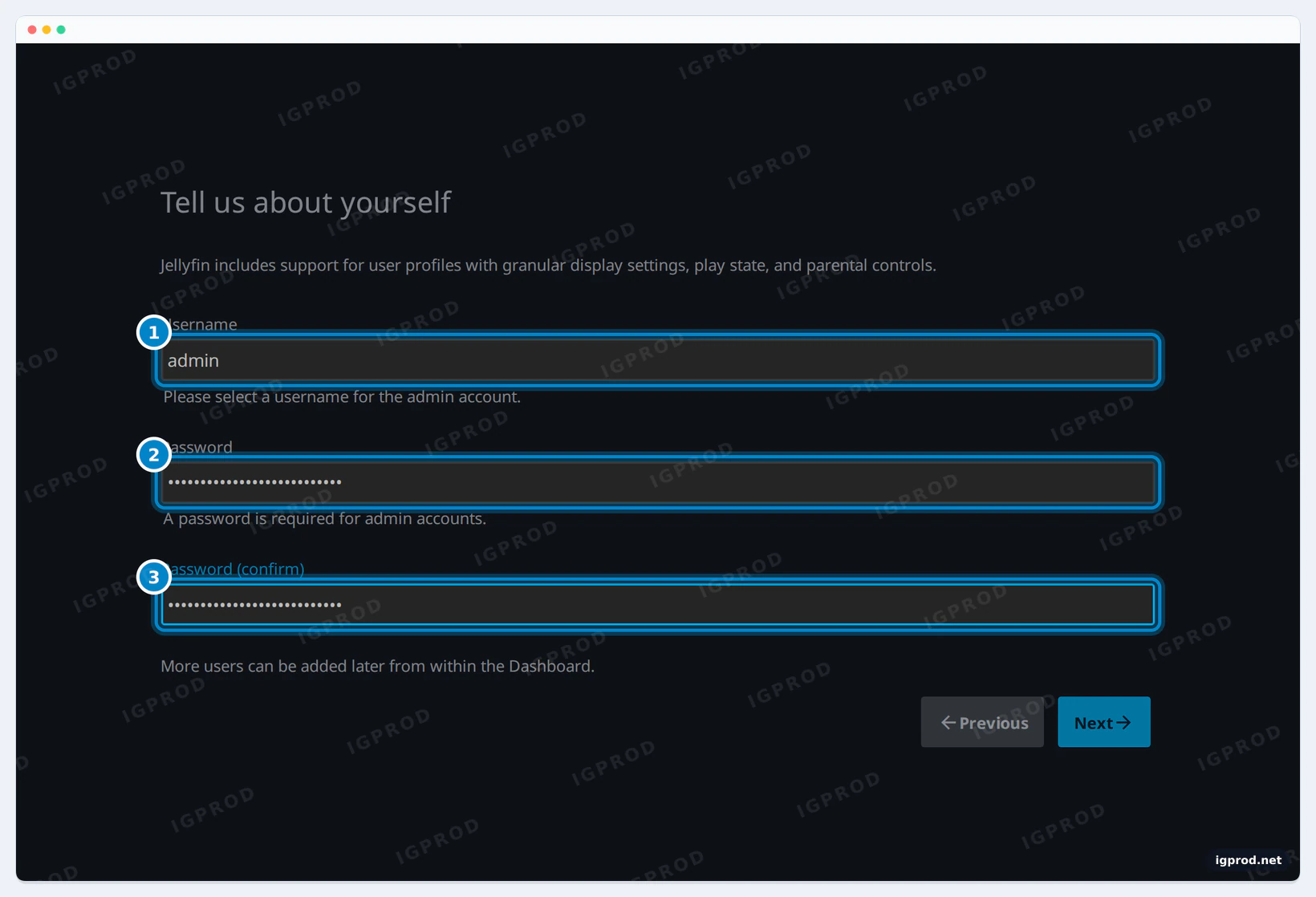
Enter a username such as admin and a unique strong password in both password fields, then select Next. Store the password in your password manager. You should reach the media-library screen.
5. Finish Jellyfin's initial setup
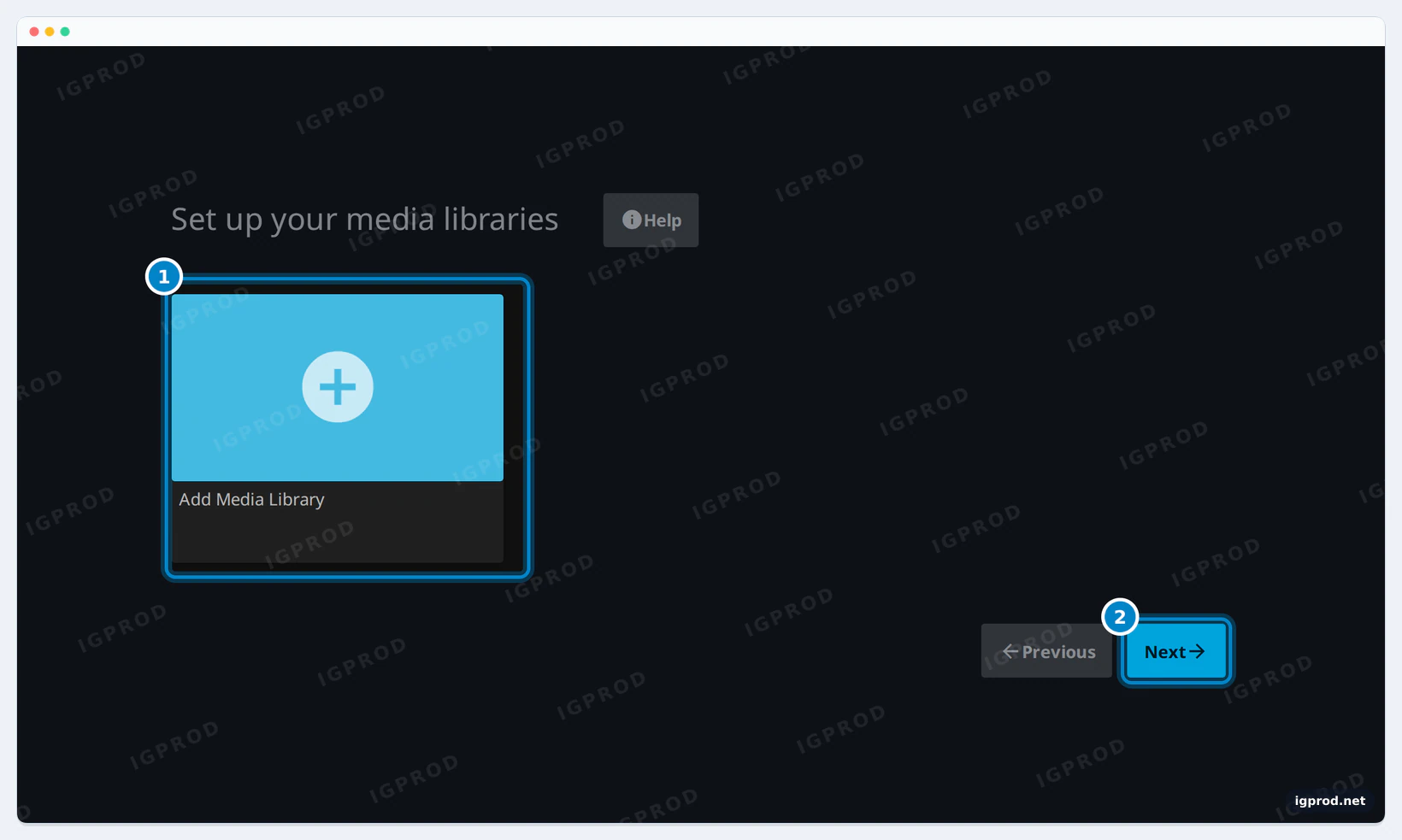
For the same minimal setup shown here, leave the library list empty and select Next. Libraries can be added later; this verifies onboarding without starting a scan.
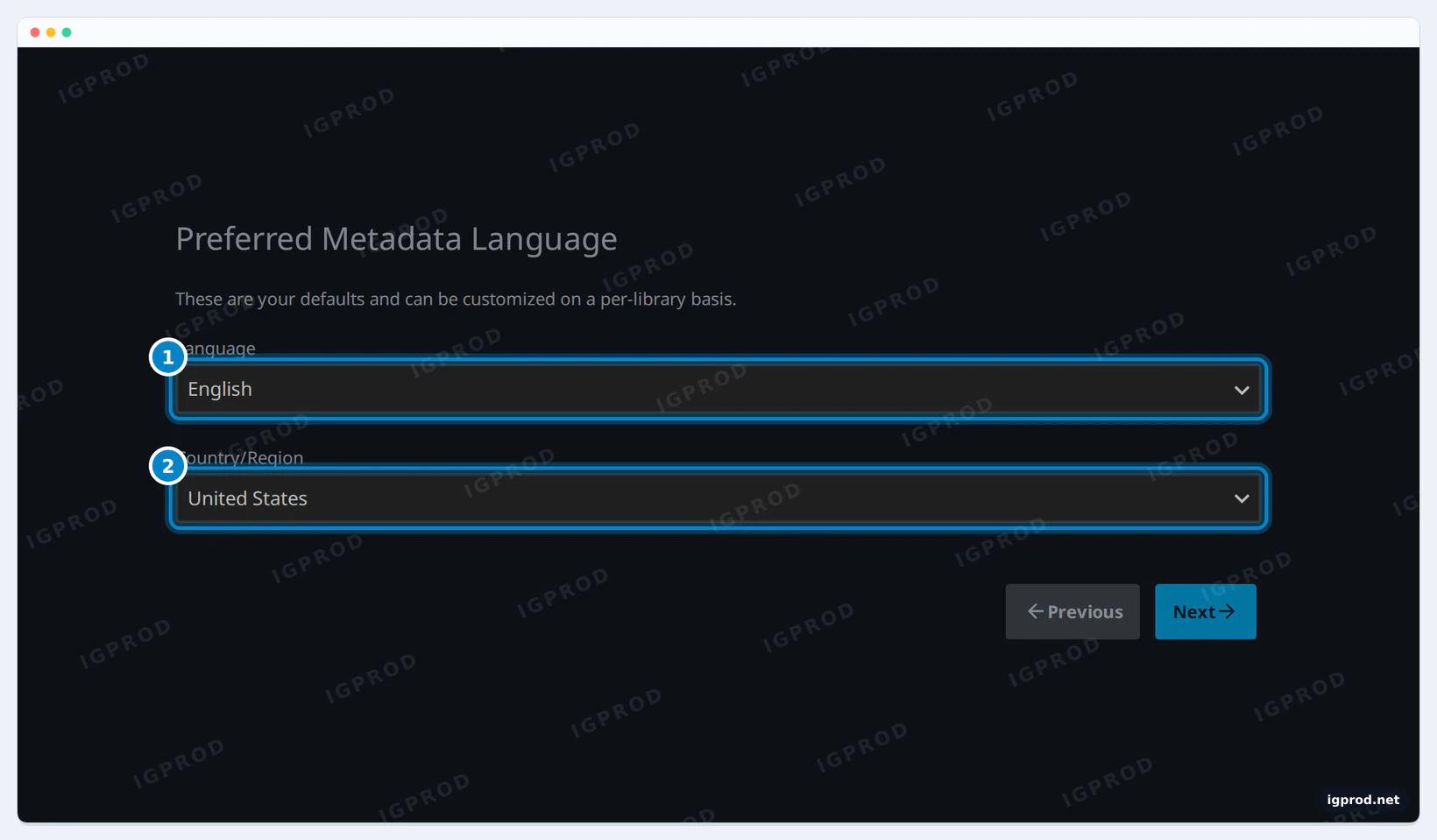
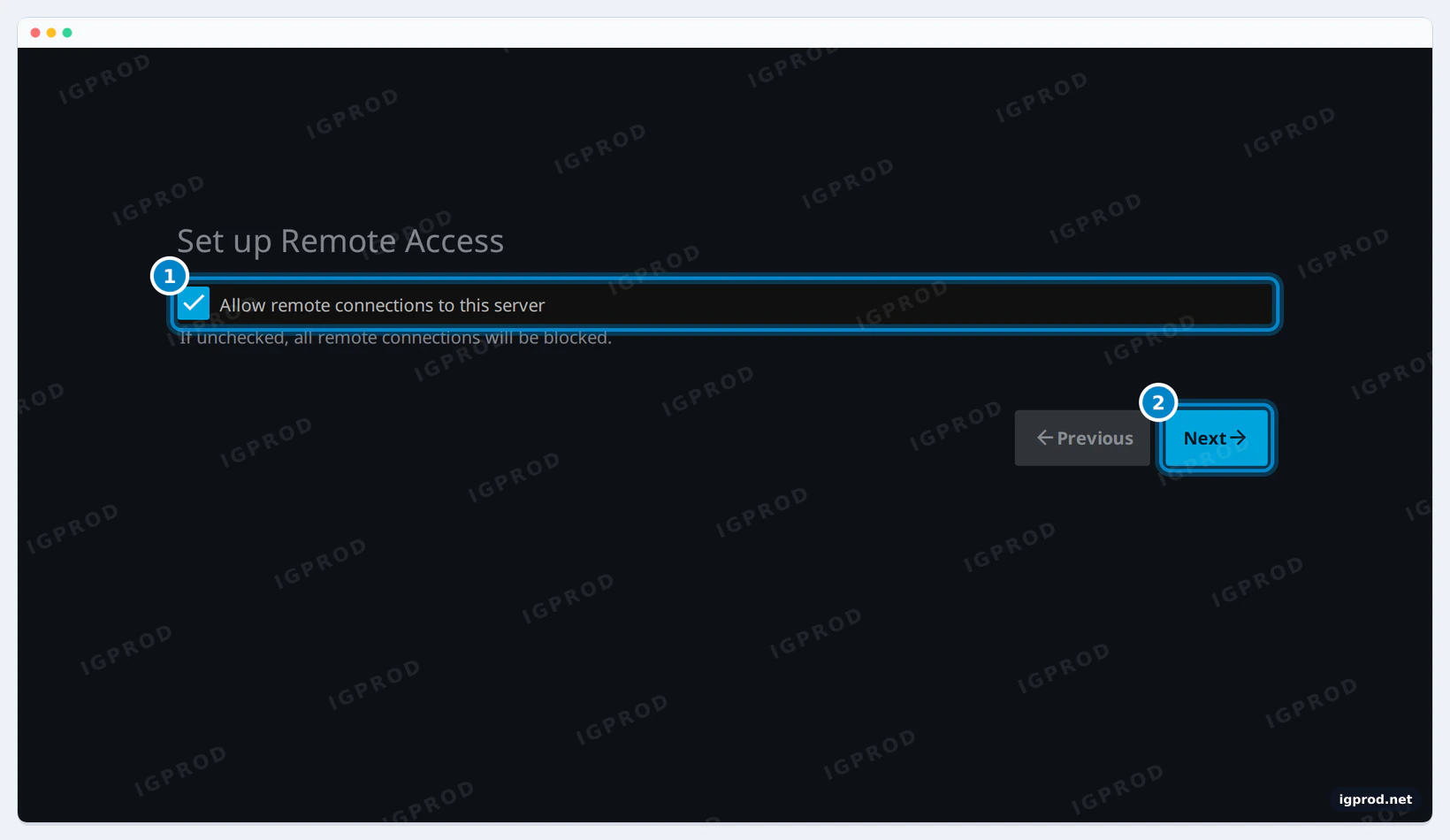
Choose your preferred metadata language and country/region, then select Next. Metadata means descriptions, titles and artwork associated with your files. The next screen concerns remote access.
For a local-only trial, clear Allow remote connections to this server, then select Next. The screenshot shows the option before changing it. This option alone does not configure a secure route from the internet.
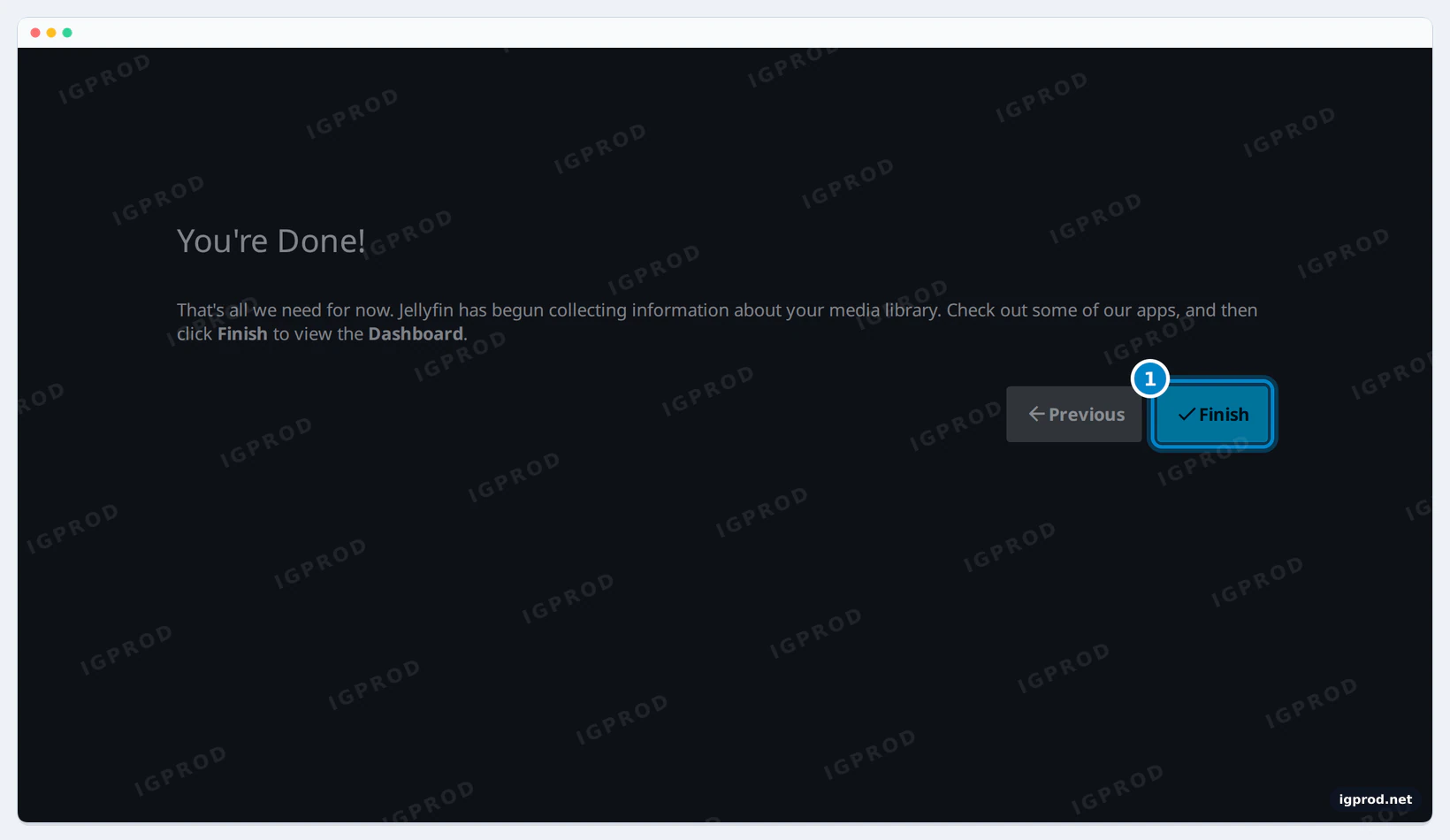
At the completion page, select Finish. You should reach sign-in.
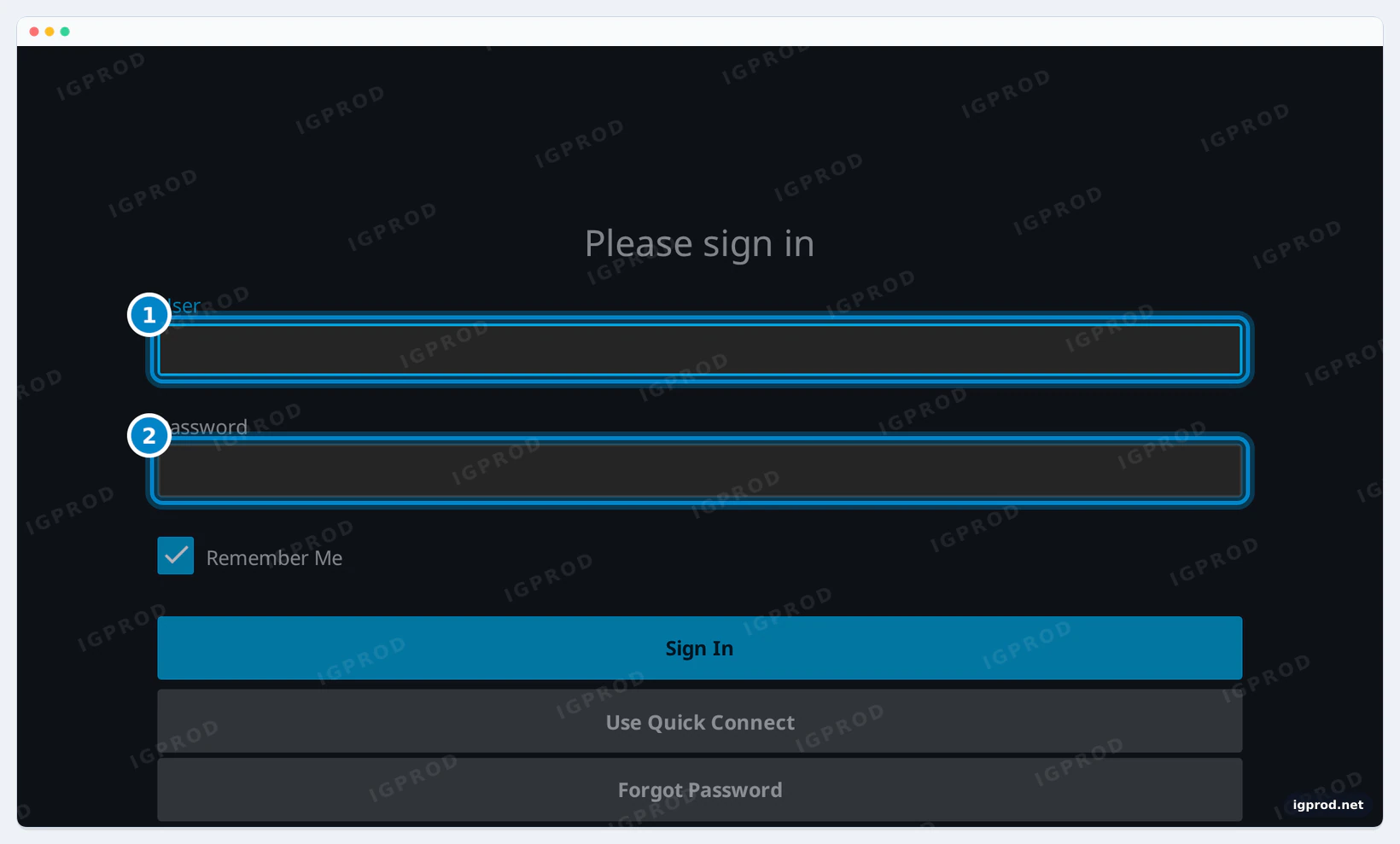
The manual sign-in form accepts the local account you created. Our capture stops at this screen, before authentication; it does not establish a successful login.
6. Open Emby and continue with its official guide
Open the Emby address from step 3. Its welcome screen offers a display-language selector and the highlighted Next control.
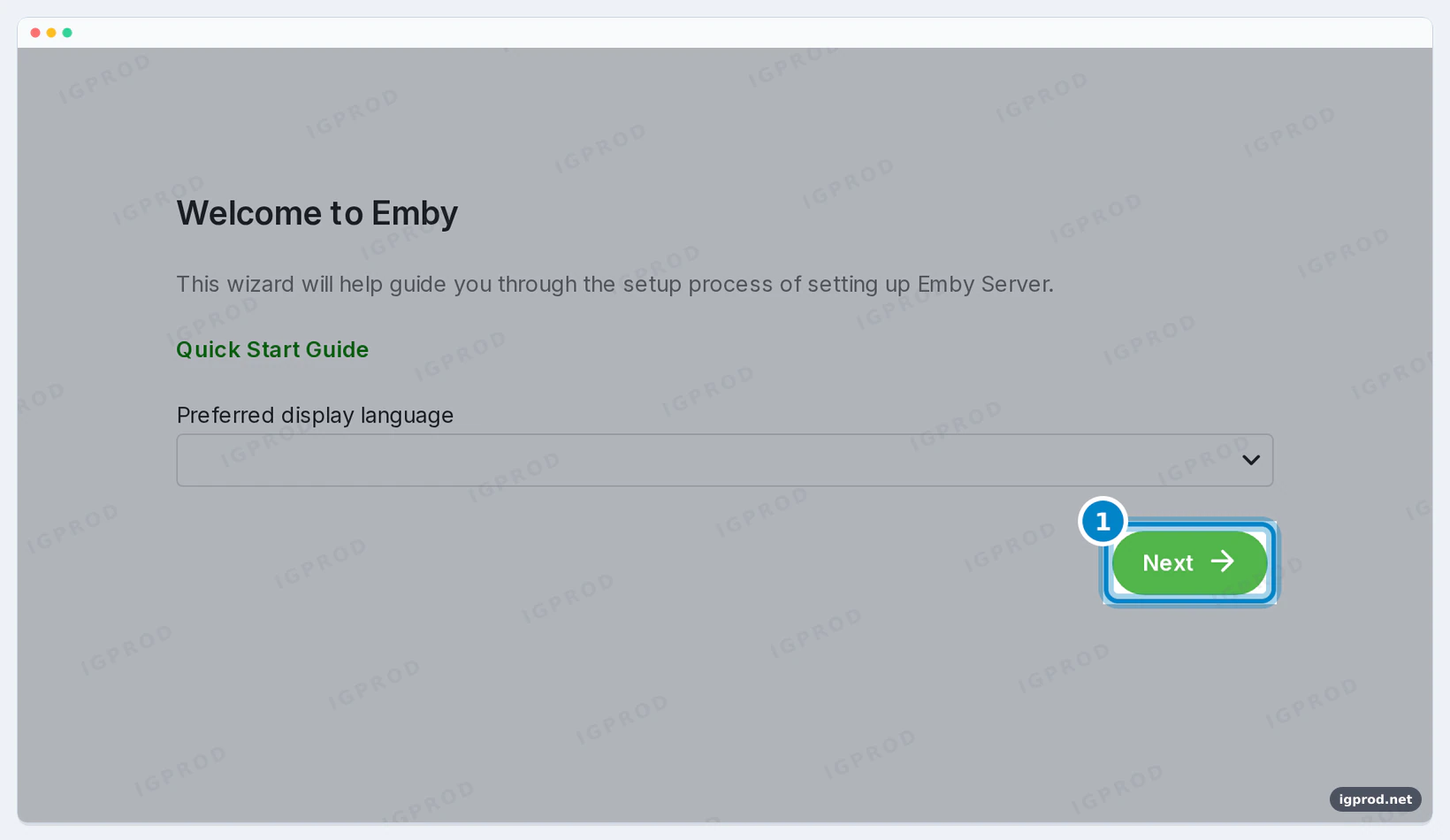
Our automated capture timed out before reaching Emby's user page. For the remaining account and library setup, use the official Emby installation walkthrough; those later screens are not demonstrated here. This capture failure does not establish a general Emby installation bug.
7. Compare your own files and devices
After completing the account setup, use each product's library guidance to add your samples. For Jellyfin, follow the official library guide. The folder visible inside either container is /media, not the host's original folder name. The library-add dialog and a scan were not captured in this test.
Keep a result sheet for each server and actual client. These are checks for you to perform, not results from our sandbox:
- Record server version, client version, device and operating system.
- Try the same file, audio track and subtitles on both products.
- Check start, seek, pause/resume and switching tracks.
- Record Direct Play or conversion when the player reports it, plus errors or unexpectedly high CPU use.
- Check HDR appearance, remote playback and offline replay separately if you need them.
A successful trial means the required tasks work on every household device. A welcome page alone cannot answer that question.
Can you use either server offline or remotely?
Jellyfin can run on your local network without internet access. Online artwork and metadata services still need a connection. Prepare installation downloads first; an offline app cannot download an image it does not already have. See Jellyfin's networking documentation.
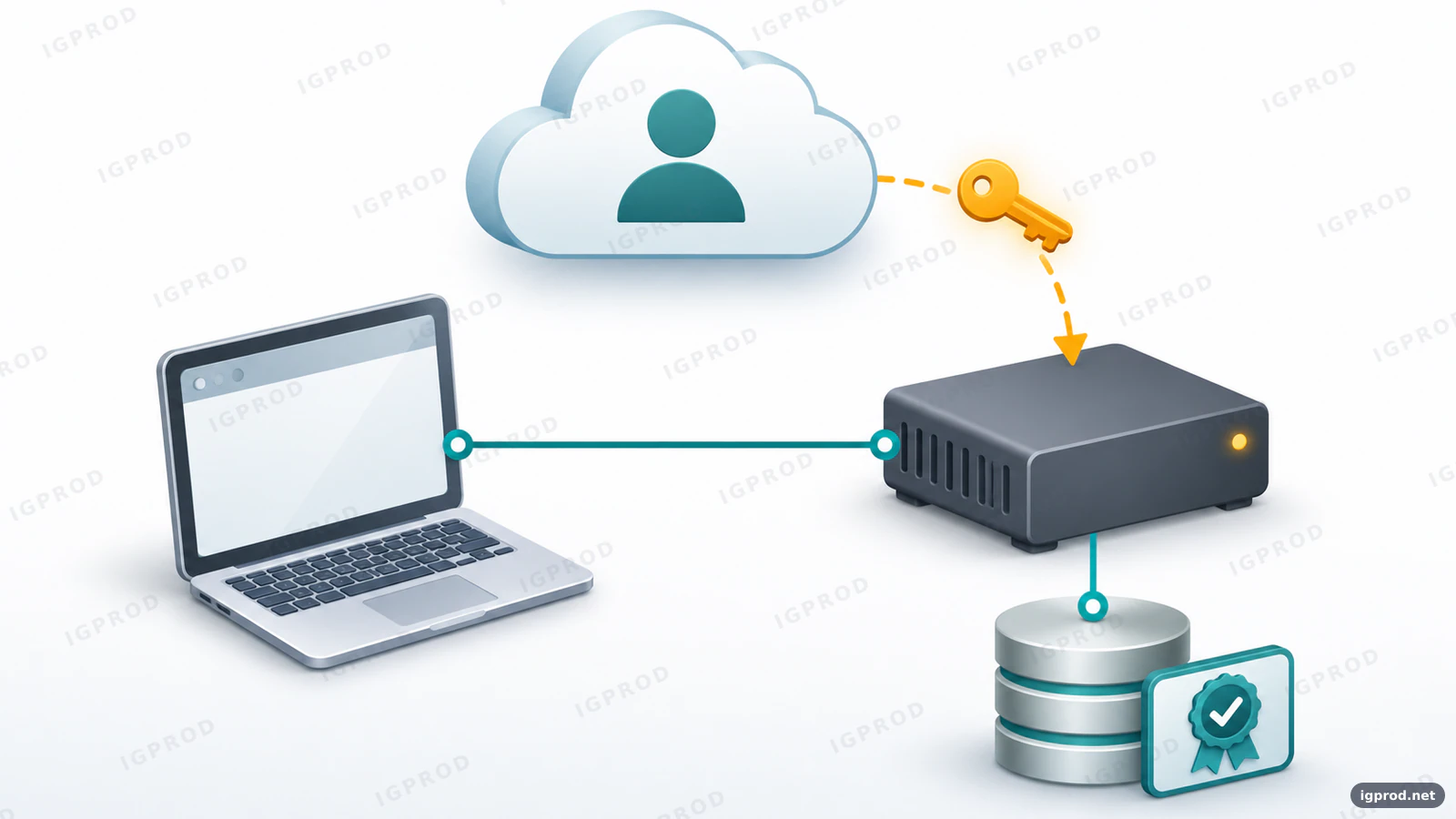
Emby supports local credentials; Emby Connect is optional account linking. Connect helps with login but is not a relay or tunnel: remote connectivity must already work. This does not establish that all paid functions can remain activated indefinitely offline.
For access away from home, plan a VPN or correctly configured HTTPS reverse proxy using the networking documentation. A Docker port mapping provides neither encryption nor a complete remote-access setup. Get local playback working before troubleshooting an outside connection.
How do you move from Emby to Jellyfin safely?
Start Jellyfin with a fresh database and rescan the existing media. Direct Emby database migration is unsupported regardless of version. Sharing video files is safe with the read-only trial mount; sharing a configuration volume is not a migration method. This follows Jellyfin's migration guidance.
Watched status and users do not automatically follow the files. The migration page links third-party API tools for transferring some state. Check their compatibility, review their access to API tokens and retain your original installation; those tools were not tested here.
Back up configuration and media separately. For a manual Jellyfin backup, stop it first, as directed by the backup guide. After an upgrade changes its database, rolling back requires a matching earlier backup. A settings backup is not a second copy of your films.
When finished with the trial, run this from its project folder:
docker compose downThis stops the trial and retains its named volumes. Keep the old working server and backups until the replacement passes your device checklist.
Troubleshoot the problems readers report
A reader's side-by-side trial question highlights the port conflict. Playback reports and a network-share slowdown report identify useful checks, not universal faults or comparative benchmarks.
| Symptom | What to check and try |
|---|---|
| Port already allocated | Change the trial's host port only, such as 8098:8096. Use that new number in the browser. |
| Media folder empty or invisible | Confirm samples are in the mounted host folder and the library uses /media. The app's user needs read permission on files and traverse permission on directories. Do not solve this by making everything world-writable. |
| Artwork missing offline | Online metadata providers cannot answer without internet access. This alone does not mean the library is corrupt. |
| Incompatible-media error or high CPU | Compare the same file without subtitles, inspect conversion logs and verify client codec support before changing acceleration settings. |
| Dashboard stalls with NAS-share media | Compare a local sample and investigate share latency, scanning and logs. The reader report does not establish one proven cause. |
| Remote connection fails | Verify the local URL first, then remote routing and encryption. Connect does not supply that route. |
Use the log command in step 3 to capture the relevant error. Our guide to following Docker container logs explains how to watch errors while reproducing a problem.
FAQ
Is Jellyfin a fork of Emby?
Yes. Jellyfin descended from Emby 3.5.2 and began in December 2018 after the announced proprietary Emby 4.x transition. They are now separate projects; shared ancestry does not make their current databases or plugins interchangeable.
Can I use Emby without Premiere?
Yes. Browser playback and several TV clients are free. Check the client table above: a mobile unlock and a server Premiere license provide different entitlements.
Can I run Emby and Jellyfin on the same Synology NAS?
Potentially, if your model supports the chosen installation method and has sufficient resources. Use separate configurations and distinct host ports. This guide's runtime check used plain Docker; it did not test DSM, NAS permissions or a Synology GPU.
Is hardware transcoding free in Jellyfin?
There is no paid feature license. You still need a compatible GPU, drivers and container device access. No hardware-transcoding performance was measured for this article.
Can I transfer Emby watch history to Jellyfin?
Some third-party tools linked from Jellyfin's migration documentation use APIs to copy watched status and users. This is separate from rescanning media, and is not a supported direct database-copy migration. Back up first.
Sources
- Jellyfin: About the project
- Emby: Premiere prices and license terms
- Emby: Premiere feature matrix
- Jellyfin: Live TV requirements
- Jellyfin: Client documentation
- Jellyfin: Client downloads
- Jellyfin: Transcoding
- Jellyfin: Hardware acceleration
- Emby: Hardware acceleration overview
- Jellyfin: Installation documentation
- Jellyfin: Official container installation
- Emby: Docker server
- Emby: Installation
- Jellyfin: Setup wizard
- Jellyfin: Media libraries
- Jellyfin: Networking
- Emby: Connect
- Jellyfin: Migration
- Jellyfin: Backup and restore
- Jellyfin: Release 12.4
- Emby: Release 4.10.2.0
- Reader discussion: Running alternatives side by side
- Jellyfin Web discussion: Incompatible playback
- Jellyfin discussion: Network-share slowdown report

Leave a comment
Your email address will not be published. Required fields are marked *