
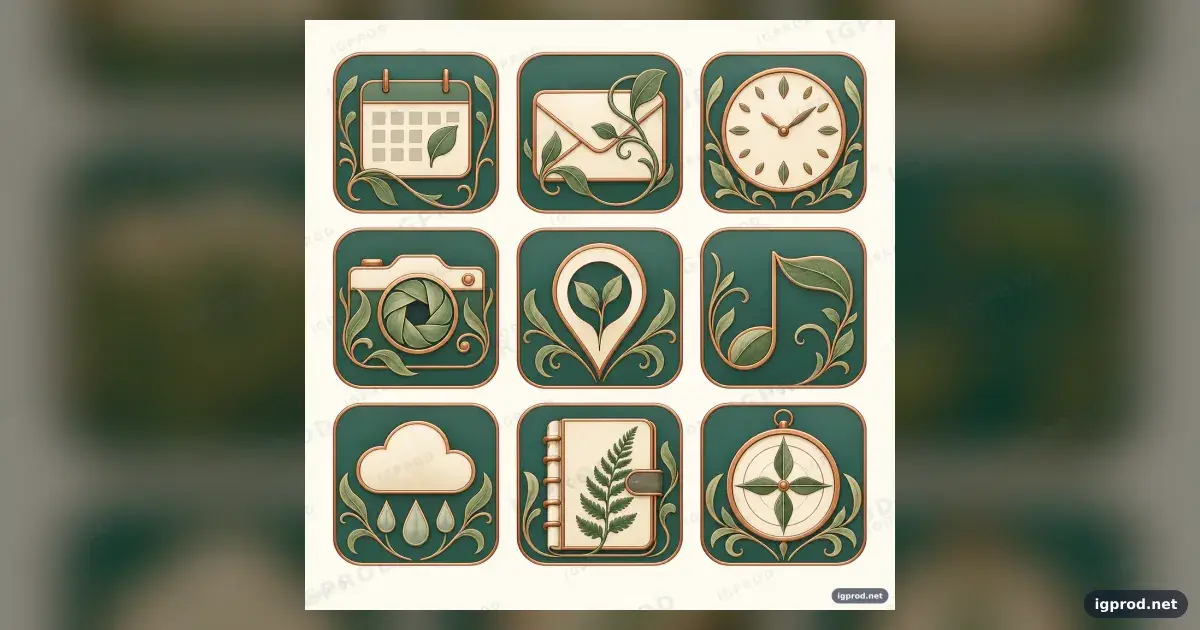
This AI image prompt makes a nine-icon botanical utility set on an ivory square, with teal tiles, copper borders and plant-shaped details. It suits product and design concepts that need familiar app symbols to share one visual language. The recorded result keeps the grid and subjects, giving you a concrete reference for assessing the prompt.
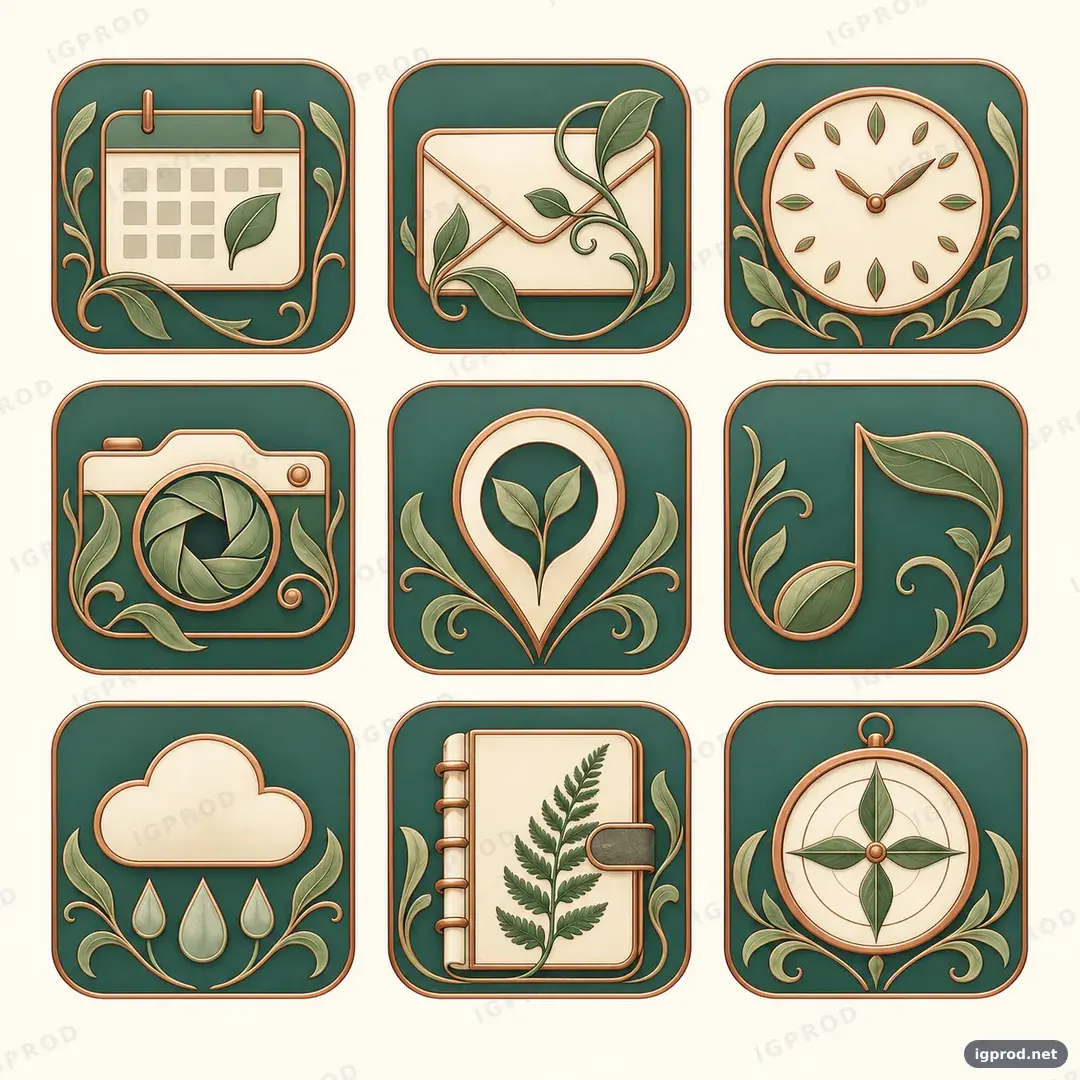
What the botanical icon set produced
OpenAI's image model placed nine icons in the requested three-by-three grid, with the calendar through compass in their specified positions. The result also shows the ivory background, muted teal tiles, copper borders and botanical art nouveau motifs.
The finish differs from the requested flat vector look: details appear shaded and embossed. Despite the instruction to avoid lettering, faint “IGPROD” watermarks cross the background and “igprod.net” appears at the lower right. Those are the only visible words recorded for this run.
How the botanical icon instructions fit together
“Square 1:1 canvas” sets the format, while “three-by-three grid,” the row-by-row list and “24-pixel gutters” specify the count, order and spacing. Those choices give you a way to check whether every requested subject appears in its intended place.
“Warm ivory,” “muted teal tile” and “thin copper border” establish a repeated frame. “Soft diffuse light” controls the requested lighting; “Flat front view” and “crisp vector edges” describe the intended style. The plant detail attached to each subject makes the nine symbols a set.
There is no quoted text to render. The “Avoid” line names lettering, extra icons and other unwanted elements, so treat it as a check on the result rather than a guarantee.
Botanical utility app icon prompt ready to copy
Create a set of nine botanical utility app icons on a square 1:1 canvas.
Subject: Arrange nine equal 220-pixel rounded-square icons in a three-by-three grid. Top row: calendar with one leaf, envelope with a curling vine, clock with twelve seed-shaped hour marks. Middle row: camera with an iris-petal lens, map pin enclosing a sprout, music note shaped from a stem. Bottom row: cloud with three raindrops, notebook with a fern clasp, compass with four pointed leaves.
Setting or background: Warm ivory canvas with generous empty margins; each icon sits on a muted teal tile with a thin copper border.
Lighting: Soft diffuse light, subtle highlights along copper lines, no cast shadows between tiles.
Composition or camera: Flat front view, consistent scale, 24-pixel gutters, centered grid.
Style: Art nouveau curves, flowing plant motifs, restrained sage, teal, copper and cream palette, crisp vector edges.
Avoid: lettering, extra icons, photorealism, gradients, faces, figures, clutter.
Three edits to the botanical icon set
For a different tile color, change “muted teal tile” to “muted sage tile.” The set would retain its copper framing while shifting the main color toward the foliage. This is an edit to try, not an observed result.
For a simpler outline treatment, change “subtle highlights along copper lines” to “no highlights along copper lines.” That removes one cue for the shaded finish seen in the recorded image. The effect depends on how your image model interprets the revised wording.
For more space around the set, change “generous empty margins” to “very wide empty margins.” Keep “centered grid” so the extra canvas space surrounds the icons. This variation has not been run in the recorded evidence.
Fix lettering and depth in botanical icon results
Check the background and corners for stray text before using an image. If you find any, reject that result or revise the “Avoid: lettering” line to name what you need excluded. The recorded run does not establish that a revision will remove it.
Check whether the tile borders and icon details have the same flat finish. If they don't, add an explicit instruction for flat fills alongside “Flat front view” and “crisp vector edges.” No revised prompt or second result is recorded.
Adapt the botanical grid to your own subject
Keep the canvas, grid and row order while replacing each named utility symbol with one from your product. Give every new symbol its own plant detail, then read the nine positions in order before generating so a repeated or missing subject is easy to catch. The recorded example shows how specific positions and motifs can coexist in one set; it does not test other subjects.
Try another prompt after the botanical icon set
For a single mark rather than a nine-icon grid, try the Chrome Comet Logo Mark Image Prompt, or browse IGPROD image prompts. Share your result in the comments with the prompt changes you made and the details that appeared.
For an animal in a natural setting, try the river otter image prompt.