

Short answer: Cloudflare Always Online helps only when Cloudflare cannot reach your server at all, and it can only show pages that were saved earlier by Cloudflare or the Internet Archive. For a copy that you control, save your site with one wget command, upload that folder to Cloudflare, and put a small Worker in front of your site. The Worker sends every visitor to your live server as usual. When the server is down, answers with a gateway error, or gives no answer for 8 seconds, the Worker shows the saved page instead. You do every Cloudflare step in your browser, on the free plan.
We did every step below on a new Cloudflare account with a test domain, nexaforge.si, on 12 November 2026. All the screenshots come from that account. Where you see nexaforge.si, use your own domain.
What you will build
- site-snapshot: a Worker that only holds the saved copy of your site (its HTML pages, CSS, images and scripts). Nobody visits it directly.
- snapshot-failover: a Worker in front of your domain. It passes every visit to your server. When your server fails, it takes the page from site-snapshot.
What you need
- A domain that already uses Cloudflare, with its DNS records set to Proxied (orange cloud). If your domain is not on Cloudflare yet, first change your nameservers to Cloudflare.
- A public website: pages that anyone can read without signing in, such as a blog, a company site or documentation.
- A computer with Windows, macOS or Linux, and a browser such as Chrome, Edge or Firefox.
- About 45 minutes. The free Cloudflare plan is enough.
Why not just turn on Always Online?
Always Online is a switch in your domain's Caching → Configuration page. When Cloudflare cannot connect to your server, it shows an old copy of the requested page: an expired copy from Cloudflare's cache, or else a copy from the Internet Archive's Wayback Machine, with a banner on top.
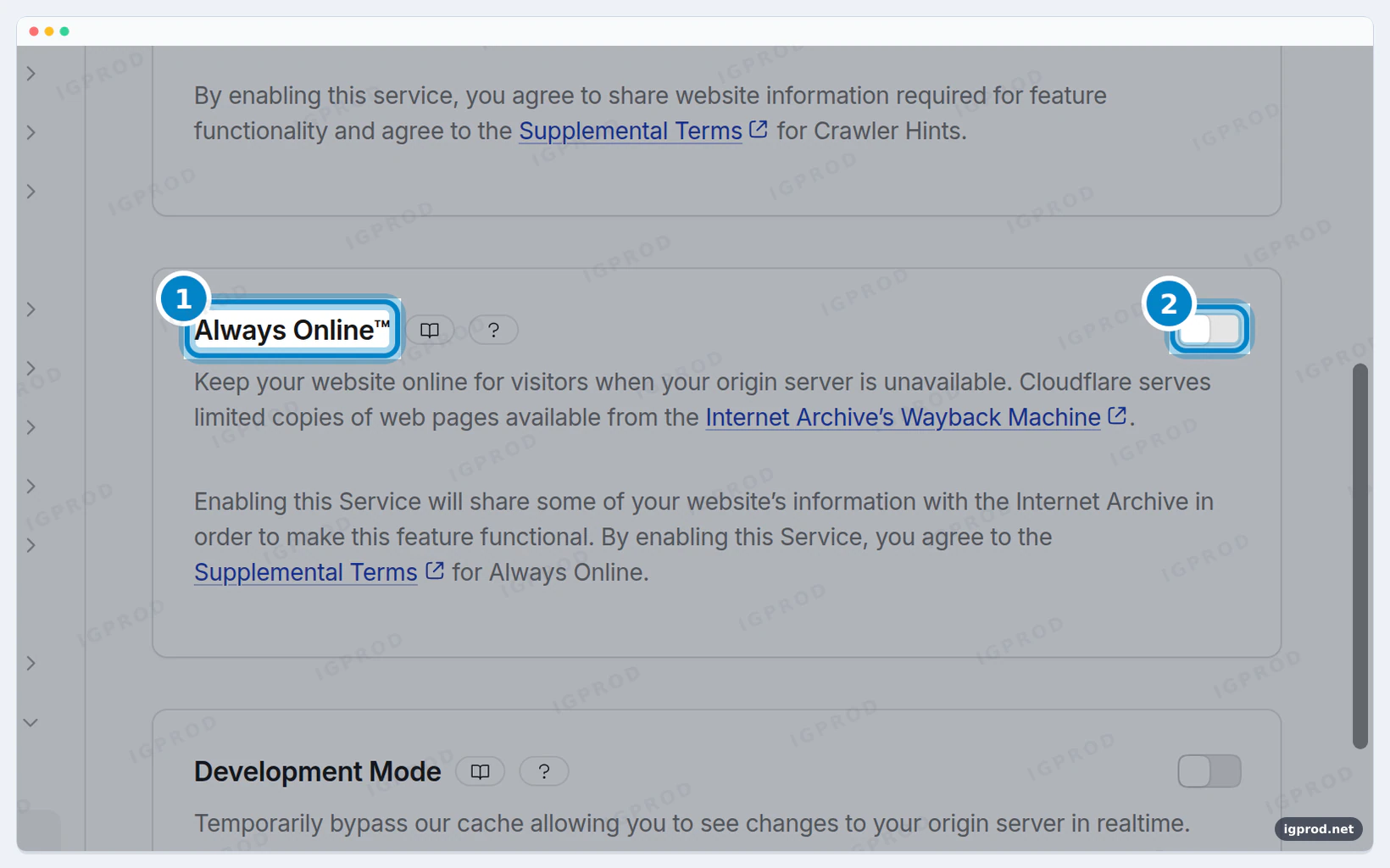
It takes one click, but it has limits that matter on the day your server really goes down:
- It works only when Cloudflare cannot connect to your server (Cloudflare errors 520 to 527). If your server is reachable but answers with an error, Always Online does nothing.
- It shows only pages that were saved before. Cloudflare sends the Internet Archive your most popular pages of the last five hours, and the archive visits them at intervals that depend on your plan. A page that few people read may have no copy at all.
- It does not help with a slow server. A server that hangs keeps every visitor waiting until Cloudflare gives up.
- Turning it on shares your hostname and popular addresses with the Internet Archive.
| Situation | Always Online | This guide |
|---|---|---|
| Which pages have a copy | Popular pages saved earlier by Cloudflare or the Internet Archive | Every public page you saved |
| How new the copy is | The archive's last visit | Your last upload |
| Cloudflare cannot reach your server | Yes | Yes |
| Your server answers 502, 503 or 504 | No | Yes |
| Your server gives no answer for 8 seconds | No | Yes, for pages that have a copy |
| Sign-in, forms, cart | Error page | Short "Back soon" page |
| Price | Free | Free plan, up to 100,000 Worker requests a day |
How the failover Worker decides
Every visit goes through snapshot-failover first. It asks your server for the page, then:
- Your server answers normally, also with an error such as 404 or 500: the visitor gets that answer, unchanged.
- Your server cannot be reached, or answers 502, 503, 504 or one of Cloudflare's errors 520 to 530: the visitor gets the saved copy of the page.
- Your server has not answered after 8 seconds: if the page has a saved copy, the visitor gets it. If it has none, the Worker keeps waiting for your server.
- After a failure, the copy answers at once for the next 30 seconds, so the next visitors do not wait 8 seconds again.
- Sign-in, account, cart, checkout and admin pages, form submissions, and pages built from a search query never get a copy. While your server is down, they get a short "Back soon" page with status 503.
Each saved page is sent with the header X-Snapshot: 1, so you can always tell when the copy answered.

Step 1: Save a copy of your site
wget is a free program that visits your site like a reader and saves every public page it finds, with the CSS, images and scripts that each page needs. It does not sign in, so it saves only what the public sees.
Install wget
Windows 10 or 11: open PowerShell (Start menu, type "PowerShell") and run the command below. Then close PowerShell and open it again.
winget install JernejSimoncic.WgetmacOS: with Homebrew installed, open Terminal and run:
brew install wgetLinux: wget is usually installed already. If it is not, on Debian or Ubuntu run:
sudo apt install wgetSave the site
Replace https://www.example.com/ with the address that your home page really opens at, with or without www, exactly as your browser shows it. On Linux or macOS, in a terminal:
mkdir snapshot
cd snapshot
wget --mirror --page-requisites --adjust-extension --no-host-directories --no-verbose https://www.example.com/
On Windows, in PowerShell, type wget.exe, not wget. In Windows PowerShell, wget is the name of a different command.
mkdir snapshot
cd snapshot
wget.exe --mirror --page-requisites --adjust-extension --no-host-directories --no-verbose https://www.example.com/
If you use Docker on Linux or macOS, you do not need to install wget. This is the command we ran; it makes the snapshot folder in the current folder:
docker run --rm -v "$PWD/snapshot:/snapshot" -w /snapshot alpine:3 sh -c "apk add --no-cache wget >/dev/null && wget --mirror --page-requisites --adjust-extension --no-host-directories --no-verbose https://www.example.com/"What the options do:
--mirror: follow every link to another page of your site, then the links on those pages, until every page is saved.--page-requisites: also save the CSS, images and scripts that each page shows.--adjust-extension: save/aboutasabout.html, so that Cloudflare knows it is a web page.--no-host-directories: put the files straight intosnapshot, not into awww.example.comfolder inside it.--no-verbose: print one line for each saved file.
Our test site has three pages. wget (GNU Wget 1.25.0) finished with this line:
Downloaded: 5 files, 2.8K in 0s (8.15 MB/s)and the snapshot folder held these files. index.html is the home page.
index.html
about.html
blog/first-post.html
assets/style.css
assets/logo.svg
A real site gives many more files and takes longer. When wget is done, count the files, still inside the snapshot folder. On Linux or macOS:
find . -type f | wc -lOn Windows, in PowerShell:
(Get-ChildItem -Recurse -File).CountUp to 20,000 files, each smaller than 25 MiB: continue with Step 2. More than that: keep the copy in R2 instead, as shown in "Big site? Keep the copy in R2" below.
Step 2: Upload the copy to Cloudflare
Open dash.cloudflare.com and sign in. In the left menu, open Compute → Workers & Pages (1), then click Create application (2).
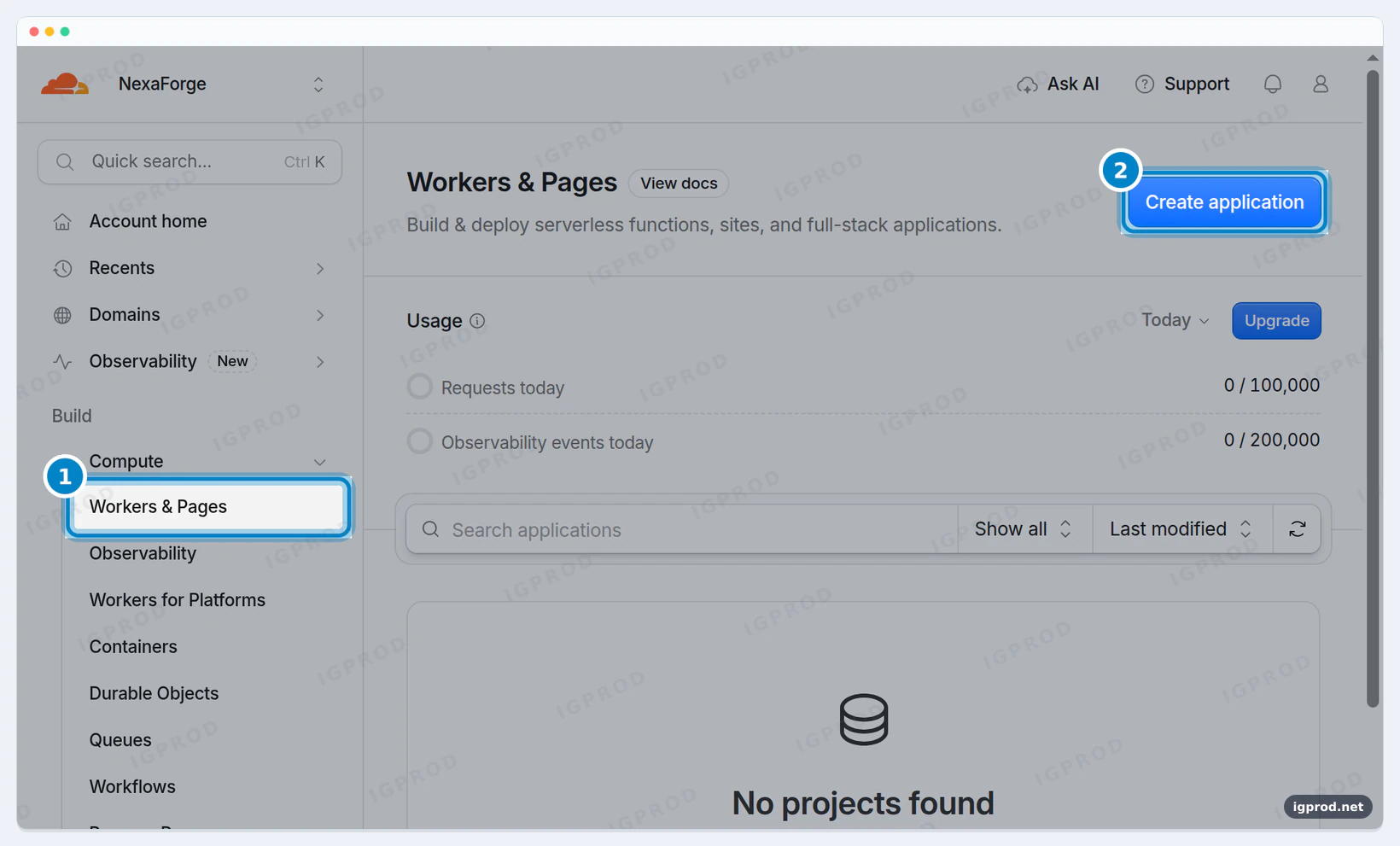
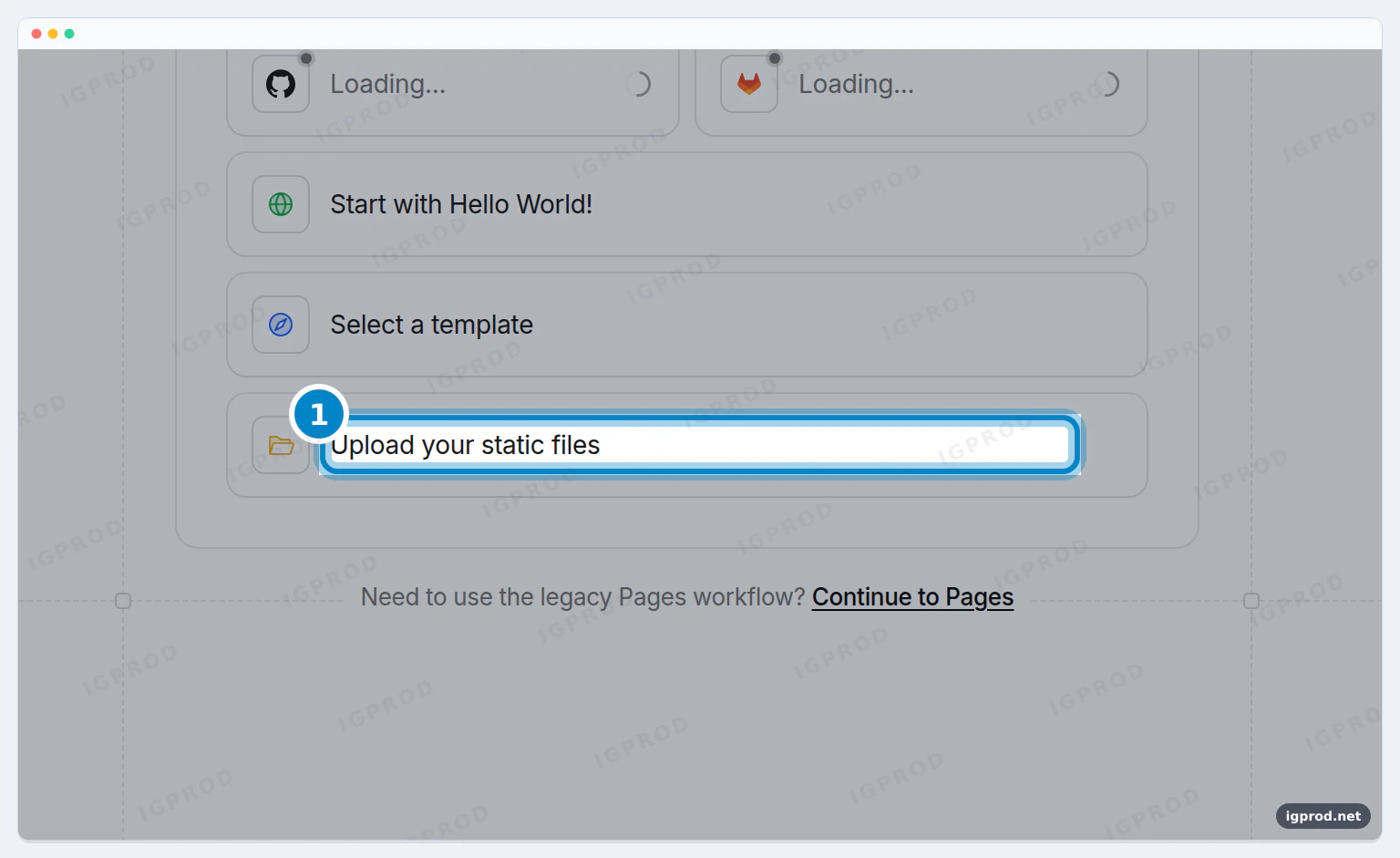
Choose Upload your static files.
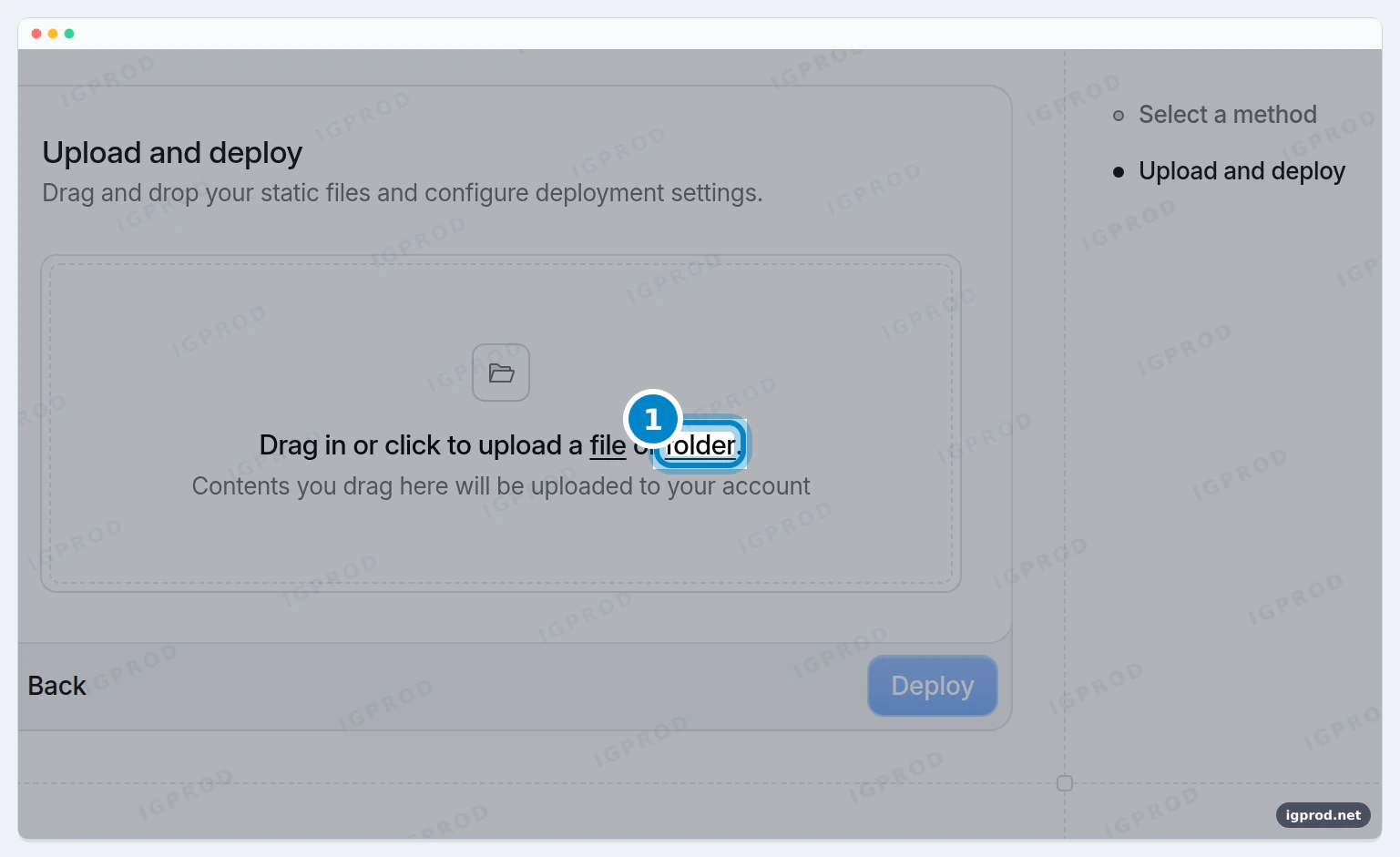
In the upload box, click the word folder and choose your snapshot folder. You can also drag the folder onto the box. If your browser asks whether to upload all the files of the folder, confirm.
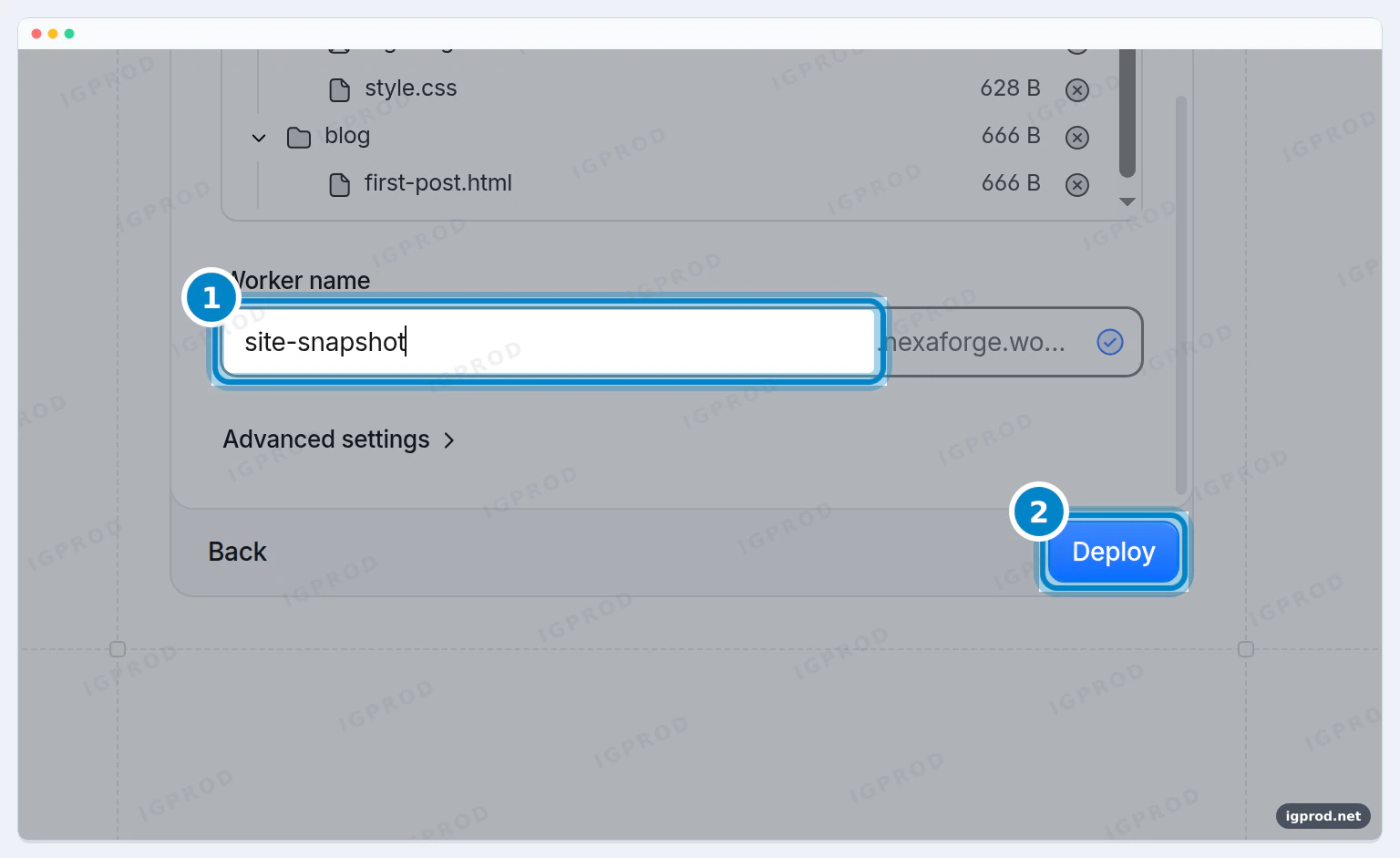
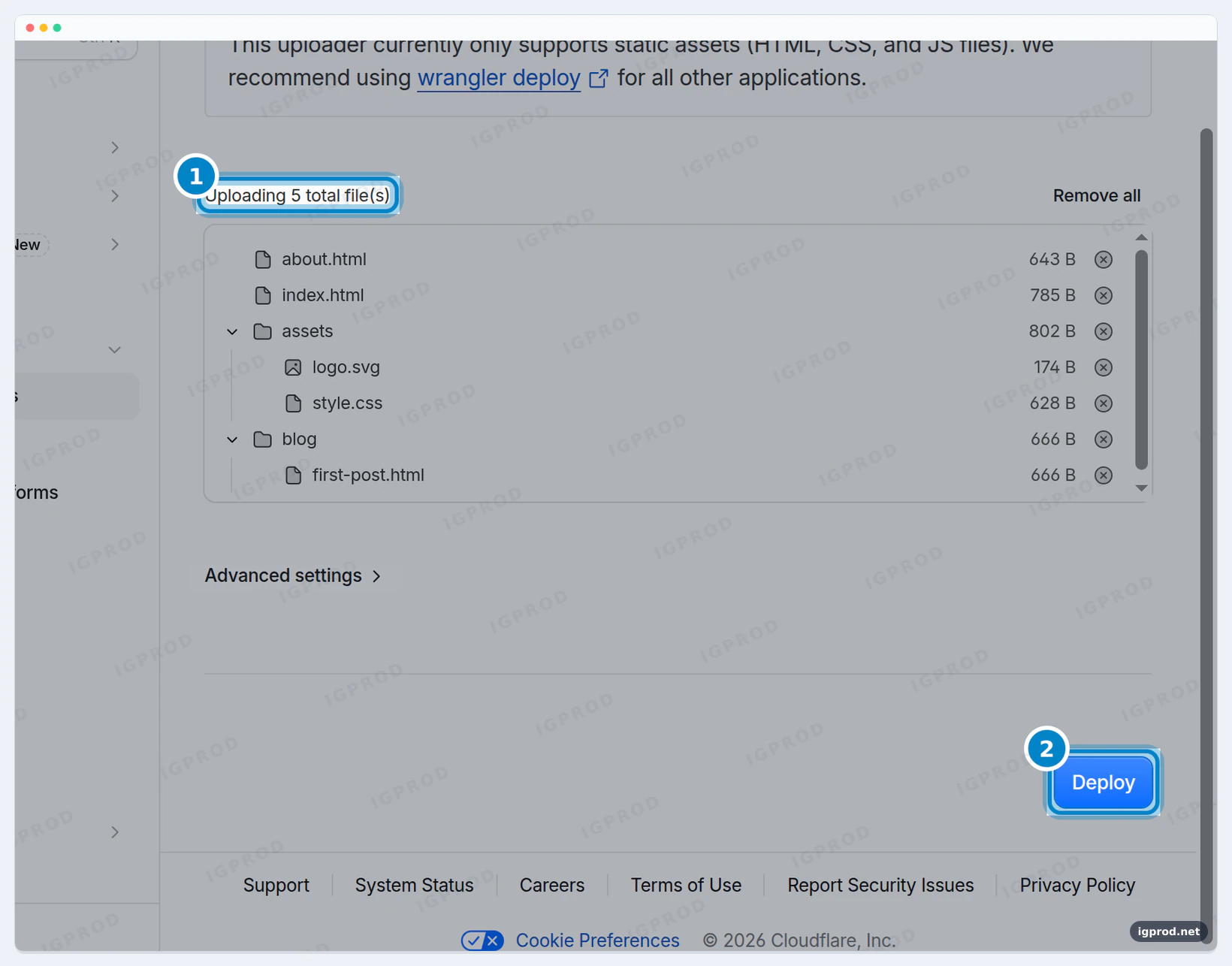
Cloudflare lists the files that it will upload. As the Worker name, type site-snapshot (1), then click Deploy (2).
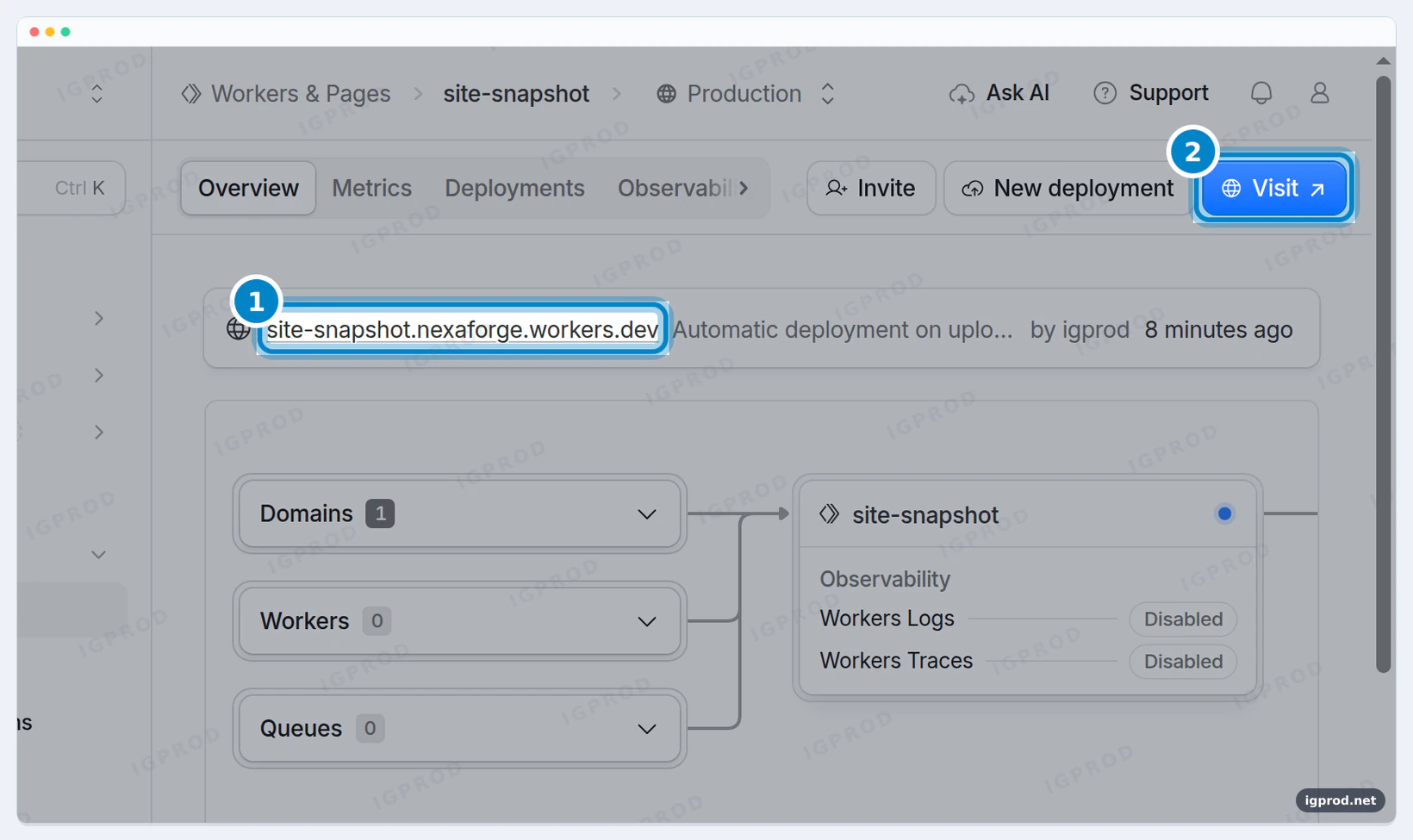
After a few seconds the Worker is live. Cloudflare gives it a test address that ends in workers.dev (1). Visit (2) opens it: you see your home page, served from the copy.
Turn off the workers.dev address
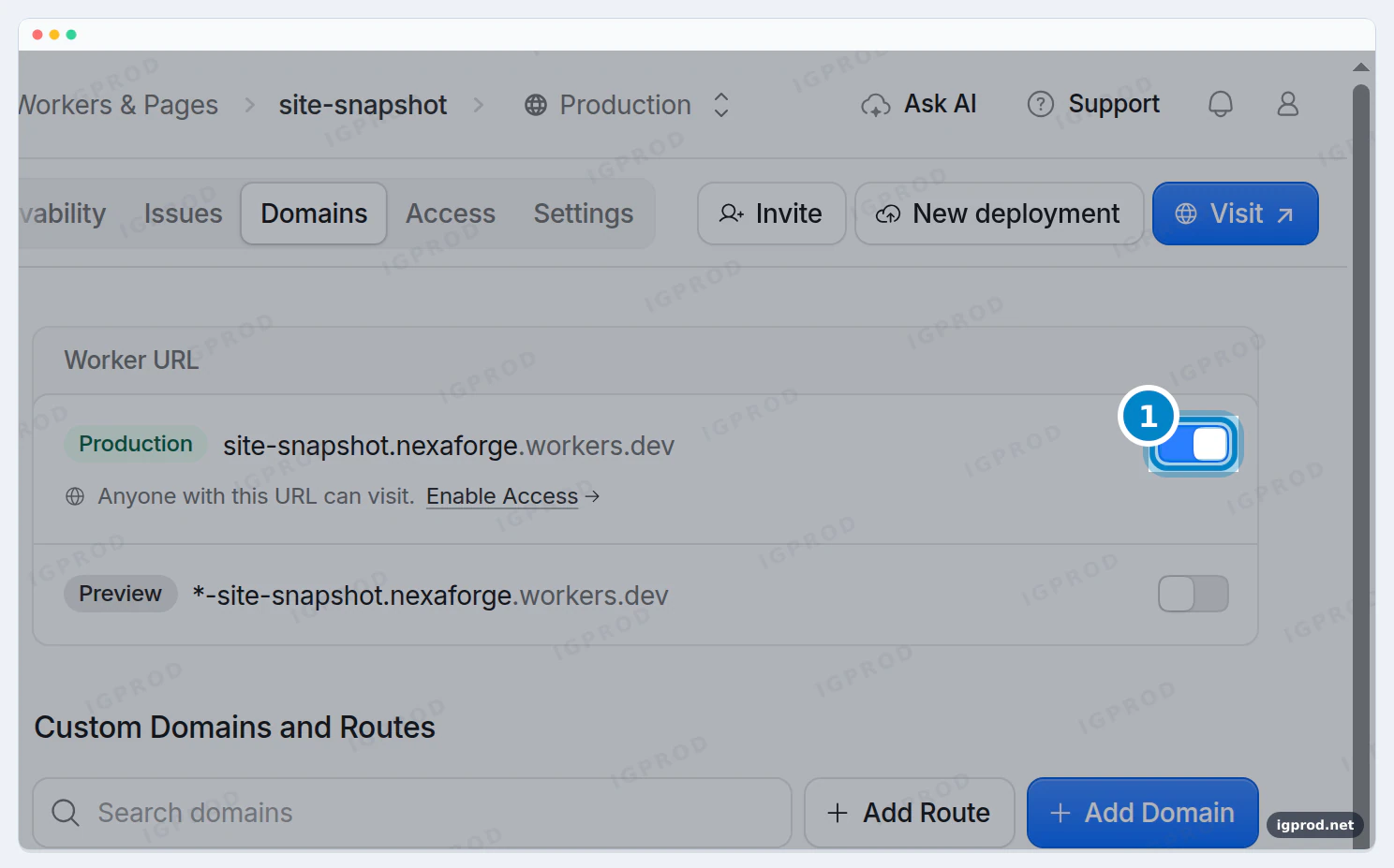
That test address shows a full second copy of your site. Search engines must not find it, and the failover Worker does not need it. Open the Domains tab of site-snapshot and click the switch next to Production (1) so that it turns grey. Leave the Preview switch off.
Step 3: Create the failover Worker
Go back to Workers & Pages and click Create application again. This time choose Start with Hello World!.
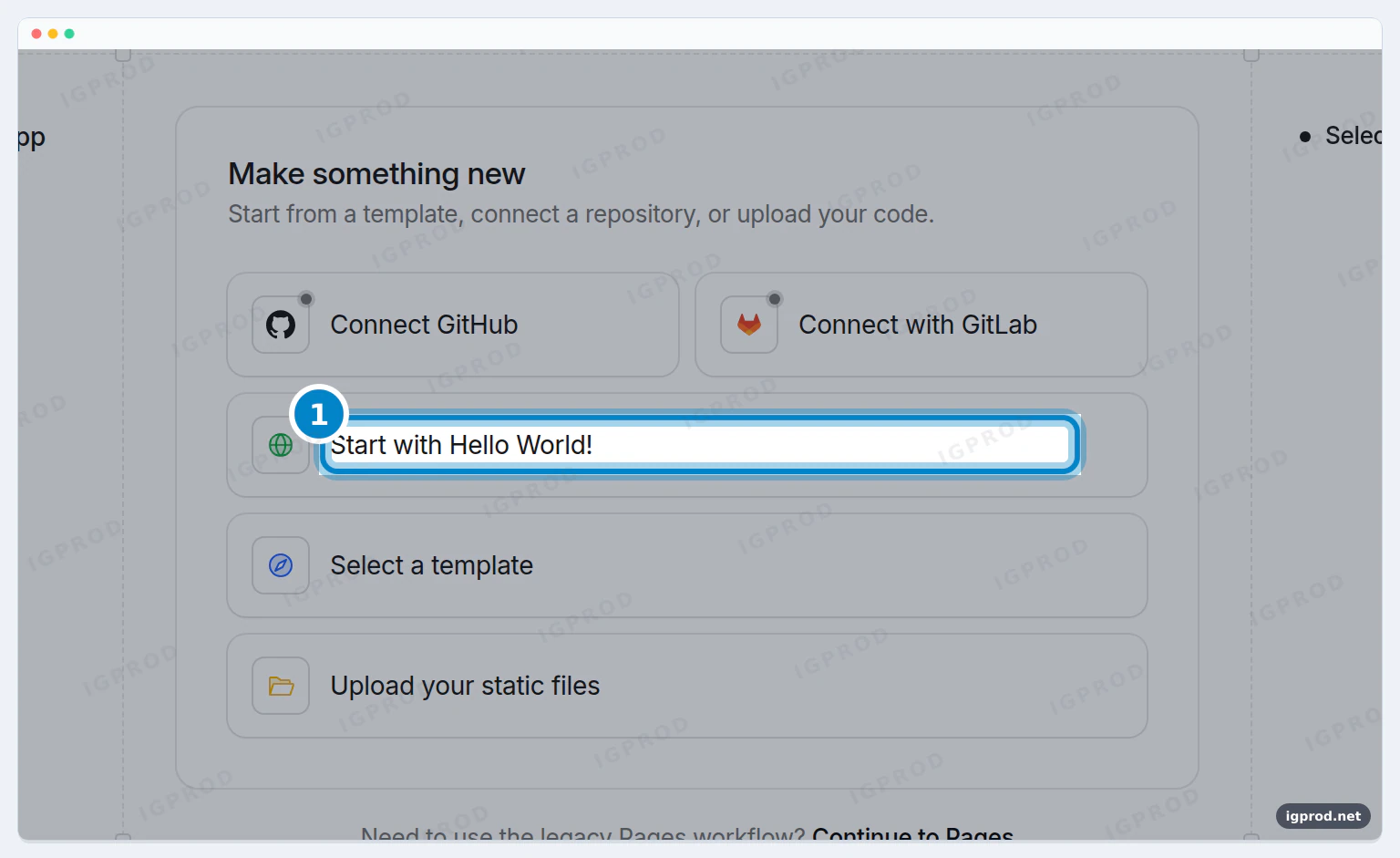
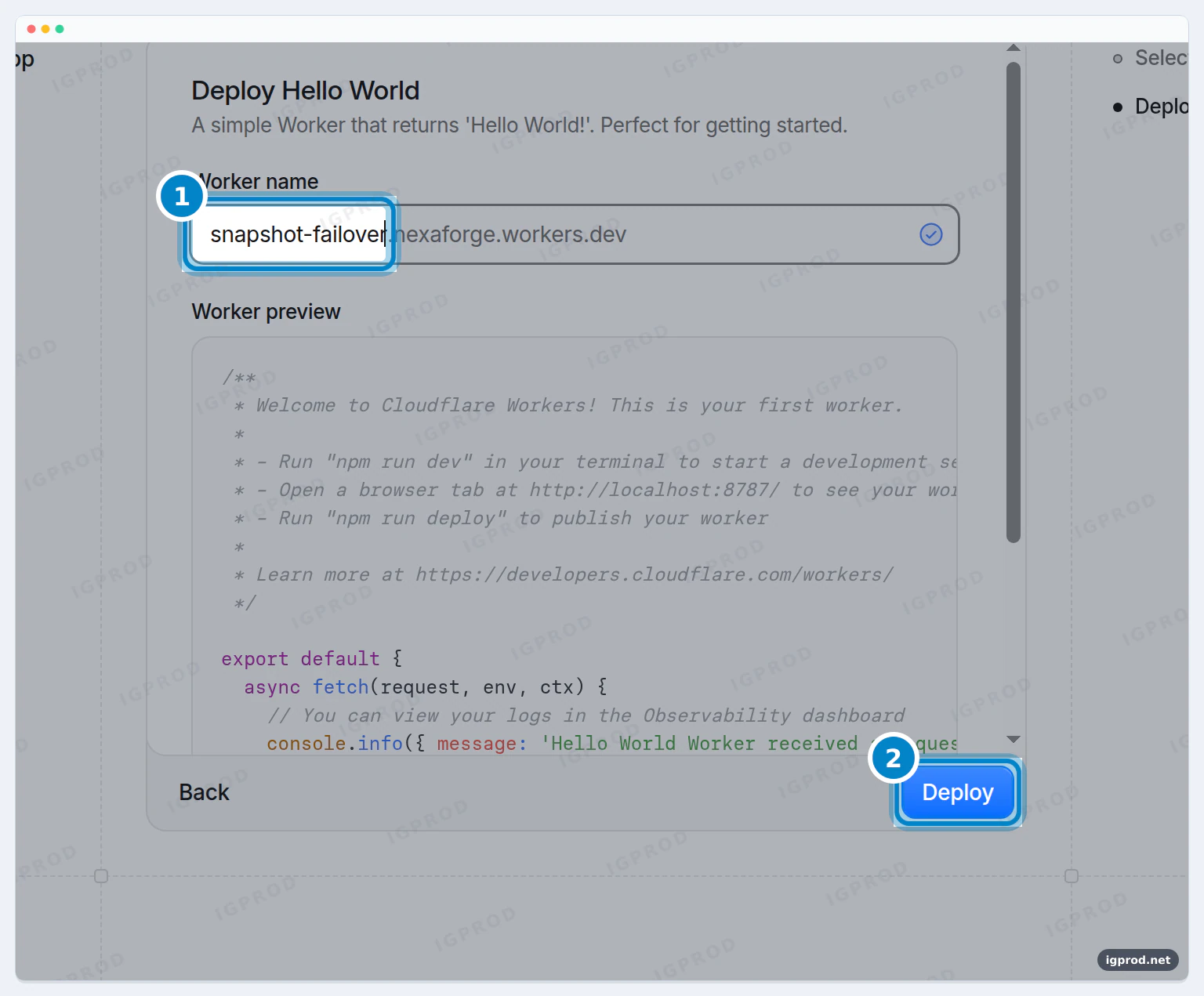
Name it snapshot-failover (1) and click Deploy (2).
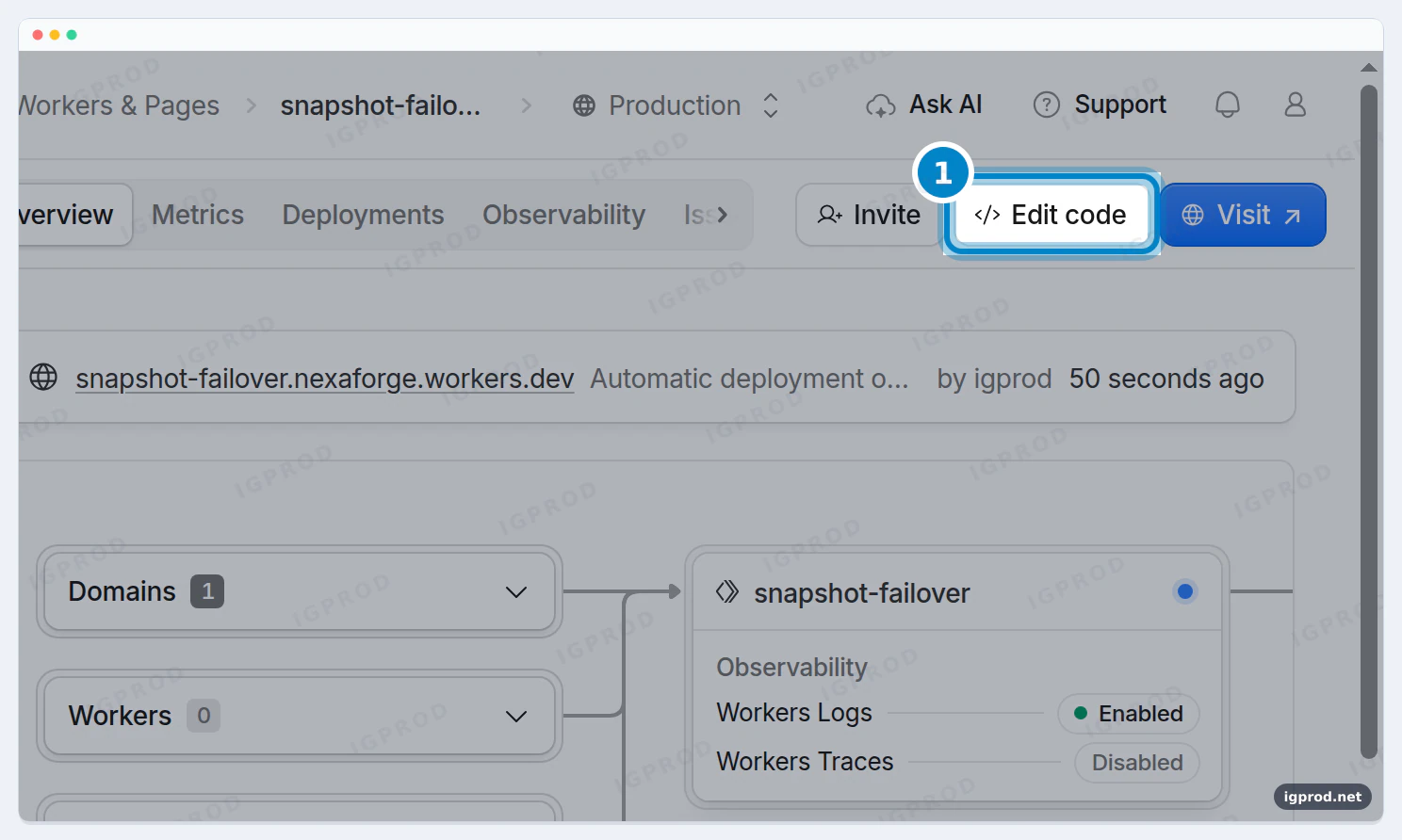
On the Worker's page, click Edit code.
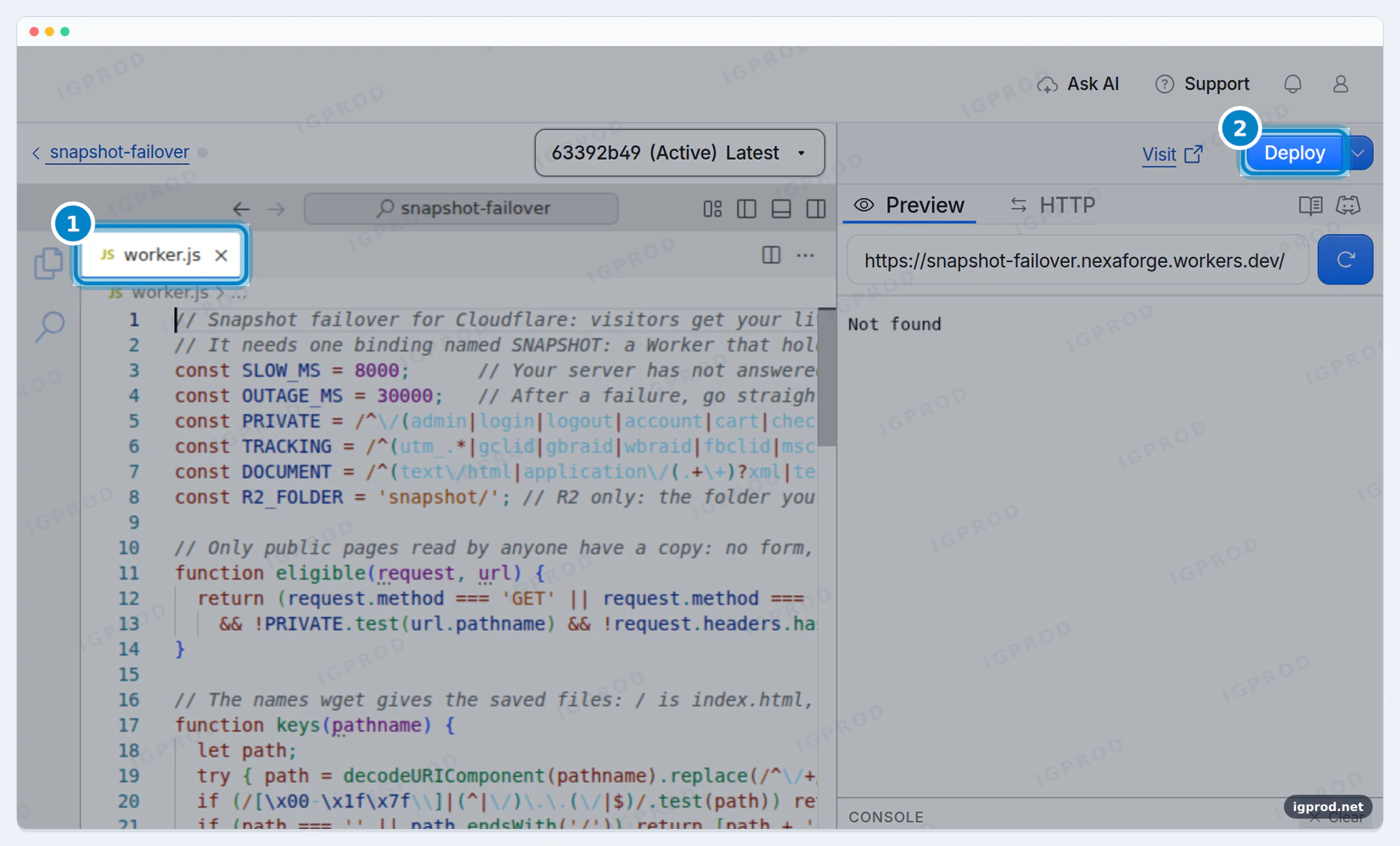
The editor opens the file worker.js (1). Click inside the code, select all of it with Ctrl+A (Cmd+A on a Mac), and paste the code below over it. Then click Deploy (2). The preview on the right says "Not found": that is expected, because this Worker answers only on your own domain, never on its workers.dev address.
The complete code. Copy all of it:
// Snapshot failover for Cloudflare: visitors get your live site, and a saved copy of it when your server is down.
// It needs one binding named SNAPSHOT: a Worker that holds your saved files, or an R2 bucket that holds them.
const SLOW_MS = 8000;      // Your server has not answered after 8 seconds: show the copy, if there is one.
const OUTAGE_MS = 30000;   // After a failure, go straight to the copy for 30 seconds.
const PRIVATE = /^\/(admin|login|logout|account|cart|checkout|api|wp-admin|wp-login\.php|wp-json)(\/|$)/i;
const TRACKING = /^(utm_.*|gclid|gbraid|wbraid|fbclid|msclkid|_ga|_gl|ref)$/i;
const DOCUMENT = /^(text\/html|application\/(.+\+)?xml|text\/xml)/i;
const R2_FOLDER = 'snapshot/'; // R2 only: the folder you uploaded, as the bucket shows it ('' if the files are at the top).

// Only public pages read by anyone have a copy: no form, no login, no private area.
function eligible(request, url) {
  return (request.method === 'GET' || request.method === 'HEAD')
    && !PRIVATE.test(url.pathname) && !request.headers.has('Authorization');
}

// The names wget gives the saved files: / is index.html, /about is about.html or about/index.html.
function keys(pathname) {
  let path;
  try { path = decodeURIComponent(pathname).replace(/^\/+/, ''); } catch { return []; }
  if (/[\x00-\x1f\x7f\\]|(^|\/)\.\.(\/|$)/.test(path)) return [];
  if (path === '' || path.endsWith('/')) return [path + 'index.html'];
  return /\.[a-z0-9]+$/i.test(path) ? [path] : [path + '.html', path + '/index.html'];
}

async function copyOf(request, env, url) {
  if (!eligible(request, url)) return null;
  try {
    let body = null, type = null;
    // A Worker answers fetch(); an R2 bucket has get(). (Asking a Worker binding for get would call a method it does not have.)
    if (typeof env.SNAPSHOT.fetch === 'function') {
      // A Worker with your saved files: it finds about.html for /about by itself, and sends /about.html on to /about.
      let saved = await env.SNAPSHOT.fetch(new Request(url.origin + url.pathname));
      const next = saved.status >= 300 && saved.status < 400 && saved.headers.get('Location');
      if (next && new URL(next, url.origin).origin === url.origin) {
        await saved.body?.cancel();
        saved = await env.SNAPSHOT.fetch(new Request(new URL(next, url.origin).href));
      }
      if (saved.ok) { body = saved.body; type = saved.headers.get('Content-Type'); }
      else await saved.body?.cancel();
    } else {
      // An R2 bucket.
      for (const key of keys(url.pathname)) {
        const object = await env.SNAPSHOT.get(R2_FOLDER + key);
        if (object) { body = object.body; type = object.httpMetadata?.contentType; break; }
      }
    }
    if (!body) return null;
    // A search page or any other page made from its query has no copy; tracking parameters are fine.
    if (!type || (DOCUMENT.test(type) && ![...url.searchParams.keys()].every((name) => TRACKING.test(name)))) {
      await body.cancel();
      return null;
    }
    if (request.method === 'HEAD') { await body.cancel(); body = null; }
    return new Response(body, { status: 200, headers: {
      'Content-Type': type, 'X-Snapshot': '1', 'X-Content-Type-Options': 'nosniff',
      'Cache-Control': DOCUMENT.test(type) ? 'no-store' : 'public, max-age=3600' } });
  } catch {
    return null;
  }
}

async function inOutage(url) {
  try {
    const mark = await caches.default.match(url.origin + '/__snapshot/outage');
    return Boolean(mark && Date.now() < Number(await mark.text()));
  } catch {
    return false;
  }
}

function markOutage(url, ctx) {
  ctx.waitUntil(caches.default.put(url.origin + '/__snapshot/outage', new Response(String(Date.now() + OUTAGE_MS),
    { headers: { 'Cache-Control': `max-age=${OUTAGE_MS / 1000}` } })).catch(() => {}));
}

function maintenance(request) {
  const page = '<!doctype html><meta charset=utf-8><meta name=viewport content="width=device-width">'
    + '<title>Back soon</title><h1>Back soon</h1><p>This page needs the live site. Please try again in a few minutes.</p>';
  return new Response(request.method === 'HEAD' ? null : page, { status: 503,
    headers: { 'Content-Type': 'text/html; charset=utf-8', 'Retry-After': '900', 'Cache-Control': 'no-store' } });
}

// No answer, or the errors Cloudflare shows when it cannot reach your server (502-504, 520-530).
const down = (response) => !response || (response.status >= 502 && response.status <= 504)
  || (response.status >= 520 && response.status <= 530);

export default {
  async fetch(request, env, ctx) {
    ctx.passThroughOnException();
    const url = new URL(request.url);
    if (url.hostname.endsWith('.workers.dev')) return new Response('Not found', { status: 404 });
    const outage = await inOutage(url);
    if (outage) {
      const copy = await copyOf(request, env, url);
      if (copy) return copy; // During an outage the copy answers at once; a page without one still asks your server.
    }

    const controller = new AbortController();
    const answer = fetch(request, { signal: controller.signal }).catch(() => null);
    let timer;
    let response = eligible(request, url)
      ? await Promise.race([answer, new Promise((resolve) => { timer = setTimeout(() => resolve('slow'), SLOW_MS); })])
      : await answer;
    clearTimeout(timer);
    if (response === 'slow') {
      const copy = outage ? null : await copyOf(request, env, url);
      if (copy || outage) { // A copy, or no copy while your server is known to be down: stop waiting.
        controller.abort();
        markOutage(url, ctx);
        return copy || maintenance(request);
      }
      response = await answer; // No copy of this page: keep waiting for your server's own answer.
    }
    if (!down(response)) return response; // 404, 500 and the like reach the visitor as they are.
    markOutage(url, ctx);
    if (response?.body) ctx.waitUntil(response.body.cancel().catch(() => {}));
    return await copyOf(request, env, url) || maintenance(request);
  },
};
You can leave the code as it is. Two values at the top are yours to change if you want:
SLOW_MS: how long a visitor waits for your server before the copy answers, in milliseconds. 8000 is 8 seconds.PRIVATE: the paths that never get a copy. If your site has another private area, for example/members, add|membersright afterwp-jsonon that line.
Step 4: Connect the two Workers
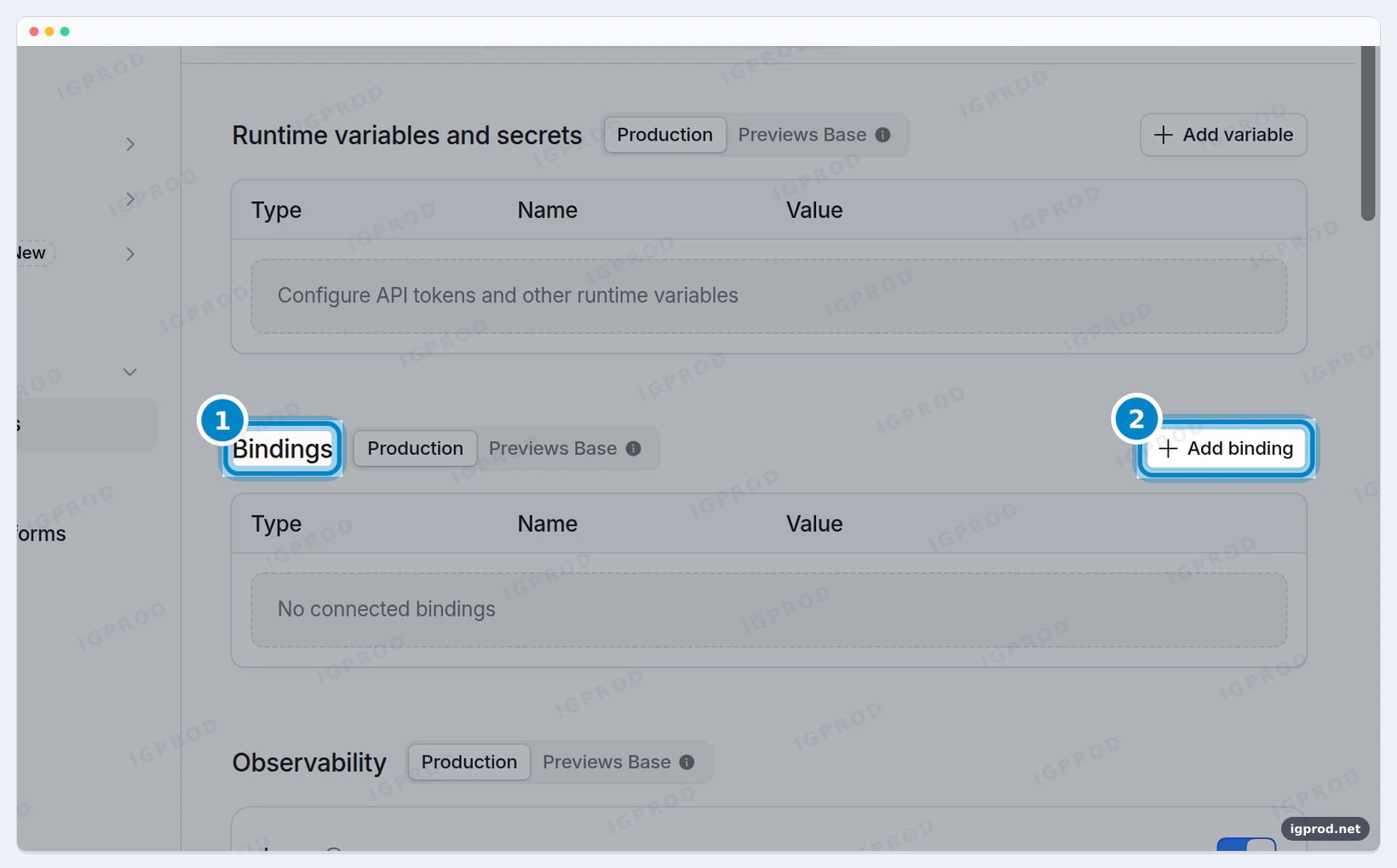
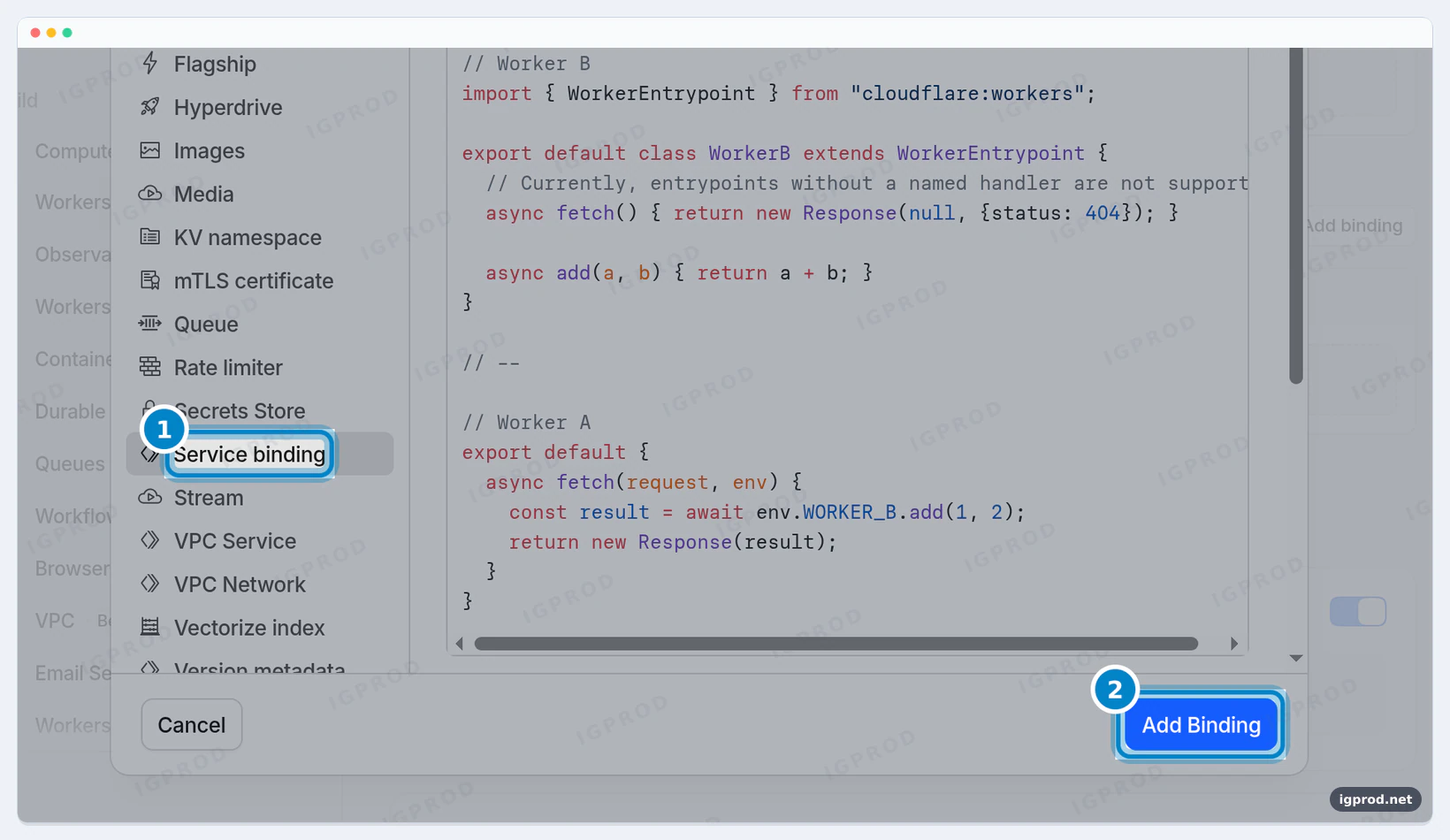
The failover Worker reads the copy through a binding: a name in its code, SNAPSHOT, that points to site-snapshot.
Open snapshot-failover, then its Settings tab. Under Bindings (1), click Add binding (2).
Choose Service binding (1) and click Add Binding (2).
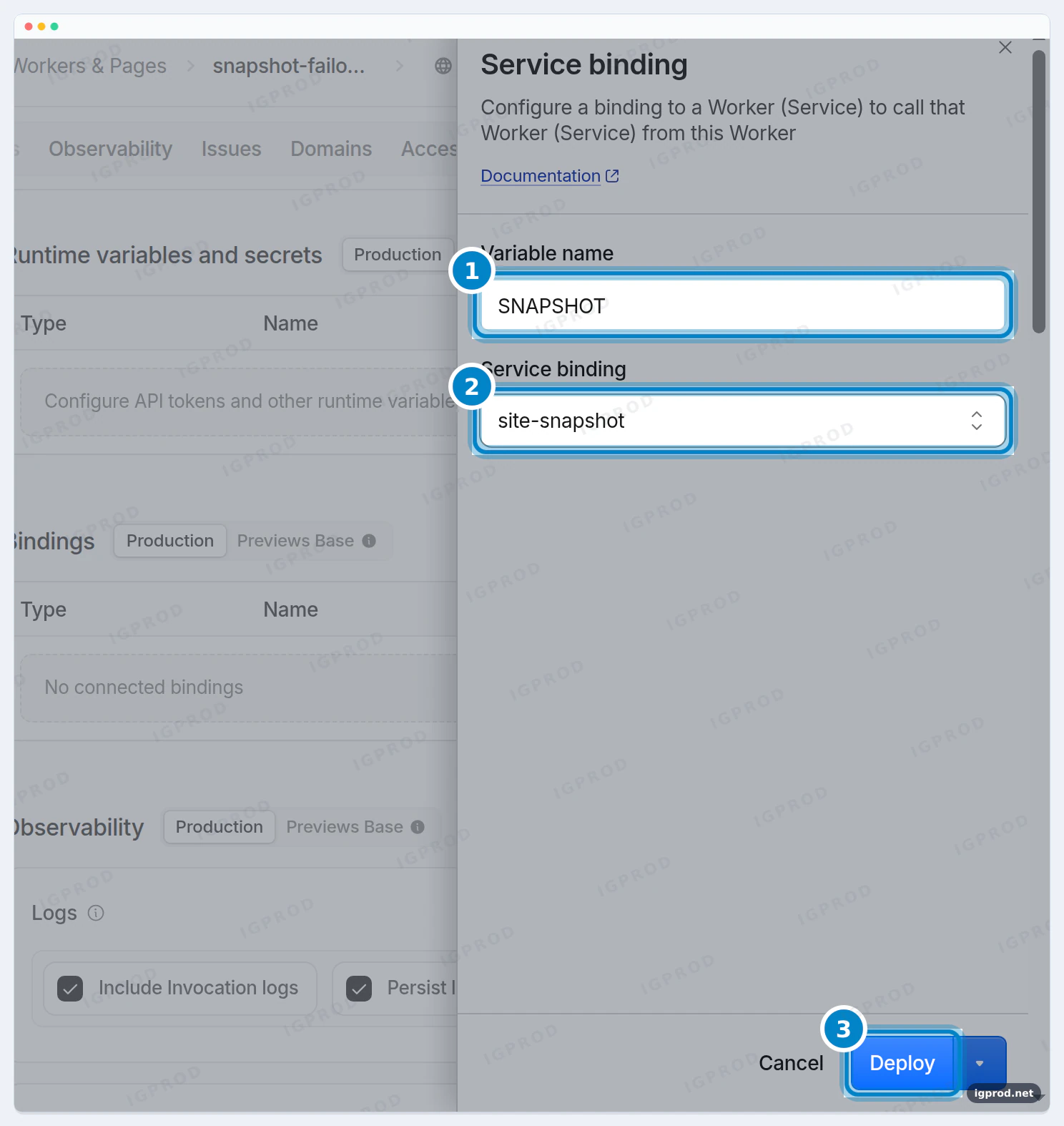
As the variable name, type SNAPSHOT (1), in capital letters, exactly like that. As the service, choose site-snapshot (2). Click Deploy (3).
Step 5: Test it safely on a test name
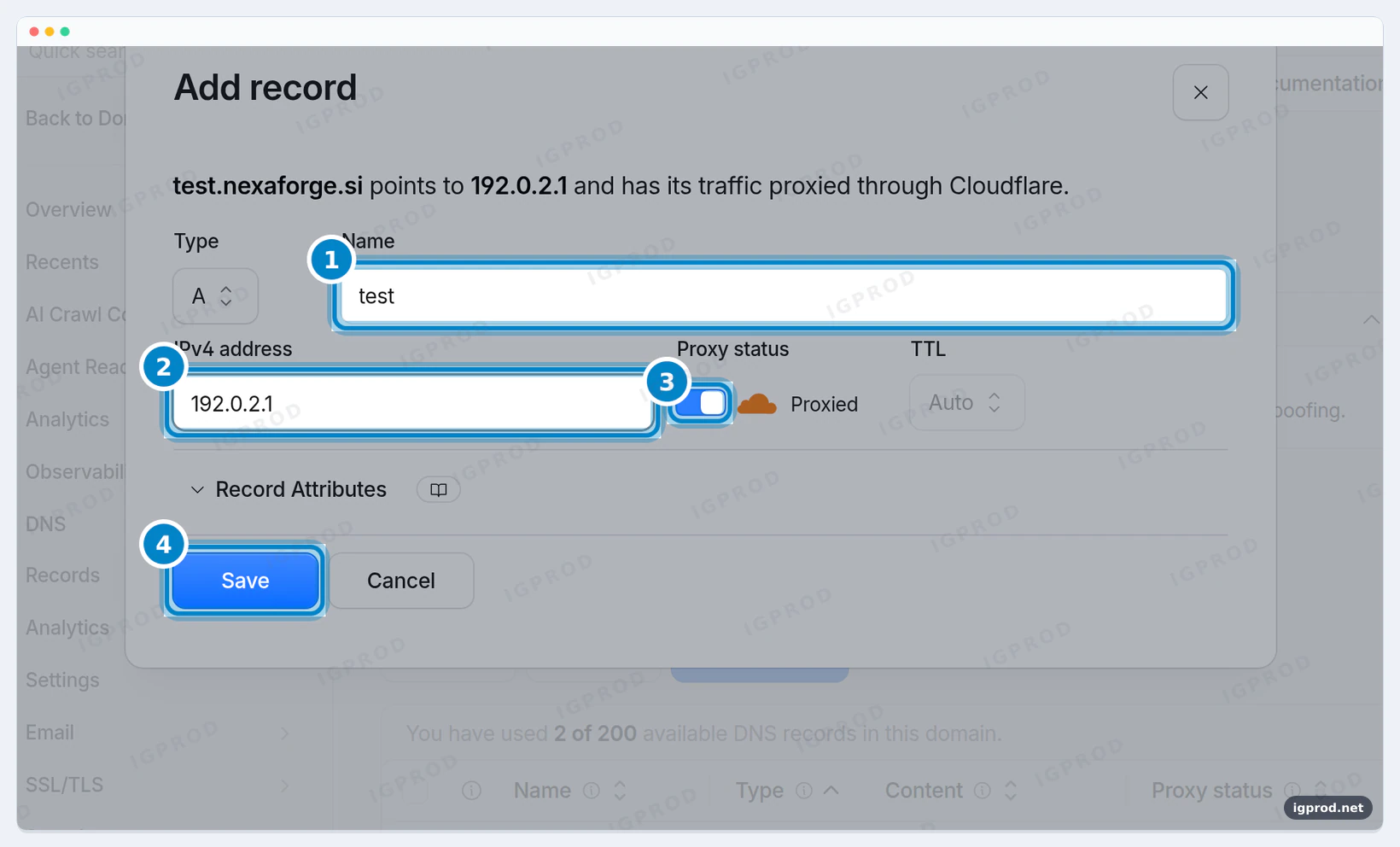
Before you touch your real site, test on a name with no server behind it: test on your domain, pointed to 192.0.2.1. That address is reserved for examples and nothing answers there, so it acts exactly like a server that is down.
Add the test DNS record
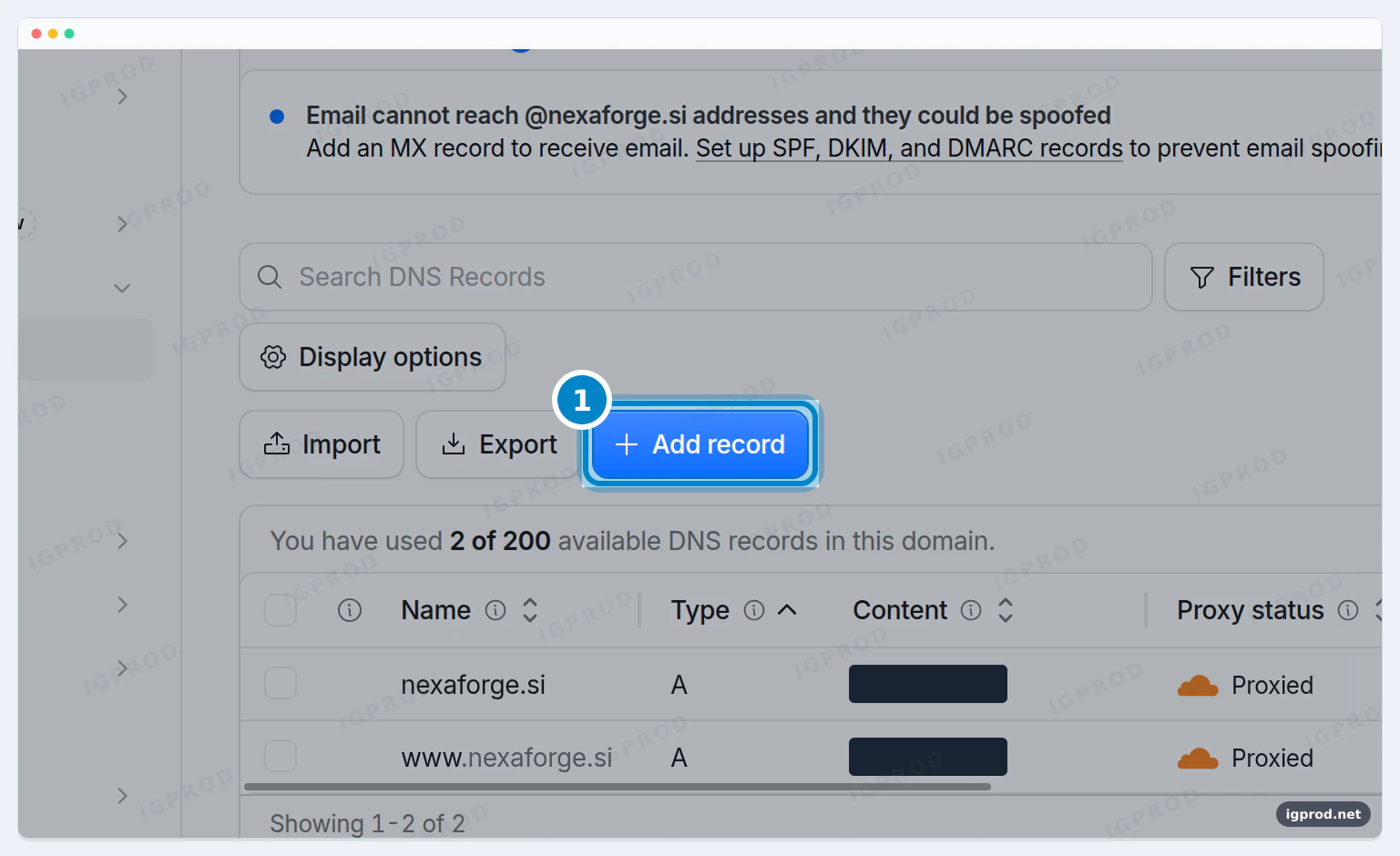
Open your domain in the dashboard, then DNS → Records, and click Add record.
Type A. Name test (1). IPv4 address 192.0.2.1 (2). Proxy status Proxied (3): the orange cloud must be on. Click Save (4).
Put the Worker on the test name
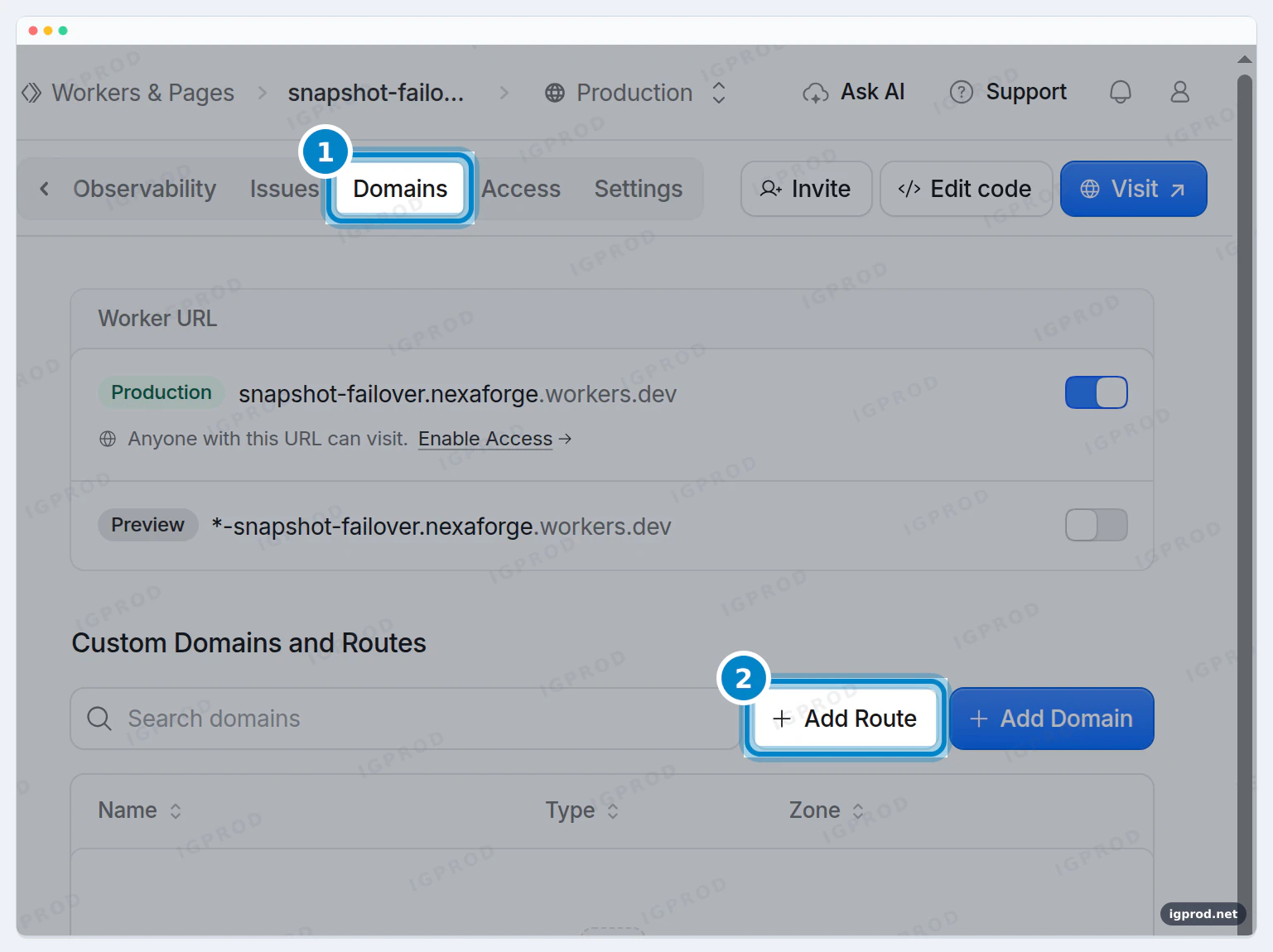
Go back to Workers & Pages → snapshot-failover. Open the Domains tab (1) and click Add Route (2).
As the Zone, choose your domain (1). As the Route, type the test name followed by /* (2), for us test.nexaforge.si/*. The * means every page under that name. Under Failure mode, choose Fail open (proceed) (3). Click Add Route (4).
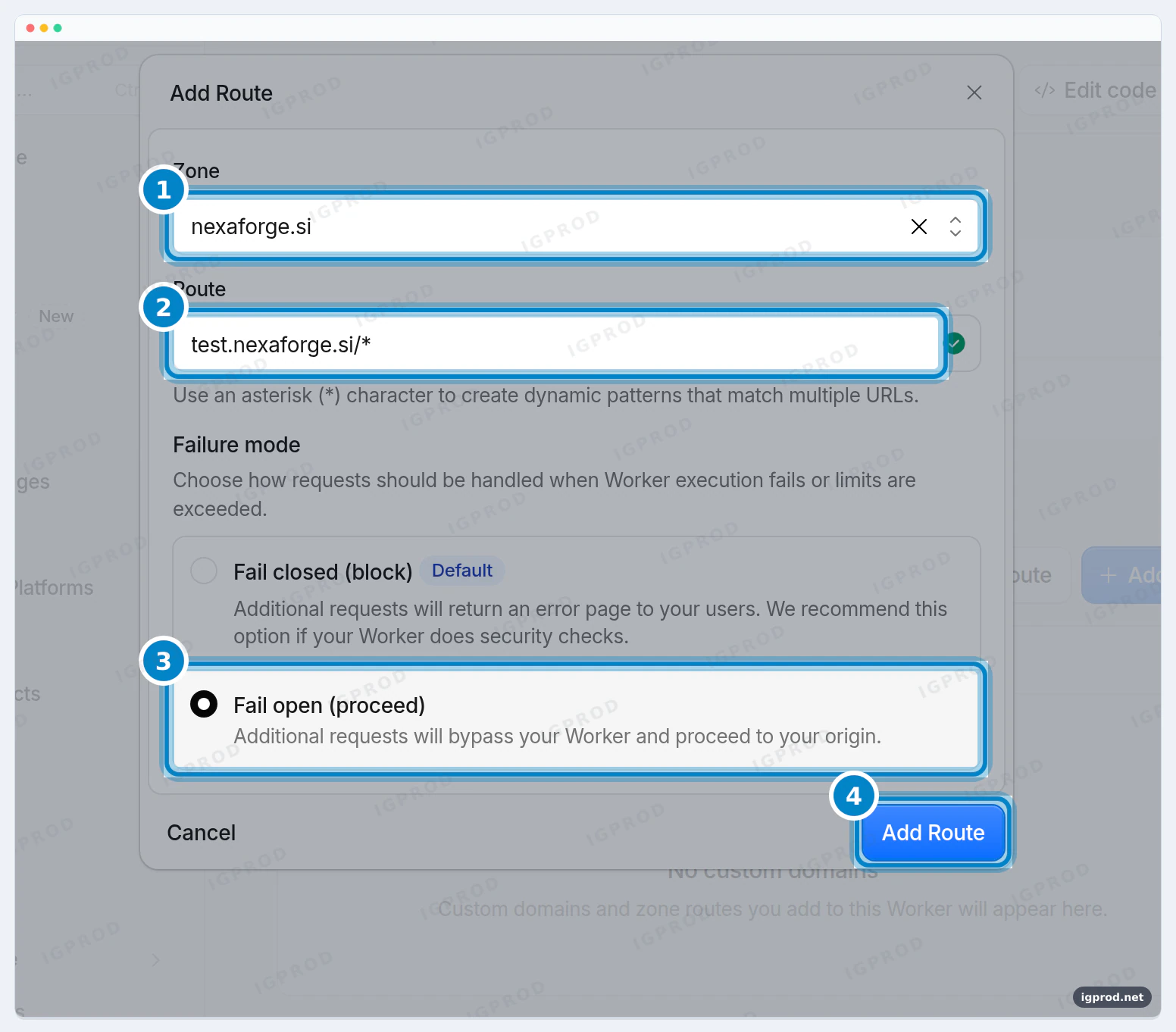
Fail open matters. If the Worker ever fails, or the free plan's daily limit is reached, visitors go straight to your server instead of seeing a Cloudflare error.
Open the test address
Open https://test. followed by your domain in your browser. The first time, the page takes about 8 seconds, because the Worker waits for the missing server. Then your saved home page appears. Click a few links: they open at once.
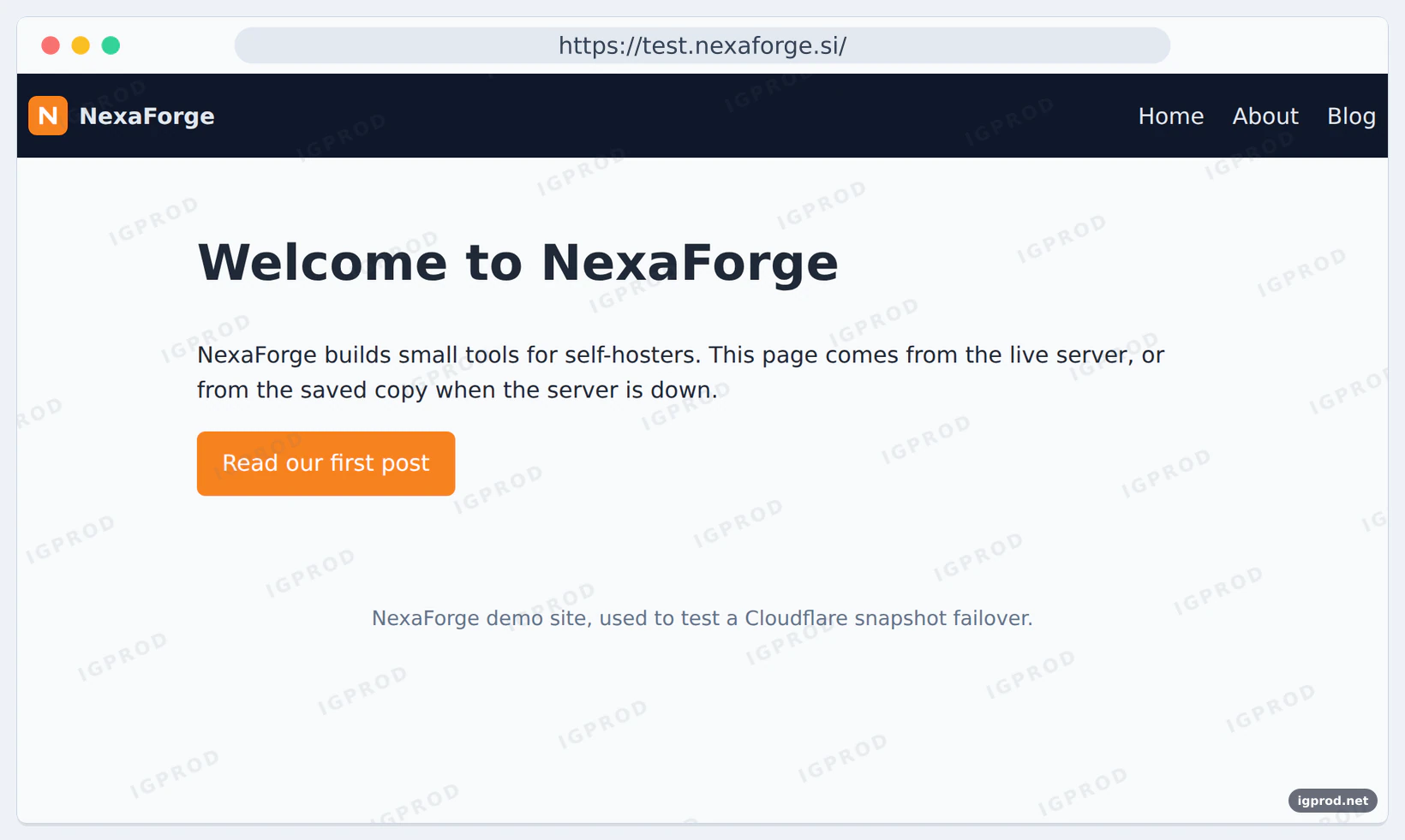
To see proof that the copy answered, run this in a terminal, with your own test name. On Windows, type curl.exe instead of curl.
curl -sI https://test.example.com/Our result, with the other headers removed:
HTTP/2 200
content-type: text/html
cache-control: no-store
x-snapshot: 1
server: cloudflare
The first answer took 8.7 seconds. The next pages, from the same Cloudflare data center, took 0.1 to 0.3 seconds. A sign-in page got the "Back soon" page, status 503, after about 20 seconds: the time Cloudflare took to give up on the missing server. Sign-in pages always need the real server, so the Worker never answers them from the copy.
Step 6: Turn it on for your real site
When the test works, add the routes of your real site the same way (Domains → Add Route, with Fail open), one for each name your site uses:
example.com/*www.example.com/*
Nothing changes for your visitors: they now pass through the Worker, and your server's answers reach them unchanged. Open a few pages and your sign-in page once to check.
Then remove the test: delete the test DNS record, and remove the test route in the Domains tab of snapshot-failover. The test name shows a full copy of your site at another address, and search engines must not find it.
Step 7: Keep the copy fresh
The copy is only as new as your last upload. A page published after it has no copy, so it shows "Back soon" during an outage. After you publish or change pages, run wget again in a new, empty snapshot folder (Step 1), then upload the new folder. Open site-snapshot and click New deployment (1).
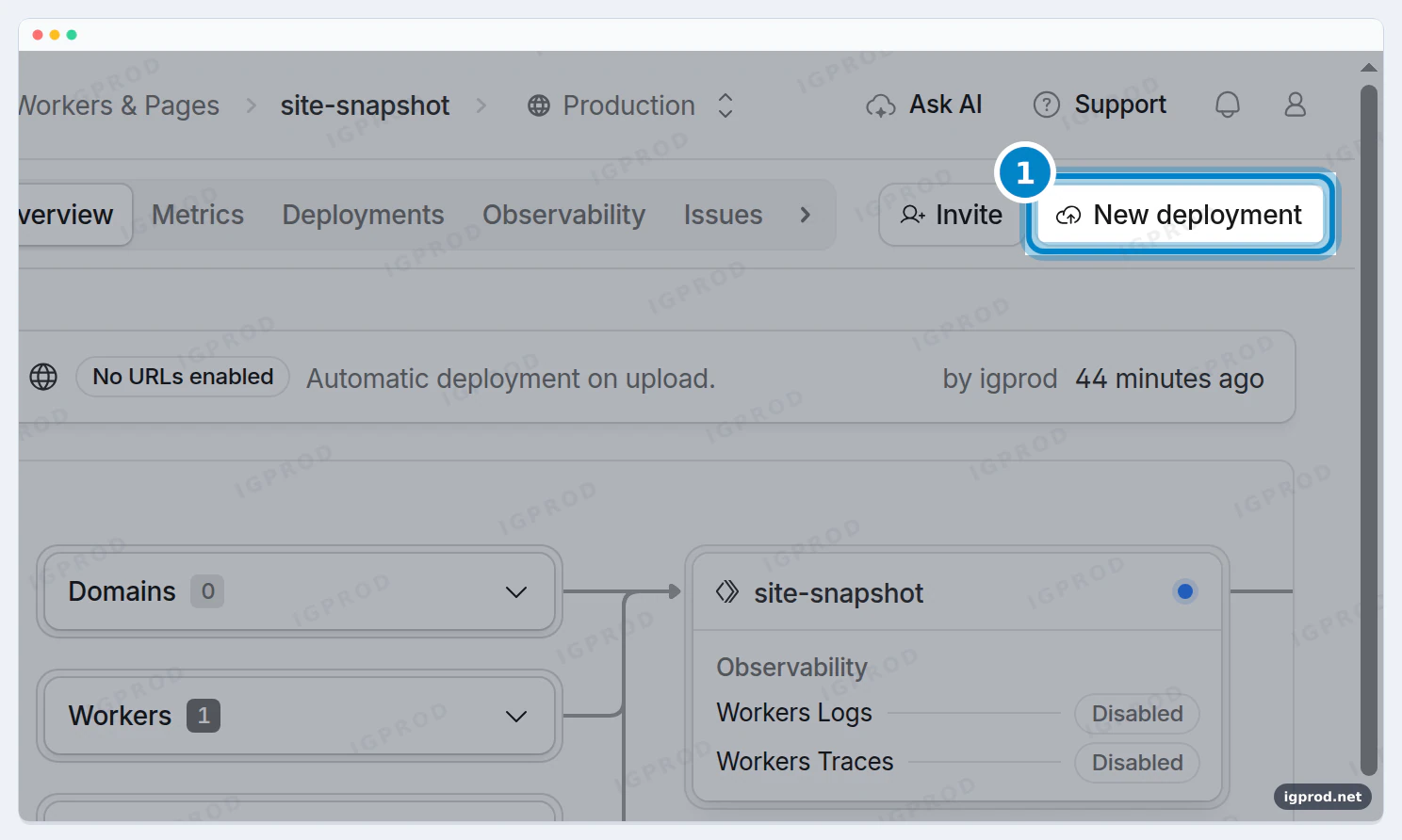
Choose the new folder. Cloudflare lists the files (1). Click Deploy (2). The new copy replaces the old one; the binding and the routes stay as they are.
Once a week is enough for most blogs; once a day if you publish every day. If you want to automate it later, Cloudflare's command-line tool, Wrangler, can deploy a folder of static assets from a script.
Big site? Keep the copy in R2
On the free plan, the site-snapshot Worker holds up to 20,000 files, each up to 25 MiB (100,000 files on Workers Paid). Above that, keep the copy in an R2 bucket, Cloudflare's file storage. The same failover code works with R2; only the binding changes.
R2 has a free monthly allowance: 10 GB of storage, 1 million Class A operations (writes) and 10 million Class B operations (reads). You still need a payment method on file to turn R2 on.
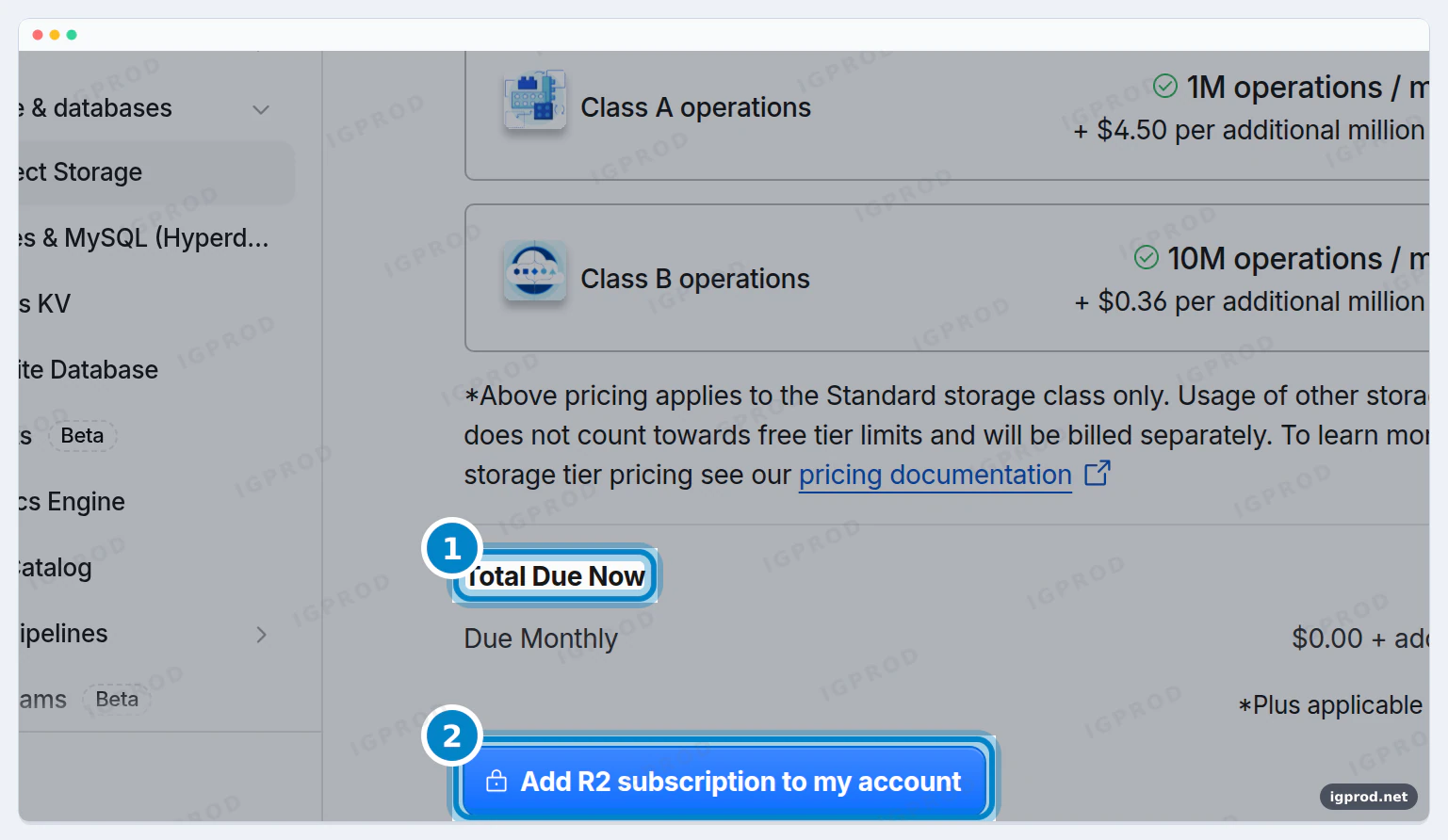
In the left menu, open Storage & databases → R2 Object Storage. The first time, Cloudflare shows the R2 plan with Total Due Now (1). Click Add R2 subscription to my account (2).
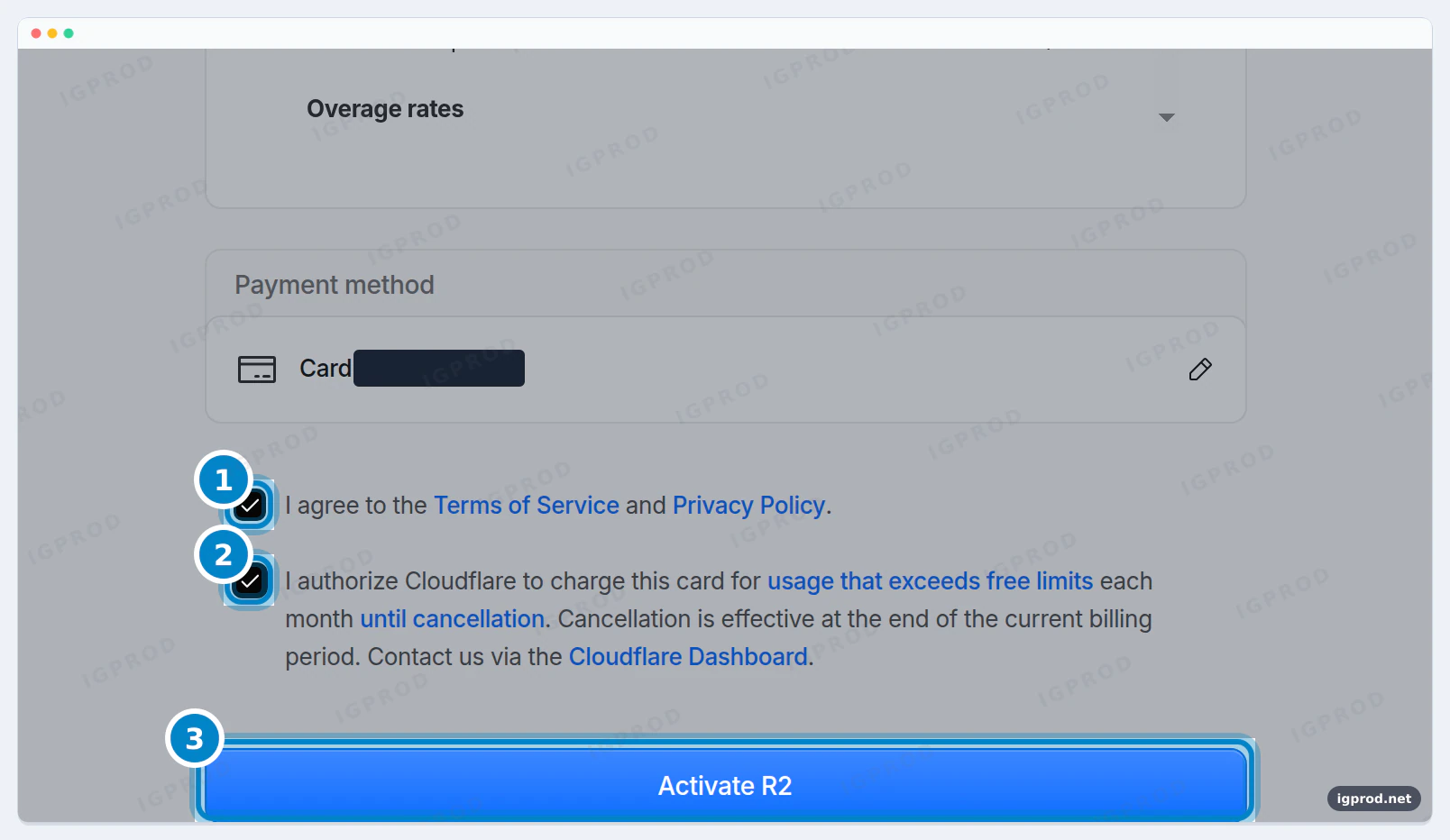
Check the payment method, tick both boxes (1, 2), and click Activate R2 (3). Cloudflare charges the card only for use above the free allowance.
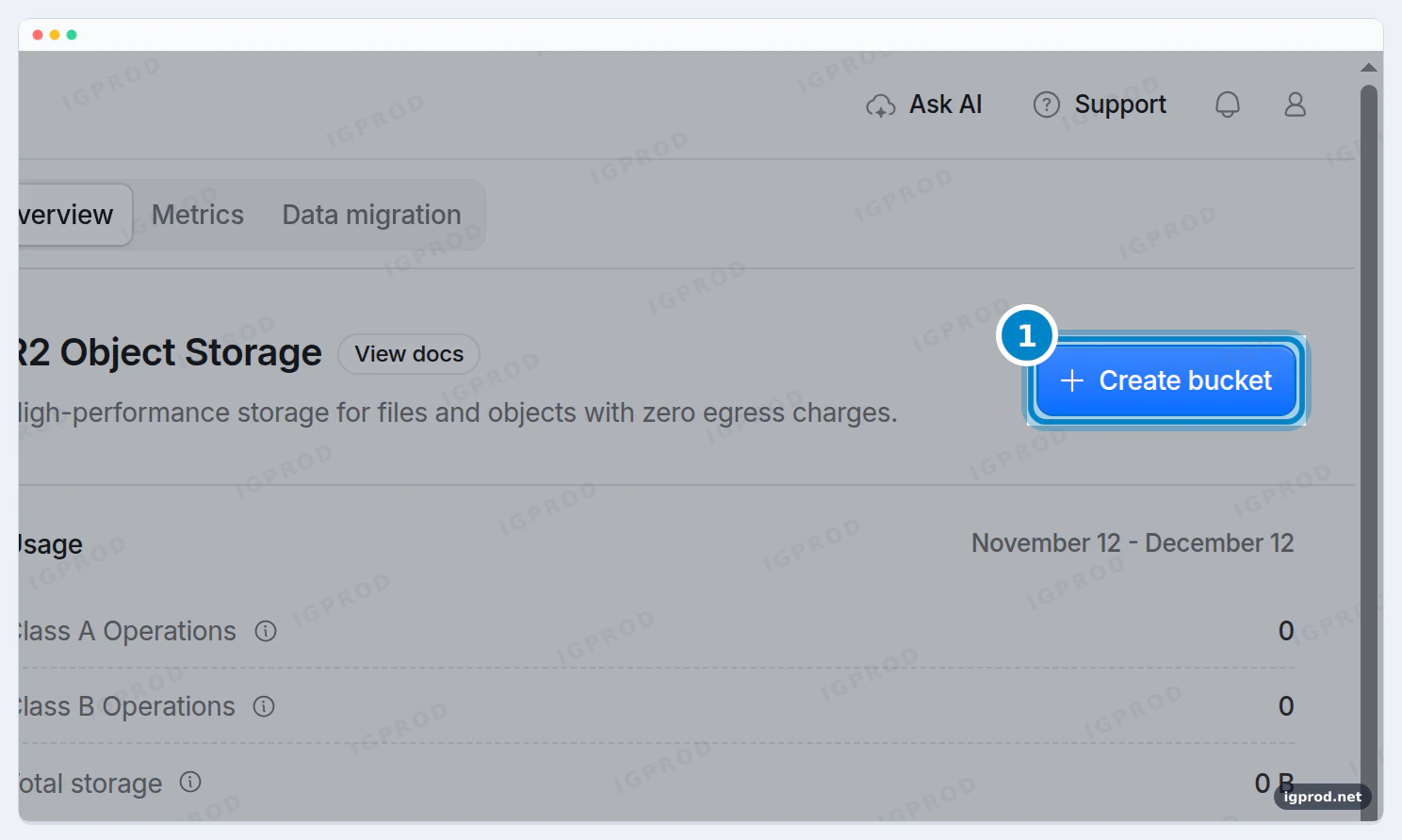
Click Create bucket.
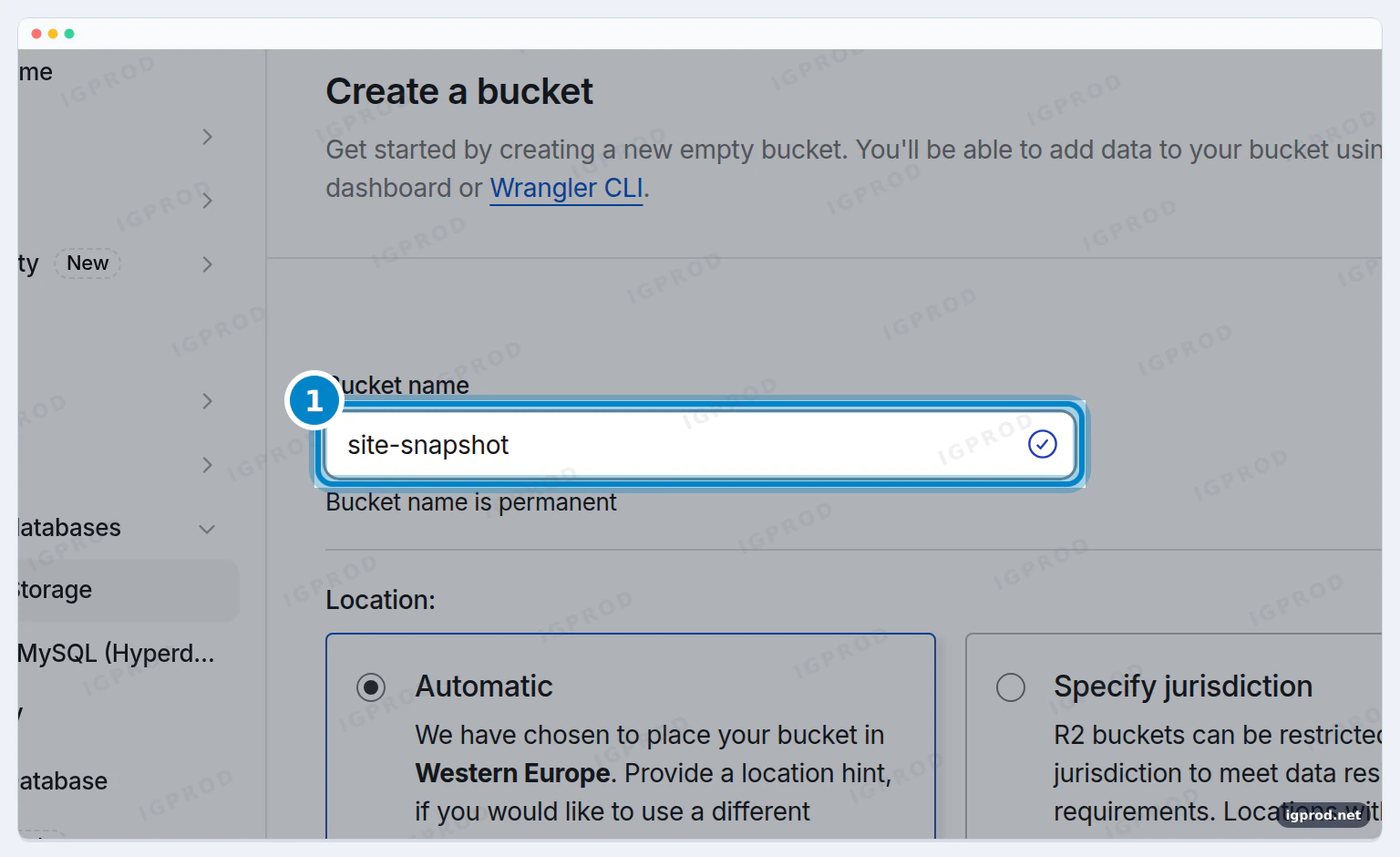
Name it site-snapshot (1), keep the location on Automatic, and click Create bucket at the bottom of the form.
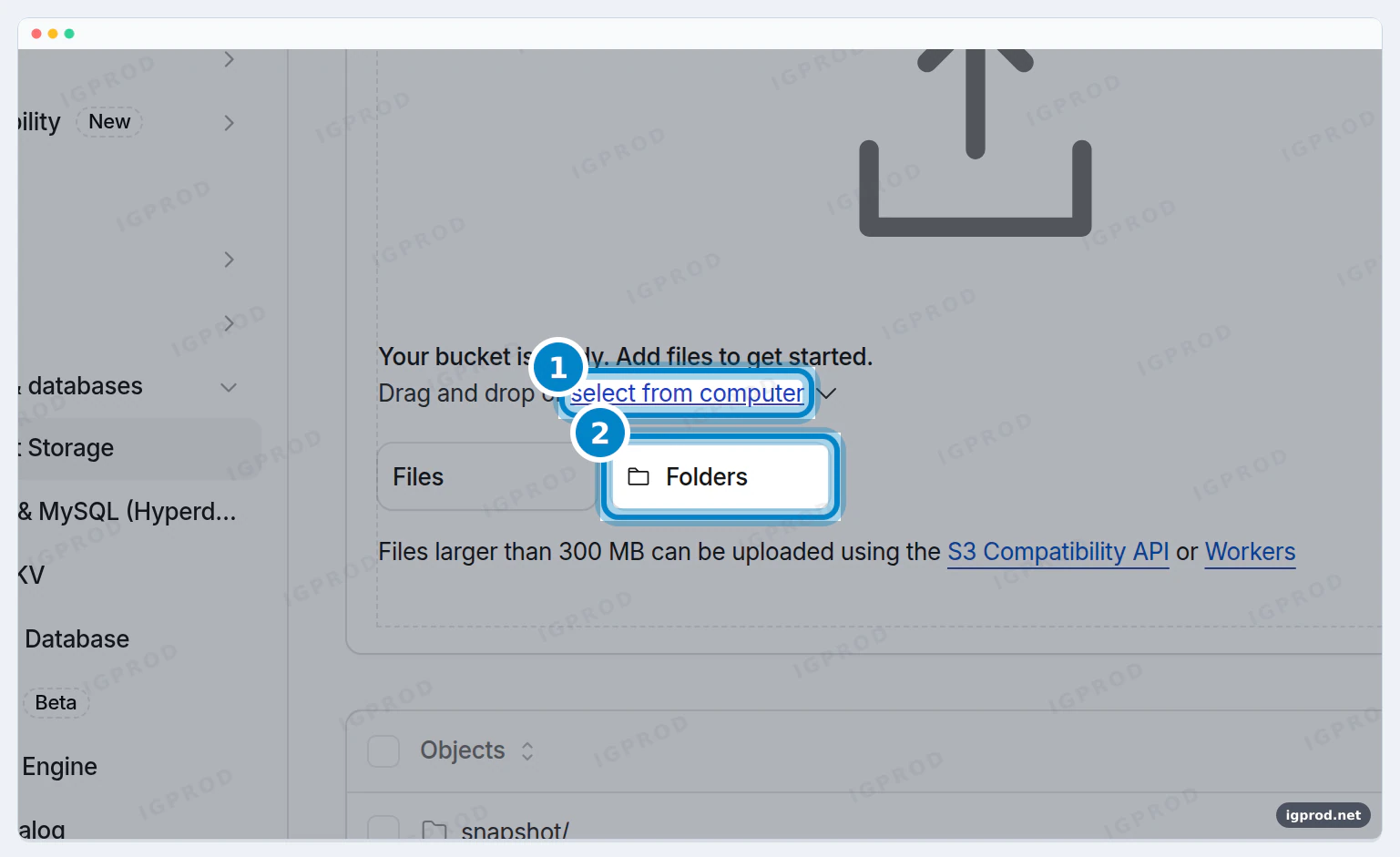
In the bucket, click select from computer (1), or Upload when the bucket already holds files. Then click Folders (2) and choose your snapshot folder. When the upload ends, the bucket shows a snapshot/ folder.
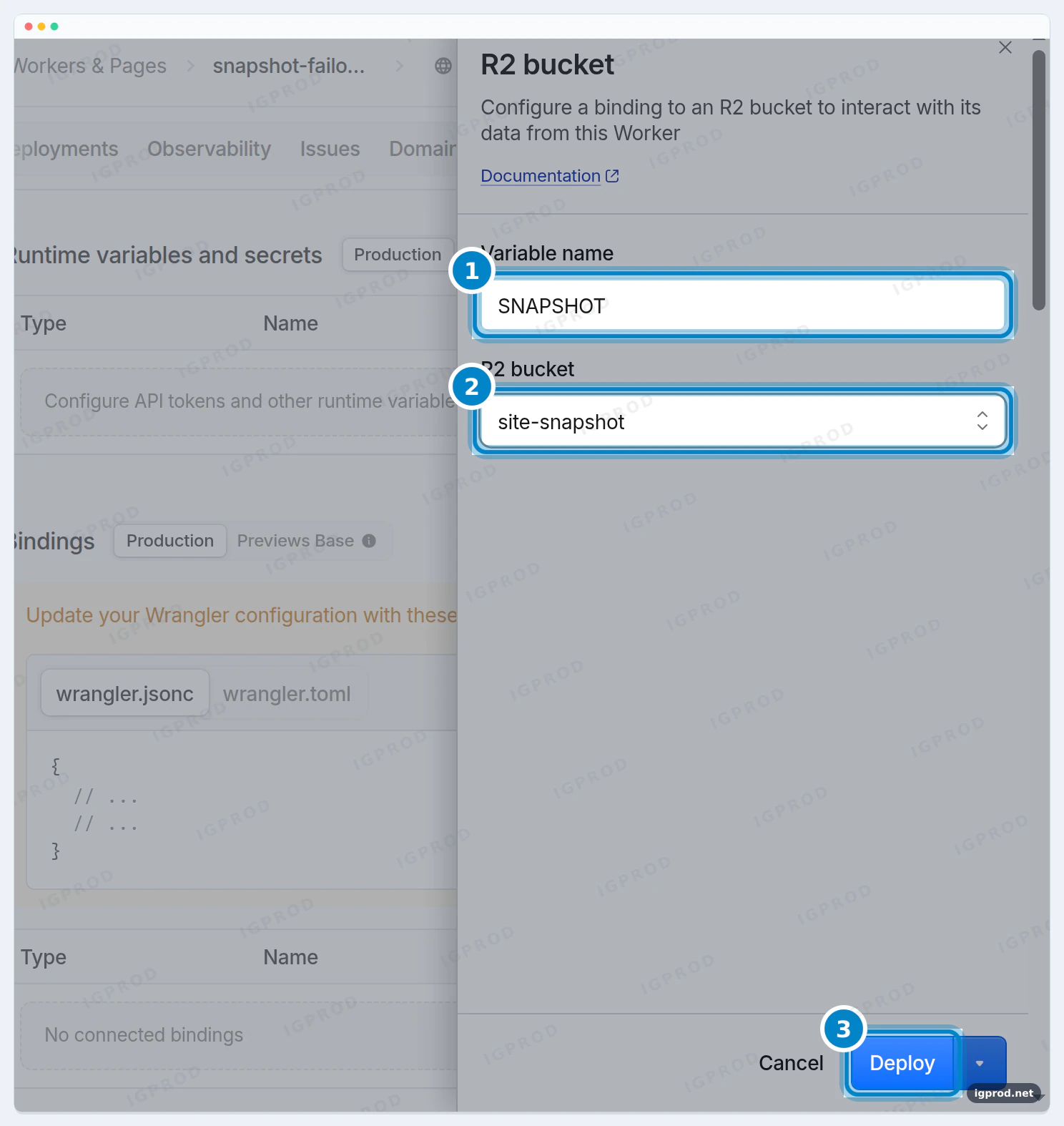
Now point the binding to the bucket. Open snapshot-failover → Settings → Bindings. Delete the SNAPSHOT service binding (Cloudflare asks to confirm with Delete & Deploy), because one name can have only one binding. Then click Add binding → R2 bucket. Variable name SNAPSHOT (1), R2 bucket site-snapshot (2), then Deploy (3).
The dashboard keeps the name of the folder that you uploaded in front of every file: snapshot/index.html. That is why the code has R2_FOLDER = 'snapshot/'. If you upload a folder with another name, put that name there. If the files are at the top of the bucket, set it to ''.
The dashboard accepts files up to 300 MB each. For thousands of files, Cloudflare recommends rclone or another S3-compatible tool. We tested the R2 binding on the same test name: the copy answered with x-snapshot: 1, exactly as with site-snapshot.
Limits and costs
- Free plan: 100,000 Worker requests a day. Each request that passes through snapshot-failover counts: pages, images, CSS and scripts. With Fail open, the requests above the limit go straight to your server. Your site keeps working, without the copy, until the count resets at midnight UTC. For a busy site, Workers Paid costs at least $5 a month and includes 10 million requests a month.
- Reading the copy is free. Requests to the static files of site-snapshot are free and unlimited.
- The copy cannot do what needs your server: sign-in, comments, forms, carts and search show "Back soon" until the server is back.
- The first visitor waits. After a failure, the first visitor in each Cloudflare data center waits up to 8 seconds. Then the copy answers at once there for 30 seconds.
- The copy is public. Never upload pages that only signed-in users may see. wget does not sign in, so it cannot save them by itself.
Troubleshooting
- wget saves only
index.html. Yourrobots.txtmay tell programs like wget to stay out. It is your own site, so add-e robots=offto the wget command. - wget stops with "403 Forbidden". Your own Cloudflare security settings, for example Bot Fight Mode or a WAF rule, may block wget. Turn Bot Fight Mode off while wget runs, or add a WAF rule that skips your own IP address, then turn it back on.
- The test address shows a Cloudflare error (522), not the copy. The route is missing or wrong. It must be your test name followed by
/*, on the right zone. Also check that the DNS record is Proxied. - Every page shows "Back soon". The binding is missing or its name is not exactly
SNAPSHOT. Check snapshot-failover → Settings → Bindings. With R2, also checkR2_FOLDERagainst the folder name that the bucket shows. - The home page works, but another page shows "Back soon". That page is not in the copy. Check that wget saved it:
/aboutmust beabout.htmlorabout/index.htmlin the snapshot folder. wget follows links only; a page that no other page links to is not saved. - The site is slow and the copy never shows. That page has no copy, or it is a sign-in, cart or form page. The Worker then keeps waiting for your server, because it has nothing else to show.
Frequently asked questions
What do visitors see during an outage?
Your pages as they were at your last upload, at their normal addresses, with no banner. Sign-in pages and forms show a short "Back soon" page that asks them to try again in a few minutes.
Will Google see duplicate content?
Not from the copy on your own domain: it answers at your real addresses, with your own content. Only other addresses can show a second copy, which is why you turn off the workers.dev address of site-snapshot (Step 2) and remove the test name when you are done (Step 6).
Does this work with WordPress?
The code already treats wp-admin, wp-login.php and wp-json as private. The public pages of a WordPress site are ordinary HTML pages, which wget saves like any others. Comments and contact forms need the live server.
Do I need to know JavaScript?
No. You paste the code as it is. The only value you may have to change is R2_FOLDER, and only with the R2 option.
I only want a "we are down" notice. Is there a simpler way?
Yes, a maintenance page. See Cloudflare maintenance mode with a Synology script.
How do I know when my server is down?
The copy keeps your readers happy, but you still need to fix the server. A monitor such as Uptime Kuma on Docker checks your site every minute and warns you when it stops answering.
Related guides
- Cloudflare CDN caching: make the live site faster, so it reaches the 8-second limit less often.
- Cloudflare Tunnel on Synology: publish a home server through Cloudflare without opening ports.
Sources

Leave a comment
Your email address will not be published. Required fields are marked *