

Run docker compose up in the folder containing your project's Compose file to create and start its services and see their logs. Use docker compose up -d to leave the services running in the background. Then check their status and open the application: a container starting does not by itself prove that the app works.
You need:
- Docker Engine, the Docker command-line client, and Docker Compose, with the engine running.
- A terminal on the computer running Docker and permission to use its engine.
- Your application's Compose file, or the complete example below.
- Internet access for the first image download and an available local port, such as
8080for this example.
New to images and containers? Read Docker for beginners first.
1. Check that Compose and the Docker engine work
Open a terminal and run these two checks:
docker compose version
docker info
The first command should print your Compose version. The second should return information that includes the Docker server, without a connection or permission error. An installed Compose command and a reachable Docker engine are separate requirements.
If Docker is missing, follow the official installation guide for your platform. Docker Desktop bundles Engine, the client, and Compose; an existing Linux Engine installation can use the Compose plugin. Complete that installation and repeat both checks before continuing.
Use the spaced command docker compose throughout this guide. The older Python-based docker-compose command belongs to the legacy installation.
2. Open your project or create a compose.yaml example
If you already have an application's Compose file, open a terminal in its folder and keep that file. Do not replace a real application's configuration with this learning example.
For a fresh exercise, create a separate folder. In Linux, macOS, or a WSL Bash terminal, run:
mkdir -p ~/compose-up-demo
cd ~/compose-up-demo
Save the following complete file as compose.yaml inside that folder using a plain-text editor. In Windows PowerShell, create a folder with mkdir compose-up-demo, enter it with cd compose-up-demo, and save the same file there. Check that its name is not compose.yaml.txt.
# Small, stateless example for learning docker compose up.
services:
  web:
    image: nginx:1.30.6-alpine
    ports:
      # Host port 8080 forwards to Nginx port 80; local computer only.
      - "127.0.0.1:8080:80"
    healthcheck:
      # Check for an HTTP response inside the container.
      test: ["CMD", "wget", "-q", "-O", "/dev/null", "http://127.0.0.1:80/"]
      interval: 5s
      timeout: 3s
      retries: 5
      start_period: 5s
# No persistent data in this demo, so no data volume is needed.
A project groups the resources described by a Compose file. A service, here web, describes how to run an application. Its image is the packaged software, and a container is an instance created from it. See what Docker Compose does for the wider picture.
This file uses the official nginx:1.30.6-alpine image. Nginx is a web server. The mapping 127.0.0.1:8080:80 forwards port 8080 on your computer to port 80 inside the container. The loopback address 127.0.0.1 limits normal access to the Docker computer; this is a local exercise. Docker documents a same-network exception on Engine versions older than 28.0.0 in its port-publishing guidance.
The healthcheck requests a page inside the container. There is no application data to retain, so this example needs no data volume. A database or photo-library application needs its own documented storage configuration.
Validate the file and list its services:
docker compose config --quiet
docker compose config --services
Successful validation produces no output from the first command. The second prints web. Validation checks configuration; it does not check whether the image can download, the port is available, or the app will start.
To select a file explicitly from another folder, put -f before up:
docker compose -f ~/compose-up-demo/compose.yaml up -dThat is an alternative startup command, not an extra step. If you use it, keep the same -f selection for later status, log, and cleanup commands. The remaining examples assume your terminal is inside the project folder.
3. Start the project with docker compose up
docker compose upCompose reads the service configuration, obtains an image if its pull policy requires it, prepares project resources, and starts containers. In this attached mode, application output stays in the terminal. Progress messages vary by Compose version; the prompt staying busy is normal.

4. Open the page and confirm that it responds
Leave the terminal running. On the same computer, open http://localhost:8080 in a browser. You should see Welcome to nginx!, highlighted in the screenshot:
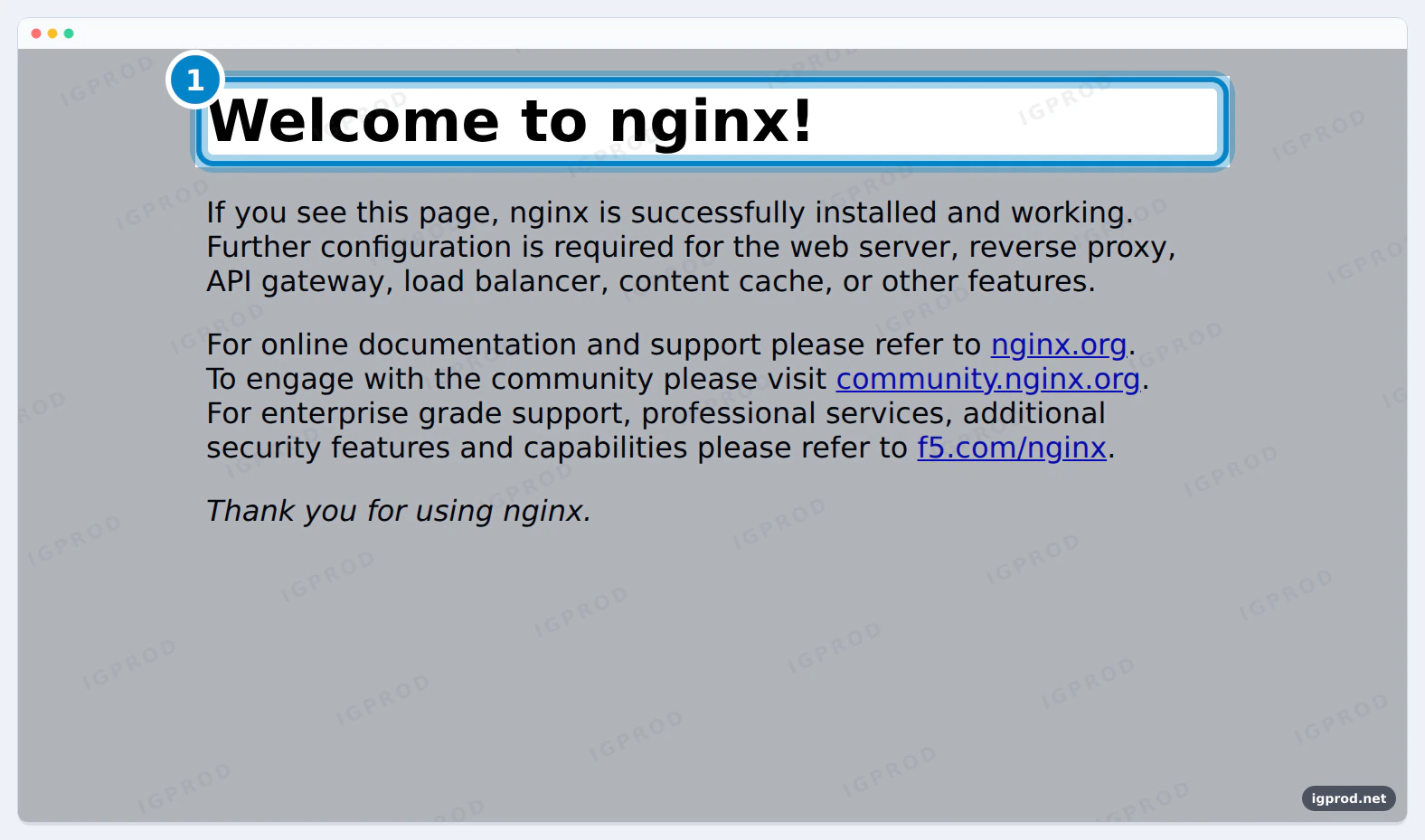
We tested container startup and the default web page on 2026-11-12 with nginx:1.30.6-alpine in plain Docker. The container reached healthy status and the browser displayed the welcome page. This verifies the small web-server example, not the readiness of another application's database, login, or storage.
localhost means the computer where the browser runs. For this example, use a browser on the Docker computer; another laptop's localhost points to that laptop.
Return to the attached terminal and press Ctrl+C. Docker documents that this stops the attached containers. Inspect their retained state:
docker compose ps --allThe service should now appear stopped or exited. Stopping a container does not remove it.
5. Run in detached mode and leave the logs safely
Start the project in the background, then check it:
docker compose up -d
docker compose ps
-d is short for --detach. The startup command returns to your prompt. Check that the service is running and, for this example, becomes healthy. Detached mode does not prevent a failing application from exiting.
Follow recent output separately:
docker compose logs --follow --tail 50Press Ctrl+C to leave this log viewer. The detached containers continue running; confirm with docker compose ps. This is the practical answer to the reader question about exiting Compose without stopping it. For more log-reading examples, see how to follow Docker logs and limit the tail.
For startup that waits for a status check, use this alternative:
docker compose up --wait --wait-timeout 60--wait implies detached mode. With a healthcheck, Compose waits for healthy status; without one, it checks only that the service is running. The 60 seconds here is a chosen timeout, not a promised startup time. Check docker compose up --help and update the plugin if your installation lacks these options.
Our healthcheck checks HTTP inside Nginx. In a multi-service application, a dependency condition such as service_healthy is a separate configuration decision; ordinary dependency order alone does not guarantee that a database is ready. Follow Docker's startup-order guidance.
What is the difference between up, start, restart, and run?
| Command | Behavior | When to use it |
|---|---|---|
docker compose up -d | Creates, starts, or replaces service containers as needed. | Normal startup and applying configuration changes. |
docker compose start | Starts existing stopped containers. | Resume a project you stopped without removing. |
docker compose restart | Restarts existing containers; does not apply edited YAML settings. | Restart an unchanged application. |
docker compose run --rm SERVICE COMMAND | Creates a one-off container and removes it afterward; service ports are not published by default. | An app-documented maintenance task. |
docker compose stop | Stops containers and keeps them. | Pause the project. |
docker compose down | Stops and removes project containers and networks; retains named volumes by default. | Remove the project runtime resources. |
Apply changes, rebuild images, or start one service
Apply edited configuration
After editing the intended Compose file, validate it and run:
docker compose config --quiet
docker compose up -d
Changed service settings or images can require container replacement. Mounted volumes are preserved during normal replacement, but files kept only in a container's writable layer are lost. Use the application's documented mounts and backups before changing a real deployment. This distinction also answers the reader question about changed environment variables and data loss.
--force-recreate deliberately replaces containers even without a detected change. --no-recreate keeps existing containers and can prevent wanted updates. They are incompatible alternatives. A preliminary down is unnecessary for normal configuration updates.
Build source code or pull a configured image
For a project that declares build:, explicitly build before starting when source or Dockerfile changes need incorporating:
docker compose up -d --buildOur Nginx example has no build configuration. To download its configured image again and apply it, use:
docker compose pull web
docker compose up -d web
Pulling does not start containers. A pinned tag still selects that version; it does not advance to another release automatically. Upgrading to another version requires a deliberate tag edit and review of the application's upgrade instructions. Replacing a container and rebuilding an image are different operations.
Start one service
docker compose up -d webUse the service name from the file, such as web. Required dependencies may start too. Use docker compose up -d --no-deps web only when you know the dependencies are already available. These commands select services, not generated container names.
Troubleshoot docker compose up errors
Compose is missing, or Docker cannot connect
Check docker compose version first, then docker info. A missing command needs the platform's installation procedure. A connection error needs a running engine and the correct Docker context. On Linux, a socket permission error needs the official account-access setup; Docker group membership grants powerful access, so do not make the socket world-writable.
No configuration file is found, or YAML validation fails
Return to the folder containing compose.yaml, check the filename extension, or select it with -f. Run docker compose config --quiet and fix the reported field or line. YAML indentation uses spaces, not tabs.
The port is already allocated
Run docker ps to check ports published by running containers. Another host application can also occupy the port. For this exercise, change only the host-side mapping to 127.0.0.1:8081:80, run docker compose up -d again, and open http://localhost:8081. Leave the container port and internal healthcheck unchanged. Avoid stopping an unknown workload just to free the example port.
The detached service exits, restarts, or never becomes healthy
docker compose ps --all
docker compose logs --tail 50 web
Read the application's error before changing anything. A background startup does not keep a broken process alive, and a health timeout does not repair it. If the service runs but the browser cannot connect, check its published port, health state, and which computer's localhost you opened.
If startup fails during the image download, check the exact image name and tag against the publisher and confirm registry access. A first run needs network access unless that image is already available locally.
The old docker-compose command reports a Python “chunked” error
A legacy Compose report includes HTTPConnection.request() got an unexpected keyword argument 'chunked'. The linked Docker Python SDK issue reproduces that error with urllib3 2.0.0. A matching dependency incompatibility is plausible, but the Reddit poster's complete dependency versions were not established.
Check docker compose version and use the maintained plugin installation for your platform before retrying the spaced command. The evidence does not justify a universal diagnosis or downgrading unrelated global Python packages.
Stop or remove the example
To stop it while retaining the containers, run:
docker compose stopThe service should be stopped in docker compose ps --all. Resume those existing containers with docker compose start. When finished with this disposable example, remove its containers and project network:
docker compose downThis example has no persistent data. For real applications, plain down retains named volumes by default, but keeping a volume is not a backup. Anonymous volumes are not automatically reattached by a later startup. Use documented named volumes or bind mounts for durable data.
Do not add --volumes as a routine repair. It removes declared named volumes and attached anonymous volumes; external volumes are excluded. After learning this workflow, try a complete application guide such as installing Uptime Kuma with Docker.
FAQ
What does docker compose up -d mean?
It starts the project in detached, or background, mode and returns your terminal prompt. Check docker compose ps and the service logs afterward; the command returning does not guarantee application readiness.
Can I run docker compose up again safely?
It reconciles the project with the selected configuration and can replace changed containers. For an application with valuable data, confirm its documented storage mounts and backups first. Container replacement does not preserve files stored only inside its writable layer.
Does docker compose up rebuild images automatically?
Do not rely on an ordinary startup to incorporate changed source code. Use --build for services with a build configuration. For downloaded images, pull the configured image and deliberately change the tag when upgrading versions.
How do I leave the logs without stopping containers?
Start with docker compose up -d, then use docker compose logs --follow. Pressing Ctrl+C in that viewer leaves detached services running. Pressing Ctrl+C during attached docker compose up stops its containers.
Does docker compose up wait until an app is ready?
Ordinary startup does not guarantee readiness. Use --wait with meaningful service healthchecks; services without a healthcheck are checked only for running state. Dependency readiness also needs the application's appropriate dependency conditions.
Sources
- Docker Compose: installation options
- Install the Compose plugin on Linux
- Compose file selection and project commands
- Validate configuration with compose config
- Create and start services with compose up
- Compose service configuration and healthchecks
- Inspect service status with compose ps
- Read service output with compose logs
- Start existing containers
- Restart services and configuration limitations
- Run one-off service commands
- Build service images
- Pull configured images
- Stop services without removing containers
- Remove project resources with compose down
- Control startup and dependency readiness
- Docker port publishing and loopback binding
- Linux post-installation and daemon access
- Nginx official Docker image
- Reader question: exit Compose without stopping
- Reader question: configuration changes and data
- Reader report: legacy Compose Python error
- Docker Python SDK: urllib3 v2 incompatibility

Leave a comment
Your email address will not be published. Required fields are marked *