
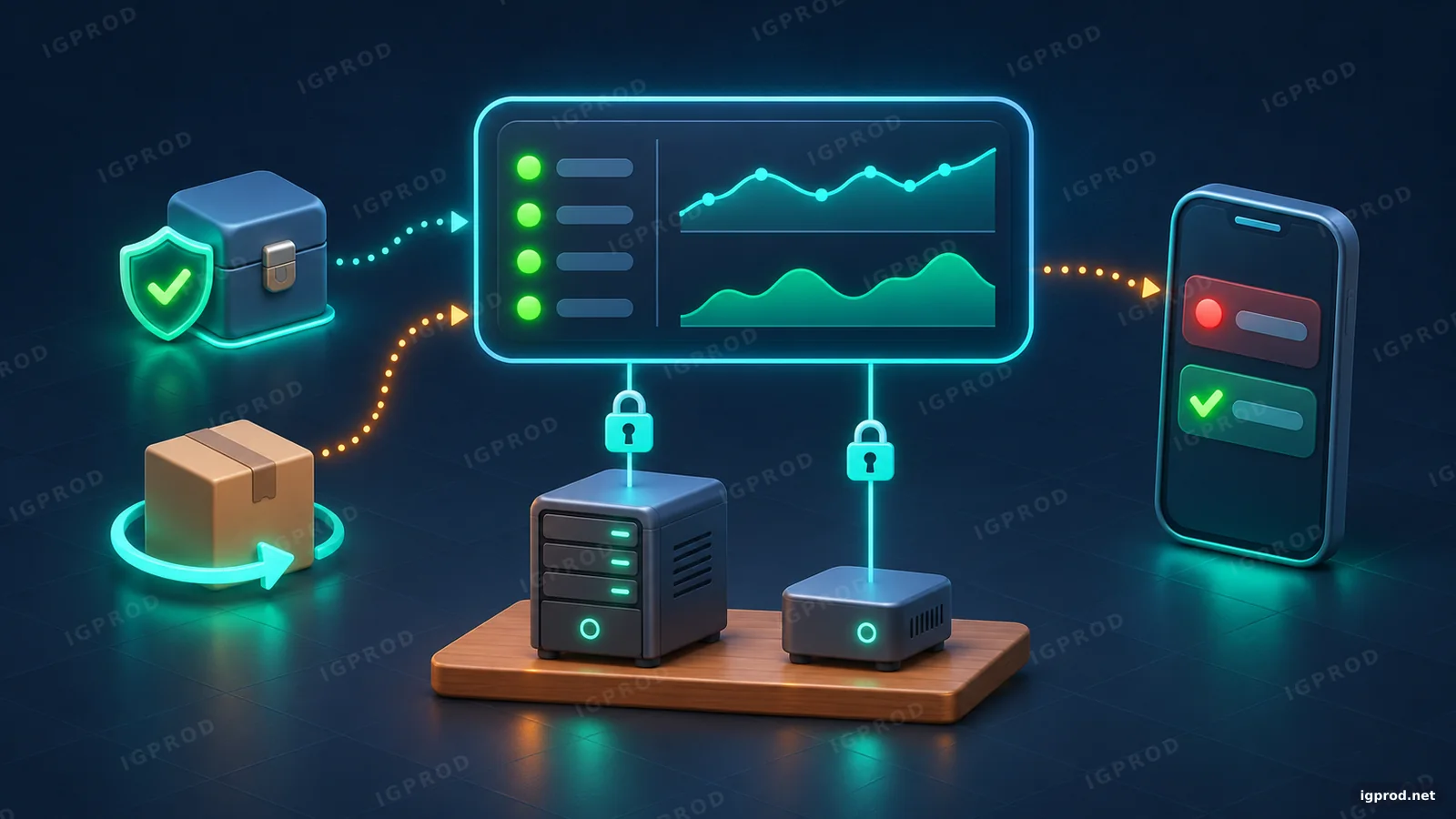
Beszel is a free, open-source monitor for servers and Docker. It has two parts: the hub, a web dashboard that keeps the history and sends the alerts, and a small agent on each machine, which reports CPU, memory, disk, network and, on a Docker host, the use of every container. It is light: on our server the hub used 11.56 MiB of memory and the Docker agent 8.43 MiB.
Tested on 25 November 2026 with Beszel 0.21.2 on two Ubuntu 26.04.1 machines on one home network: a home server with Docker Engine 29.10.1 and Docker Compose v5.8.0 at 192.168.1.50, and a mini PC without Docker at 192.168.1.30. Every command below ran there, and every screenshot shows its real output.
Quick answer: Beszel with Docker Compose, set up for production
In plain words: the hub is a web app with its own small database. Each agent opens a connection to the hub, proves who it is with a token, and checks the hub's public key, so neither side talks to a stranger. You add a machine in the hub, give its agent two values, and its charts appear a few seconds later.
- Run the hub from
henrygd/beszel:0.21.2withDISABLE_SSH: "true"(Step 1). - Add the Docker host, and start its agent with the token in a Docker secret and Docker access through a read-only socket proxy (Steps 2 and 3).
- Add machines without Docker with the agent binary under a locked-down systemd service (Step 4).
- Turn container details off, then add alerts and test them by stopping an agent (Steps 5 and 6).
- Put the hub behind HTTPS and give the agents its certificate with
CA_CERT_FILE(Step 7). - Back up
beszel_datawith the hub stopped, and test the restore (Step 8).
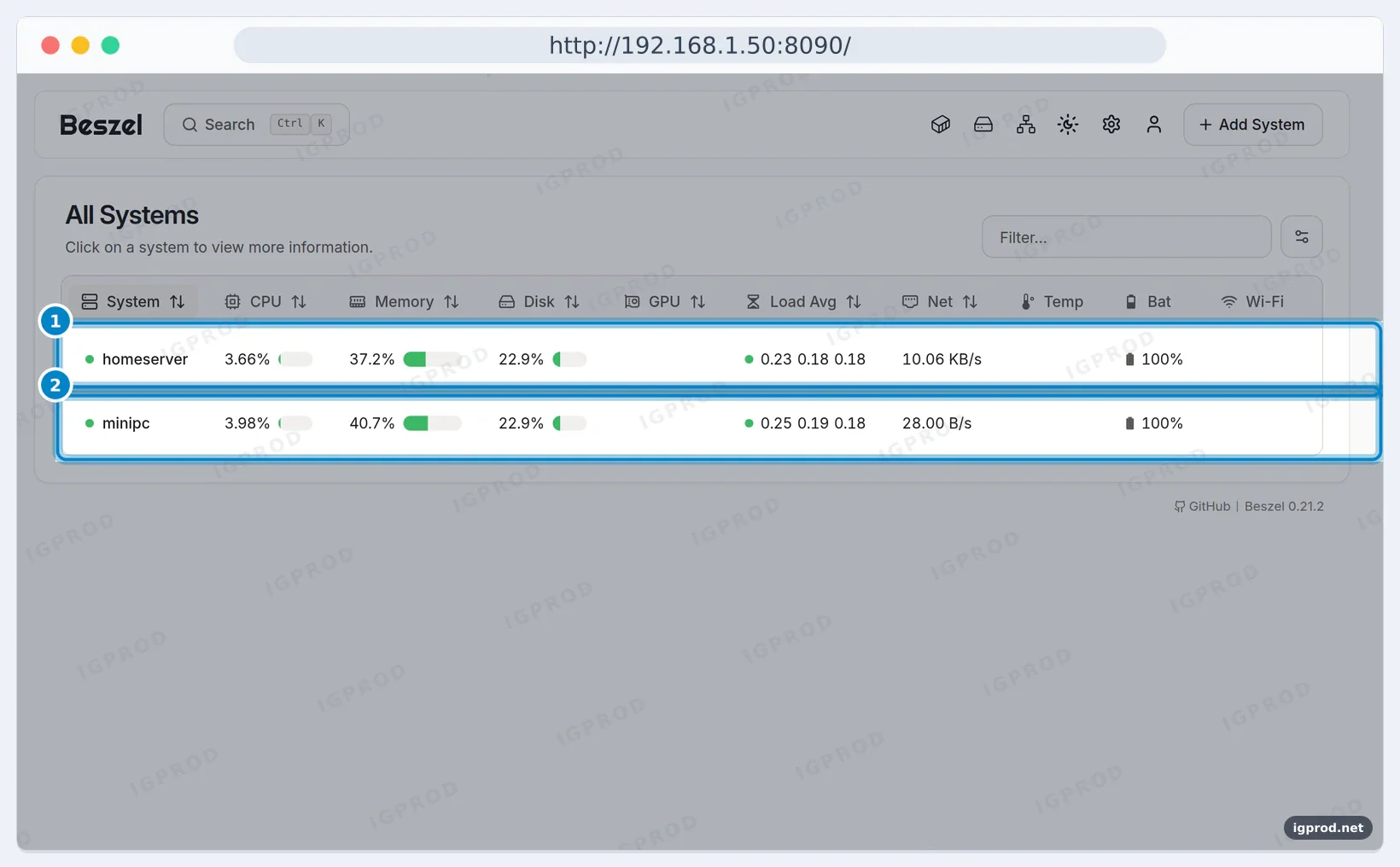
Five words used below: the token lets an agent register with the hub; the public key lets the agent check that it talks to your hub; the fingerprint is a stable ID of each machine, saved on its first connection; WebSocket is the connection the agent opens to the hub; a socket proxy is a small container that passes only chosen, read-only Docker requests.
What you need
- A Linux server with Docker Engine and the Compose plugin, for the hub and the first agent.
- Any other Linux machines you want to watch. The ones without Docker need systemd and
curl. - Port 8090 free on the server for the first steps, and port 443 for HTTPS in Step 7.
- About 20 minutes for Steps 1 to 4.
The production choices in this setup
Beszel's examples aim at a quick start. Here is what we changed, and why:
| Setting | Quick start | This guide | Why |
|---|---|---|---|
| Image tags | latest | 0.21.2 | The same version on every machine; you choose when to update. |
| Hub reaching agents over SSH (port 45876) | On | Off on both sides (DISABLE_SSH) | One kind of connection, opened by the agent. No port open on any agent. |
| Agent token | In the compose file | A Docker secret (TOKEN_FILE) or a file only root can read | Not visible in docker inspect or in your compose file. |
| Docker access | docker.sock:ro | A socket proxy that allows only GET requests to three API parts | :ro does not make the Docker API read-only (tested in Step 3). |
| Container details in the web UI | On | Off | Inspect data and logs can hold internal details, and anyone who can see that system in Beszel could open them. |
| Hub address | http://server:8090 | https:// through Caddy, port 8090 on localhost only | Passwords and tokens never cross the network in clear text. |
| Universal token | Off | On for minutes, Ephemeral, then off | Lets new agents register themselves while you add them, and not after. |
Step 1: Start the Beszel hub with Docker Compose
Create a folder for Beszel and a compose.yaml in it:
mkdir -p ~/beszel && cd ~/beszel
nano compose.yamlservices:
beszel:
image: henrygd/beszel:0.21.2
container_name: beszel
restart: unless-stopped
environment:
APP_URL: http://192.168.1.50:8090
DISABLE_SSH: "true"
ports:
- "8090:8090"
volumes:
- ./beszel_data:/beszel_data
healthcheck:
test: ["CMD", "/beszel", "health", "--url", "http://localhost:8090"]
interval: 120s
timeout: 5s
start_period: 10s
start_interval: 5sAPP_URL: the address you open in the browser. Beszel puts it in the links of its alerts. Step 7 changes it to HTTPS.DISABLE_SSH: "true": the hub never dials agents over SSH. Agents connect to the hub over WebSocket, and a machine whose agent is gone shows as down.- The health check uses the hub's own
/beszel healthcommand, because the image has no shell or curl.
Start it and check it:
docker compose up -d
docker compose ps --format "table {{.Name}}\t{{.Image}}\t{{.Status}}\t{{.Ports}}"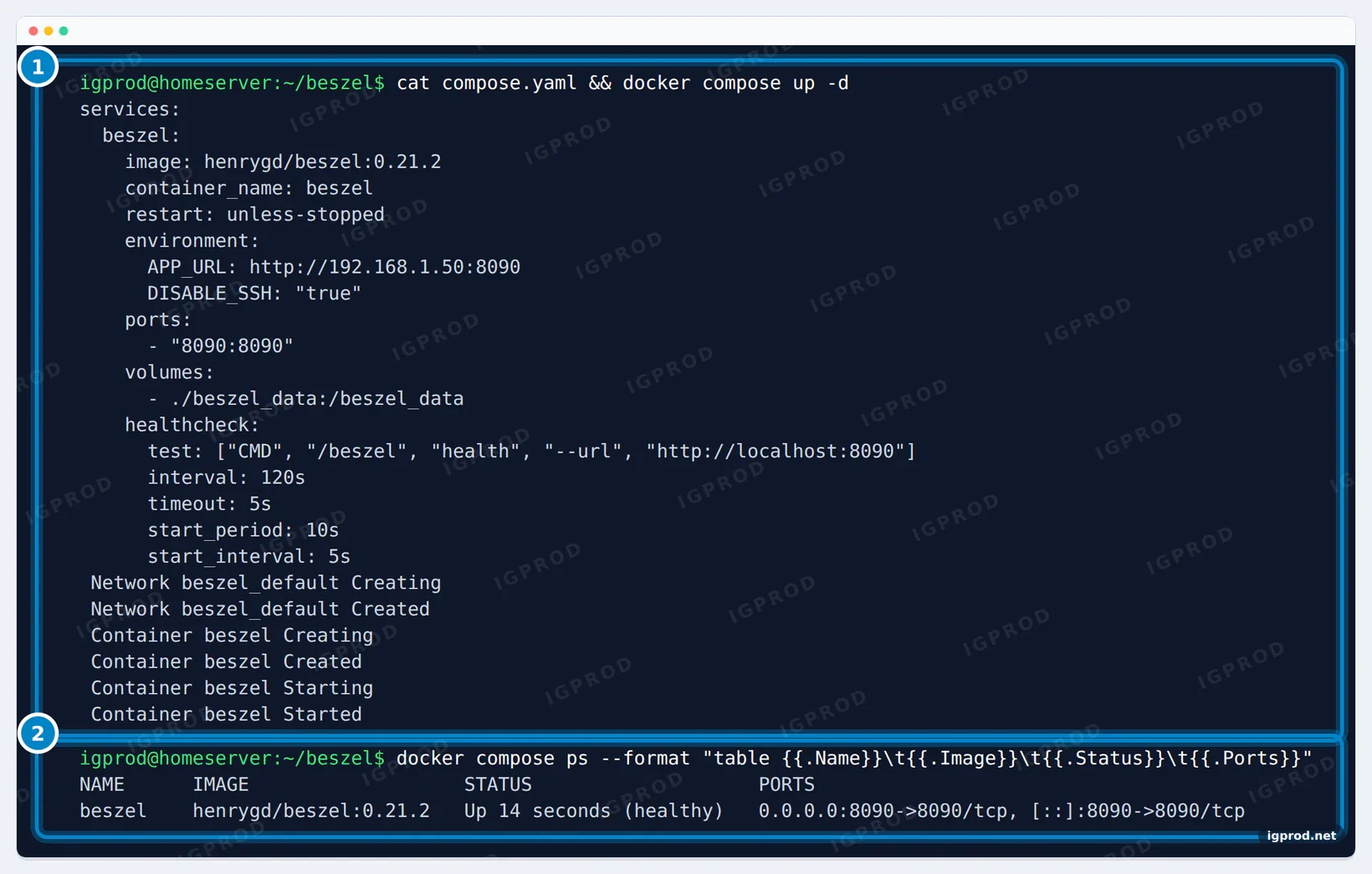
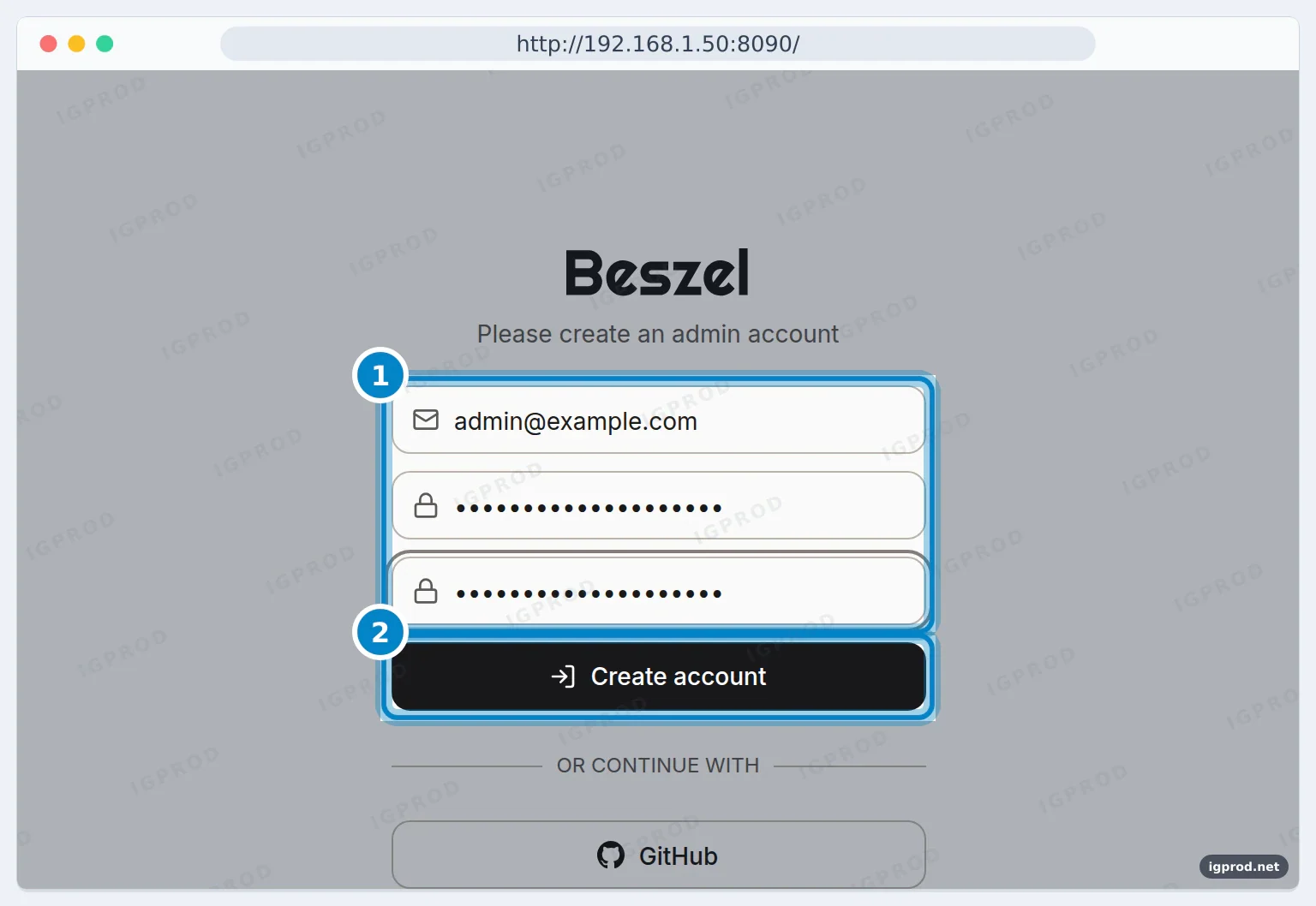
Open http://192.168.1.50:8090 (your server's address). The first visit creates the admin account: use a password manager and a long password, since this account sees every machine.
Step 2: Add the server itself and start its agent
Click Add System. Give it a name (we used homeserver) and localhost as host: with SSH off, the hub never dials this address, it is a label. The dialog shows the two values the agent needs: the hub's public key and this system's token. Copy both, then click Add System. The system shows as pending until its agent connects.
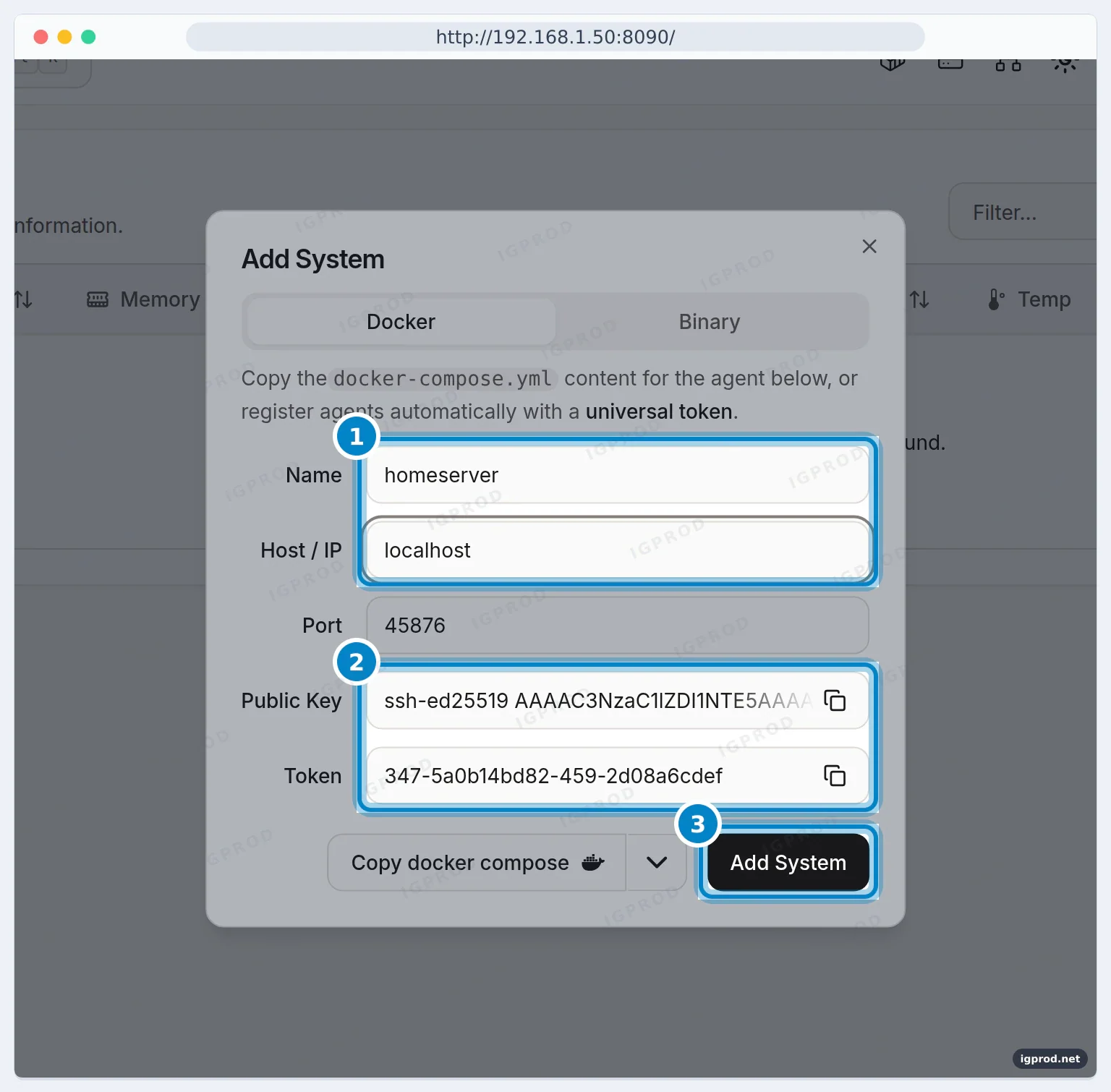
Put the token in a file that only you can read. An editor keeps it out of your shell history:
install -m 600 /dev/null beszel_token
nano beszel_token
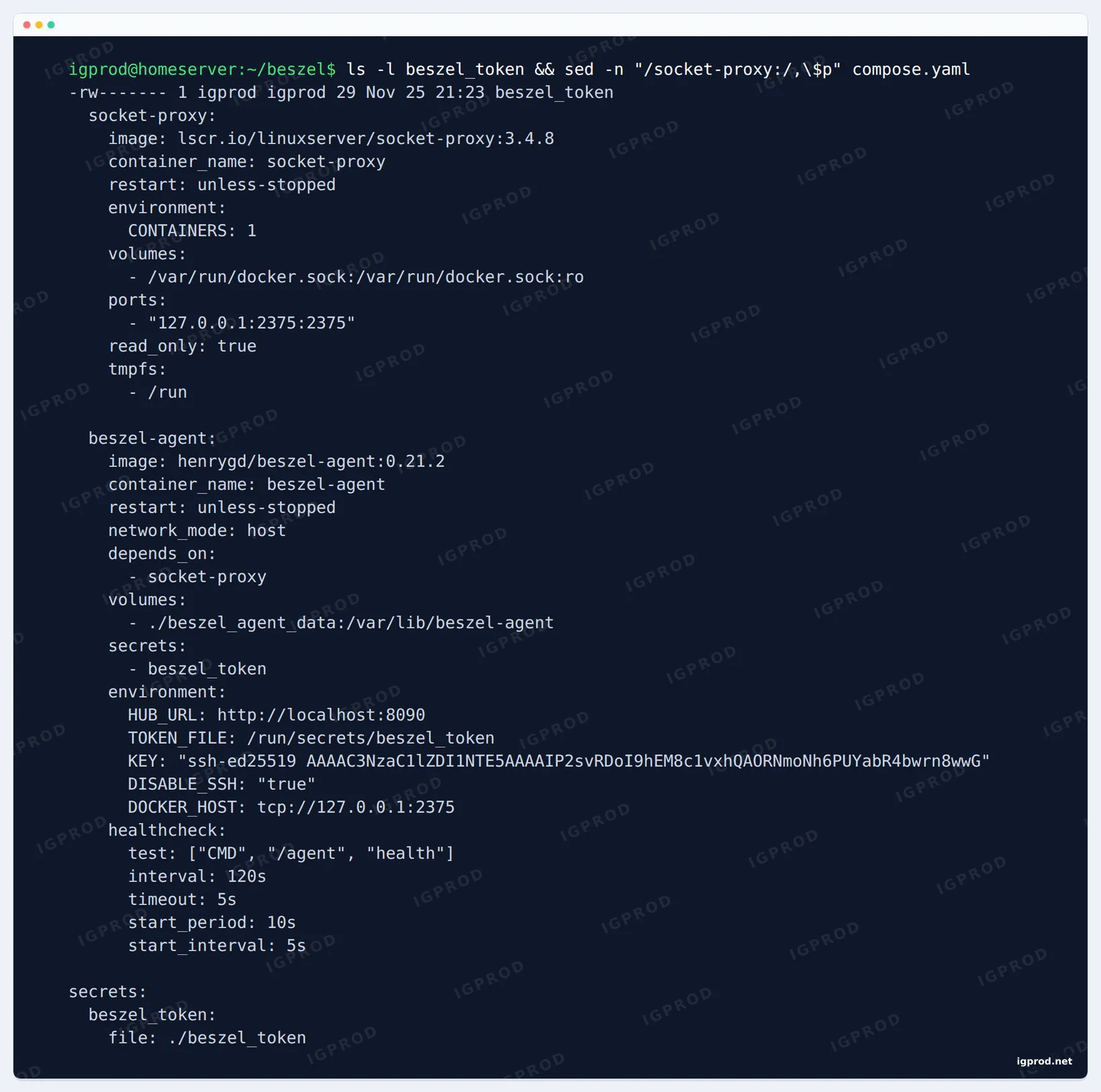
Then add the socket proxy, the agent and the secret to compose.yaml, under the hub. The key goes in KEY; the token reaches the agent as a Docker secret, read through TOKEN_FILE:
  socket-proxy:
    image: lscr.io/linuxserver/socket-proxy:3.4.8
    container_name: socket-proxy
    restart: unless-stopped
    environment:
      CONTAINERS: 1
    volumes:
      - /var/run/docker.sock:/var/run/docker.sock:ro
    ports:
      - "127.0.0.1:2375:2375"
    read_only: true
    tmpfs:
      - /run

  beszel-agent:
    image: henrygd/beszel-agent:0.21.2
    container_name: beszel-agent
    restart: unless-stopped
    network_mode: host
    depends_on:
      - socket-proxy
    volumes:
      - ./beszel_agent_data:/var/lib/beszel-agent
    secrets:
      - beszel_token
    environment:
      HUB_URL: http://localhost:8090
      TOKEN_FILE: /run/secrets/beszel_token
      KEY: "ssh-ed25519 AAAA...the public key from Add System"
      DISABLE_SSH: "true"
      DOCKER_HOST: tcp://127.0.0.1:2375
    healthcheck:
      test: ["CMD", "/agent", "health"]
      interval: 120s
      timeout: 5s
      start_period: 10s
      start_interval: 5s

secrets:
  beszel_token:
    file: ./beszel_token
network_mode: host: the agent sees the server's real network cards and disks, and reaches the hub atlocalhost:8090.DISABLE_SSH: "true"on the agent: no SSH server inside, nothing listens on port 45876.DOCKER_HOST: Docker data comes from the proxy, published on127.0.0.1only, not from the socket itself.
docker compose up -d
docker compose ps --format "table {{.Name}}\t{{.Image}}\t{{.Status}}" && docker logs beszel-agent 2>&1 | tail -n 5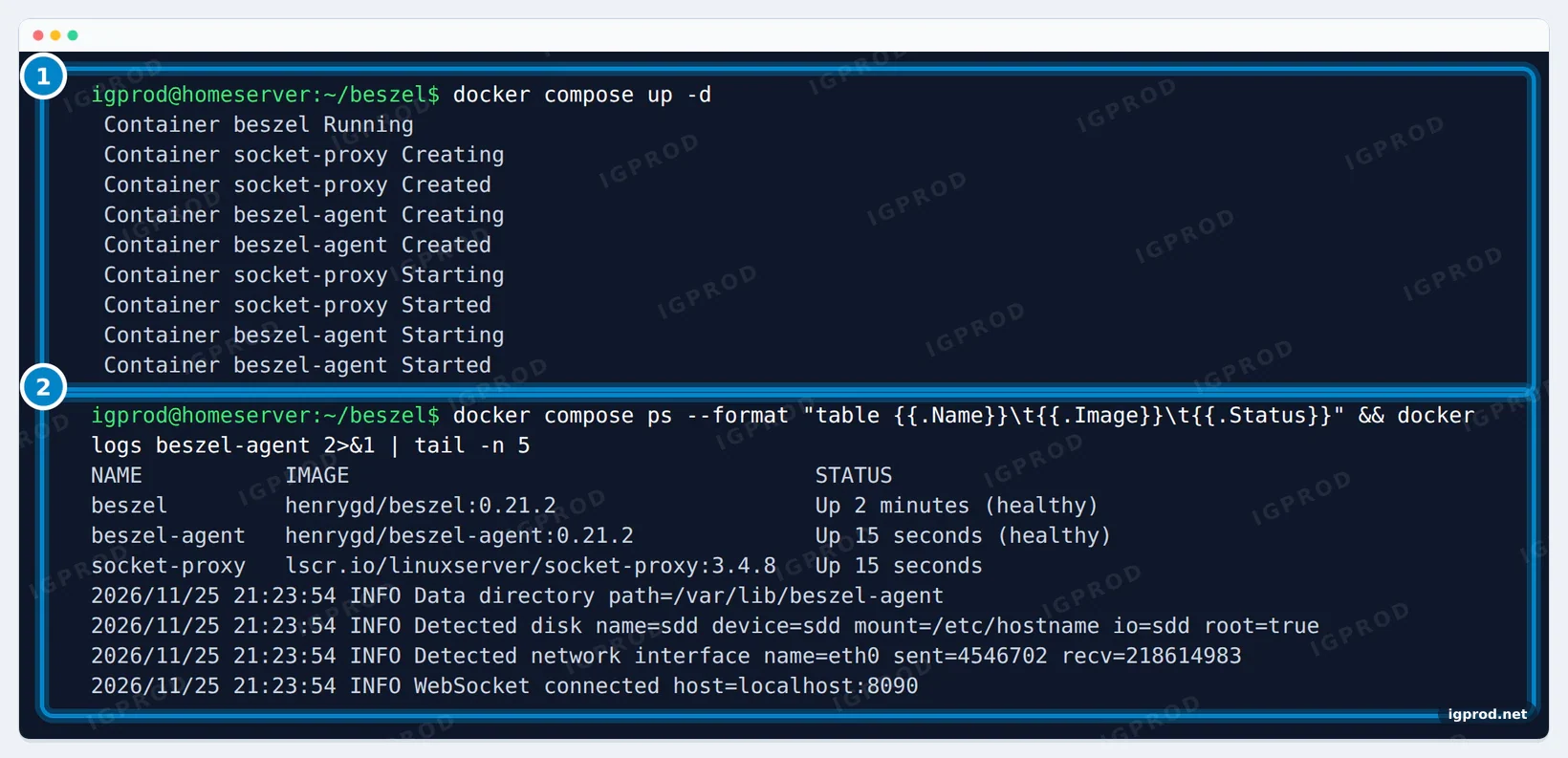
"WebSocket connected" in the agent's log, and the system turns green in the hub. If it stays red, the log says why: a wrong key or token is the usual cause.
Step 3: Give the agent read-only Docker access
Whoever can talk to /var/run/docker.sock controls Docker, and through it the whole server. Many setups mount the socket with :ro and think it is read-only. It is not: :ro only stops writes to the socket file, not requests sent through it. We checked with a throwaway container that had the socket mounted :ro: it restarted our hub.
docker run --rm -v /var/run/docker.sock:/var/run/docker.sock:ro nginx:1.30.8-alpine curl -s -o /dev/null -w '%{http_code}\n' --unix-socket /var/run/docker.sock -X POST http://localhost/containers/beszel/restart && docker ps --filter name=^beszel$ --format '{{.Names}}: {{.Status}}'
The socket proxy (lscr.io/linuxserver/socket-proxy:3.4.8) answers only the API parts you switch on, and with its default POST=0 only GET and HEAD requests. We started with CONTAINERS: 1 only. The proxy log then showed what else the agent asks for:
docker logs socket-proxy 2>&1 | grep ' 403 ' | grep -o '"GET [^"]*"'
/info is the Docker host information and /images/.../json the details of each container's image. Both are read-only, so we allowed them:
    environment:
      CONTAINERS: 1
      IMAGES: 1
INFO: 1docker compose up -d --force-recreate socket-proxy beszel-agent
docker logs socket-proxy 2>&1 | grep -c ' 403 '; curl -s http://127.0.0.1:2375/containers/json | jq length; curl -s -o /dev/null -w '%{http_code}\n' -X POST http://127.0.0.1:2375/containers/beszel/restart
for p in "logs?stdout=1" export "archive?path=/beszel_data"; do curl -s -o /dev/null -w "%{http_code} $p\n" "http://127.0.0.1:2375/containers/beszel/$p"; done; curl -s http://127.0.0.1:2375/containers/beszel/json | jq -c .Config.Env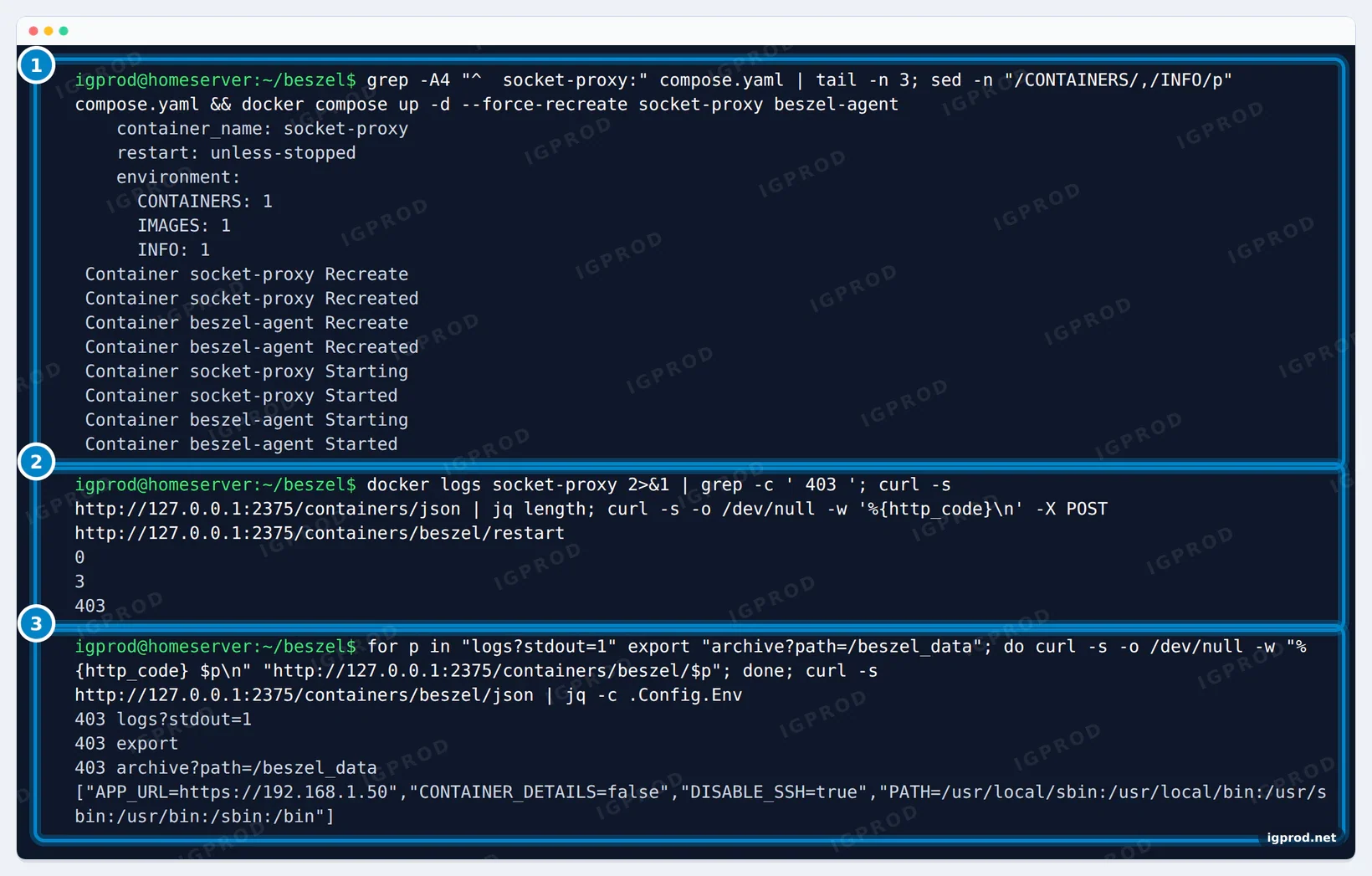
No more refusals, the agent lists the 3 containers, and a restart request still gets 403. Even as GET requests, the proxy refuses container logs, exports and file downloads unless you switch them on (ALLOW_LOGS, ALLOW_EXPORT, ALLOW_ARCHIVE). Leave them off: Beszel works without them (Step 5).
One trade-off: with the agent on the host network, the proxy must listen on 127.0.0.1:2375, so any program or user on the server can send it the same requests: container lists, stats and settings, environment variables included (the last line above), but no logs, files, start, stop or exec. On this server, prefer secret files to passwords in environment variables (many images accept a _FILE variant), as we did for the token. If you do not need container stats, remove the proxy and the DOCKER_HOST line: like the mini PC in Step 4, the agent then reports the machine only.
Step 4: Add a Linux machine without Docker (agent binary under systemd)
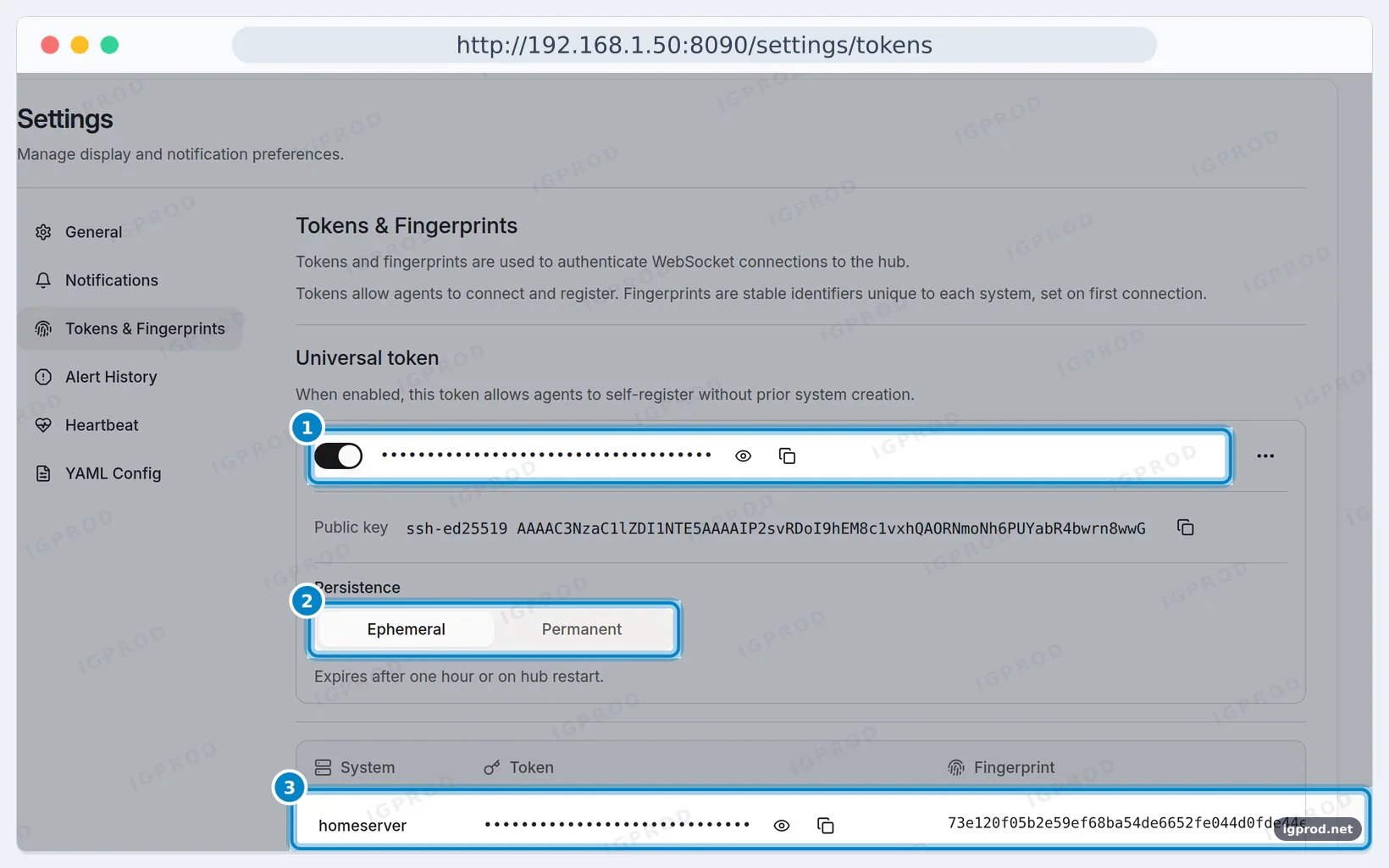
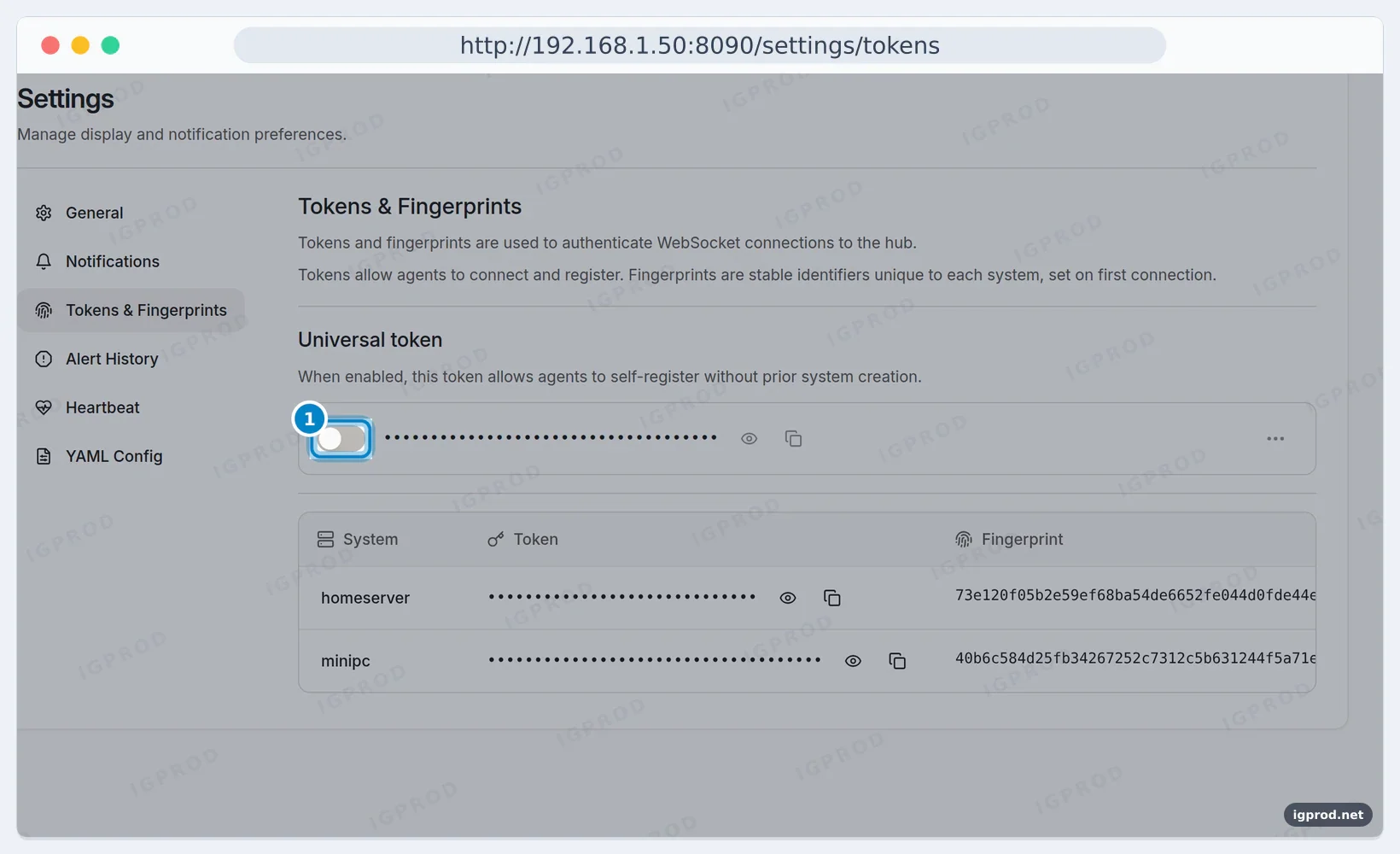
For a mini PC, a Raspberry Pi or a VPS without Docker, use the agent binary. To skip the Add System dialog for each one, switch on the universal token under Settings > Tokens & Fingerprints. An agent that connects with it registers itself under its hostname and gets its own token. Keep Ephemeral: the token stops working after one hour or when the hub restarts.
On the new machine, download the agent and its checksum list from the v0.21.2 release, check the file, and install it:
curl -sSL --remote-name-all https://github.com/henrygd/beszel/releases/download/v0.21.2/beszel-agent_linux_amd64.tar.gz https://github.com/henrygd/beszel/releases/download/v0.21.2/beszel_0.21.2_checksums.txt && sha256sum --ignore-missing -c beszel_0.21.2_checksums.txt
tar -xzf beszel-agent_linux_amd64.tar.gz beszel-agent && sudo install -m 0755 beszel-agent /usr/local/bin/ && beszel-agent --version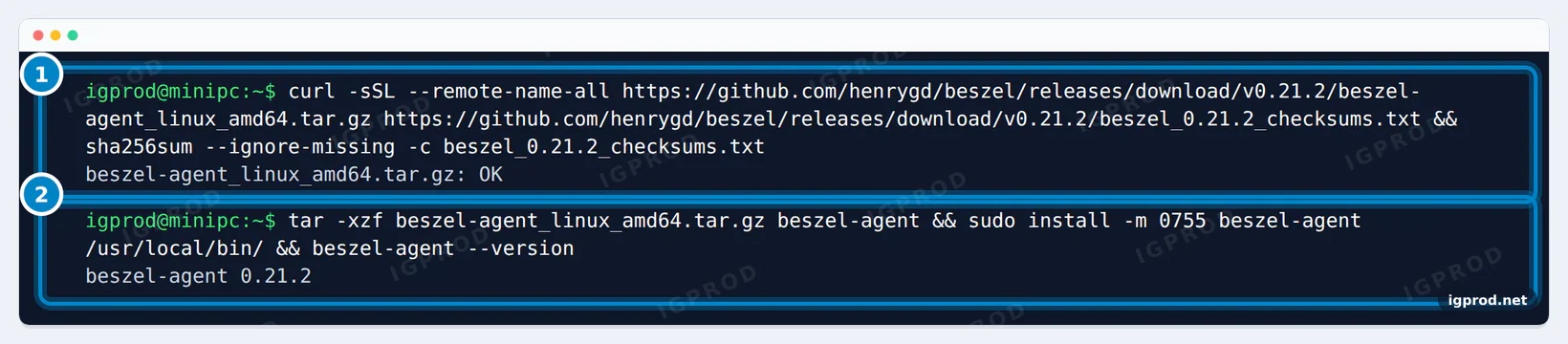
The agent runs as its own system user, not as root, and reads its settings from a file that only root can read. systemd reads that file before it starts the agent as the user beszel:
sudo useradd --system --no-create-home --shell /usr/sbin/nologin beszel && id beszel
sudo install -m 0600 /dev/null /etc/beszel-agent.env
sudo nano /etc/beszel-agent.env
Paste these four lines, with your hub's address, the public key and the universal token:
HUB_URL=http://192.168.1.50:8090
KEY="ssh-ed25519 AAAA...the public key from Add System"
TOKEN=the universal token
DISABLE_SSH=true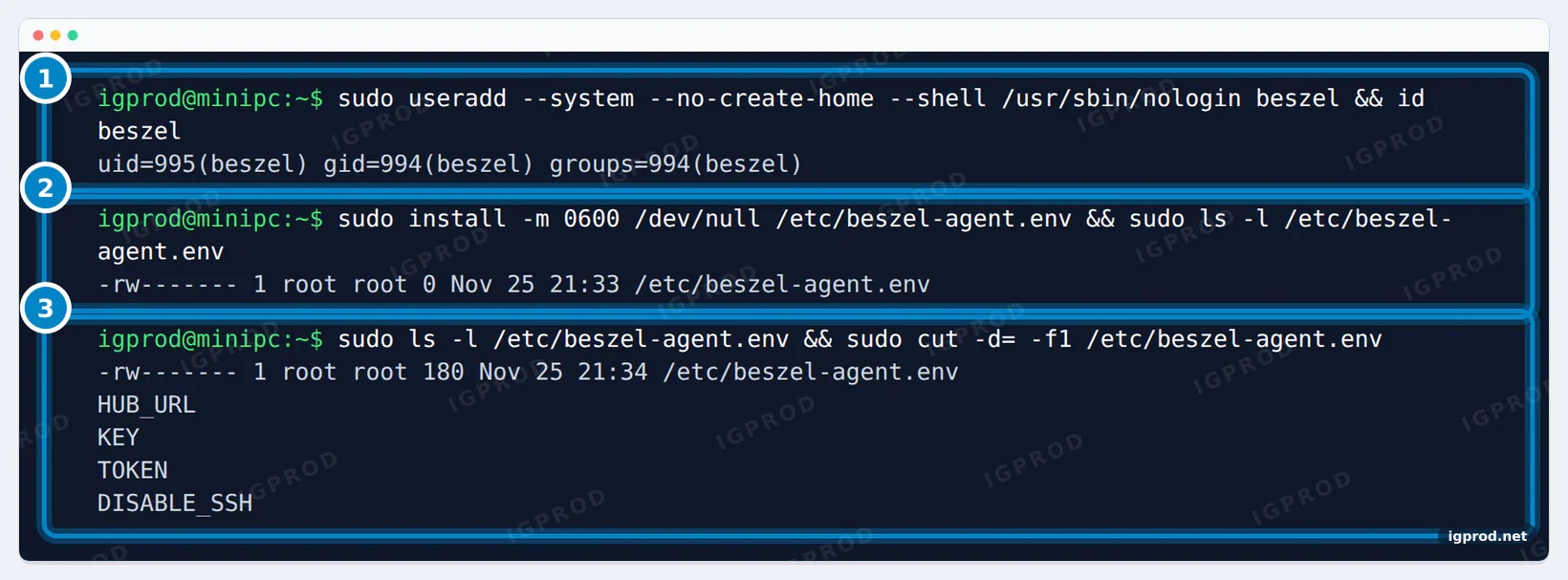
Now the service. It starts from Beszel's own example and adds a user and more sandboxing: no capabilities, a read-only system, and only the network families the agent uses:
sudo nano /etc/systemd/system/beszel-agent.service[Unit]
Description=Beszel Agent
After=network-online.target
Wants=network-online.target
[Service]
ExecStart=/usr/local/bin/beszel-agent
EnvironmentFile=/etc/beszel-agent.env
User=beszel
Group=beszel
StateDirectory=beszel-agent
Restart=on-failure
RestartSec=5
# Hardening: the official unit's settings plus a few more
KeyringMode=private
LockPersonality=yes
NoNewPrivileges=yes
ProtectClock=yes
ProtectHome=read-only
ProtectHostname=yes
ProtectKernelLogs=yes
ProtectSystem=strict
RemoveIPC=yes
RestrictSUIDSGID=true
PrivateTmp=yes
ProtectKernelTunables=yes
ProtectKernelModules=yes
ProtectControlGroups=yes
RestrictNamespaces=yes
RestrictRealtime=yes
SystemCallArchitectures=native
CapabilityBoundingSet=
RestrictAddressFamilies=AF_UNIX AF_INET AF_INET6 AF_NETLINK
[Install]
WantedBy=multi-user.targetsudo systemctl daemon-reload && sudo systemctl enable --now beszel-agent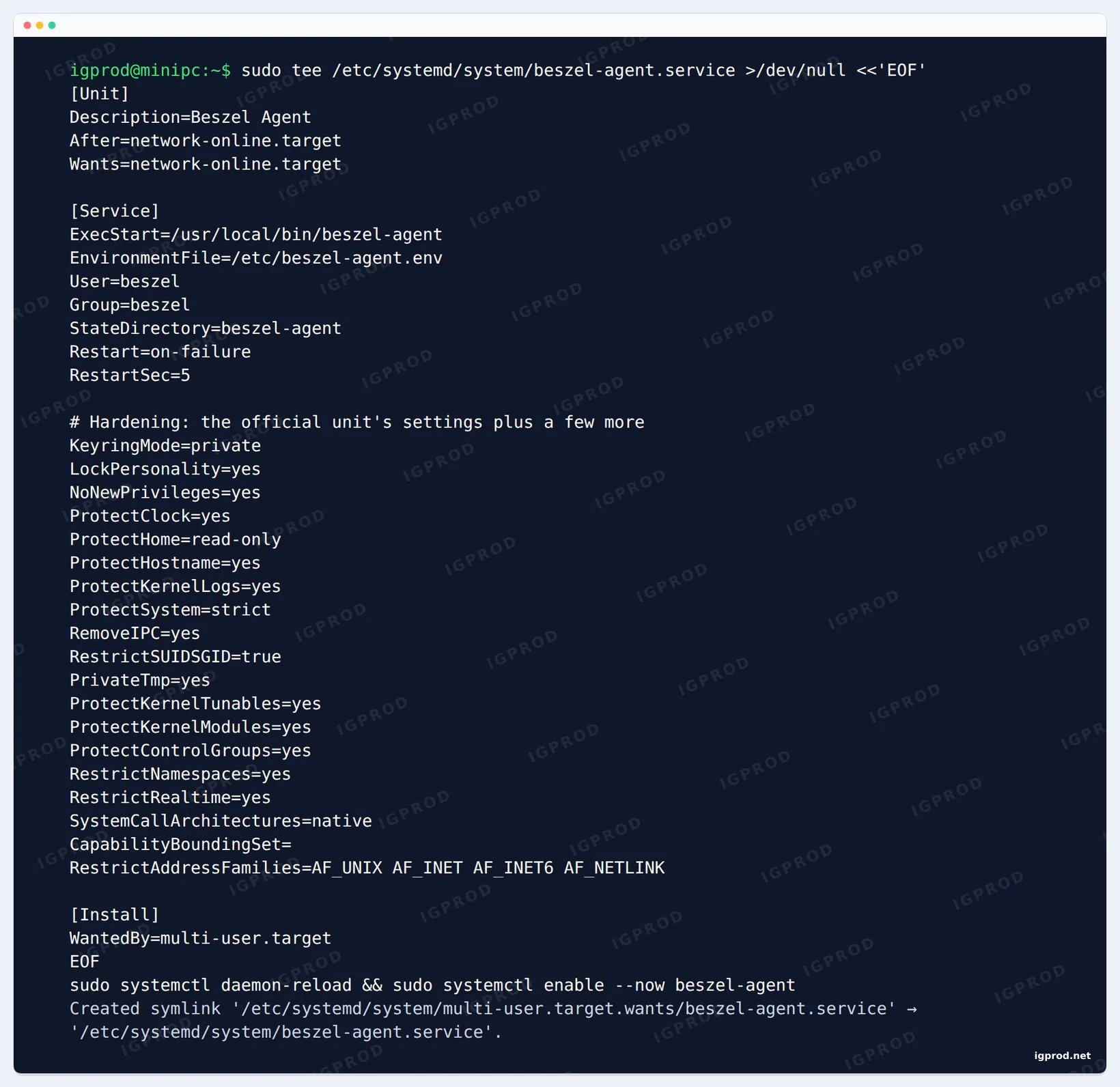
Check it: running, connected, no open port, not root.
systemctl status beszel-agent --no-pager | head -n 9 && sudo journalctl -u beszel-agent --no-pager -o cat | grep -E 'Data directory|WebSocket'
sudo ss -ltnp | grep -c beszel; ps -o user=,rss=,args= -C beszel-agent
systemd-analyze security beszel-agent.service --no-pager | tail -n 1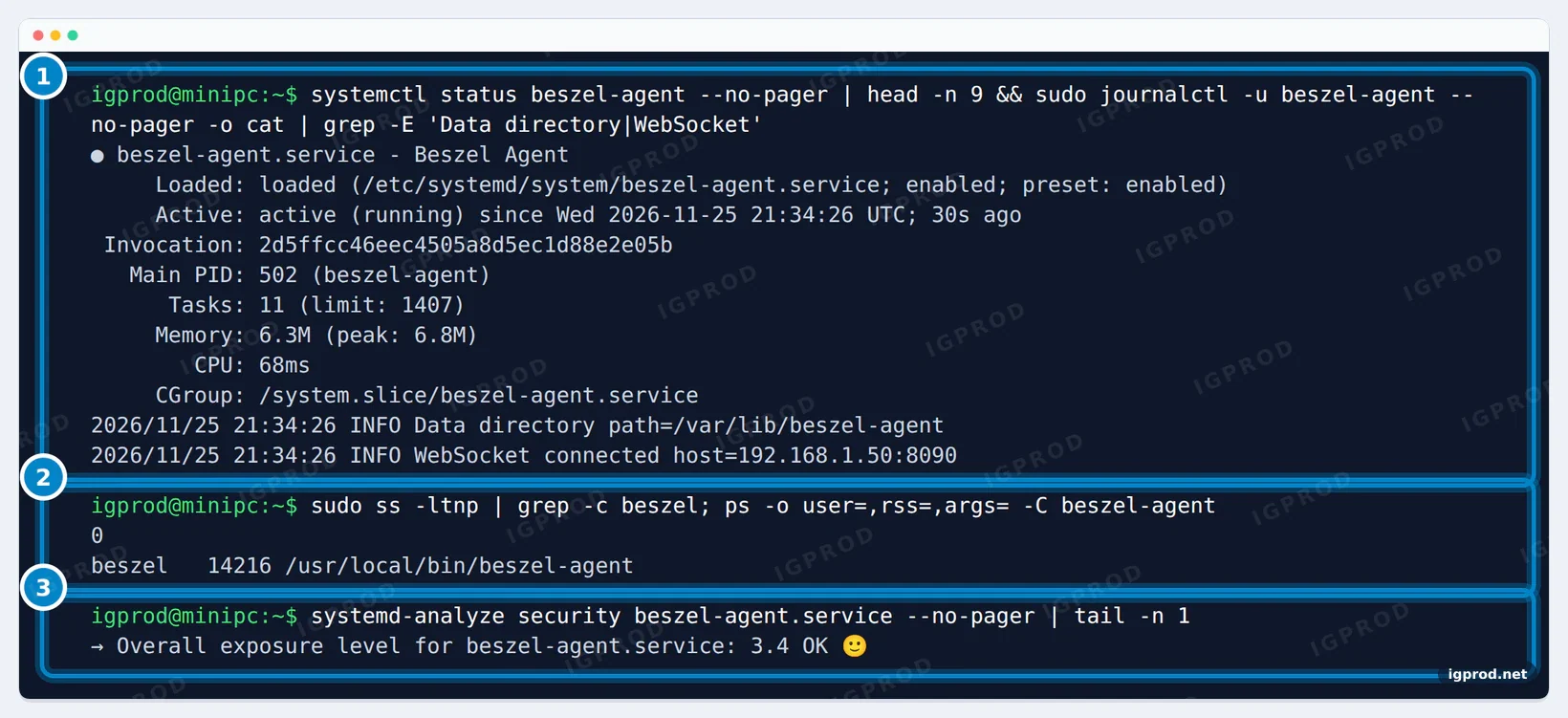
StateDirectory=beszel-agent gives the agent /var/lib/beszel-agent, owned by its user, where it keeps its fingerprint; it found that folder by itself. The exposure score of 3.4 comes from systemd-analyze security, where lower is safer. When every machine is in, switch the universal token off. The machines keep their own tokens:
Step 5: See containers, and turn container details off
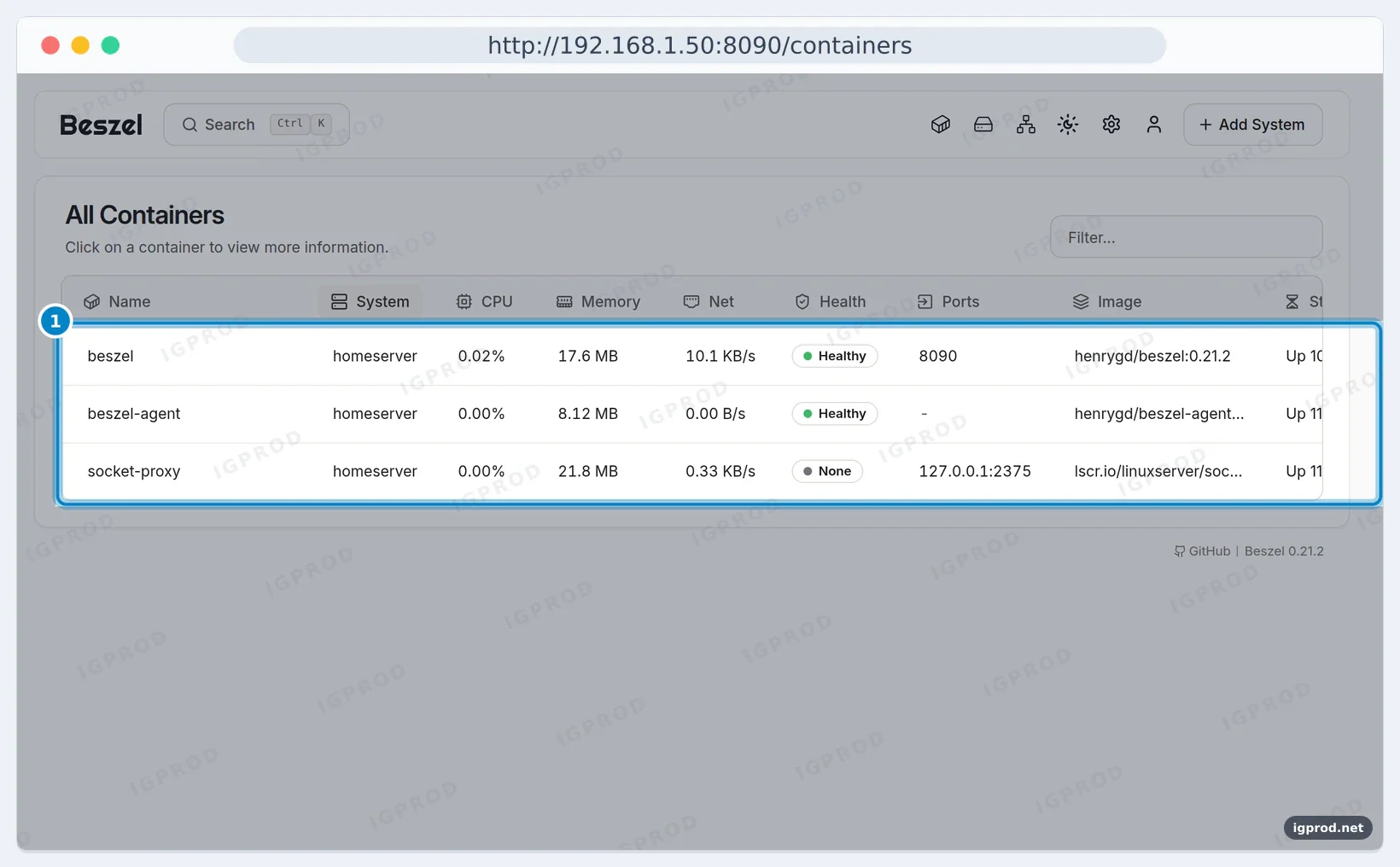
The container icon at the top opens All Containers: CPU, memory and network per container, the Docker health check, ports and the image tag.
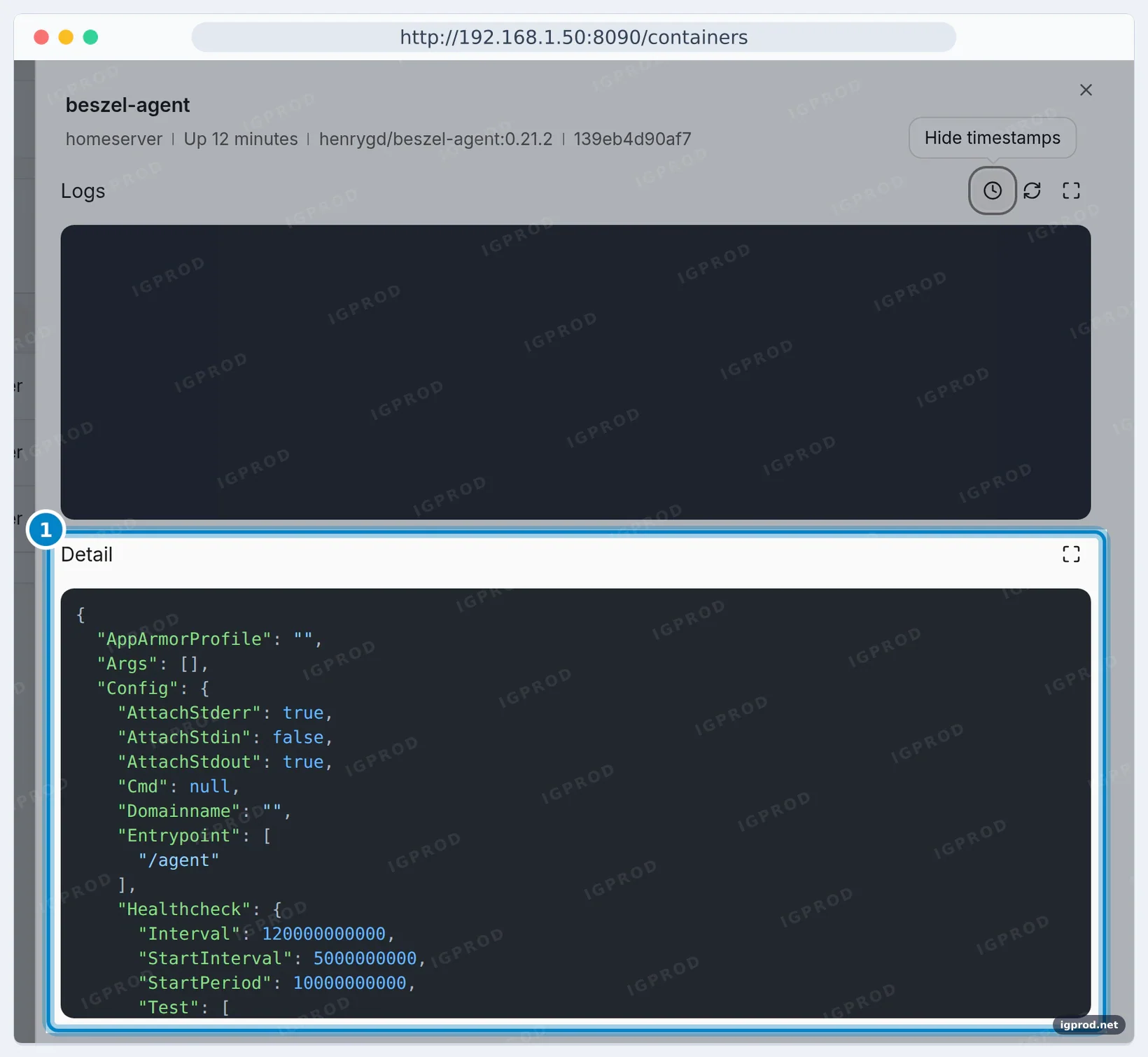
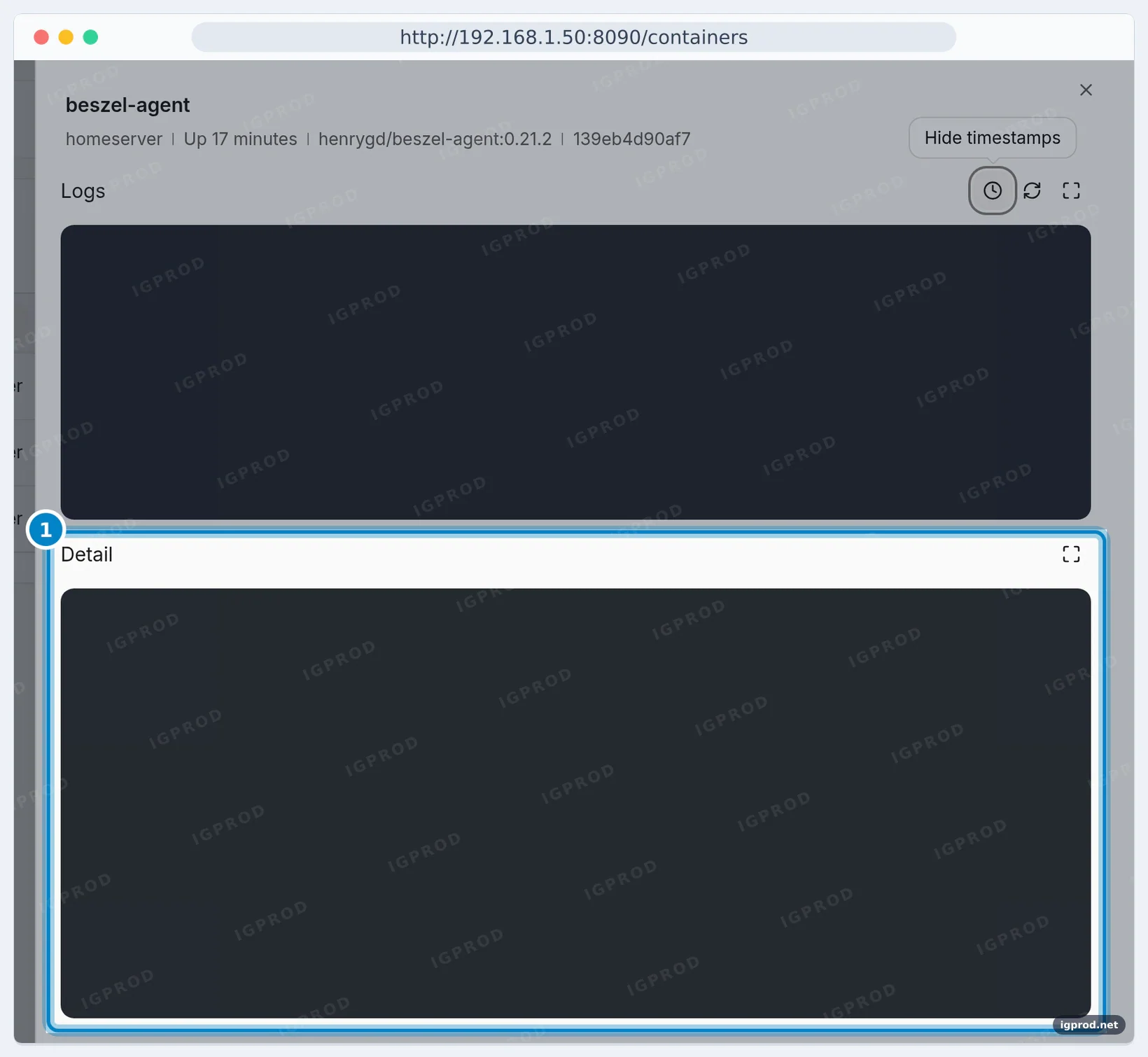
A click on a container opens two panels. Detail is the container's docker inspect: labels, mounts, command, networks. Beszel leaves out the environment variables (we searched the whole output for them), but the rest can still describe your setup, and container logs often hold e-mail addresses, internal URLs or a key printed by mistake. Our logs panel stayed empty, because the proxy refuses log requests: its log counted 8 refusals while we opened container sheets.
If several people use your Beszel, or you simply do not need it, turn the feature off in the hub's environment and recreate the hub:
    environment:
      APP_URL: http://192.168.1.50:8090
      DISABLE_SSH: "true"
CONTAINER_DETAILS: "false"docker logs socket-proxy 2>&1 | grep ' 403 ' | grep -c 'GET /containers/.*/logs'
docker compose up -d beszel
docker compose ps beszel --format '{{.Name}}: {{.Status}}' && docker inspect beszel --format '{{range .Config.Env}}{{println .}}{{end}}' | grep -v '^PATH='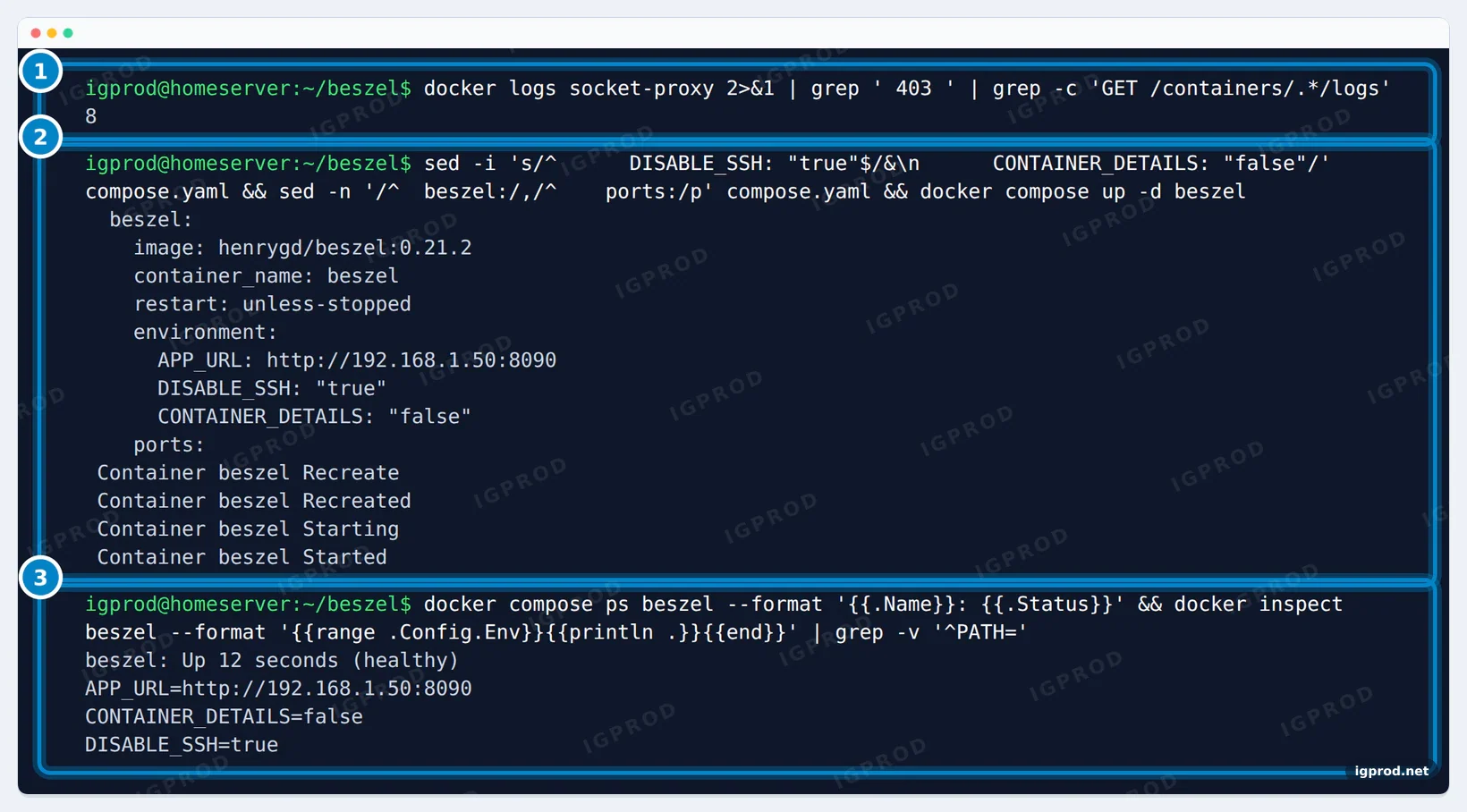
Step 6: Alerts that reach your phone (ntfy), tested
Beszel sends alerts by e-mail (it needs an SMTP server) or to a Shoutrrr URL: ntfy, Gotify, Telegram, Discord, Slack and more. We used ntfy on the same server, with access control on, so that nobody else on the network can read your alerts or post fake ones. In ~/ntfy/compose.yaml:
services:
  ntfy:
    image: binwiederhier/ntfy:v2.38.2
    container_name: ntfy
    command: serve
    restart: unless-stopped
    environment:
      NTFY_BASE_URL: http://192.168.1.50:8081
      NTFY_CACHE_FILE: /var/lib/ntfy/cache.db
      NTFY_AUTH_FILE: /var/lib/ntfy/auth.db
      NTFY_AUTH_DEFAULT_ACCESS: deny-all
      NTFY_ENABLE_LOGIN: "true"
    volumes:
      - ./ntfy_data:/var/lib/ntfy
    ports:
      - "8081:80"
    healthcheck:
      test: ["CMD-SHELL", "wget -q --tries=1 http://localhost:80/v1/health -O - | grep -Eo '\"healthy\"\\s*:\\s*true' || exit 1"]
      interval: 60s
      timeout: 10s
      retries: 3
start_period: 40scd ~/ntfy && docker compose up -d
docker compose ps --format "{{.Name}}: {{.Image}} {{.Status}}"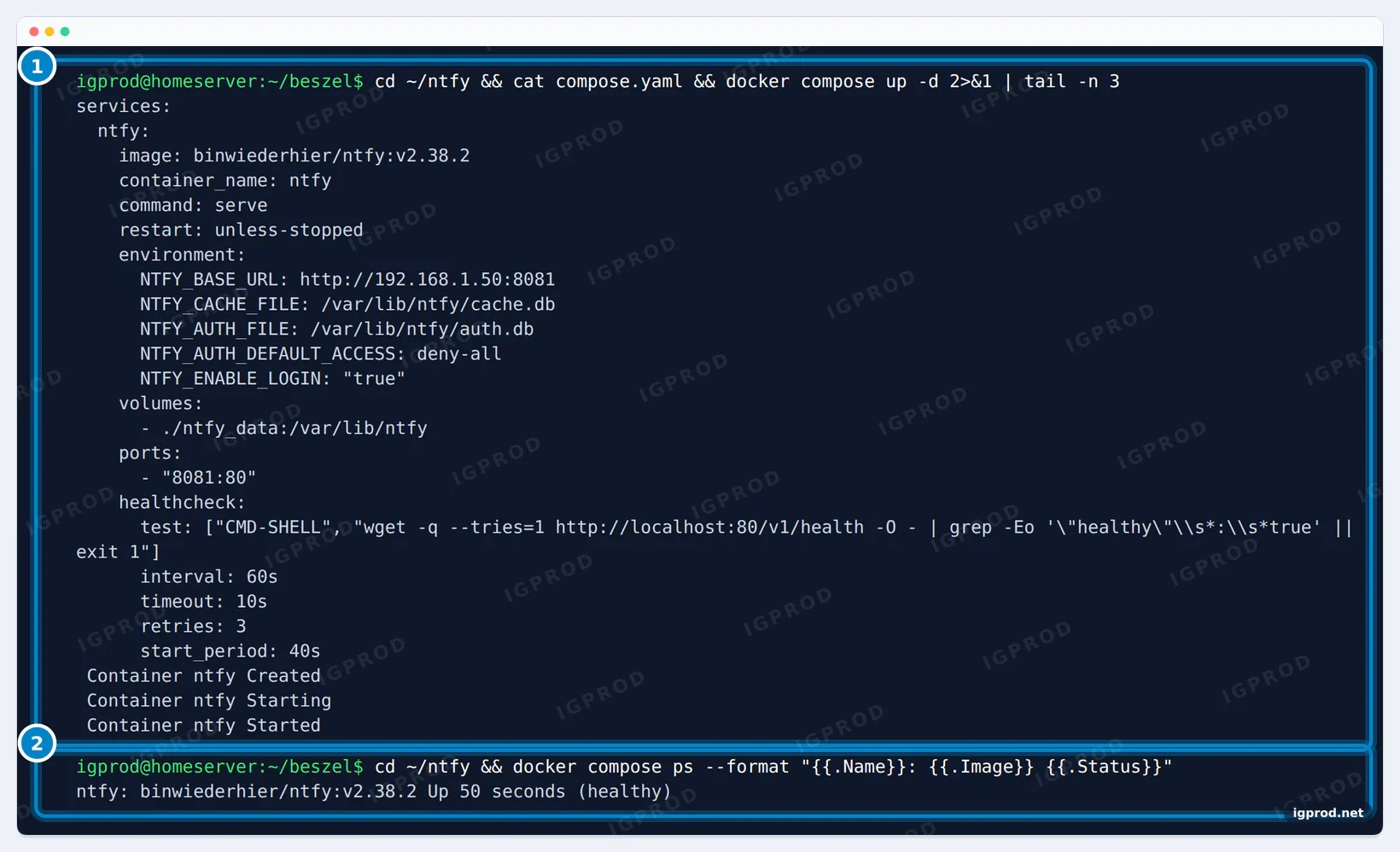
Create your own account (it asks for a password twice), then a user for Beszel that may only post to one topic. The Beszel user gets a random password that nobody keeps, because it signs in with a token:
docker exec -it ntfy ntfy user add --role=admin igprod
docker exec -e NTFY_PASSWORD="$(head -c 24 /dev/urandom | base64)" ntfy ntfy user add beszel
docker exec ntfy ntfy access beszel beszel-alerts write-only
docker exec ntfy ntfy token add --label=beszel-hub beszel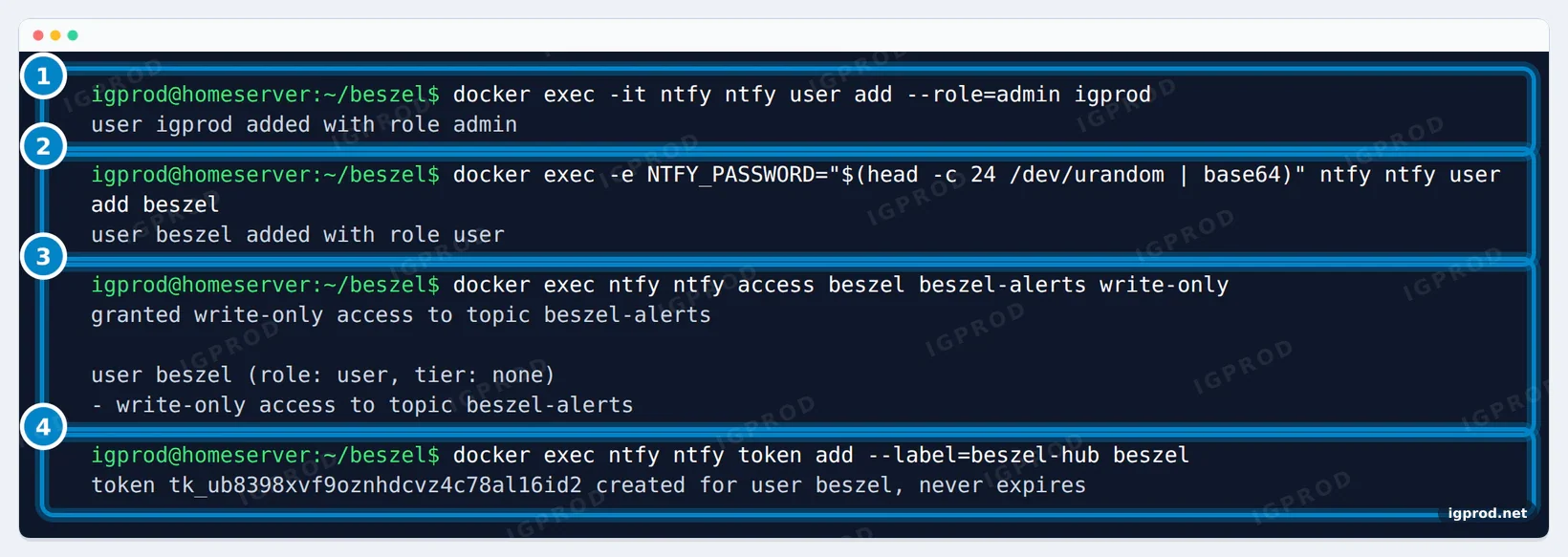
curl -s -o /dev/null -w 'anonymous read: %{http_code}\n' 'http://192.168.1.50:8081/beszel-alerts/json?poll=1'; curl -s -o /dev/null -w 'anonymous publish: %{http_code}\n' -d test http://192.168.1.50:8081/beszel-alerts
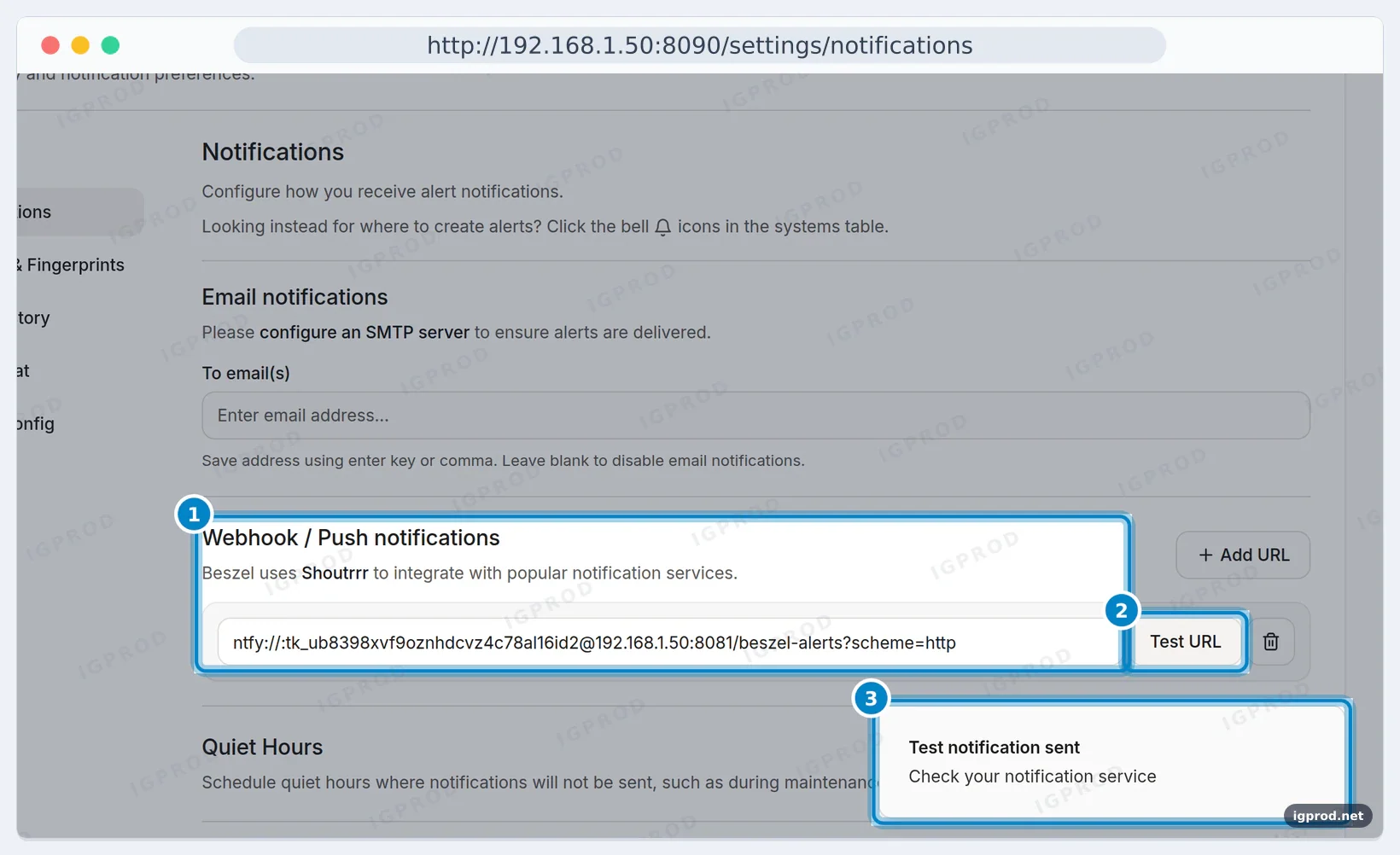
In Beszel, open Settings > Notifications. If you have no SMTP server, remove the e-mail address Beszel fills in for you. Under Webhook / Push notifications, enter the ntfy address with the token as password and an empty user name (Add URL adds more addresses):
ntfy://:[email protected]:8081/beszel-alerts?scheme=httpscheme=http is needed while ntfy has no HTTPS; the traffic stays on your network. Click Test URL, check that the test arrives, then Save Settings.
Now the alerts: the bell icon on any row of the dashboard, then the All Systems tab. We used:
- Status: down for 2 minutes. Long enough to skip a quick reboot, short enough to matter.
- CPU Usage: over 80% for 10 minutes; Memory Usage: over 90% for 10 minutes; Disk Usage: over 85% for 10 minutes.
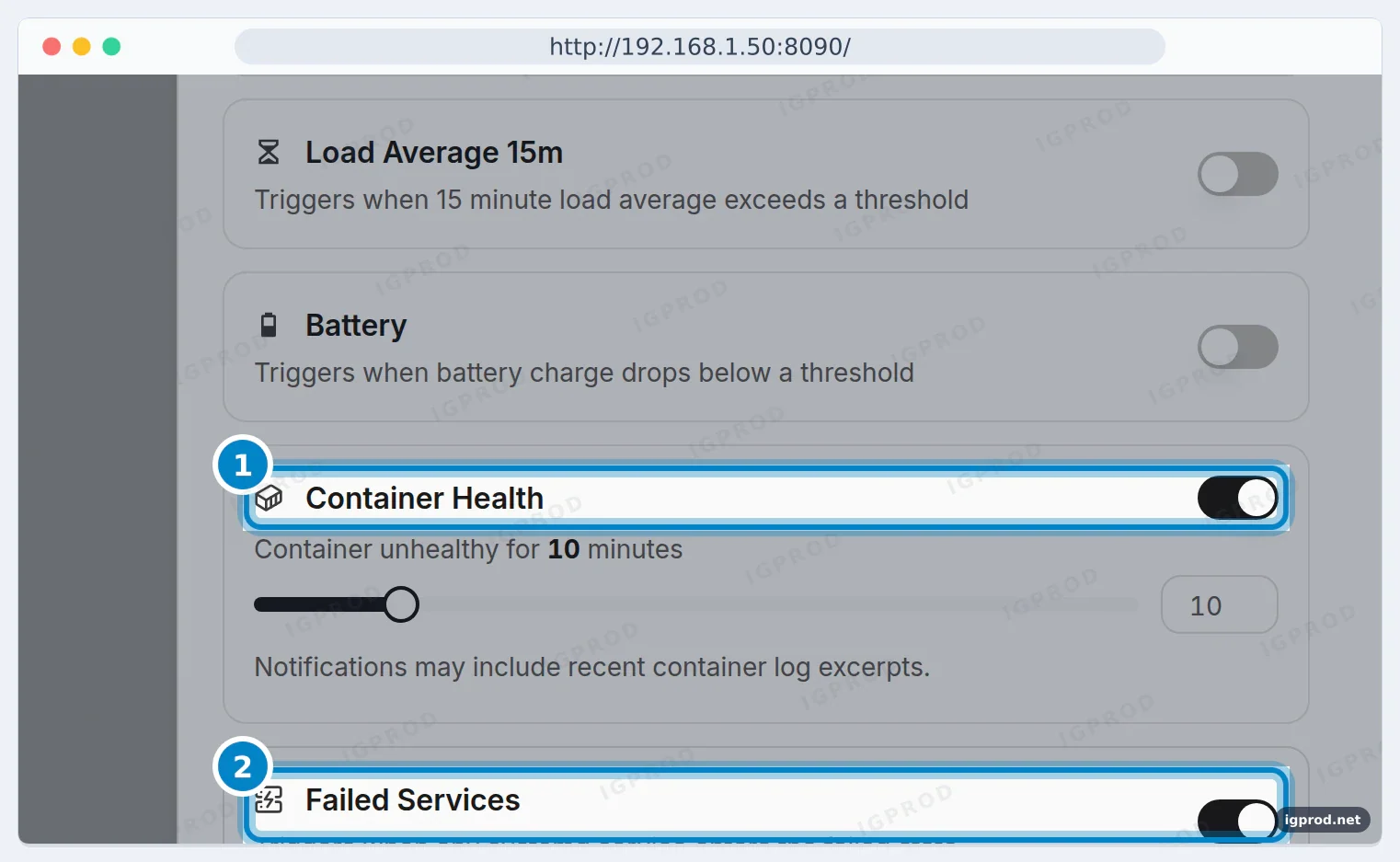
- Container Health (a Docker health check turns unhealthy) and Failed Services (a systemd service fails).
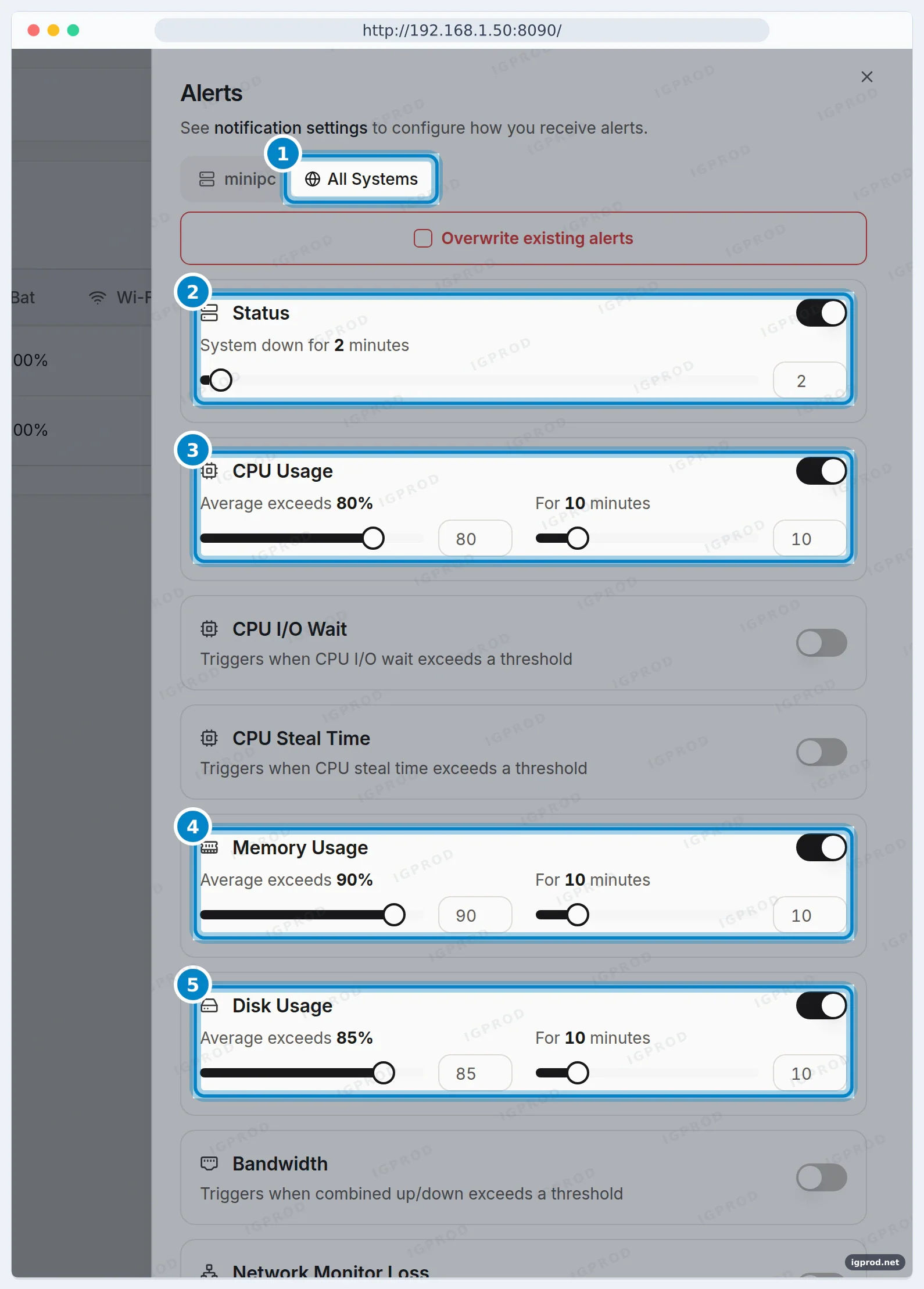
One trap we hit: in the All Systems tab, a change reaches alerts that already exist only when Overwrite existing alerts is ticked. Our Status alert stayed at 10 minutes until we ticked it, and our first test waited for nothing.
The test: stop the agent on the mini PC, wait, start it again.
sudo systemctl stop beszel-agent && date -u
# wait 3 minutes
sudo systemctl start beszel-agent && date -u
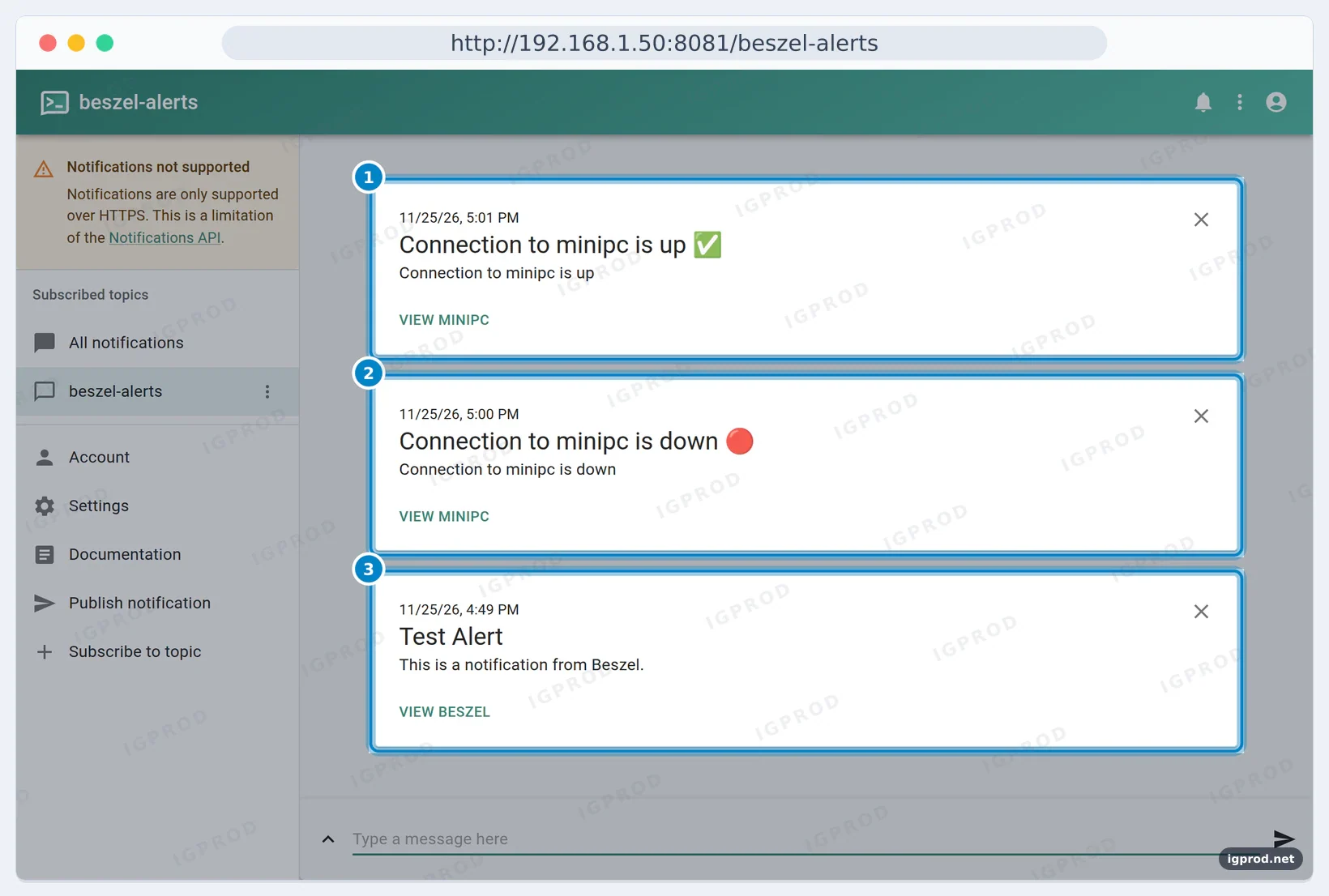
The down alert arrived at 22:00 UTC, about two minutes after the stop, and the up alert a few seconds after the restart, each with a button that opens the machine in Beszel. On a phone, the ntfy app can subscribe to the same topic with your account; we read the alerts in ntfy's web app.
Step 7: HTTPS for the hub (Caddy) and agents that check it
So far the login and the agents' traffic use plain HTTP. Caddy can put HTTPS in front of the hub with its own small certificate authority (tls internal): no domain needed. In ~/beszel/Caddyfile:
{
	# Clients send no server name (SNI) for an IP address: use this site's certificate for them.
	default_sni 192.168.1.50
	# The internal CA stays in Caddy's data volume; no attempt to install it into the container's trust store.
	skip_install_trust
}

https://192.168.1.50 {
	tls internal
	reverse_proxy beszel:8090
}
default_sni matters when you open the hub by IP address: browsers and agents send no server name for an IP, and without that line Caddy ends the connection (curl said tlsv1 alert internal error). Then change the hub and add Caddy in compose.yaml:
  beszel:
    environment:
      APP_URL: https://192.168.1.50
      DISABLE_SSH: "true"
      CONTAINER_DETAILS: "false"
    ports:
      - "127.0.0.1:8090:8090"

  caddy:
    image: caddy:2.11.9-alpine
    container_name: caddy
    restart: unless-stopped
    depends_on:
      - beszel
    ports:
      - "443:443"
    volumes:
      - ./Caddyfile:/etc/caddy/Caddyfile:ro
      - ./caddy_data:/data
      - ./caddy_config:/config
The hub's port is now open on the server itself only (127.0.0.1:8090), so everything from the network goes through Caddy. The local Docker agent keeps http://localhost:8090: that traffic never leaves the server.
docker compose up -d
docker compose ps --format '{{.Name}}: {{.Status}}'
docker compose cp caddy:/data/caddy/pki/authorities/local/root.crt hub-ca.crt
head -n 1 hub-ca.crt
curl -sS --cacert hub-ca.crt https://192.168.1.50/api/health; echo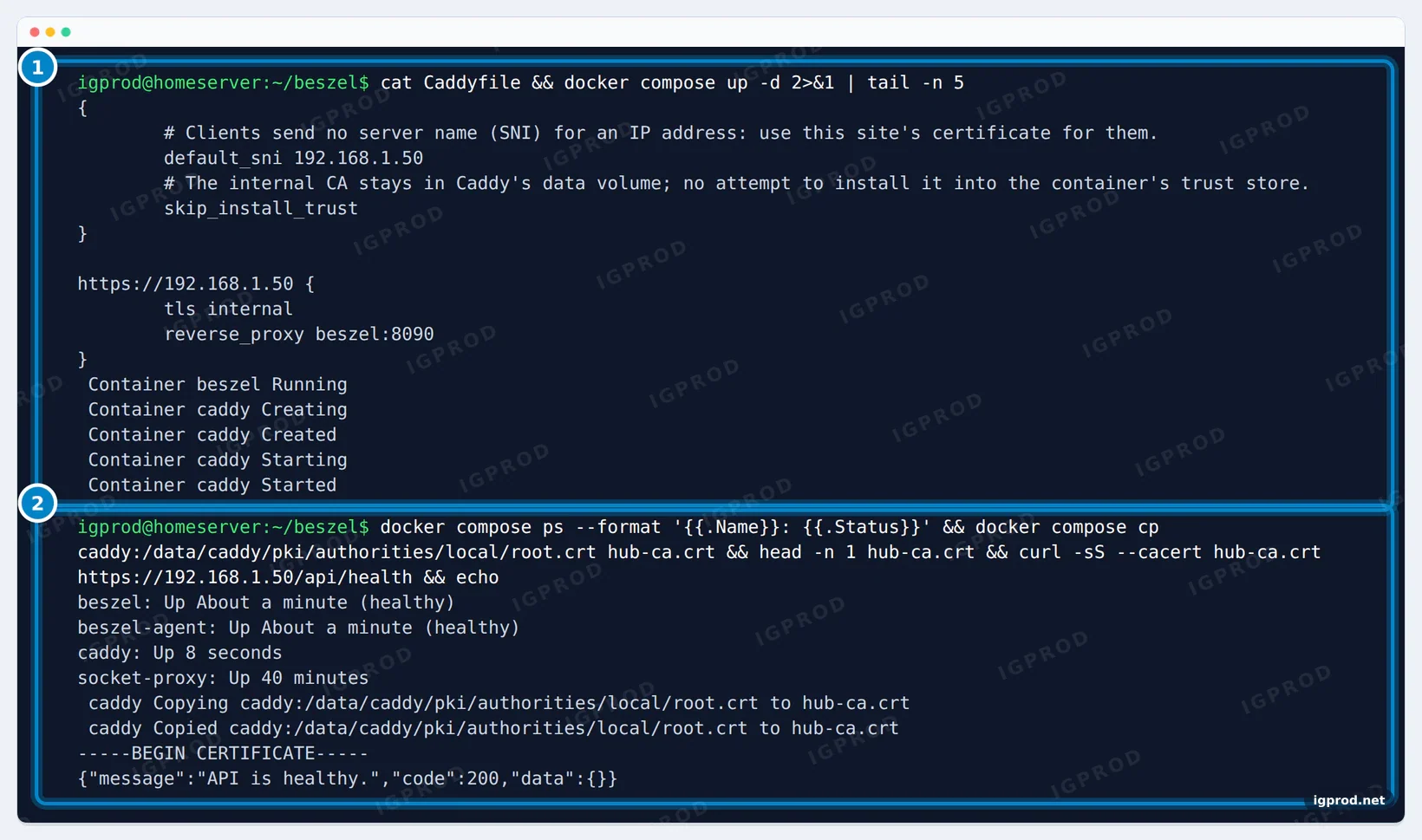
hub-ca.crt is Caddy's root certificate. It is public, not a secret: copy it to each machine with an agent, for example with scp. On the mini PC, point the agent at HTTPS and tell it to trust that certificate:
sudo install -m 0644 hub-ca.crt /etc/beszel-hub-ca.crt && \
  sudo sed -i 's|^HUB_URL=.*|HUB_URL=https://192.168.1.50|' /etc/beszel-agent.env && \
  echo 'CA_CERT_FILE=/etc/beszel-hub-ca.crt' | sudo tee -a /etc/beszel-agent.env >/dev/null && \
  sudo grep -E '^(HUB_URL|CA_CERT_FILE)=' /etc/beszel-agent.env && \
sudo systemctl restart beszel-agentsudo journalctl -u beszel-agent --since '-1 min' --no-pager -o cat | grep -E 'WebSocket|rror'
curl -sS --cacert /etc/beszel-hub-ca.crt https://192.168.1.50/api/health && echo
curl -sS -m 3 http://192.168.1.50:8090/api/health
echo "exit $?"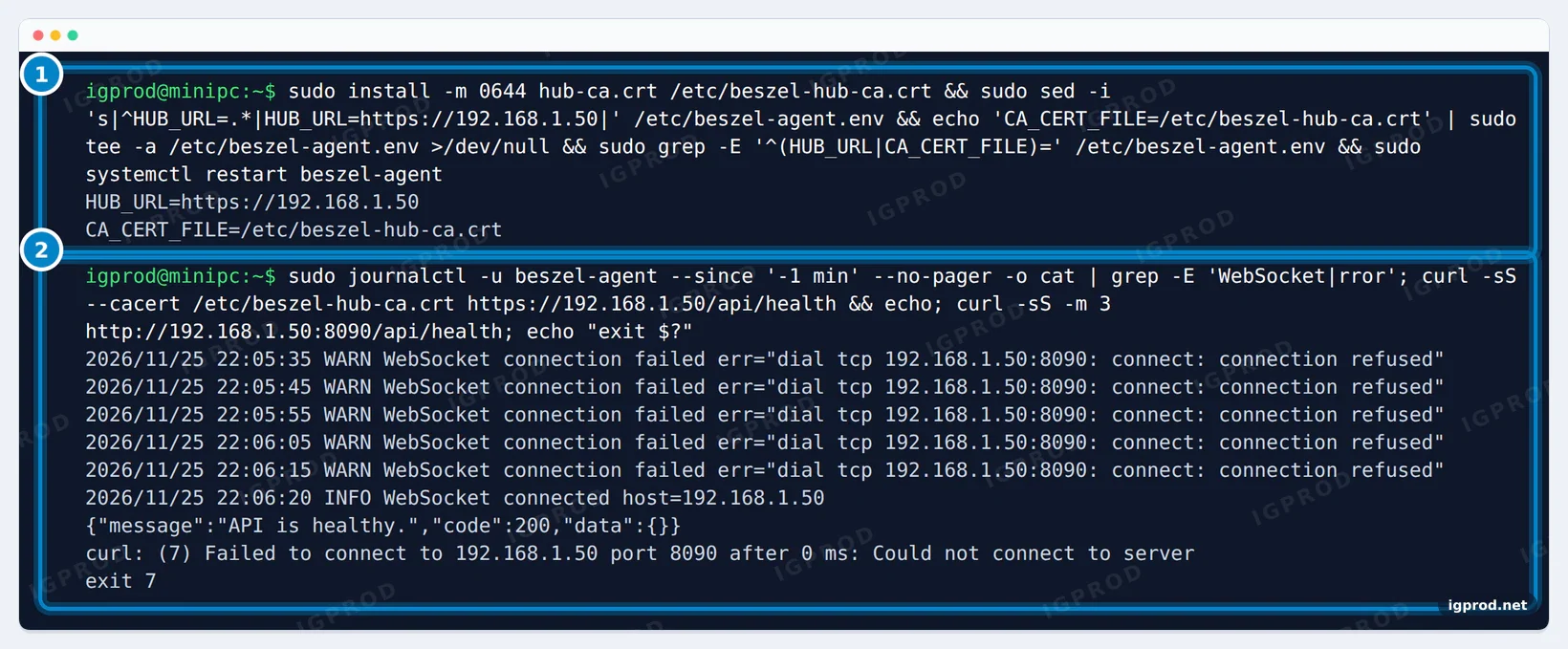
The warnings at the top are the agent trying the old address after we moved the hub; this is what you see if you change the hub before its agents. It retries every 10 seconds, so the order does not break anything. Caddy renews the hub's certificate by itself; the agents trust the root, so the renewals need no change on their side.
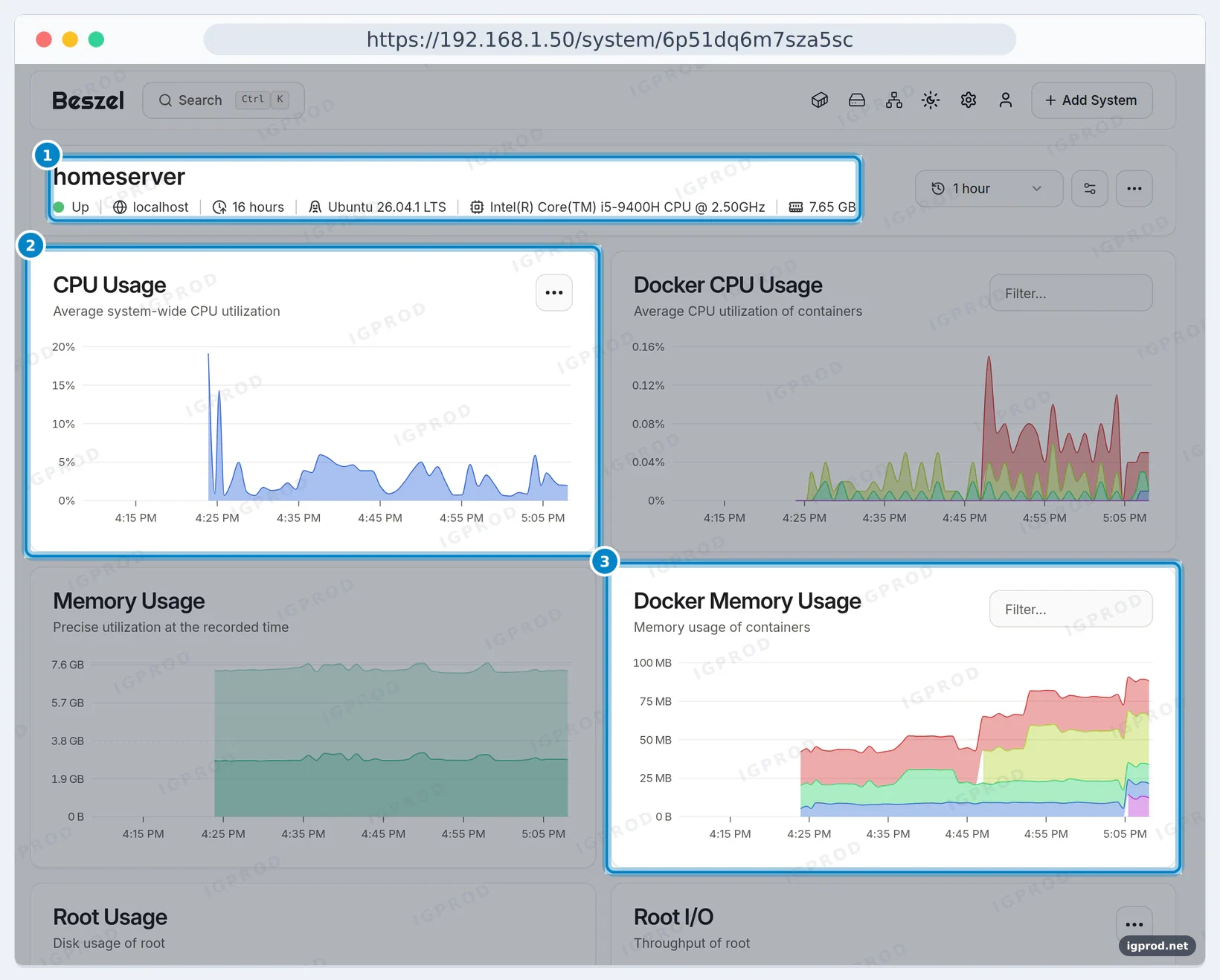
In the browser, open https://192.168.1.50. It warns about the certificate until you add hub-ca.crt to the trusted certificates of your system or browser:
Step 8: Back up the hub, and test the restore
Everything the hub knows is in beszel_data: data.db (systems, users, alerts, history) and id_ed25519, the hub's private key. Lose that key and every agent needs the new public key. Stop the hub for a clean copy; with umask 077 the archive is readable by root only:
docker compose stop beszel && \
  (umask 077 && sudo tar -czf ~/beszel-backup-$(date +%F).tar.gz beszel_data) && \
  docker compose start beszel && \
  ls -l ~/beszel-backup-*.tar.gz && \
  sudo tar -tzf ~/beszel-backup-*.tar.gz | grep -E "data.db$|id_ed25519$"
A backup you never restored is a hope. The restore test, on the same server (put your archive's date in the file name):
docker compose stop beszel && \
  sudo mv beszel_data beszel_data.old && \
  sudo tar -xzf ~/beszel-backup-2026-11-25.tar.gz && \
  docker compose start beszel && \
  sleep 5 && \
  curl -sS --cacert hub-ca.crt https://192.168.1.50/api/health && \
  echo && \
  docker compose ps beszel --format "{{.Name}}: {{.Status}}"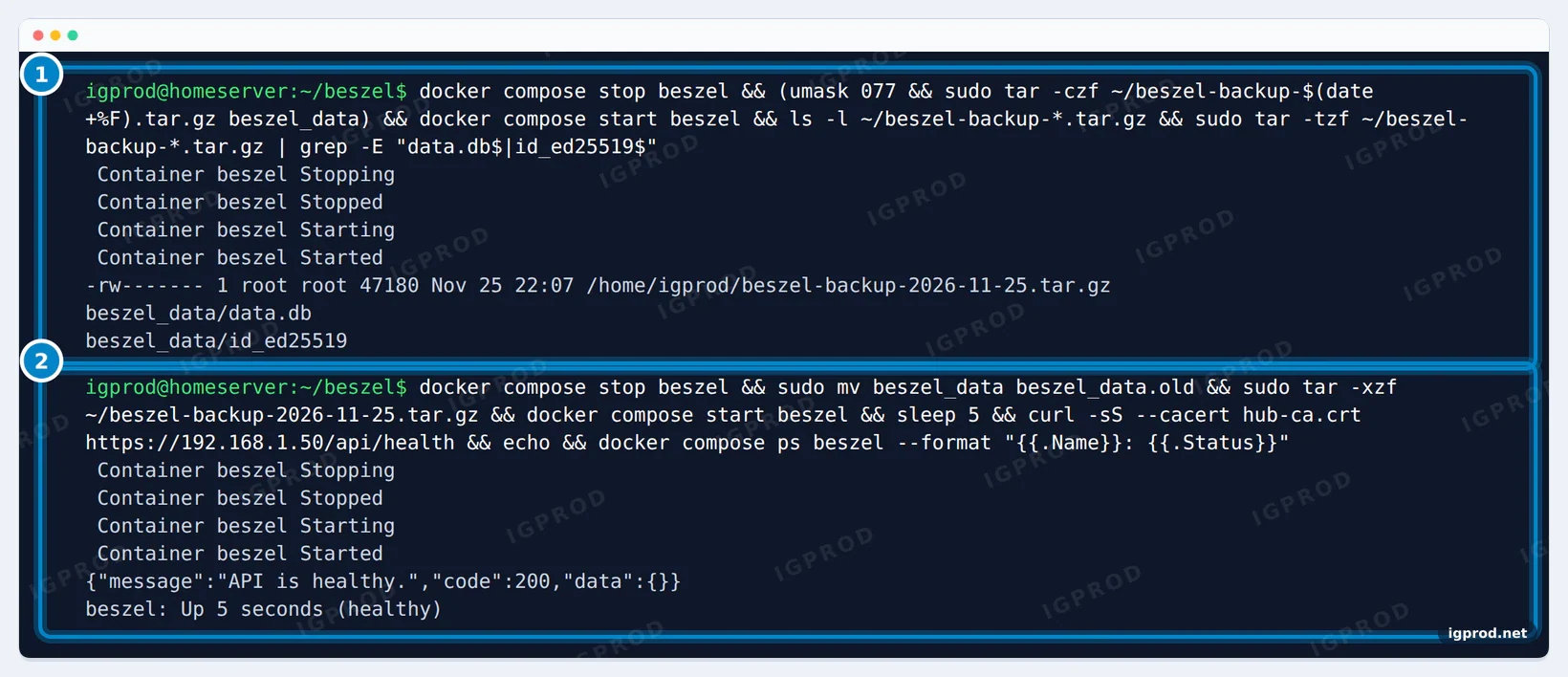
Both agents came back by themselves. Their logs from the two stops, on the server and on the mini PC (use your own times):
docker logs --since 2026-11-25T22:06:45Z --until 2026-11-25T22:07:30Z beszel-agent 2>&1 | grep WebSocketsudo journalctl -u beszel-agent --since '2026-11-25 22:06:45' --until '2026-11-25 22:07:30' -o cat | grep WebSocket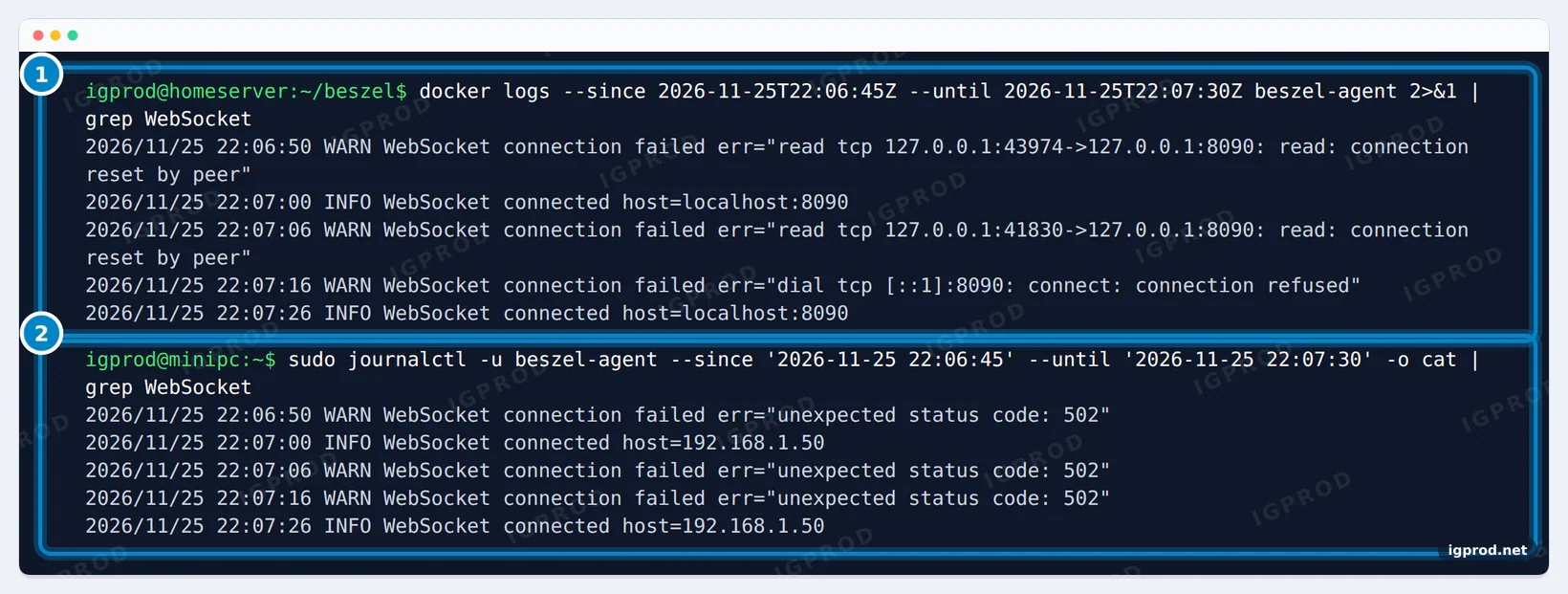
The Docker agent uses port 8090 directly, so its connection dropped; the mini PC's agent goes through Caddy, which answered 502 while the hub was down. Each connected again at its next try: they retry every 10 seconds. Keep a copy of the archive on another machine, and delete beszel_data.old once the dashboard looks right. On the agents there is little to save: /etc/beszel-agent.env and beszel_token.
The complete compose.yaml, and what it costs
The hub, Caddy, the proxy and the agent after all the steps (ntfy has its own file):
services:
  beszel:
    image: henrygd/beszel:0.21.2
    container_name: beszel
    restart: unless-stopped
    environment:
      APP_URL: https://192.168.1.50
      DISABLE_SSH: "true"
      CONTAINER_DETAILS: "false"
    ports:
      - "127.0.0.1:8090:8090"
    volumes:
      - ./beszel_data:/beszel_data
    healthcheck:
      test: ["CMD", "/beszel", "health", "--url", "http://localhost:8090"]
      interval: 120s
      timeout: 5s
      start_period: 10s
      start_interval: 5s

  caddy:
    image: caddy:2.11.9-alpine
    container_name: caddy
    restart: unless-stopped
    depends_on:
      - beszel
    ports:
      - "443:443"
    volumes:
      - ./Caddyfile:/etc/caddy/Caddyfile:ro
      - ./caddy_data:/data
      - ./caddy_config:/config

  socket-proxy:
    image: lscr.io/linuxserver/socket-proxy:3.4.8
    container_name: socket-proxy
    restart: unless-stopped
    environment:
      CONTAINERS: 1
      IMAGES: 1
      INFO: 1
    volumes:
      - /var/run/docker.sock:/var/run/docker.sock:ro
    ports:
      - "127.0.0.1:2375:2375"
    read_only: true
    tmpfs:
      - /run

  beszel-agent:
    image: henrygd/beszel-agent:0.21.2
    container_name: beszel-agent
    restart: unless-stopped
    network_mode: host
    depends_on:
      - socket-proxy
    volumes:
      - ./beszel_agent_data:/var/lib/beszel-agent
    secrets:
      - beszel_token
    environment:
      HUB_URL: http://localhost:8090
      TOKEN_FILE: /run/secrets/beszel_token
      KEY: "ssh-ed25519 AAAA...the public key from Add System"
      DISABLE_SSH: "true"
      CONTAINER_DETAILS: "false"
      DOCKER_HOST: tcp://127.0.0.1:2375
    healthcheck:
      test: ["CMD", "/agent", "health"]
      interval: 120s
      timeout: 5s
      start_period: 10s
      start_interval: 5s

secrets:
  beszel_token:
file: ./beszel_tokendocker stats --no-stream --format 'table {{.Name}}\t{{.CPUPerc}}\t{{.MemUsage}}' beszel beszel-agent socket-proxy caddy ntfy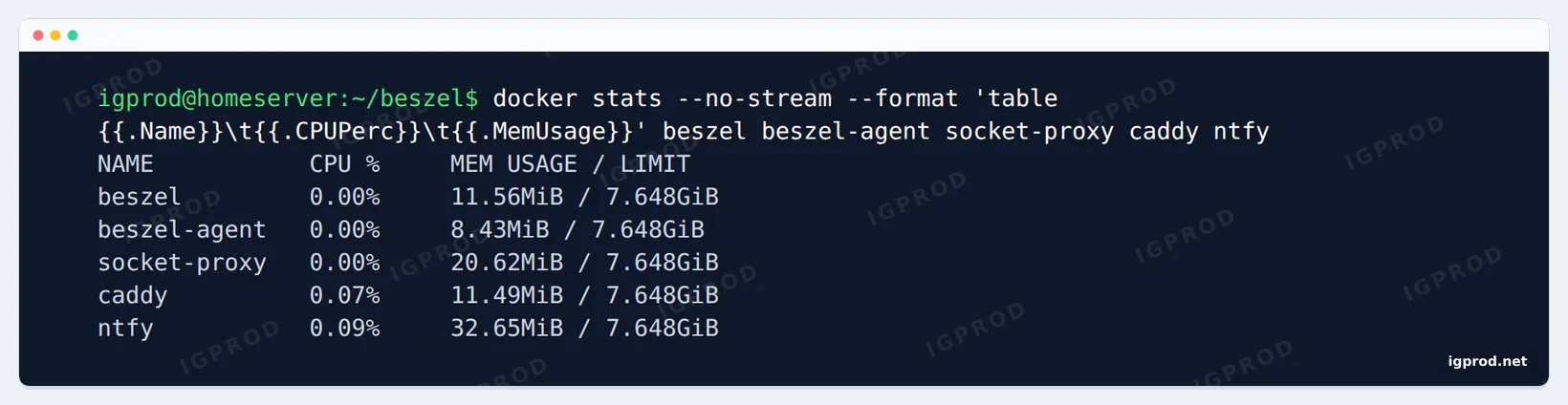
About 85 MiB of memory for the hub, its agent, the proxy, Caddy and ntfy together, with CPU near zero. The agent binary on the mini PC used 6.3 MB, as counted by systemd.
Updating Beszel safely
Read the release notes on GitHub first. For the containers, change the tag in compose.yaml (hub and agent together), then run docker compose pull and docker compose up -d, after a backup (Step 8). For each binary agent, repeat the download and checksum check of Step 4 with the new version, install the file, and run sudo systemctl restart beszel-agent. We did not use the agent's built-in update command: under this unit the binary belongs to root, and ProtectSystem=strict keeps /usr/local/bin read-only for the service, so updates go through the checksum route.
Problems we hit, and the fixes
WebSocket connection failed: connection refused
The agent points at an address where the hub no longer listens. Ours still used port 8090 after the hub moved behind Caddy. Fix HUB_URL and restart the agent.
WebSocket connection failed: unexpected status code: 502
Caddy is up but the hub behind it is not, for example during a backup. The agents retry every 10 seconds and connect again when the hub is back.
403 in the socket proxy's log
The agent asked for an API part that is switched off. For Beszel, CONTAINERS, IMAGES and INFO are enough; keep POST=0.
TLS connect error with an IP address
Add default_sni with that IP to Caddy's global options. Without a name to match, Caddy has no certificate to offer.
An alert never arrives
Click Test URL in the notification settings first. If the test arrives, open the bell on that machine's row and check the minutes: All Systems changes skip existing alerts unless Overwrite existing alerts is ticked.
"Failed to load public keys" when checking the agent's version
The agent has no version command; it tried to start. Use beszel-agent --version.
What we did not test
E-mail alerts (they need an SMTP server), OAuth and OIDC login, Beszel's S3 backups, agents on Windows, macOS, FreeBSD and ARM boards, GPU and S.M.A.R.T. disk data, the agent's built-in update command, an upgrade to a newer release, and the ntfy phone app. Everything else on this page ran on the machines described at the top.
Frequently asked questions
Is Beszel free?
Yes. Beszel is open source under the MIT license: the hub, the agent and the Docker images are free to use.
What port does Beszel use?
The hub listens on 8090. The agent's port 45876 is for SSH mode, where the hub connects to the agent; with DISABLE_SSH, as here, agents open no port at all. After Step 7, the hub answers the network on port 443 only.
How much memory does Beszel use?
On our server, 11.56 MiB for the hub and 8.43 MiB for the Docker agent; the agent binary on the mini PC used 6.3 MB. The history database grows with the number of machines and how long you keep data.
Does the Beszel agent need the Docker socket?
Only for container stats. Give it a socket proxy with CONTAINERS, IMAGES and INFO, rather than the socket itself. Without Docker access the agent still reports the machine, as on our mini PC.
Beszel or Uptime Kuma?
They answer different questions. Beszel shows how busy your machines and containers are, with history and alerts on CPU, memory and disk. Uptime Kuma checks from outside whether a website or service answers. Many home labs run both.
Can Beszel send alerts to Telegram or Discord?
Yes, through Shoutrrr URLs such as telegram:// and discord:// in Settings > Notifications, with the same Test URL button. We tested ntfy.
Can I open Beszel from the internet?
Prefer a VPN to your network. If you must publish it, use HTTPS with a public certificate, a long password and a reverse proxy you keep updated; agents outside your network then need the public address in HUB_URL.
Related guides
- How to Install Uptime Kuma with Docker (2026 Step-by-Step Guide)
- Install Docker Compose on Ubuntu using Docker’s repository
- Docker Compose Up: Start Containers and Check They Work
- How to Install Portainer with Docker (2026 Step-by-Step Guide)
- How to Get Docker Container Notifications on Telegram with Synology | Docker
- AdGuard Home 1.0 with Docker Compose: Install, Setup, Per-Device Rules and Hardening (Tested)
- Vaultwarden with Docker Compose: HTTPS, Admin Token, Backups and a Tested Restore (2026)
Sources
- Beszel v0.21.2 release
- Beszel documentation: hub installation
- Beszel documentation: agent installation
- Beszel documentation: environment variables
- Beszel documentation: security
- Beszel documentation: notifications
- linuxserver/docker-socket-proxy
- ntfy documentation: access control
- Caddy documentation: global options (default_sni)

Leave a comment
Your email address will not be published. Required fields are marked *