
This guide shows an easy way to install Deemix on your Synology NAS with Docker. Deemix is a great tool for managing and analyzing your music collection. It makes it easy to find and play your favorite songs, and also helps you keep track of what you are listening to. Let's get started!
What is Deemix ?
Deemix is a music player that allows you to mix your music together with other users. It's a fun and easy way to share your music with others and create new mixes.
To install the deemix container on synology, you need to first install docker. Once that's done, you can then pull the Deemix image from Docker Hub and run it on your NAS.
- There are numerous stages to installing Deemix:
- Task Scheduler
- SSH (Docker CLI)
- Docker compose
- Portainer
Task Scheduler
To get started, open the Docker folder located on nas fromFile Station and make a new subfolder called "deemix". Follow these steps to continue:
In order for everything else in this guide work properly it's important that you do not skip any steps!

Go to Task Scheduler / Create / Scheduled Task / User-defined script in the Control Panel. Follow these steps below to continue.

When you click on User-defined script in the dropdown menu, a new window will pop up. Follow these steps to get started:
- General : Enter task name ex “Install Deemix” in the Task area. "Enabled" should be unchecked. Choose root User from the options.
- Schedule: Select Run on the following date then select “Do not repeat“.
- Task Settings: Check “Send run details by email“, add your email (Optional), then copy paste the code below in the Run command area. After that click Red button OK.
docker run -d --name=deemix \
-p 6595:6595 \
-e PUID=1026 \
-e PGID=100 \
-e TZ=Africa/Casablanca\
-e UMASK_SET=022 \
-v /volume1/docker/deemix/config:/config \
-v /volume1/docker/deemix/downloads:/downloads \
--restart always \
registry.gitlab.com/bockiii/deemix-docker- The table below lists all of the variables we used to implement Deemix.
| Parameter | Function |
|---|---|
| -v /volume1/docker/deemix/downloads/ | Path for your music downloads |
| -v /volume1/docker/deemix/config/ | Path to your local configuration |
| -e PUID=1026 | OPTIONAL: User ID of the user you want the container to run as in order to fix folder permission issues |
| -e PGID=1000 | OPTIONAL: Group ID, see PUID |
| -e UMASK_SET=022 | OPTIONAL: Setting UMASK for file permissions Default is 022 |
| -p 6595:6595 | EXTRA OPTIONAL: This changes the internal port of deemix. DON'T CHANGE THIS IF YOU DONT KNOW WHY YOU WOULD DO IT |
| registry.gitlab.com/bockiii/deemix-docker | Download the image from gitlab server |
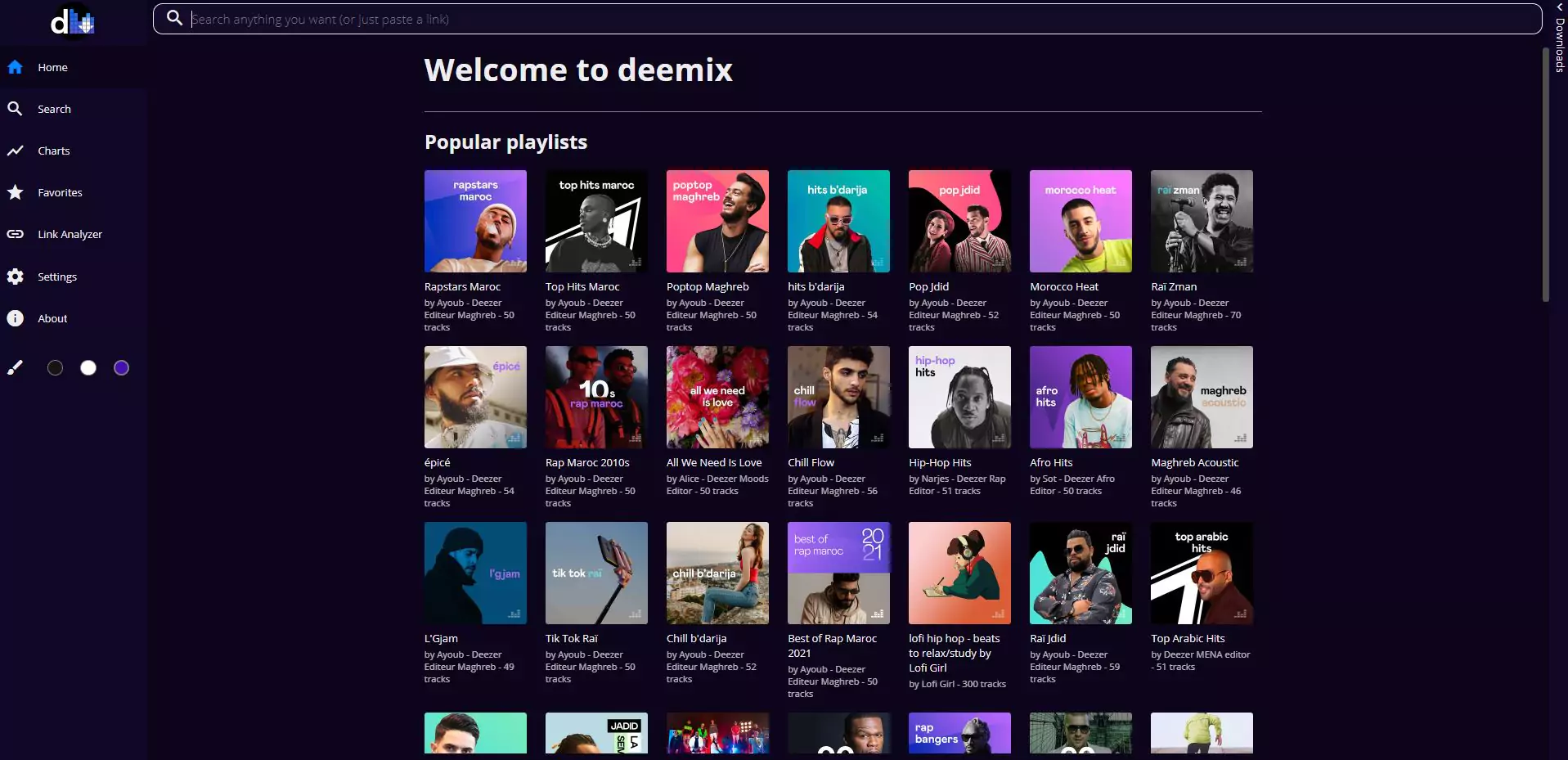
Go to http://YOURSERVERIP:6595 to view the web interface.
Trought SSH
Please see the post on how to access ssh if you want to use it instead of the graphical way.
- How to connect to your Synology via ssh
- After you've successfully gained access using ssh,
- Create the deemix folder in the location where you organize your containers, in my case:
mkdir -p /volume1/docker/deemix/{config,downloads}
test@NAS:/volume1/docker$ ls -ltr deemix/
total 0
drwxrwxrwx+ 1 test users 0 Feb 15 15:24 downloads
drwxrwxrwx+ 1 test users 0 Feb 15 15:24 config
After you've created your folder and subfolders, execute the docker command:
sudo docker run -d --name=deemix \
-p 6595:6595 \
-e PUID=1026 \
-e PGID=100 \
-e TZ=Africa/Casablanca\
-e UMASK_SET=022 \
-v /volume1/docker/deemix/config:/config \
-v /volume1/docker/deemix/downloads:/downloads \
--restart always \
registry.gitlab.com/bockiii/deemix-docker
Password: Enter your password for confirmationTrought Docker compose
- Prerequisites?
Check to see if Docker Engine and Docker Compose have already been installed.
After that, create a new file named docker-compose.yml in the same directory as /volume1/docker/deemix and paste the code below into it.
version: '3.3'
services:
  bockiii:
    container_name: deemix
    ports:
      - '6595:6595'
    environment:
      - PUID=1026
      - PGID=100
      - TZ=Africa/Casablanca\
      - ARL=1234567 # See the
      - UMASK_SET=022
    volumes:
      - '/volume1/docker/deemix/config:/config'
      - '/volume1/docker/deemix/downloads:/downloads'
    restart: always
    image: registry.gitlab.com/bockiii/deemix-docker
    hostname: deemix # Instead of numbers, the hostname will be deemix. (optional)
    network_mode: bridge # If you wish to use bridge mode, follow these simple step. (optional)
- run the following command using the docker compose command:
test@NAS:/volume1/docker/deemix$ sudo docker-compose up -d
Creating deemix ... doneTrought Portainer
I prefer to use the Stack option to organize my Docker composes. This allows me to store, edit, and manage all of my Docker composes with Portainer.
- Note: If you've never heard of Portainer or are unfamiliar with it, this post how to install Portainer, will walk you through installing it and managing all of your Docker containers. with the use of a graphical dashboard
- After you installed Portainer, Go to your Portainer interface http://YOURSERVERIP:9000
- Enter the username and password for your credential.
- Click the Stacks option on the left side of your screen.
- Click the +Add stack button, then paste the docker compose we used for docker-compose.yml then clic hit Deploy the stack button, Follow these steps below to continue.
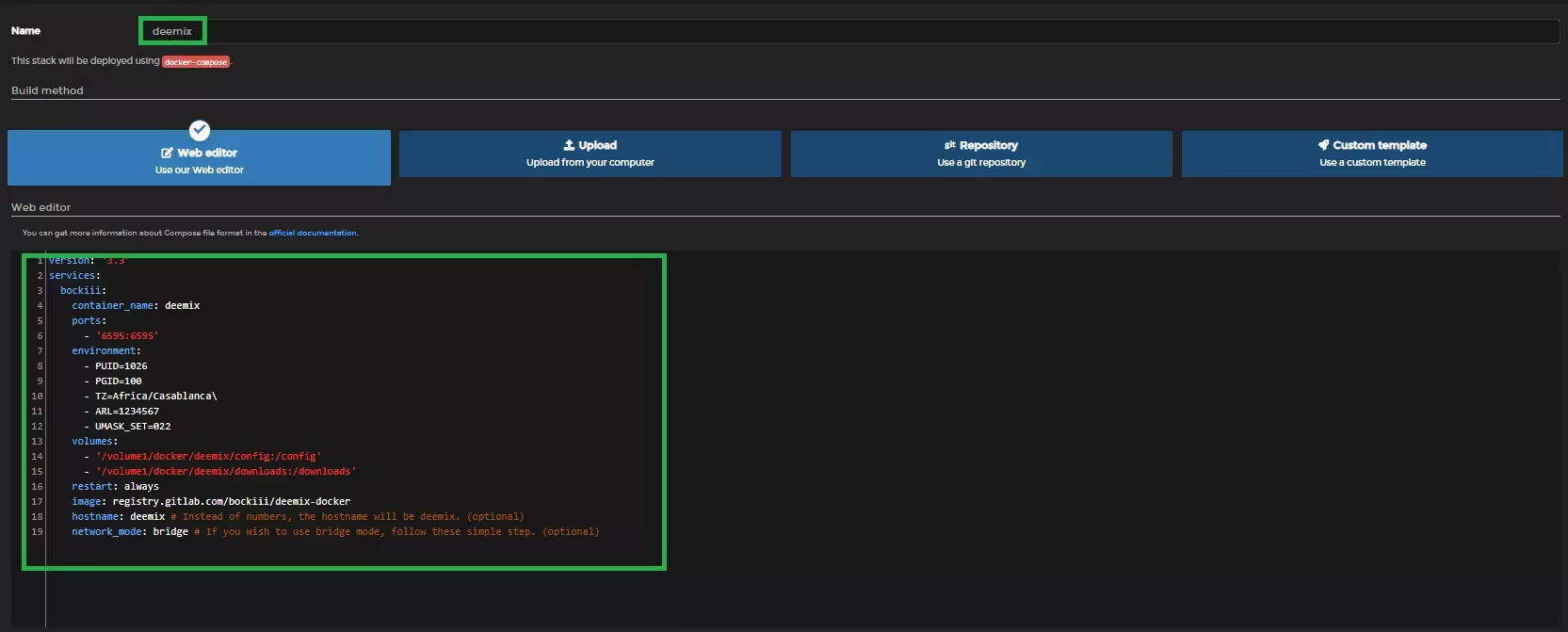
Note: The name of the stack must consist of lower case alphanumeric characters, '_' or '-' (e.g. 'my-name', or 'abc-123').
Troubleshooting tips for deemix container on synology
- If your container isn't starting, make sure that you have the correct command:
sudo docker start deemix- If the container is running but you're not able to log in, check the logs for errors:
sudo docker logs -f deemix- If you want to stop the container, use the following command:
sudo docker stop deemix- If you want to remove the container, use the following command:
sudo docker rm deemix
Fore more please visite : https://gitlab.com/Bockiii/deemix-docker
When a new Deemix image comes out, see how to update a Docker container on Synology.
Related guides
- Install Immich with Docker Compose on a Synology NAS: a self-hosted photo library on the same NAS.
- Choose the right disk setup for your Synology NAS: a RAID calculator that shows how much usable space each RAID type and SHR leaves you.
If you like this post, please consider donating so that we can continue to maintain our site.?

Leave a comment
Your email address will not be published. Required fields are marked *