OpenClaw is an open-source AI assistant that you run on your own hardware. One service, the Gateway, connects AI models to chat apps such as WhatsApp, Telegram and Discord, to a browser dashboard called the Control UI, and to tools that can read files, run commands and browse the web. That reach is the point of OpenClaw, and it is also why a default install deserves a careful look before you use it.
This guide installs OpenClaw with its official Docker setup and a local model served by Ollama, so no cloud API key is needed. Then it closes what the defaults leave open: ports published on every network interface, every tool given to a small model, and settings the security audit flags. You also see what the first reply costs on a CPU, which skills and plugins come enabled, and how to take a backup.
We tested every step on 18 November 2026 with OpenClaw 2026.11.5, Ollama 0.40.16, Docker Engine 29.9.3 and Docker Compose 5.7.0, on a Linux test machine limited to 4 CPU cores and 3.5 GB of RAM, without a GPU. Every output, timing and screenshot below comes from that test, errors included.
Quick answer: OpenClaw with Ollama, locked down, in six steps
In plain words: OpenClaw is an AI assistant that runs on your own machine. It can read files, run commands and browse the web for you, so a careless setup hands those powers to anyone who reaches it. This guide runs it with a local model (Ollama, no cloud key) and closes what the defaults leave open.
- Clone the
v2026.11.5release and run OpenClaw's Docker setup script (Step 1). - Keep its ports on localhost with a small Compose override, and reach the Control UI through an SSH tunnel (Step 3).
- Pull a model that supports tools, such as
qwen3.5:0.8b, into Ollama (Step 4). - Connect OpenClaw to Ollama with the non-interactive onboarding (Step 5).
- Run
docker compose run --rm openclaw-cli security audit: a fresh install gives the agent every tool (Step 9). - Apply the hardened baseline and run the audit again: ours ended with 0 critical findings and 0 warnings (Steps 10 and 11).
Each step has a full, tested section below, with the outputs and timings we measured.
What is OpenClaw?
OpenClaw is a self-hosted gateway for AI agents. Its documentation sums it up as "One Gateway. Any model. Any device. No hosted service in the middle." It is released under the MIT license by the OpenClaw Foundation and has no paid tier. The parts you meet in this guide:
- The Gateway: one process that serves the Control UI and the WebSocket API, on port 18789 by default.
- Agents and sessions: an agent (here the default one,
main) answers messages, and each conversation is a session with its own history. - Model providers: hosted APIs, or local servers such as Ollama, LM Studio and vLLM.
- Channels: the chat apps the agent answers in. We leave them out to keep the first install small.
- Tools, skills and plugins: what the agent can do besides writing text, from reading a file to running a shell command.
Because the agent can act, its safety depends on three things you control: who can reach the Gateway, which tools the agent may call, and which model reads the untrusted text it receives. The steps below handle all three.
What you need
- A Linux machine with Docker Engine and Docker Compose 2.24.4 or later: the lock-down file in Step 3 uses a Compose feature added in that version. If you do not have them yet, follow our guide to install Docker Compose on Ubuntu.
- Git and curl.
- About 13 GB of disk: the OpenClaw image took 2.72 GB, the Ollama image 8.52 GB and the model about 1.3 GB.
- At least 4 GB of free RAM for this small setup. The Gateway reached 1.78 GB during a chat, and Ollama ran a 0.8B model inside a 1,800 MB limit. Bigger models need more.
- Patience on a CPU: our first reply took more than 6 minutes. Step 7 shows where the time goes.
Step 1: Download the release and run the Docker setup
Clone a release tag instead of the main branch, and pin the image to the same version. The setup script and the compose file then match the image, and an upgrade happens only when you change the tag:
git clone --depth 1 --branch v2026.11.5 https://github.com/openclaw/openclaw.git
cd openclaw
export OPENCLAW_IMAGE=ghcr.io/openclaw/openclaw:2026.11.5
OPENCLAW_SKIP_ONBOARDING=1 ./scripts/docker/setup.sh
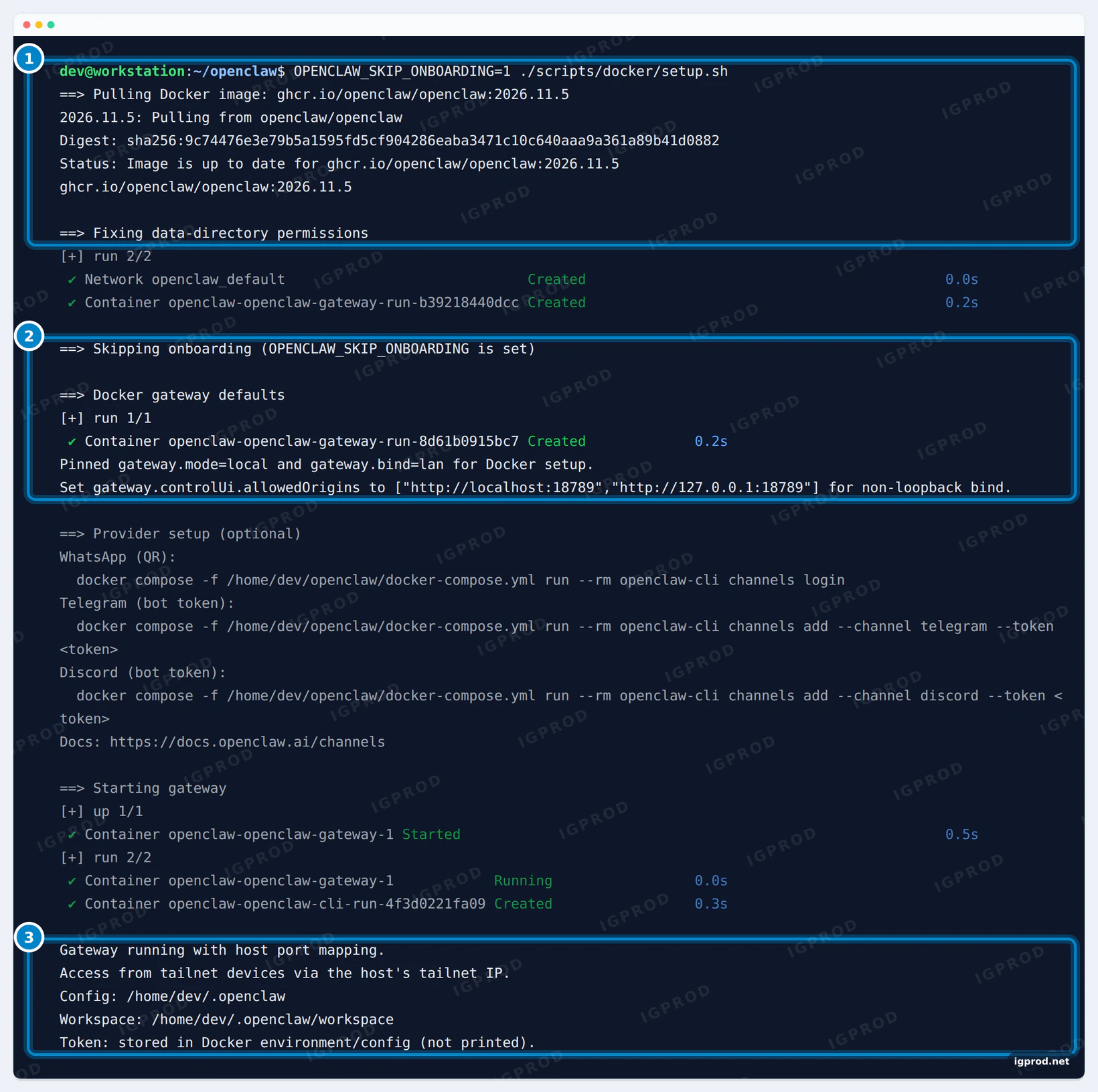
OPENCLAW_SKIP_ONBOARDING=1 skips the interactive questions, because Step 5 connects Ollama with one command. The script took 24 seconds here, with the image already downloaded. It writes a .env file with a random gateway token (openssl rand -hex 32), creates the state folder ~/.openclaw, prepares the Gateway for Docker and starts it. The lines that matter:
==> Skipping onboarding (OPENCLAW_SKIP_ONBOARDING is set)
Pinned gateway.mode=local and gateway.bind=lan for Docker setup.
Set gateway.controlUi.allowedOrigins to ["http://localhost:18789","http://127.0.0.1:18789"] for non-loopback bind.
Gateway running with host port mapping.
Token: stored in Docker environment/config (not printed).
gateway.bind=lan makes the Gateway listen on every interface inside its container, which Docker needs to forward a published port to it. allowedOrigins lists the browser addresses the Control UI may be opened from. The token is the password of your Gateway: keep .env private, and never commit it to Git. Run every command below from this openclaw folder.
gateway.bind=lan and the allowed Control UI origins set. 3: the Gateway runs, and the token stays out of the output.Step 2: Check which ports the default setup opens
Before you add anything, look at what the machine now accepts from the network:
docker compose ps --format "table {{.Service}}\t{{.Status}}\t{{.Ports}}"
ss -ltn | grep -E ":(18789|18790|3978) "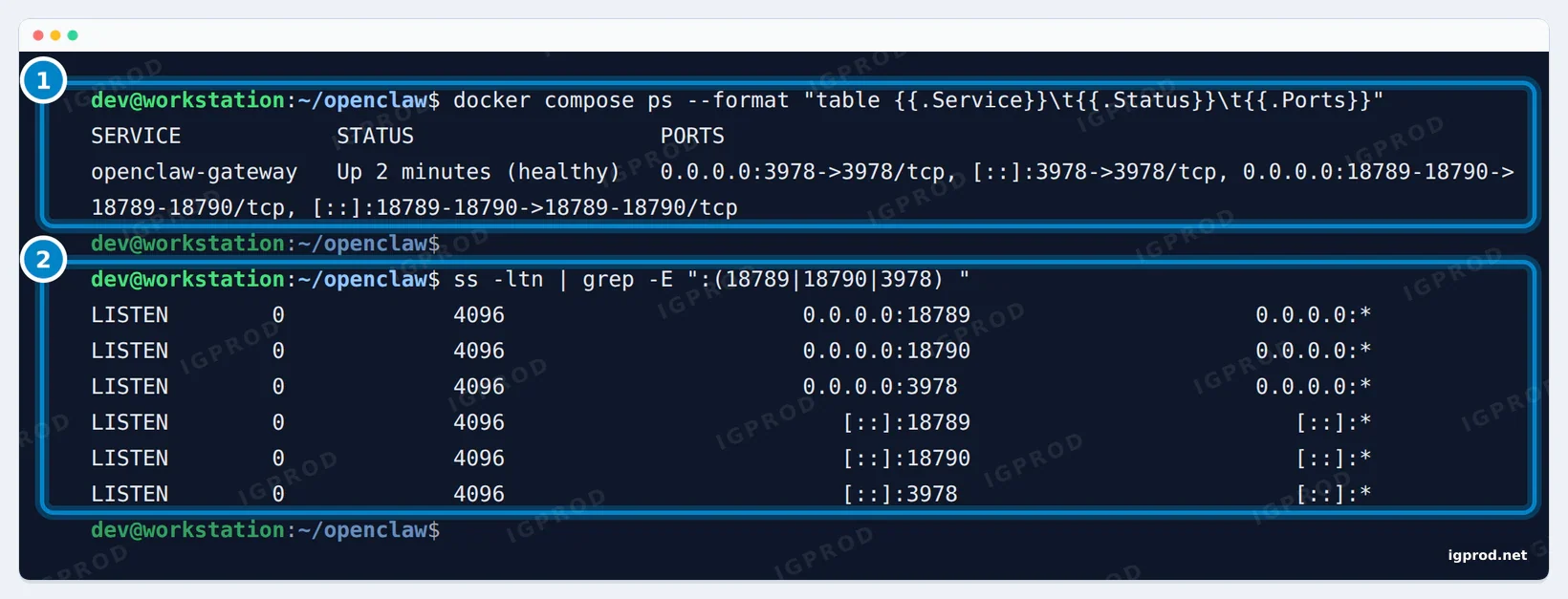
ss shows the machine listening on all six.The official compose file publishes three ports on every IPv4 and IPv6 address of the machine:
- 18789: the Gateway, with the Control UI and its WebSocket API.
- 18790: the old bridge port. Current builds no longer include the TCP bridge; OpenClaw uses this port for the sandbox of MCP apps when you turn that feature on.
- 3978: the old webhook port of the Microsoft Teams channel. The Teams documentation says fresh installs open no separate listener.
On a laptop at home, every device on your network can now reach the login page. On a VPS, the whole internet can. A firewall like ufw does not change that: Docker's documentation explains that traffic to published container ports is diverted before it reaches ufw's rules. The random token is far too long to guess, but every open port is attack surface, and two of these three serve nothing on a fresh install.
Step 3: Keep the ports on localhost with a Compose override
Do not edit docker-compose.yml: it belongs to the release and changes with every upgrade. Put your changes in docker-compose.override.yml in the same folder. Docker Compose reads that file on its own for every docker compose command run in this folder:
services:
  openclaw-gateway:
    # Publish the Control UI on this machine only (the default publishes 18789, 18790 and 3978 on every interface).
    ports: !override
      - "127.0.0.1:18789:18789"
    mem_limit: 2g
    depends_on:
      - ollama
  ollama:
    image: ollama/ollama:0.40.16
    restart: unless-stopped
    # No "ports:": Ollama has no login, so only the containers of this project can reach it (http://ollama:11434).
    volumes:
      - ollama:/root/.ollama
    mem_limit: 1800m
volumes:
  ollama:
ports: !overridereplaces the whole port list ofdocker-compose.yml. Without the tag, Compose would add our line to the three defaults. It needs Docker Compose 2.24.4 or later.127.0.0.1:18789:18789publishes the Control UI on this machine only. 18790 and 3978 are not published at all.- The
ollamaservice runs Ollama next to OpenClaw, on the project's private Docker network. It has noports:on purpose: Ollama's API has no login, so anything that reaches port 11434 can use your models or pull new ones. OpenClaw reaches it athttp://ollama:11434. mem_limitcaps each container, so one process cannot take the whole machine. With 2 GB, the Gateway logged a memory warning during a chat but kept working (see Troubleshooting).
Apply it and check again:
docker compose up -d openclaw-gateway
docker compose ps --format "table {{.Service}}\t{{.Status}}\t{{.Ports}}"
ss -ltn | grep -E ":(18789|18790|3978|11434) "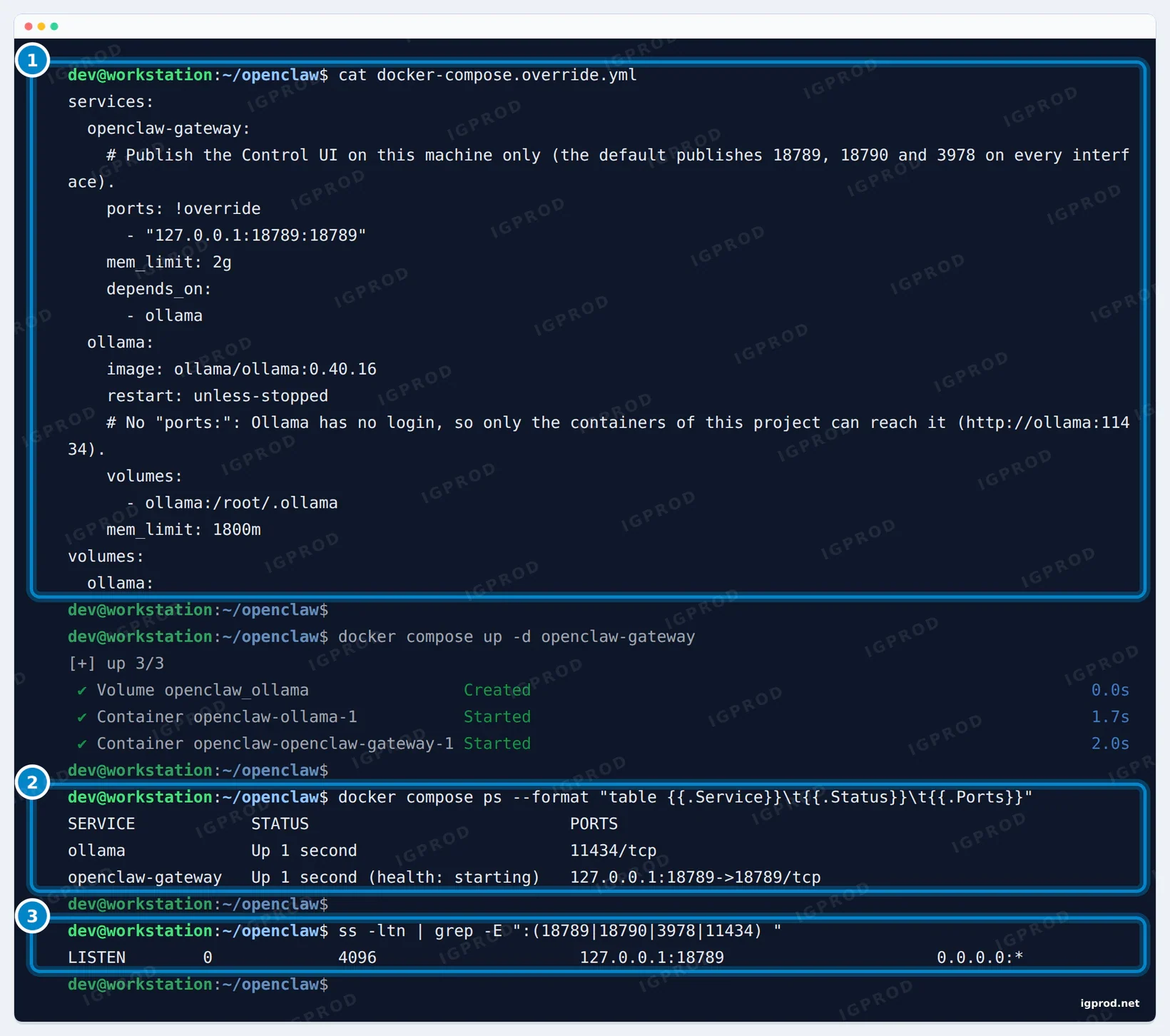
docker compose up -d, only 127.0.0.1:18789 is published, and Ollama has no host port. 3: one listening socket left, on 127.0.0.1.Inside its container, the Gateway still listens on all interfaces, and its log says so at every start: "Gateway is binding to a non-loopback address. Configure authentication before exposing to public networks." That is expected with Docker. OpenClaw's Docker documentation explains that loopback mode inside the container would cut the Gateway off from the host; the port published on 127.0.0.1 is what keeps it private.
One trap we found in the setup script: it passes its compose files with -f, so it does not read the override file. If you run setup.sh again later, run docker compose up -d afterwards and check the ports again. We read this in the script; we did not run it a second time.
Open the Control UI from another computer
With the port on 127.0.0.1, open an SSH tunnel from your own computer, then browse to http://127.0.0.1:18789/ on it. Replace user and your-server with your SSH user and the name or address of your server:
ssh -N -L 18789:127.0.0.1:18789 user@your-server
ssh -N prints nothing and keeps running while the tunnel is open.-L 18789:127.0.0.1:18789 sends port 18789 of your computer, through SSH, to port 18789 on the server itself, where the Gateway listens. -N opens no shell. Leave this window open while you use the Control UI, and press Ctrl+C to close the tunnel.
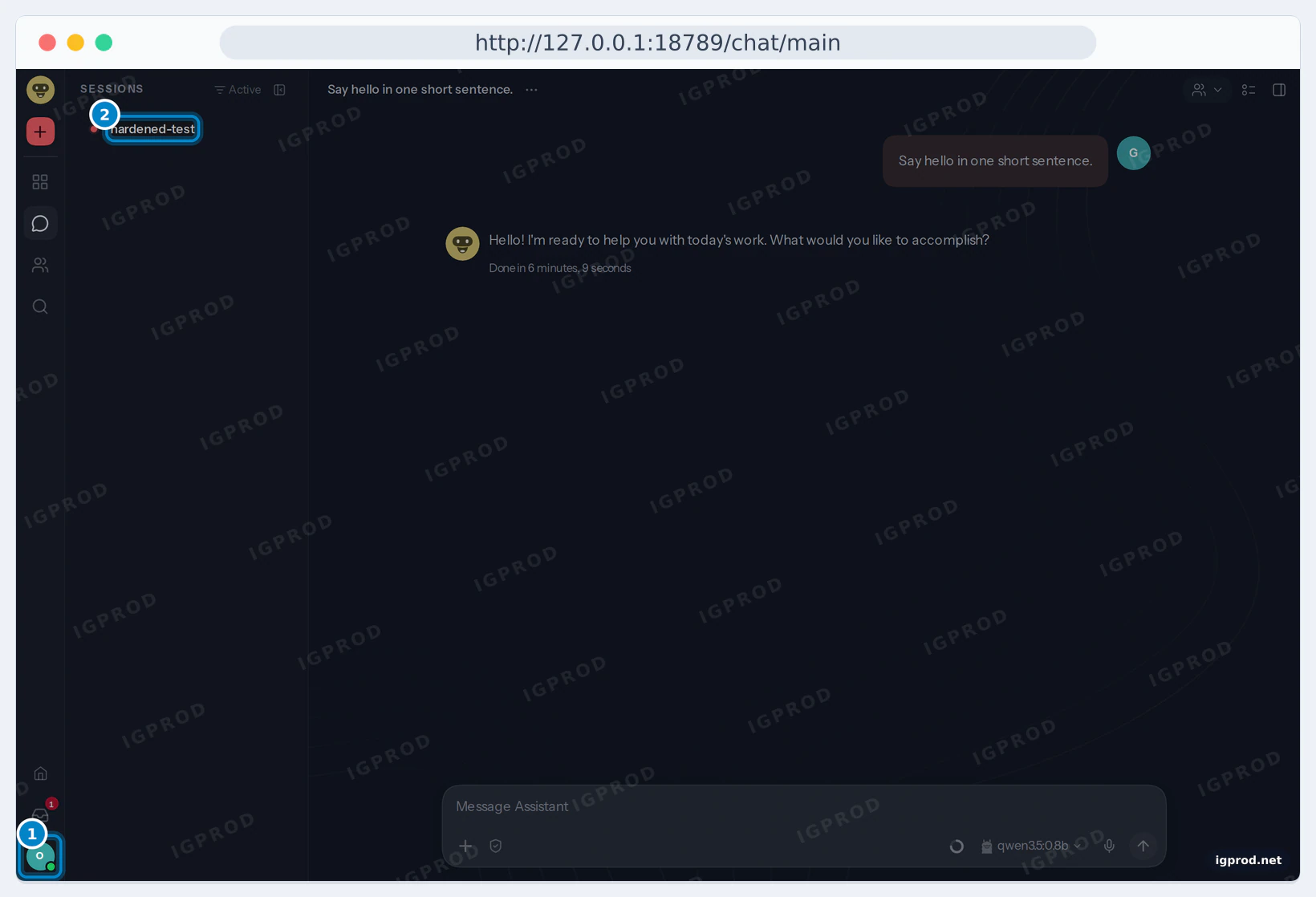
We tested this from a second machine on 19 November 2026. Our browser had signed in before (Step 8), so it connected at once. A new browser asks for the Gateway secret, as in Step 8. OpenClaw's security documentation prefers Tailscale Serve to opening the port on a network.
Step 4: Pull an Ollama model that supports tools
OpenClaw's setup looks for a model with tool support and at least 16K tokens of context, and Ollama's own OpenClaw page recommends a context of at least 64k tokens for local models. For this CPU-only test we used qwen3.5:0.8b, small enough for our 1,800 MB limit:
docker compose exec ollama ollama pull qwen3.5:0.8b
docker compose exec ollama ollama show qwen3.5:0.8b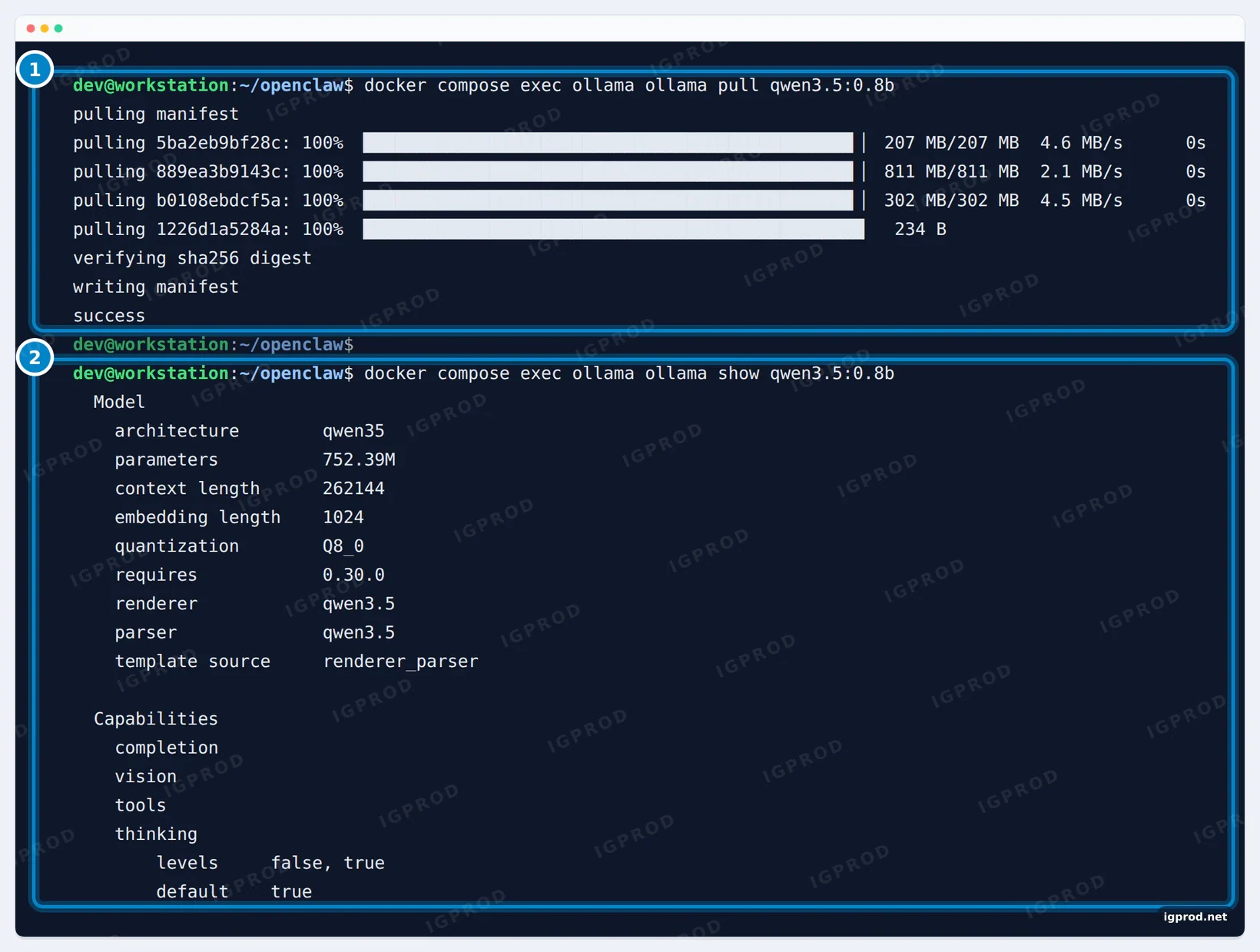
ollama show lists tools under Capabilities, which OpenClaw needs.The download took 6.5 minutes on our connection. ollama show must list tools under Capabilities: OpenClaw drives everything through tool calls, so a model without them is no use here. A 0.8B model is enough to test the setup, but it is weak at real tasks and easy to mislead, as Steps 9 and 11 show. If you have a GPU or more RAM, pick a larger model with the tools capability; our Ollama and Open WebUI guide compares models and CPU speeds.
Step 5: Connect OpenClaw to Ollama with non-interactive onboarding
docker compose run --rm openclaw-cli onboard --non-interactive --accept-risk --mode local \
  --auth-choice ollama --custom-base-url http://ollama:11434 --custom-model-id qwen3.5:0.8b \
  --gateway-auth token --gateway-token-ref-env OPENCLAW_GATEWAY_TOKEN \
  --skip-channels --skip-search --skip-skills --skip-ui --no-install-daemon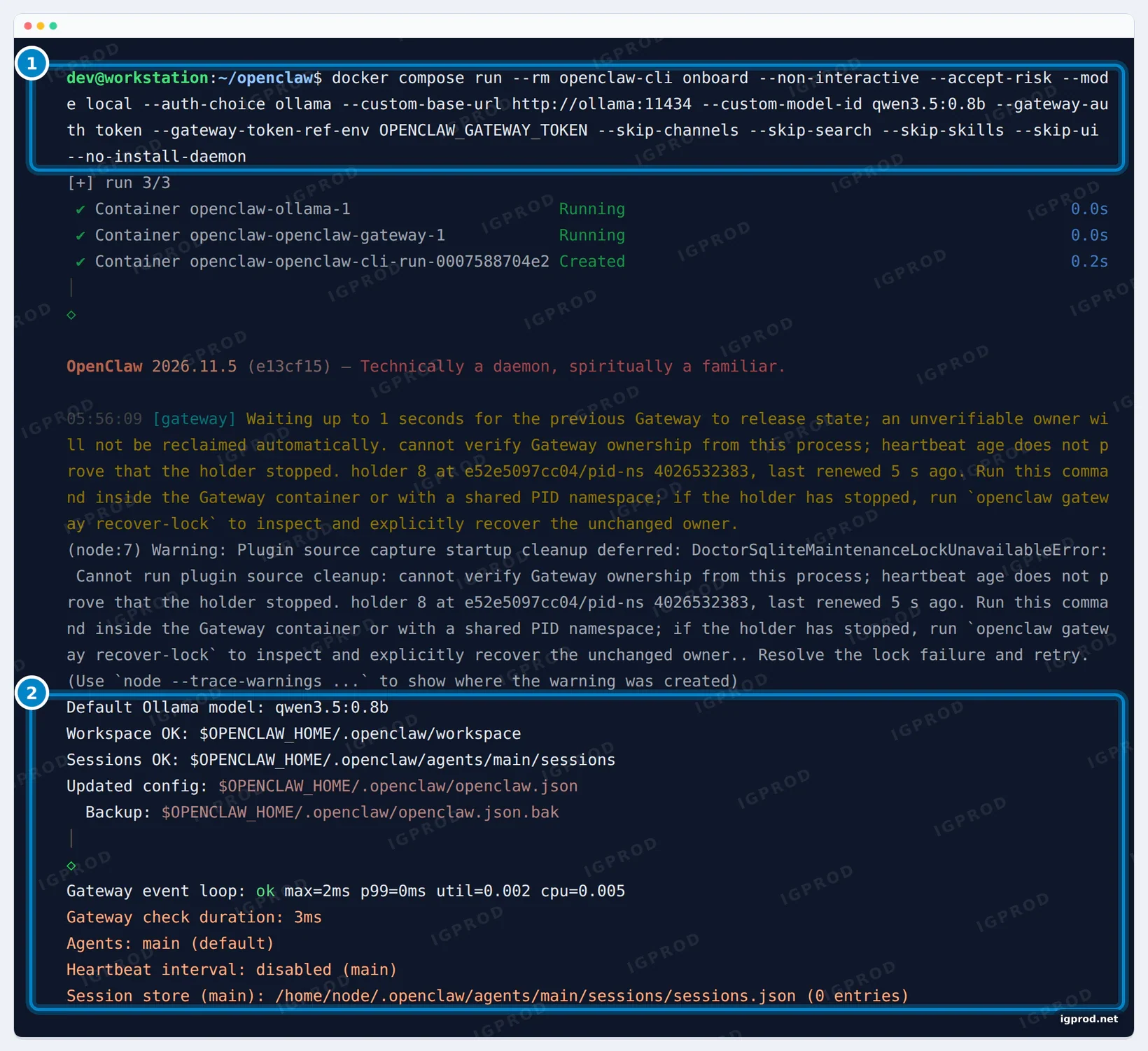
--non-interactive --accept-risk: no questions. OpenClaw requires--accept-riskfor this mode, as an acknowledgment that agents are powerful and that full system access is risky.--auth-choice ollama --custom-base-url http://ollama:11434: the Ollama service from the override, by its service name. Use the native address, without/v1: OpenClaw's Ollama documentation warns that the/v1address breaks tool calling.--custom-model-id qwen3.5:0.8b: the default model.--gateway-auth token --gateway-token-ref-env OPENCLAW_GATEWAY_TOKEN: the config stores a reference to the environment variable from.env, not a second copy of the token.--skip-channels --skip-search --skip-skills --skip-ui --no-install-daemon: no chat apps, web search, extra skills or dashboard prompts for now, and no system service, since Docker already restarts the container.
Onboarding took 21 seconds. The yellow lines are warnings from the CLI container (see Troubleshooting); the setup completed. Right after onboarding, the Gateway restarts itself to load the new settings, so give it a minute before the next step.
Step 6: Check the model and the Gateway
docker compose run --rm openclaw-cli models list
curl -s http://127.0.0.1:18789/readyz; echo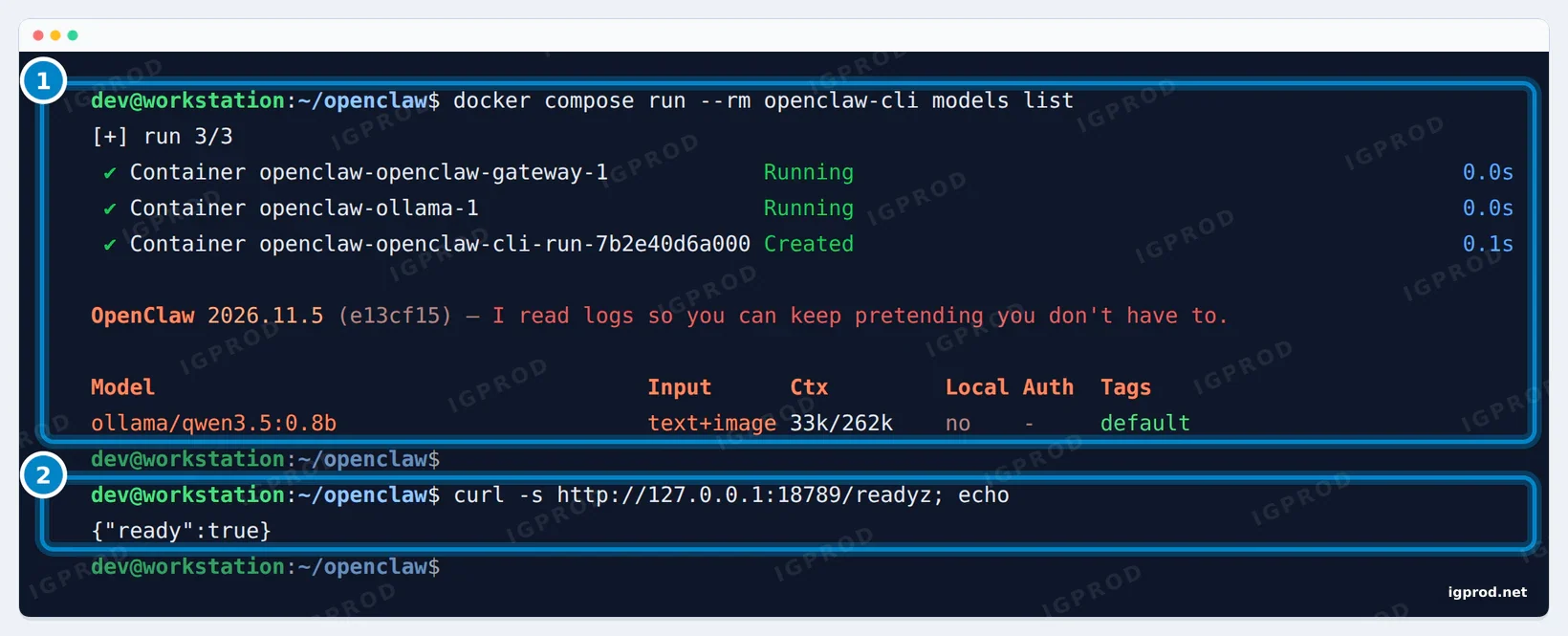
models list shows ollama/qwen3.5:0.8b as the default, with text and image input. 33k/262k means the model supports 262,144 tokens of context, but OpenClaw caps local Ollama models at 32,768 tokens by default. /readyz answers {"ready":true} once the Gateway accepts work. If you get "Couldn't connect to OpenClaw." here, the Gateway is still restarting: wait and try again.
Step 7: Send a first message and see where the time goes
time docker compose run --rm openclaw-cli agent --agent main --message "Say hello in one short sentence."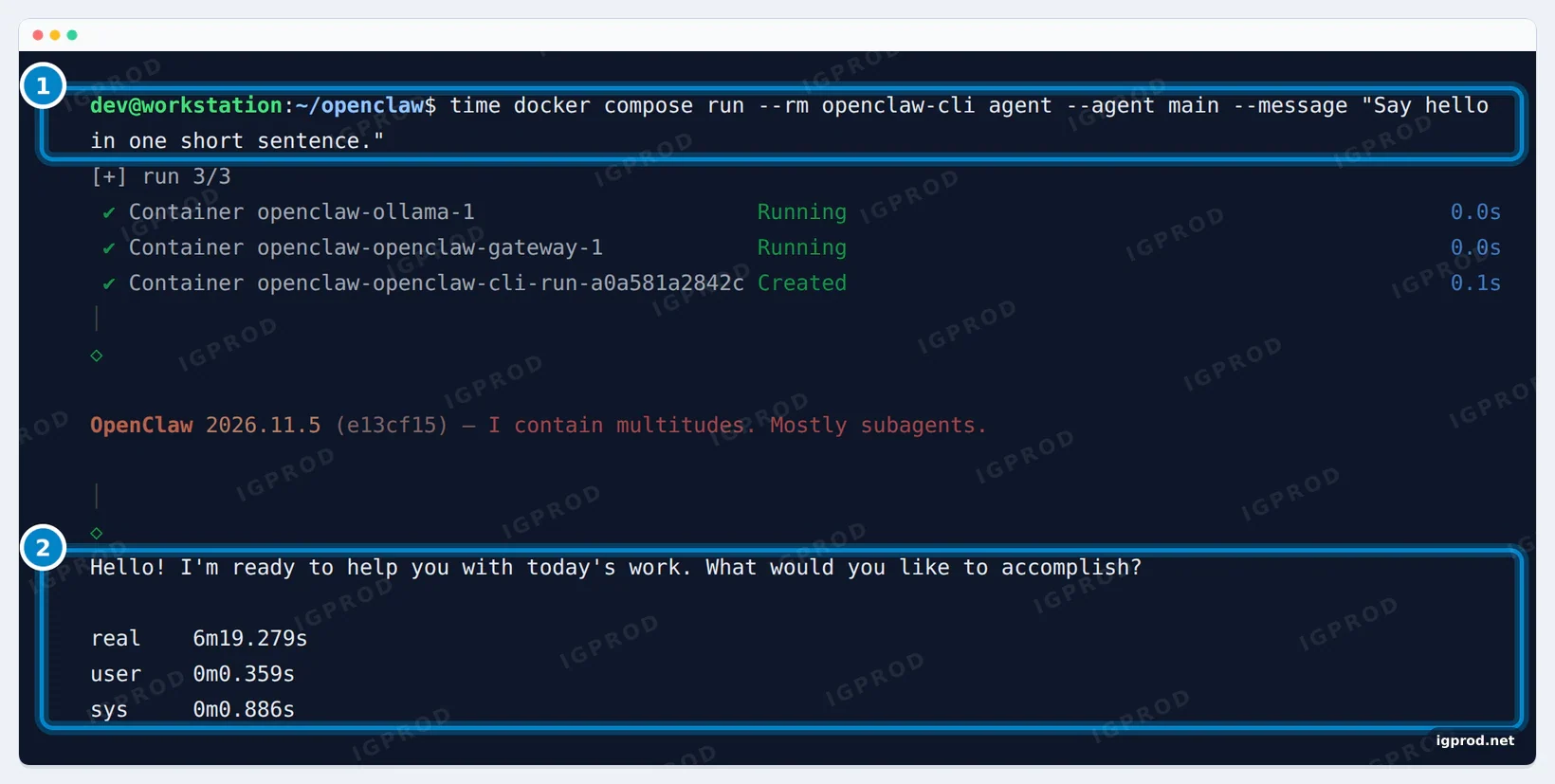
More than six minutes for one sentence. Ollama's log shows why:
- For our one-line message, OpenClaw sent a prompt of 17,874 tokens. Its system prompt describes every tool the agent may call, the workspace files and the skills, and onboarding gives the agent the full tool set.
- On 4 CPU cores, Ollama read that prompt at about 60 tokens per second. After 4 minutes 50 seconds the request ended with an error (status 500 in Ollama's log) while Ollama was still reading, and OpenClaw sent it again.
- The second try reused 16,384 tokens from Ollama's prompt cache, so only 1,778 new tokens had to be read. The reply came 49 seconds later: 21 tokens, written at 3.18 tokens per second.
The Gateway's log adds its own estimate of the prompt, above its budget for this model: estimatedPromptTokens=25522 promptBudgetBeforeReserve=24576. The model's writing speed is not the problem on a CPU; the size of the prompt is. Step 10 cuts it.
Step 8: Log in to the OpenClaw Control UI
Open http://127.0.0.1:18789/ on the machine, or through your SSH tunnel. The Control UI asks for the Gateway secret:
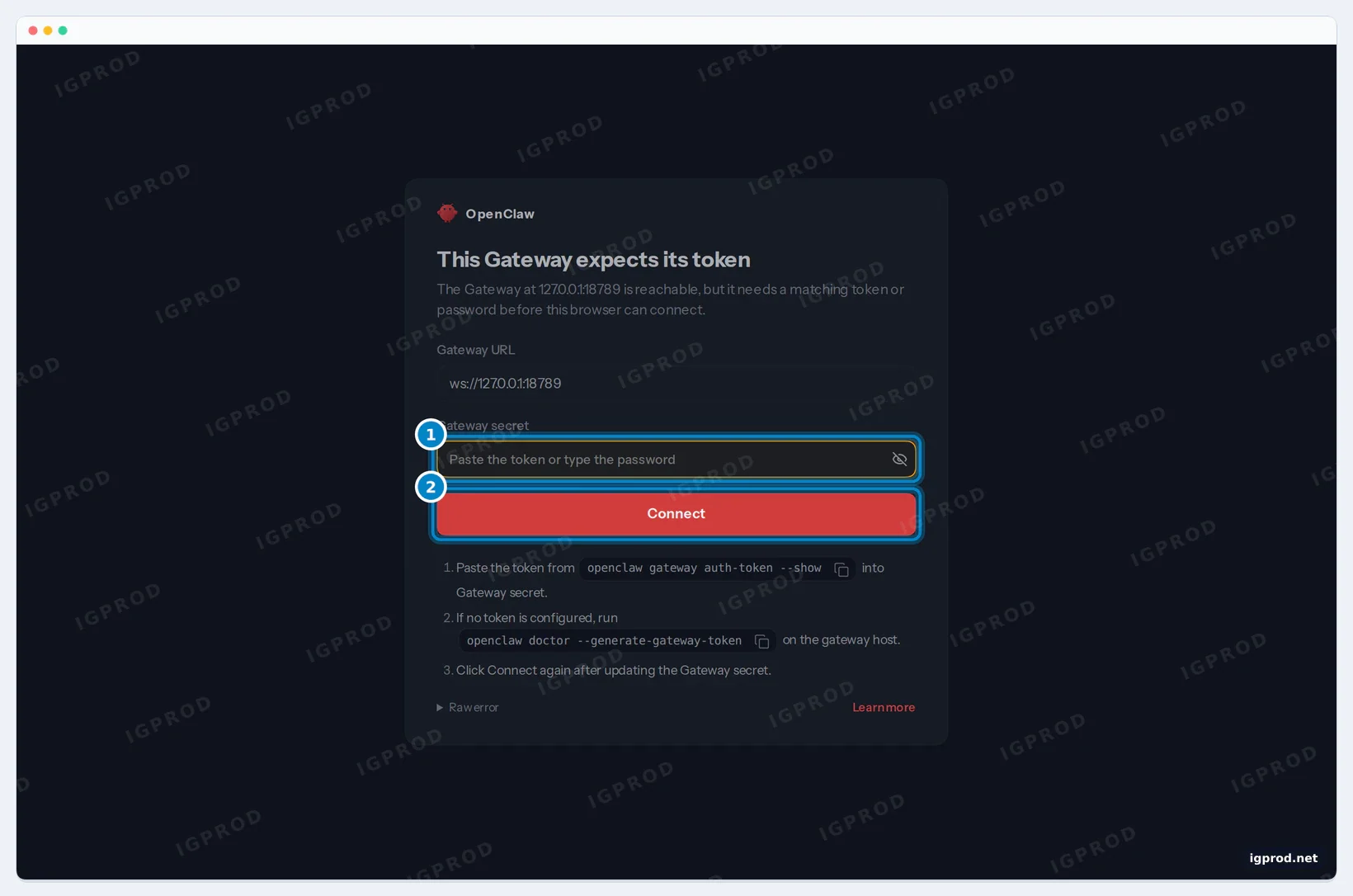
The secret is the token in .env. Print it in a terminal nobody else can see, and paste the part after the equals sign:
grep '^OPENCLAW_GATEWAY_TOKEN=' .envOur browser connected right after Connect. OpenClaw's documentation says a new browser usually needs a one-time pairing approval, shown as disconnected (1008): pairing required. In that case, approve it from the CLI:
docker compose run --rm openclaw-cli devices list
docker compose run --rm openclaw-cli devices approve <requestId>
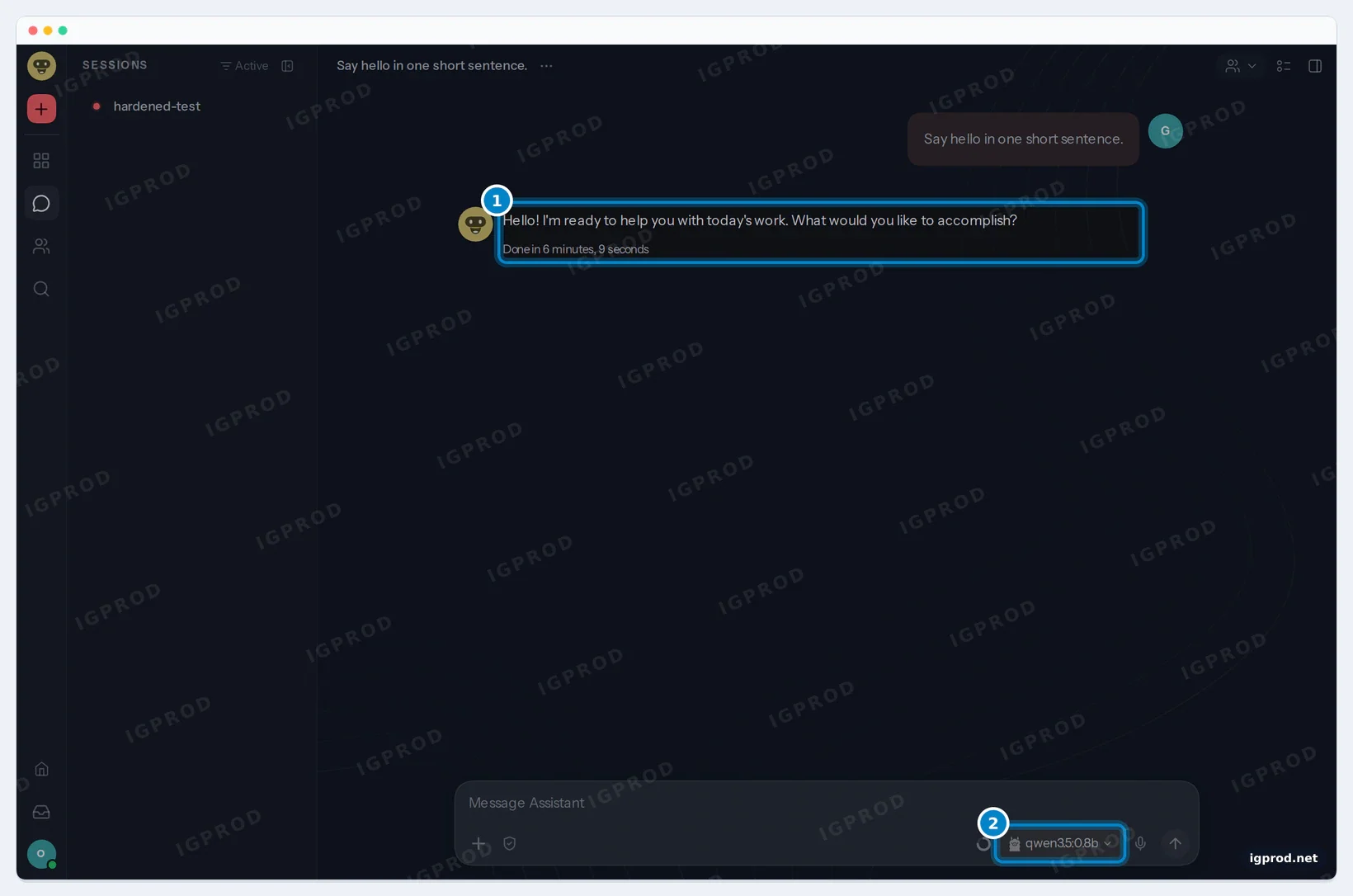
The chat view shows the agent's sessions, including the message we sent from the command line in Step 7:
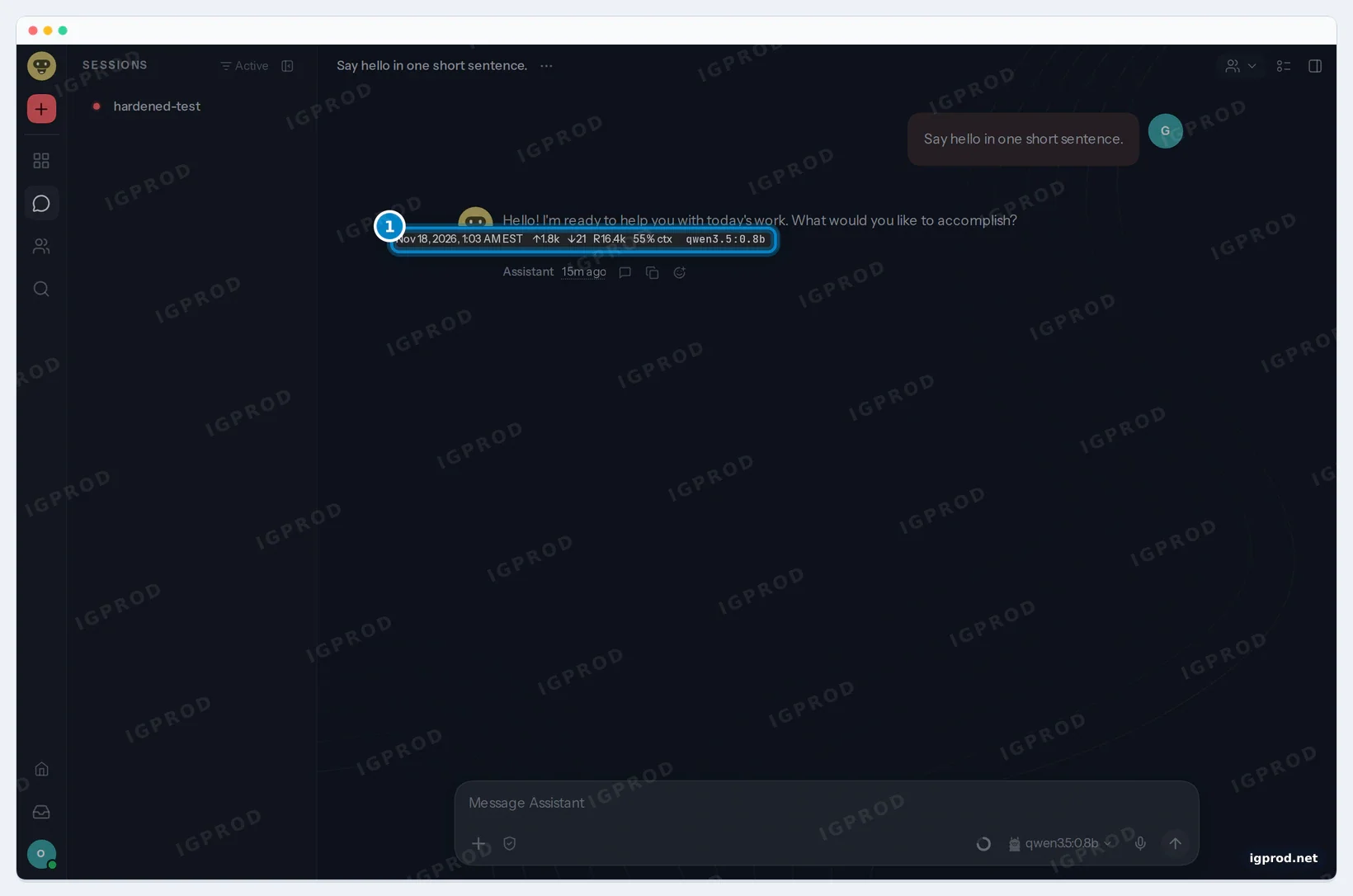
The details of the reply confirm the numbers from Ollama's log: a one-line hello filled more than half of the 32k context.
Step 9: Run the OpenClaw security audit
docker compose run --rm openclaw-cli security audit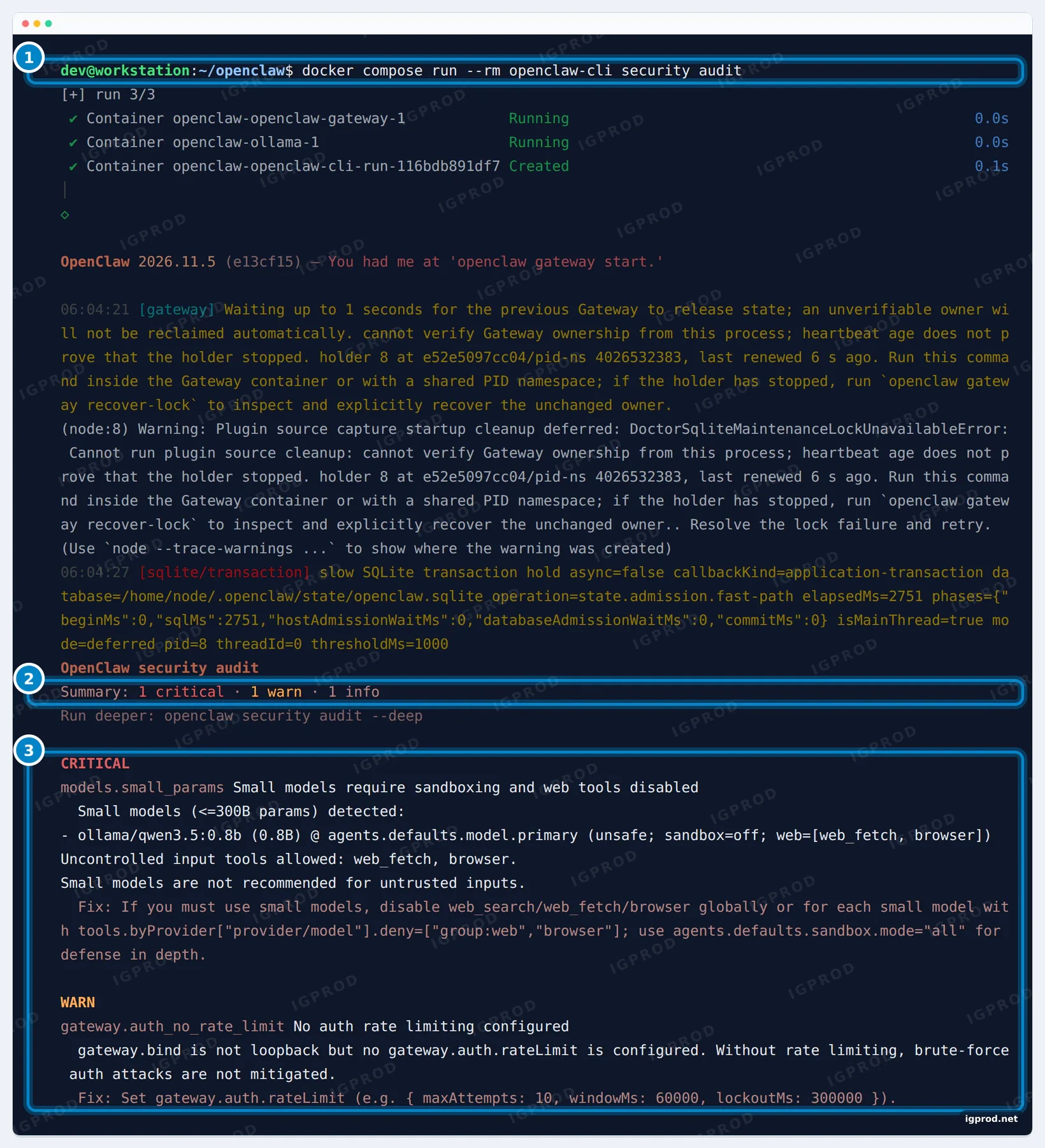
One critical finding and one warning:
- models.small_params (critical): OpenClaw treats every model up to 300B parameters as small, which covers almost any model you can run at home. Ours could use
web_fetchand the browser, with no sandbox. In the audit's words: "Small models are not recommended for untrusted inputs." A web page the agent reads could carry instructions, and a small model is easy to steer. - gateway.auth_no_rate_limit (warning): the Gateway listens on a non-loopback address, and
gateway.auth.rateLimitis not set. OpenClaw's rate-limiting documentation lists a built-in default of 10 failed logins per minute and a 5-minute lockout for that IP; setting it explicitly clears the warning and keeps the limit visible in your config.
The cause of the critical finding is a default: when no tool profile is configured, onboarding sets tools.profile to full, so a fresh install gives the agent every tool.
Step 10: Apply a hardened baseline
OpenClaw's documentation publishes a hardened baseline. We applied its tool and session settings, plus three changes for this setup: deny group:web and the browser (the audit's fix for small models), turn browser control off, and set the login rate limit the audit suggests. Save this as hardening.json in the openclaw folder:
[
  { "path": "tools.profile", "value": "messaging" },
  { "path": "tools.deny", "value": ["group:automation", "group:runtime", "group:fs", "group:web", "browser", "sessions_spawn", "sessions_send"] },
  { "path": "tools.fs.workspaceOnly", "value": true },
  { "path": "tools.exec.security", "value": "deny" },
  { "path": "tools.exec.ask", "value": "always" },
  { "path": "tools.elevated.enabled", "value": false },
  { "path": "browser.enabled", "value": false },
  { "path": "session.dmScope", "value": "per-channel-peer" },
  { "path": "gateway.auth.rateLimit", "value": { "maxAttempts": 10, "windowMs": 60000, "lockoutMs": 300000 } }
]
tools.profile: messagingstarts from the chat tool set (messages and sessions) instead offull.tools.denyremoves shell and code execution (group:runtime), file tools (group:fs), web search and fetch (group:web), the browser, automation such as cron jobs and Gateway control (group:automation), and starting or messaging other sessions.tools.fs.workspaceOnly,tools.exec.security: denyandtools.exec.ask: alwaysare a second line: if a tool comes back later, files stay inside the agent's workspace and commands are refused or need your approval.tools.elevated.enabled: falseblocks elevated commands, andbrowser.enabled: falsestops the browser control service.session.dmScope: per-channel-peermatters once you add chat apps: each sender in each channel gets a separate session, so one person never sees another's conversation.gateway.auth.rateLimit: 10 wrong logins in 60 seconds lock that client out for 5 minutes.
Write the settings with the Gateway's own CLI, inside its container (the CLI container is refused, see Troubleshooting), then run the audit again:
docker compose exec openclaw-gateway node dist/index.js config set --batch-json "$(cat hardening.json)"
docker compose run --rm openclaw-cli security audit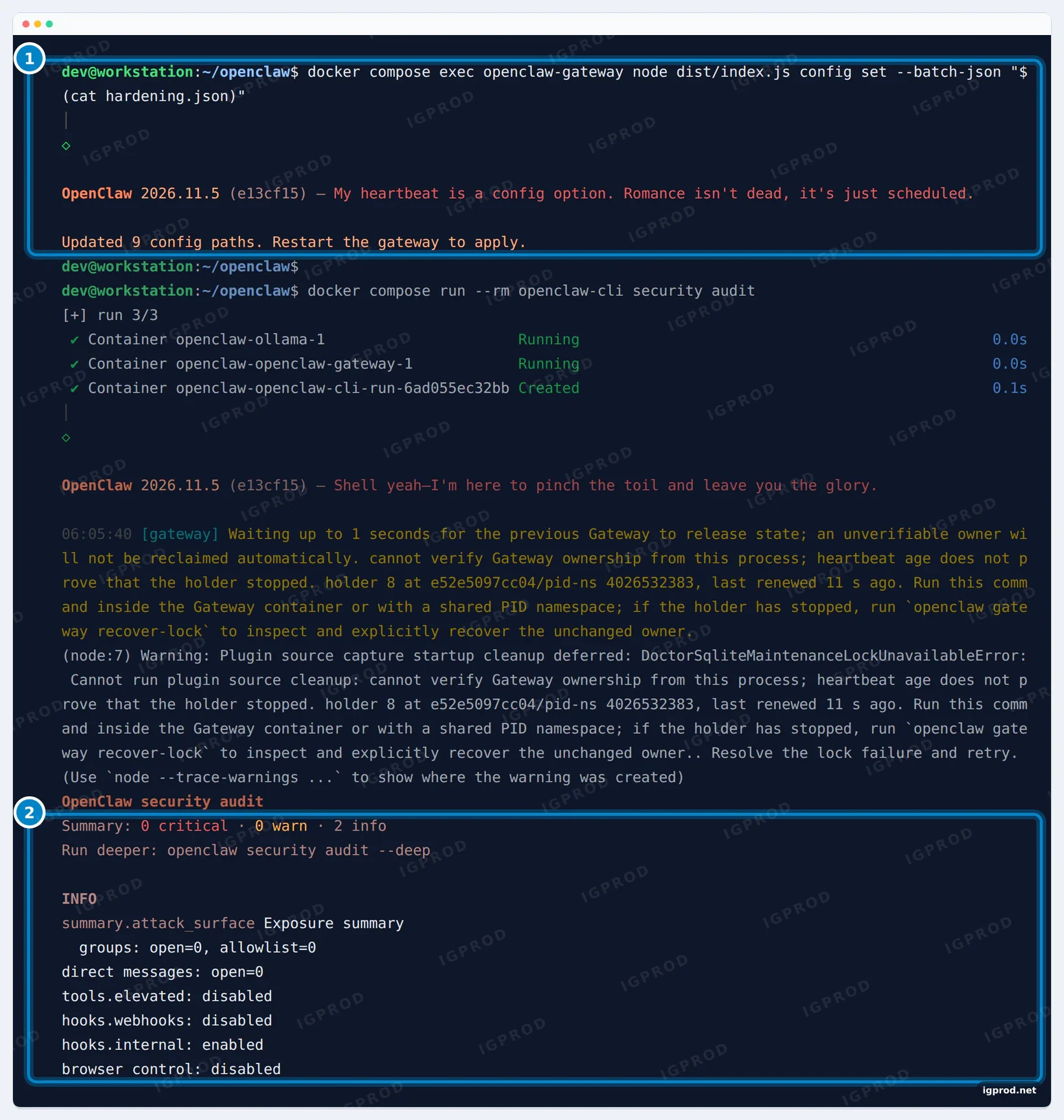
Nine settings changed, and the audit reports 0 critical findings and 0 warnings. The two info lines summarize the exposure: no open groups or direct messages, elevated tools and browser control disabled. Restart the Gateway to apply the settings, and wait until it is ready:
docker compose restart openclaw-gateway
until curl -sf http://127.0.0.1:18789/readyz >/dev/null; do sleep 3; done; curl -s http://127.0.0.1:18789/readyz; echo
It was ready again after 62 seconds.
Step 11: Test again after hardening
The same message, in a new session so that no cache helps:
time docker compose run --rm openclaw-cli agent --agent main --session-key hardened-test --message "Say hello in one short sentence."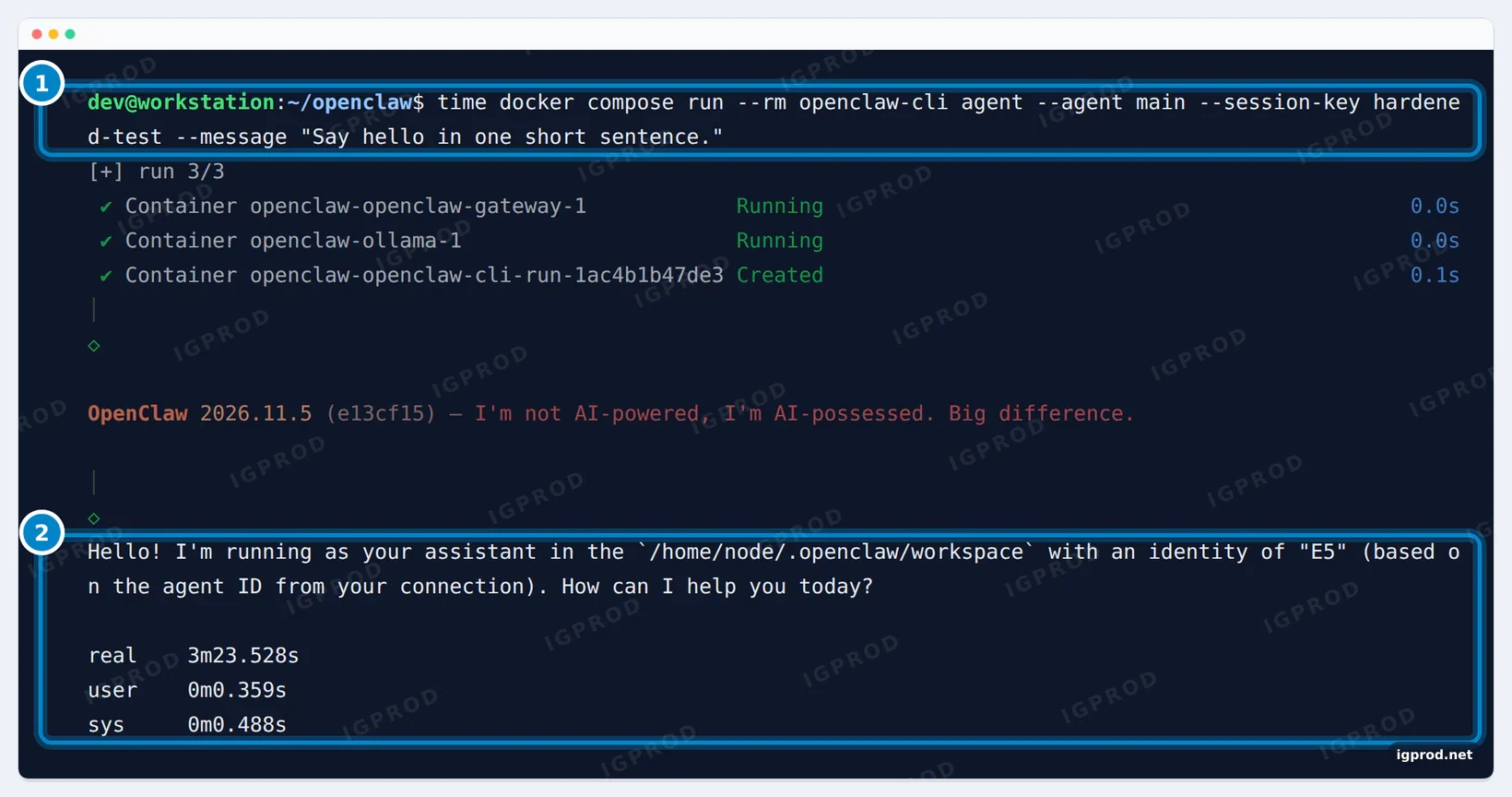
| From Ollama's log | Before hardening | After hardening |
|---|---|---|
| Prompt sent to the model | 17,874 tokens (18,162 on the retry) | 9,521 tokens |
| Reading the prompt | stopped after 4 min 50 s, then 40 s for the 1,778 tokens not in the cache | 164 s, at 58 tokens per second |
| Writing the reply | 21 tokens at 3.18 tokens per second | 45 tokens at 3.62 tokens per second |
| Total time (real) | 6 min 19 s | 3 min 23.5 s |
Fewer tools almost halved the prompt and the wait. The reply also shows the limits of a 0.8B model: it described itself with an identity, "E5", that we never configured. Keep tools off for small models, and give real work to a larger one.
OpenClaw skills and plugins: what is enabled out of the box
Skills are instructions, and sometimes scripts, that the agent loads for a task. Plugins add model providers, channels and tools to the Gateway. List what is active:
docker compose run --rm openclaw-cli skills list --eligible
docker compose run --rm openclaw-cli plugins list --enabled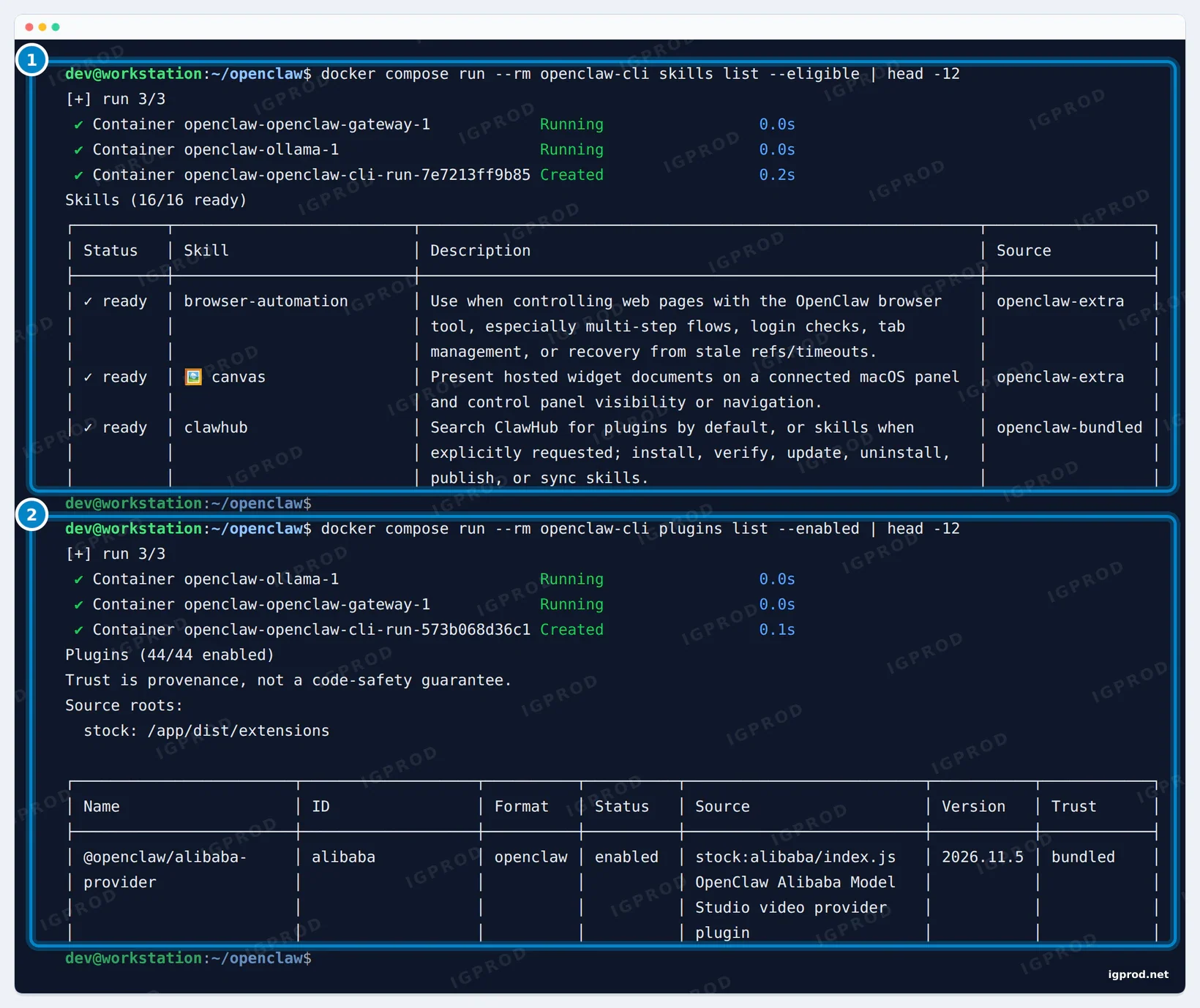
head). 2: 44 enabled plugins, all bundled with the image.16 of the 52 skills were ready on this install, and all 44 enabled plugins were bundled with the image (source stock, trust bundled). The plugin list opens with a sentence worth remembering: "Trust is provenance, not a code-safety guarantee." A skill or plugin from ClawHub or GitHub is code and instructions you hand to an agent. Read it before you install it, and keep the hardened baseline: many skills expect the shell, file or browser tools it blocks, so allow a tool only when you know why.
Back up OpenClaw
OpenClaw keeps its state, meaning the config, the sessions and the agent's workspace, in ~/.openclaw on the host. The backup command archives that folder and checks the archive:
mkdir -p -m 700 ~/openclaw-backups
docker compose run --rm -v ~/openclaw-backups:/backups openclaw-cli backup create --verify --output /backups
ls -l ~/openclaw-backups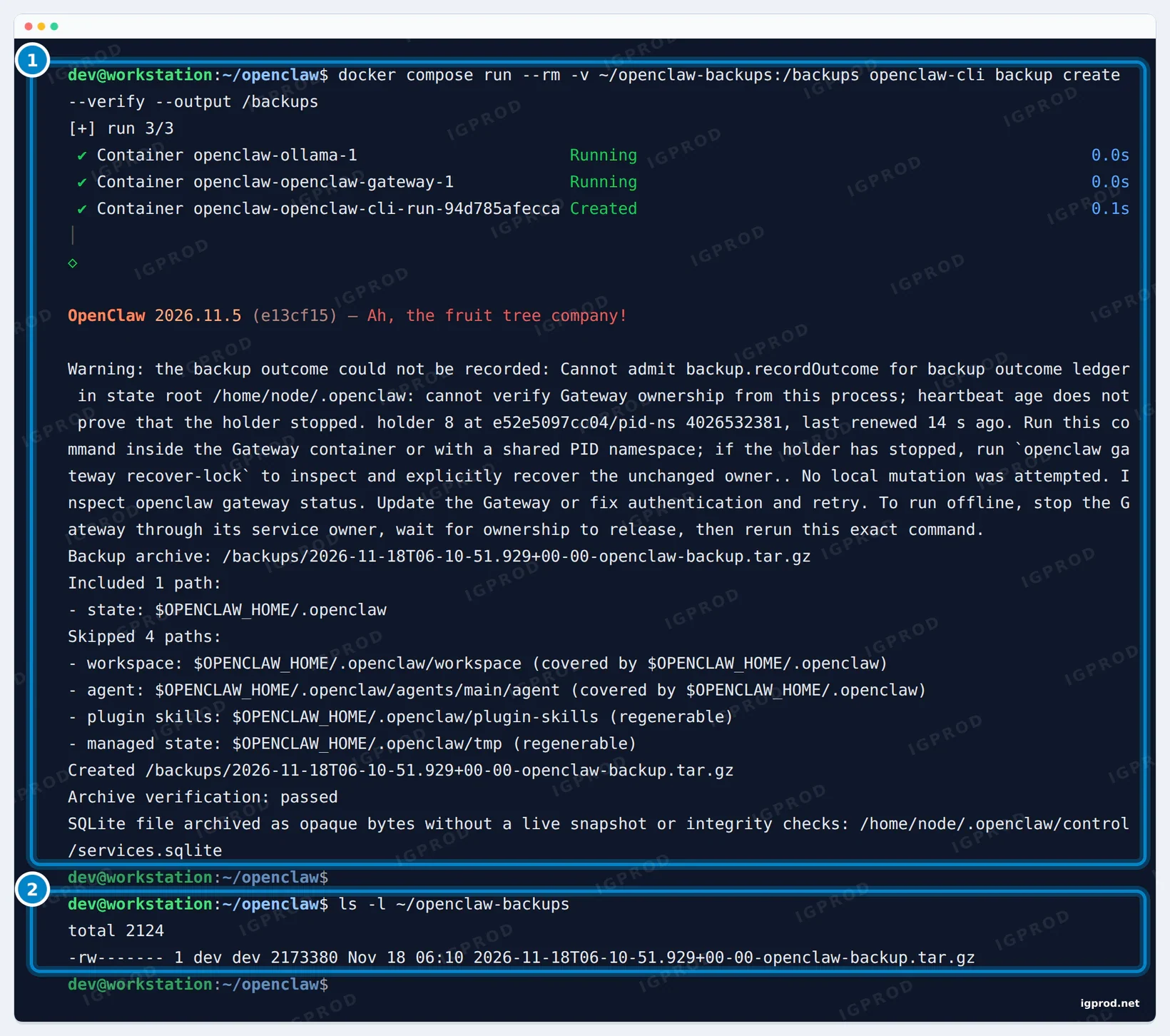
- The archive passed verification, and the file is readable by its owner only (
-rw-------). It can hold API keys and channel tokens once you add them: store it like a password export. - Only
~/.openclawis included. The.envfile with the gateway token stays in theopenclawfolder, so keep that token in your password manager too. - The Gateway was running, so the SQLite database was "archived as opaque bytes without a live snapshot or integrity checks". The message itself describes the offline way: stop the Gateway, then run the backup. We did not test that variant.
- "The backup outcome could not be recorded" is the CLI container limit explained under Troubleshooting. The archive was still written and verified.
Troubleshooting
"Cannot admit config set ... cannot verify Gateway ownership from this process"
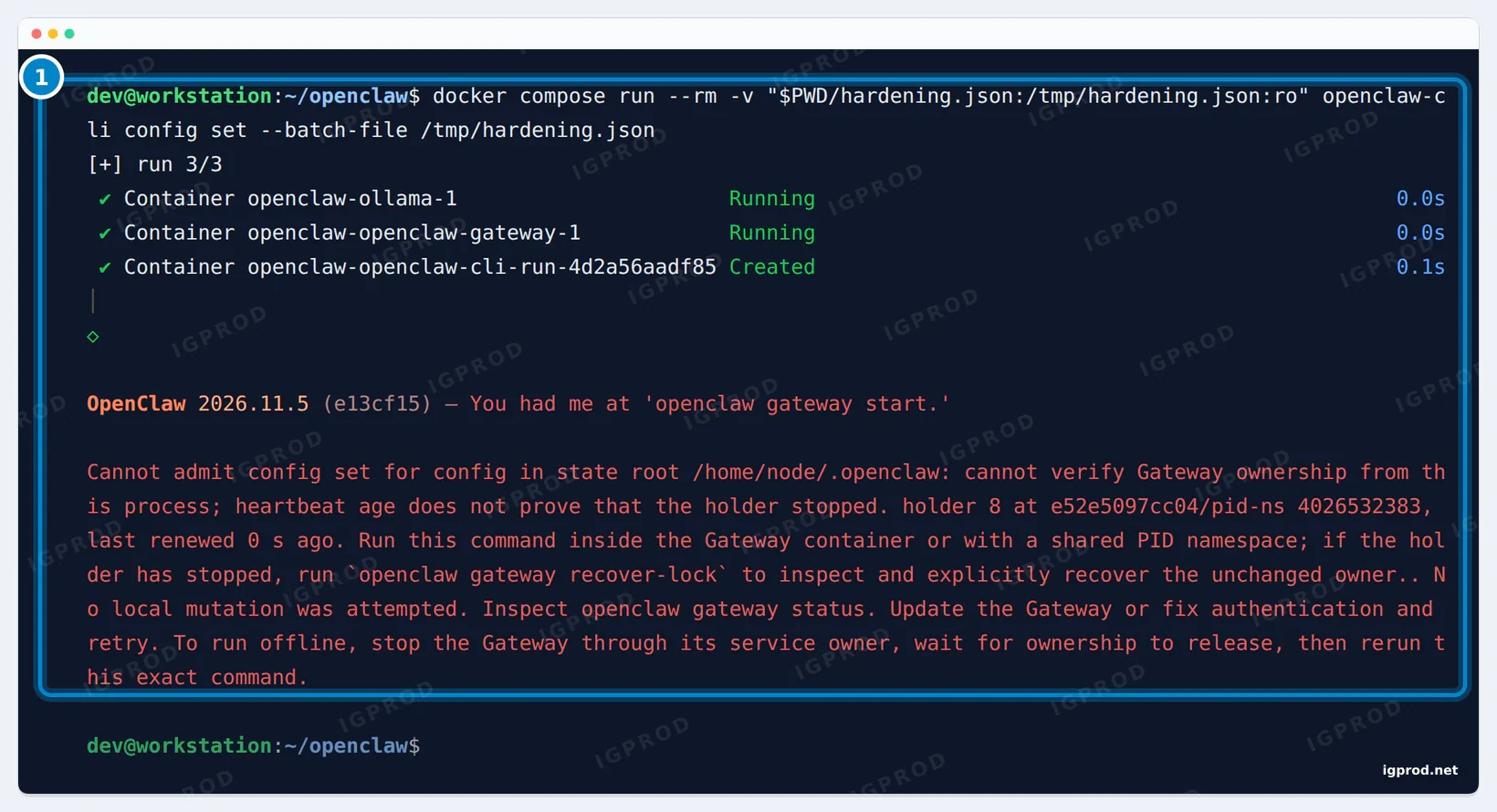
config set writes state that the running Gateway owns. The openclaw-cli container runs in its own process namespace, so it cannot prove whether the Gateway is alive, and it refuses to write. Run the command inside the Gateway container, as in Step 10:
docker compose exec openclaw-gateway node dist/index.js config set --batch-json "$(cat hardening.json)"Commands that only read, such as models list and security audit, work from the CLI container.
Yellow "Waiting up to 1 seconds for the previous Gateway to release state" warnings
Same cause: every openclaw-cli run sees a Gateway it cannot verify and says so. For onboarding, audits and lists, the warnings were harmless in our test; every command completed.
"Couldn't connect to OpenClaw."
We got it right after onboarding, while the Gateway restarted to load its new config. On a small machine it needs about a minute to start (62 seconds in our restart). Wait until curl -s http://127.0.0.1:18789/readyz returns {"ready":true}.
The first reply takes minutes or ends with an error
On a CPU, the size of OpenClaw's prompt is the bottleneck. In our test, the first request ended with an error after 4 minutes 50 seconds and OpenClaw retried on its own. Deny the tools you do not use (Step 10 almost halved our prompt), or move the model to a GPU or a hosted provider.
"memory pressure: level=warning reason=rss_threshold"
The Gateway warns when it passes 80% of its memory limit: 1.6 GiB of our 2 GiB. It reached 1.78 GiB during the first chat and kept working. If Docker ever stops the container for lack of memory, raise mem_limit in the override.
"Memory search provider is set to "openai" but no API key was found."
The Gateway's health check prints this on a local-only install, because memory search uses OpenAI embeddings by default. Its suggested fixes are to set OPENAI_API_KEY, to configure credentials with openclaw configure --section model, or, for keyword-only recall without a key, to set memory.search.provider to "none" and rebuild the index with openclaw memory index --force --agent main. We did not change it for this guide.
Frequently asked questions
Is OpenClaw free?
Yes. OpenClaw is open source under the MIT license, made by the OpenClaw Foundation, with no paid tier. With a local model through Ollama, you pay only for your hardware and power; hosted models bill you for each use.
Can OpenClaw run without an API key?
Yes. This whole guide used a local model through Ollama and no cloud key. The only complaint was the memory search warning about a missing OpenAI key, covered under Troubleshooting.
Which Ollama model works best with OpenClaw?
One with tool support and a large context: OpenClaw's setup looks for tools and at least 16K tokens, and Ollama recommends 64k for OpenClaw with local models. Check ollama show for tools. Larger models answer better and are harder to mislead; qwen3.5:0.8b was enough to test this setup on a CPU, not for real work.
OpenClaw vs Hermes Agent: what is the difference?
Both are open-source agents under the MIT license that can run with local models. OpenClaw is built around a Gateway that serves chat apps and the web Control UI. Hermes Agent, from Nous Research, calls itself "the self-improving AI agent" and runs on Python. We tested only OpenClaw for this guide.
OpenClaw vs Claude Cowork?
Claude Cowork is part of Anthropic's Claude Desktop app for paid Claude plans. It works with Claude and runs code in an isolated virtual machine on your computer. OpenClaw is self-hosted, works with any model provider including local models, and can answer in chat apps. Choose Cowork for a ready desktop agent; choose OpenClaw when you want to own the server, the model and the data path.
Can I use LM Studio instead of Ollama?
OpenClaw's documentation includes an LM Studio provider, so yes, but we tested only Ollama. The same rules apply: a model with tool support, enough context, and no model server port open to the network.
Is it safe to expose the OpenClaw Control UI to the internet?
Not directly. Keep the port on 127.0.0.1 and reach it through an SSH tunnel or a private network such as Tailscale, which OpenClaw's documentation prefers. If you must publish it, add TLS and firewall rules in Docker's DOCKER-USER chain, since ufw alone does not filter published container ports.
How much RAM does OpenClaw need?
In our test, the Gateway peaked at 1.78 GB and Ollama ran a 0.8B model inside 1,800 MB. Plan at least 4 GB for this small setup, more for bigger models, and keep a mem_limit on both containers.
Related guides
- Ollama and Open WebUI with Docker Compose: Install, First Models and Real CPU Speeds (2026)
- Install Docker Compose on Ubuntu using Docker’s repository
- Run n8n with Docker Compose: PostgreSQL, Task Runners, and HTTPS
- Talorys: Personal AI Agent in Your Cloudflare Account
Sources
- OpenClaw on GitHub
- OpenClaw docs: Docker
- OpenClaw docs: Ollama
- OpenClaw docs: openclaw onboard
- OpenClaw docs: Hardened baselines
- OpenClaw docs: Network exposure
- OpenClaw docs: Tool policy
- Ollama docs: OpenClaw
- Docker docs: Merge Compose files
- Docker docs: Packet filtering and firewalls
- Hermes Agent on GitHub
- Claude Help Center: Install Claude Desktop (Claude Cowork)

Leave a comment
Your email address will not be published. Required fields are marked *