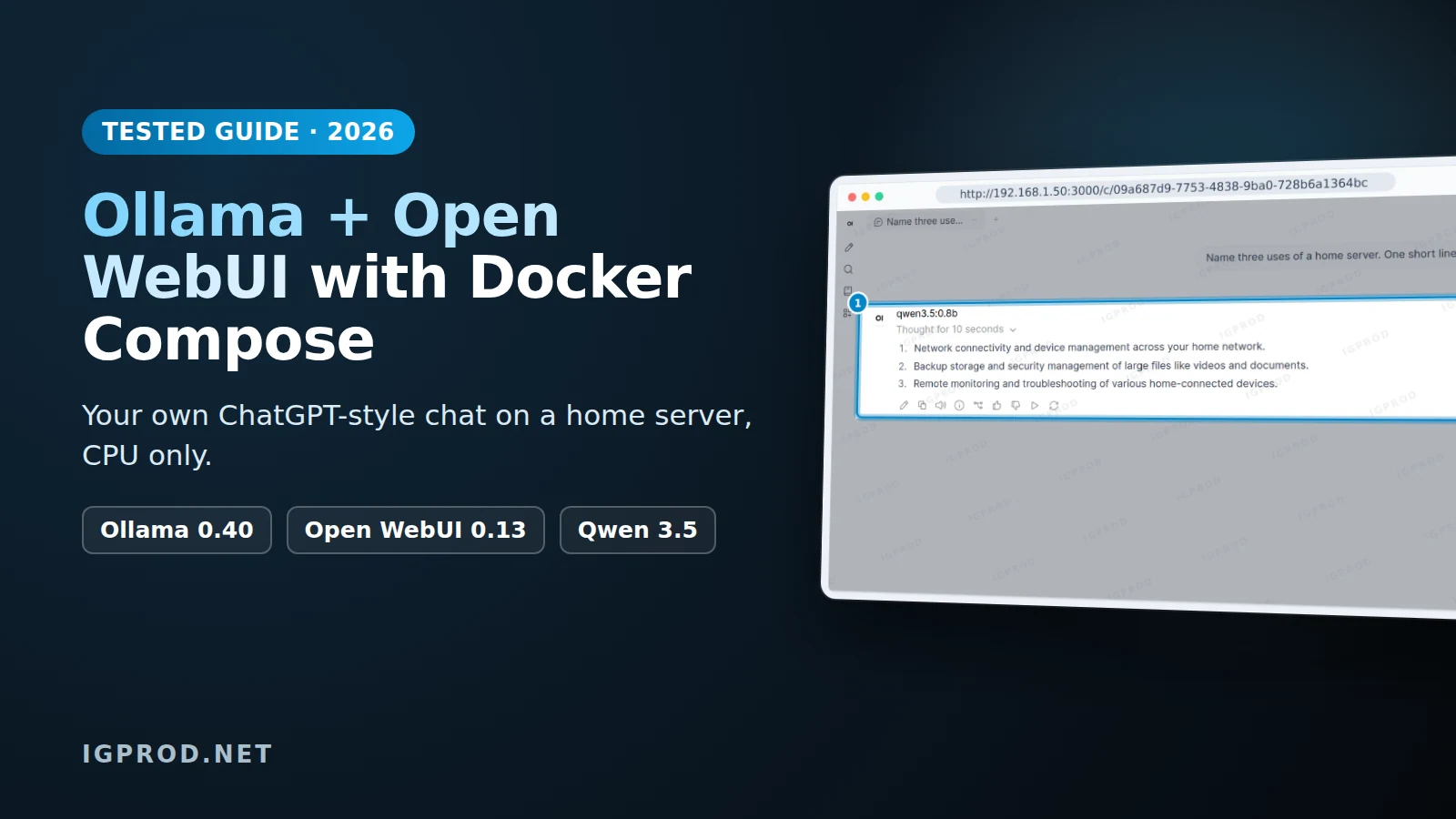
Ollama runs AI language models on your own machine, and Open WebUI gives them a chat page in the browser, close to ChatGPT. With Docker Compose, both start with one file and one command, and your questions and files stay on your server.
This guide installs Ollama and Open WebUI with Docker Compose, creates the first admin account, pulls small models and shows real speeds on a machine without a graphics card. It also covers a Synology NAS, the new ollama launch command, updates, and the problems we hit.
We tested on 13 and 14 November 2026 with Ollama 0.40.16 and Open WebUI 0.13.3, on a Linux machine with 8 CPU cores, 8 GB of RAM and no GPU. We also ran Ollama alone on a Synology NAS with DSM 7.4.1. Every output below comes from those tests.
What you need
- Docker with the Compose plugin. Our guide to installing Docker Compose on Ubuntu covers it.
- About 10 GB of disk for the two images (5.1 GB for
ollama/ollamaand 4.6 GB for Open WebUI in our test), plus the models. - Enough free RAM for the model you choose, plus about 1.8 GB for the two apps at rest. The numbers are in the speed section below.
- No Docker? Ollama also installs natively from ollama.com/download on Linux, macOS and Windows. Here we use Docker, so both apps start from one file.
The Docker Compose file for Ollama and Open WebUI
Create a folder, for example local-ai, and save this file in it as docker-compose.yml:
services:
  ollama:
    image: ollama/ollama:latest
    container_name: ollama
    ports:
      - "127.0.0.1:11434:11434"
    volumes:
      - ollama:/root/.ollama
    restart: unless-stopped

  open-webui:
    image: ghcr.io/open-webui/open-webui:main
    container_name: open-webui
    depends_on:
      - ollama
    ports:
      - "3000:8080"
    volumes:
      - open-webui:/app/backend/data
    environment:
      - OLLAMA_BASE_URL=http://ollama:11434
      - WEBUI_SECRET_KEY=${WEBUI_SECRET_KEY}
    restart: unless-stopped

volumes:
  ollama:
open-webui:ollama/ollamais the official Ollama image on Docker Hub. Its port 11434 is bound to127.0.0.1, so only the host itself can reach the Ollama API.ghcr.io/open-webui/open-webui:mainis the Open WebUI image. It listens on port 8080 inside the container, and the file publishes it on port 3000.OLLAMA_BASE_URL=http://ollama:11434uses the service name. Inside the Open WebUI container,localhostwould point to Open WebUI itself.- The two named volumes keep the models and the chats when you recreate the containers.
Open WebUI signs its login sessions with WEBUI_SECRET_KEY. Put a random value in a .env file next to the compose file, so it stays the same after a restart:
echo "WEBUI_SECRET_KEY=$(openssl rand -hex 32)" > .env
chmod 600 .env
With an NVIDIA or AMD GPU
For an NVIDIA card, first install the NVIDIA Container Toolkit on the host, as the Ollama Docker page shows. Then give the ollama service the GPU with Docker's deploy block:
  ollama:
    # ... same lines as above, then:
    deploy:
      resources:
        reservations:
          devices:
            - driver: nvidia
              count: all
              capabilities: [gpu]
For an AMD card, the Ollama docs use the ollama/ollama:rocm image with two devices:
  ollama:
    image: ollama/ollama:rocm
    # ... same lines as above, then:
    devices:
      - /dev/kfd
      - /dev/dri
We did not test these two setups: our test machine has no GPU, and all speeds below are CPU only.
Start Ollama and Open WebUI
$ docker compose up -d
 Volume "local-ai_ollama"  Creating
 Volume "local-ai_ollama"  Created
 Volume "local-ai_open-webui"  Creating
 Volume "local-ai_open-webui"  Created
 Container ollama  Creating
 Container ollama  Created
 Container open-webui  Creating
 Container open-webui  Created
 Container ollama  Starting
 Container ollama  Started
 Container open-webui  Starting
Container open-webui Started$ docker compose ps
NAME IMAGE COMMAND SERVICE CREATED STATUS PORTS
ollama ollama/ollama:latest "/bin/ollama serve" ollama About a minute ago Up About a minute 127.0.0.1:11434->11434/tcp
open-webui ghcr.io/open-webui/open-webui:main "bash start.sh" open-webui About a minute ago Up About a minute (health: starting) 0.0.0.0:3000->8080/tcp, [::]:3000->8080/tcpThe first start is slow: Open WebUI answered on /health after about 92 seconds. On its first start it also downloads 30 files from Hugging Face (its log shows "Fetching 30 files"). Then check both apps:
$ curl http://localhost:11434
Ollama is running
$ docker exec ollama ollama --version
ollama version is 0.40.16
$ curl -s http://localhost:3000/api/version
{"version":"0.13.3","deployment_id":""}
Create the admin account
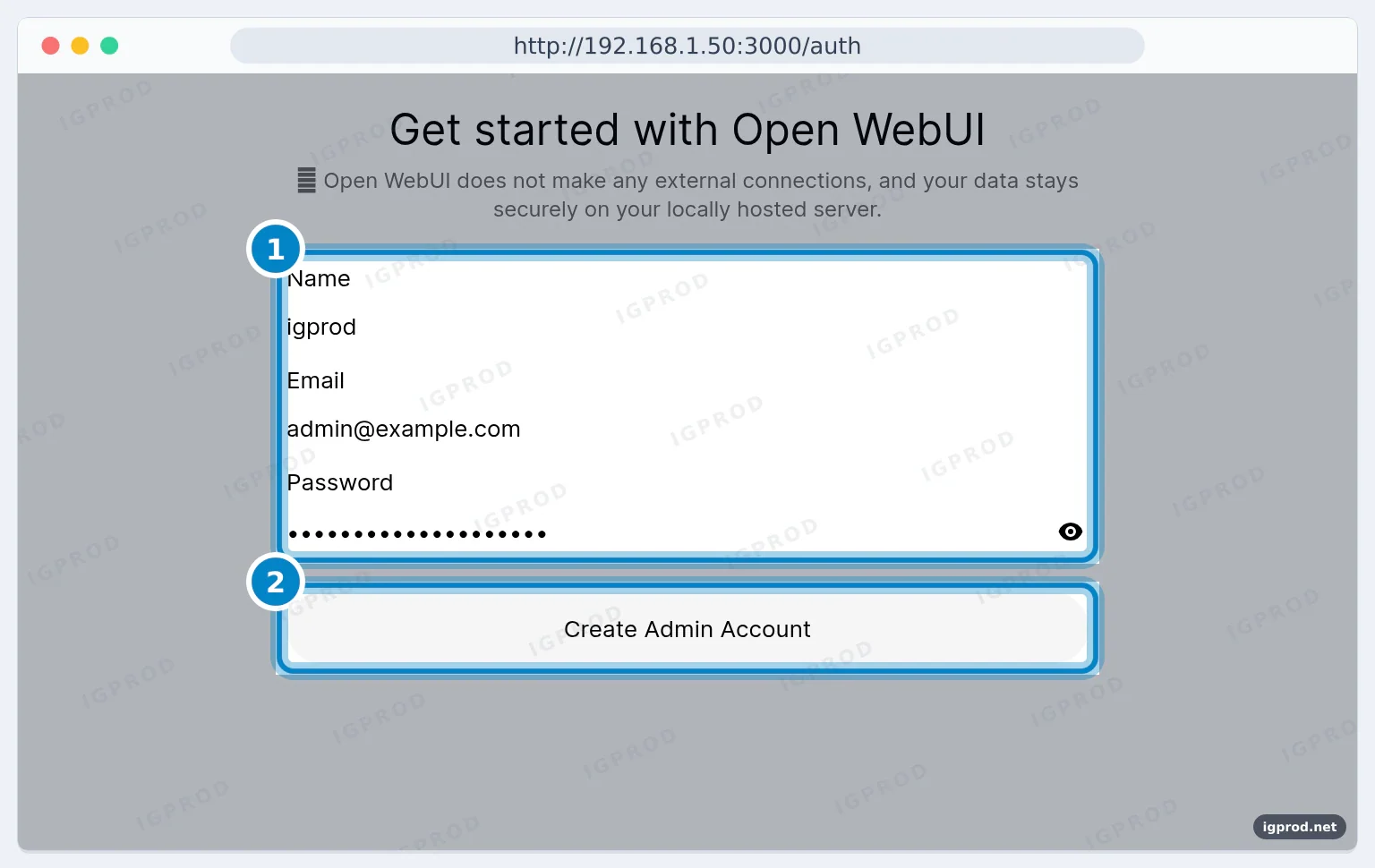
Open http://<server-ip>:3000 in a browser. Our screenshots use the example address 192.168.1.50.
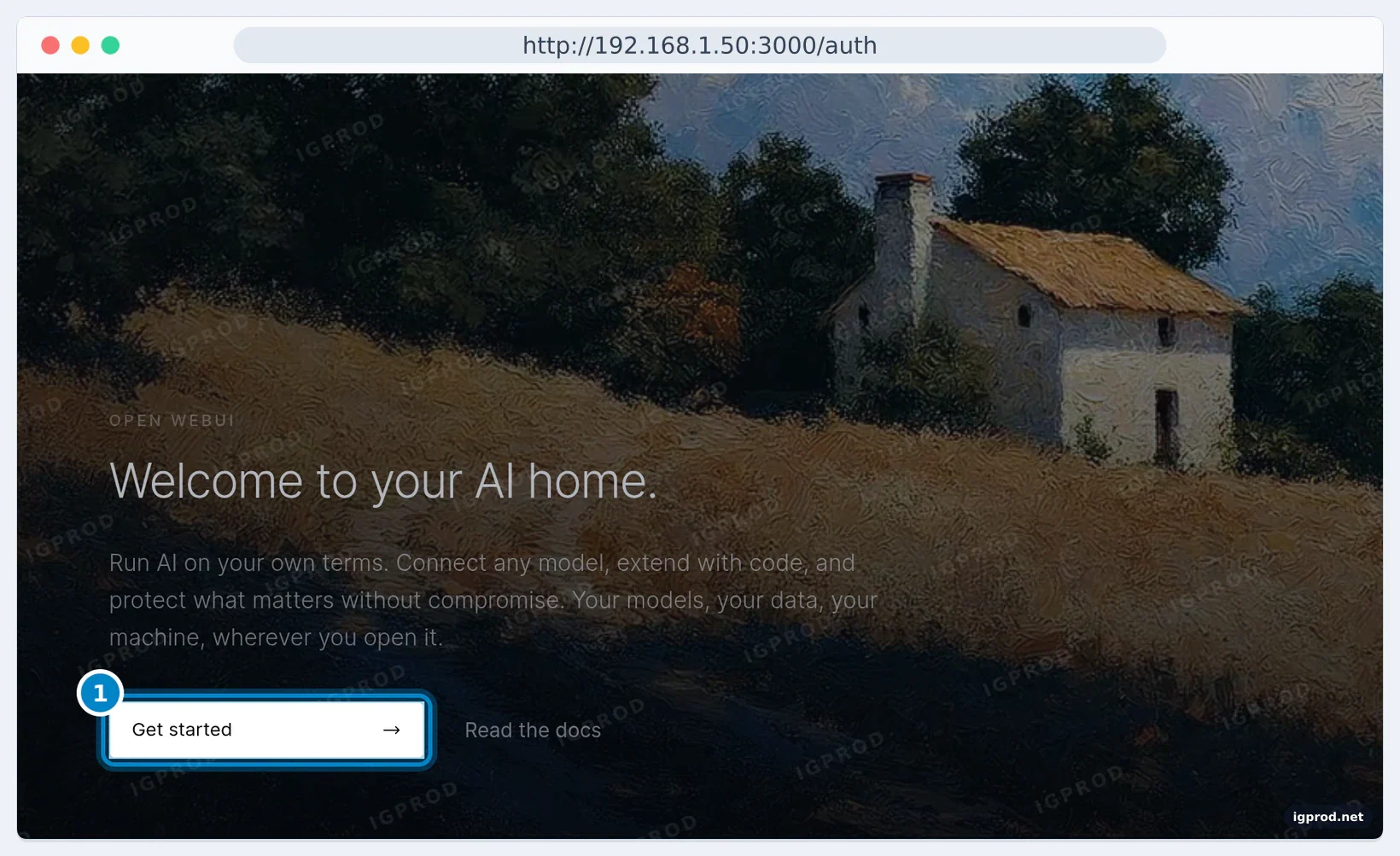
Select Get started. The first account becomes the admin: type a name, an email and a strong password, then select Create Admin Account. The email does not need to be real, but you will log in with it.
Pull your first models
Ollama downloads models from its library. Pull them from the command line:
docker exec ollama ollama pull qwen3.5:0.8b
docker exec ollama ollama pull qwen3.5:2b
docker exec ollama ollama list
We also pulled gemma4:e2b to try a bigger model; the speed section explains what happened to it. On our connection the three pulls took 130, 167 and 286 seconds:
$ docker exec ollama ollama list
NAME            ID              SIZE      MODIFIED
gemma4:e2b      b37049369adf    4.6 GB    Less than a second ago
qwen3.5:2b      0689d44085e0    2.7 GB    4 minutes ago
qwen3.5:0.8b    de63045f2975    1.3 GB    7 minutes ago
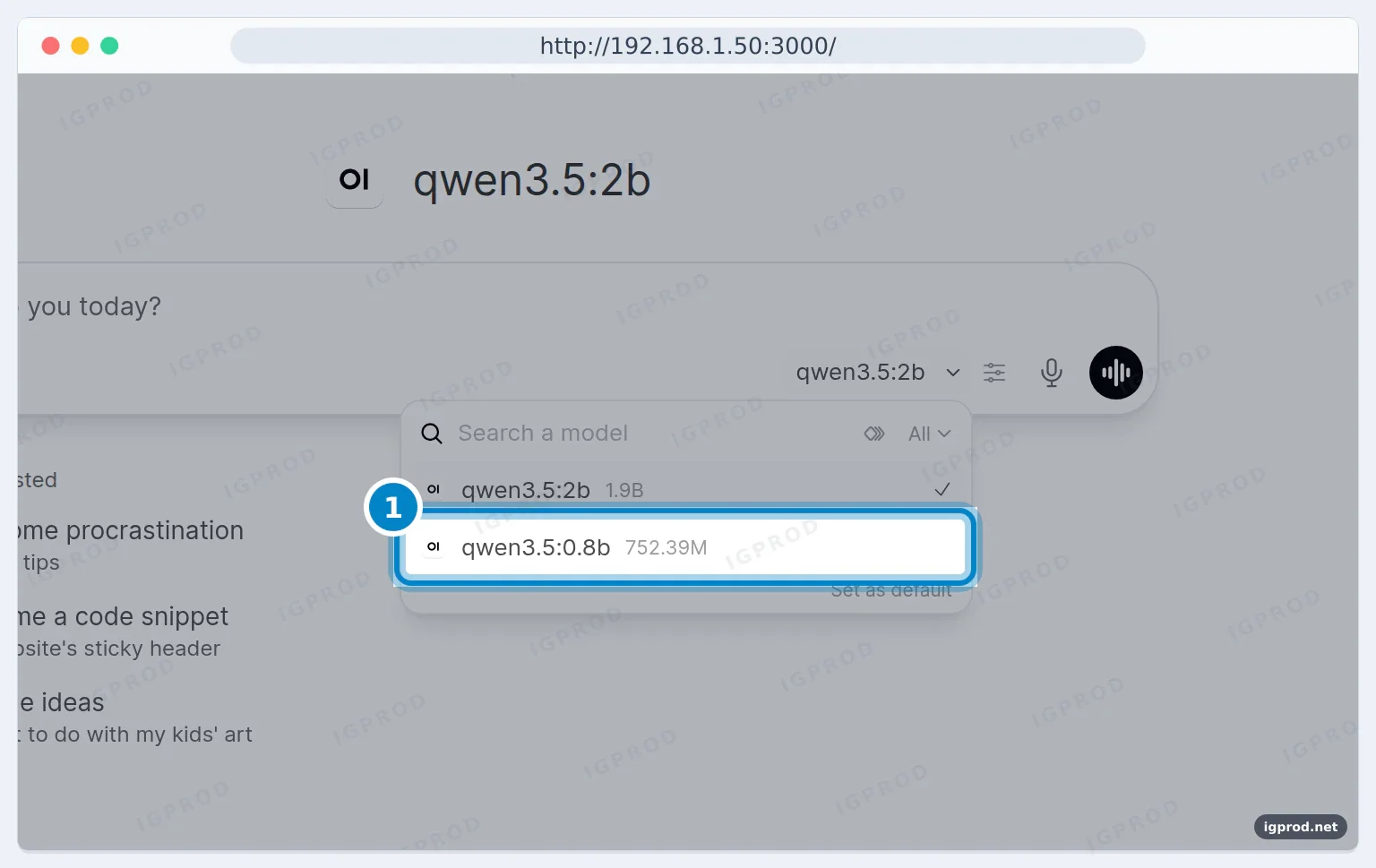
Open WebUI shows the new models in its picker at the top of a new chat. No restart is needed.
The first chat
We asked qwen3.5:0.8b: "Name three uses of a home server. One short line each." Qwen 3.5 thinks before it answers in Open WebUI, and the page shows how long it thought.
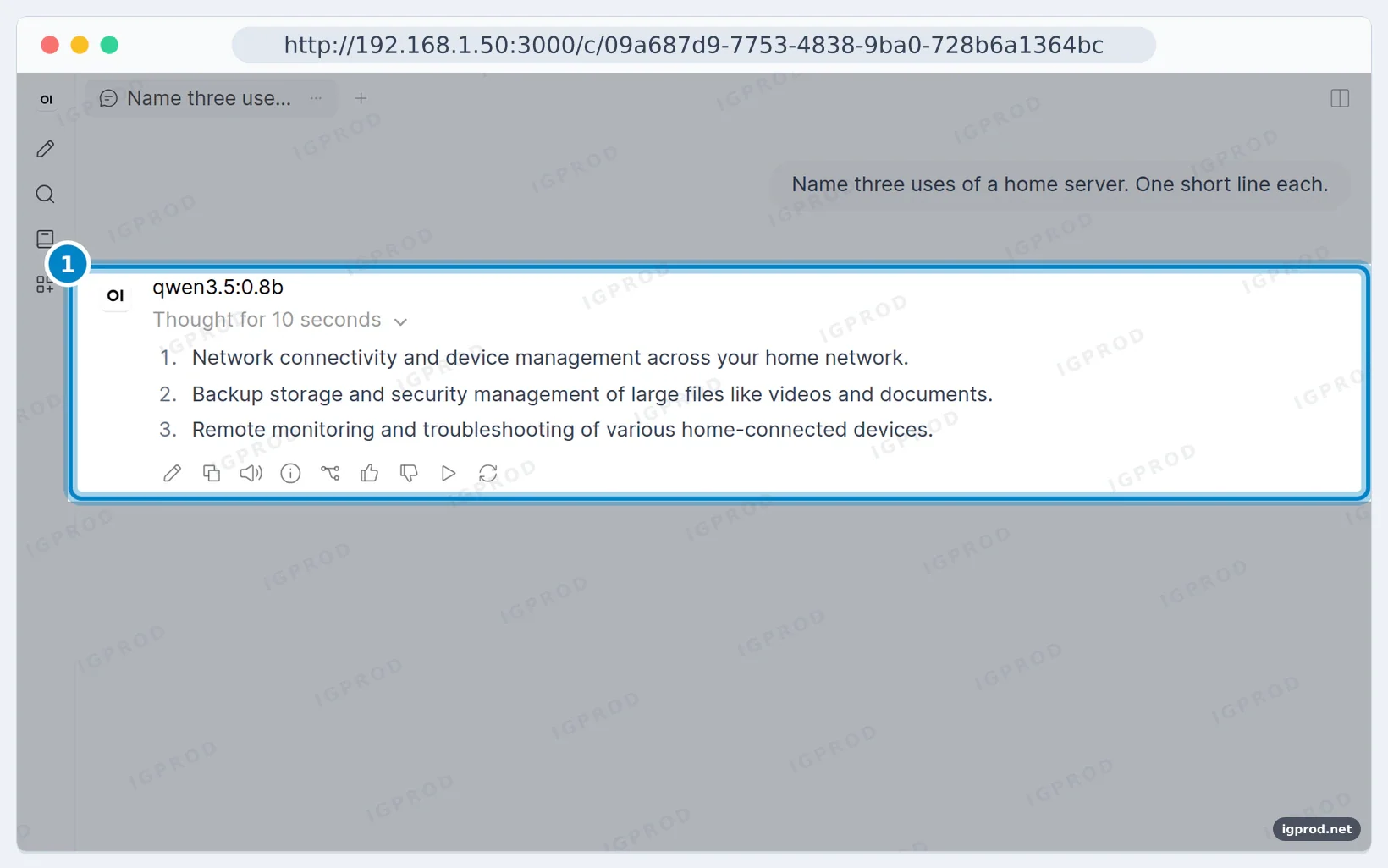
This first answer in the browser took about three minutes on our test setup limited to 4 CPU cores, while the same question took 10 seconds on the command line with thinking off. Two things add work in the browser. Qwen 3.5 thinks before it answers. And after each answer, Open WebUI asks the model again in the background, for a chat title, follow-up questions and tags: Ollama's log showed two chat calls for our one question. On a CPU, these extra calls compete with your next question.
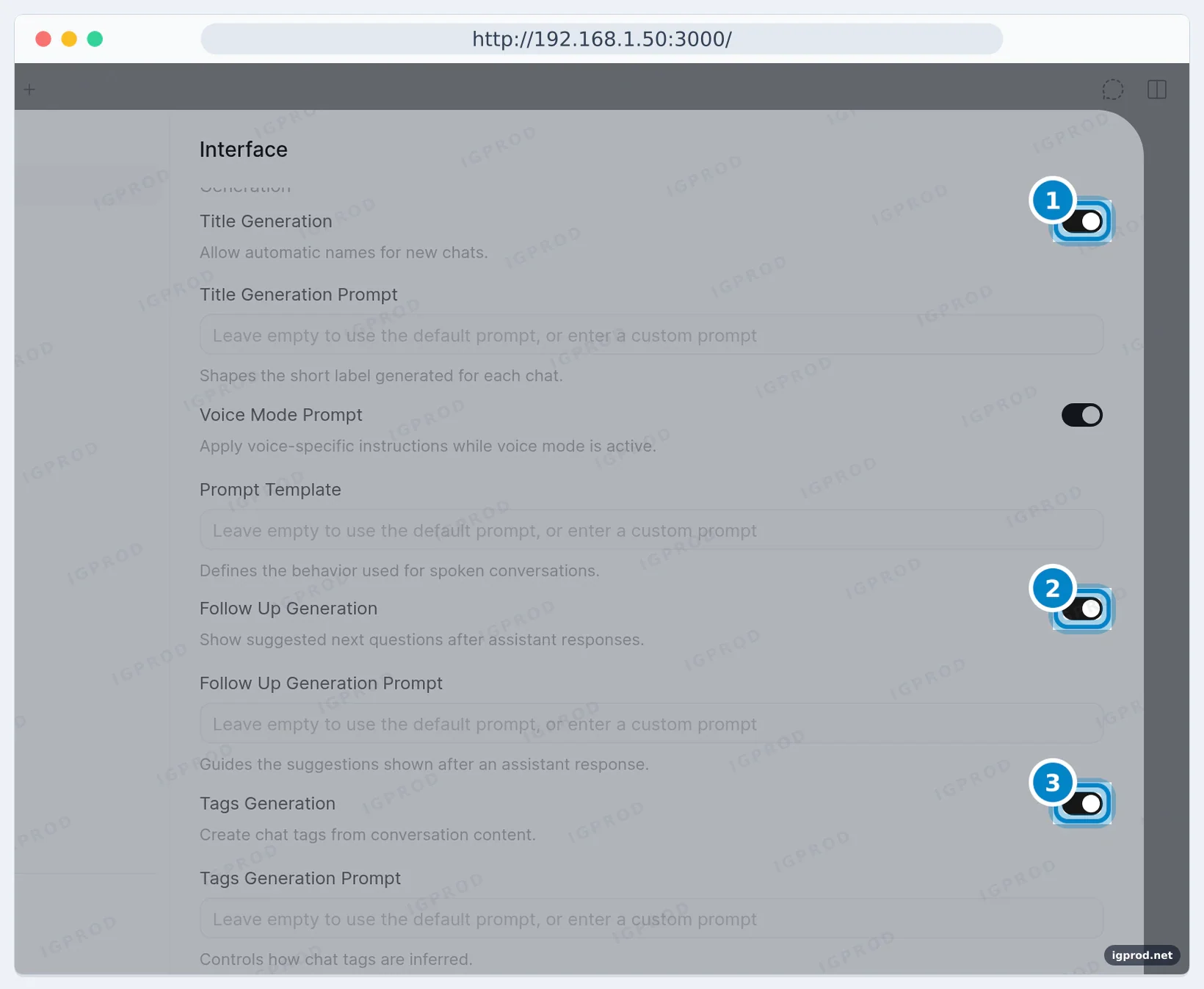
To turn them off, open Admin Panel > Settings >Interface and switch off Title Generation, Follow Up Generation and Tags Generation. The same switches exist as environment variables: ENABLE_TITLE_GENERATION, ENABLE_FOLLOW_UP_GENERATION and ENABLE_TAGS_GENERATION, all true by default.
How fast is Ollama on a CPU? Real numbers
We measured from the command line with --verbose, thinking off, only Ollama running, limited to 4 CPU cores and 3.5 GB of RAM. Here is the full output for the smallest model:
$ docker exec ollama ollama run qwen3.5:0.8b --think=false --verbose "Name three uses of a home server. One short line each."
- Hosting web applications and databases for multiple users
- Running email service providers like Gmail or Hotmail
- Acting as an intermediary to allow multiple devices to access one central file system
total duration:       9.586444461s
load duration:        3.911341961s
prompt eval count:    25 token(s)
prompt eval duration: 348.966ms
prompt eval rate:     71.64 tokens/s
eval count:           37 token(s)
eval duration:        5.312328s
eval rate:            6.96 tokens/s
$ docker exec ollama ollama ps
NAME            ID              SIZE      PROCESSOR    CONTEXT    RUNNER      UNTIL
qwen3.5:0.8b de63045f2975 574 MB 100% CPU 4096 llamacpp 4 minutes from now| Machine | Model (size in RAM) | Load | Reading the prompt | Writing the answer | Total |
|---|---|---|---|---|---|
| Linux, 4 cores, no GPU | qwen3.5:0.8b (574 MB) | 3.9 s | 71.6 tokens/s | 6.96 tokens/s | 9.6 s |
| Linux, 4 cores, no GPU | qwen3.5:2b (2.4 GB) | 4.8 s | 36.3 tokens/s | 6.96 tokens/s | 10.7 s |
| Synology NAS, 4 cores, no AVX2 | gemma3:270m (326 MB) | 2.1 s | 61.0 tokens/s | 18.53 tokens/s | 4.3 s |
| Linux, RAM almost full | qwen3.5:2b | 5.4 s | 26.9 tokens/s | 0.57 tokens/s | 75.3 s |
About 7 tokens per second is a slow but usable reading speed for short answers. The Ollama container used 1.84 GiB with the 0.8b model loaded and 3.13 GiB with the 2b model. Ollama's log confirms the CPU mode (library=cpu) and a default context of 4,096 tokens (default_num_ctx=4096).
The command-line answer above also shows the limits of a 0.8b model: its second line is wrong, because a home server can run its own mail server, not Gmail or Hotmail. Small models are fine for drafts and simple questions, but check what they say.
What happens when the RAM runs out
The last line of the table is the same 2b model on the same machine, while other containers held about 3 GB and Open WebUI about 0.9 GB: the answer speed fell from 6.96 to 0.57 tokens per second, and one short answer took 75 seconds. Loading the 4.6 GB gemma4:e2b on this 8 GB machine went further: the machine stopped responding and had to be restarted. So we have no Gemma 4 result to show.
Keep free RAM for the model's full size plus 1.5 GB, and give the containers limits, so that a big model fails inside its container instead of freezing the host. These are the limits we used for the browser tests:
  ollama:
    # ... same lines as above, then:
    cpus: "4"
    mem_limit: 2g

  open-webui:
    # ... same lines as above, then:
    cpus: "1.5"
    mem_limit: 1300m
With a 2 GB limit, qwen3.5:0.8b fits (574 MB once loaded). qwen3.5:2b needs 2.4 GB, so give it 3.5 GB, as in our speed test.
Check the Ollama connection and who can sign up
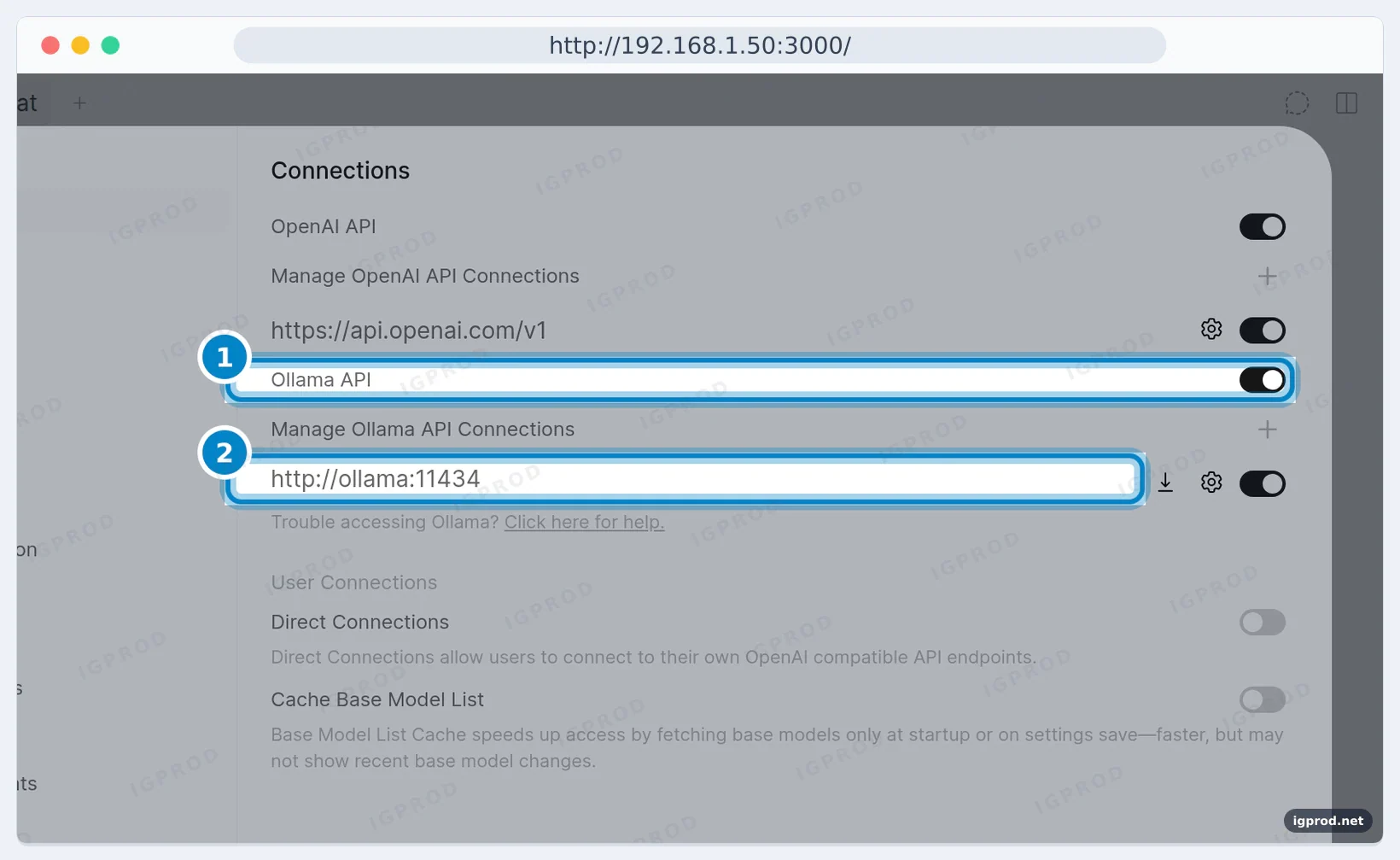
Select your name, then Admin Panel and the Settings tab, or go to http://<server-ip>:3000/admin/settings. Under Connections, the Ollama API should point to http://ollama:11434. The OpenAI API connection is on by default with the OpenAI address and no key. You can turn it off if you only use local models.
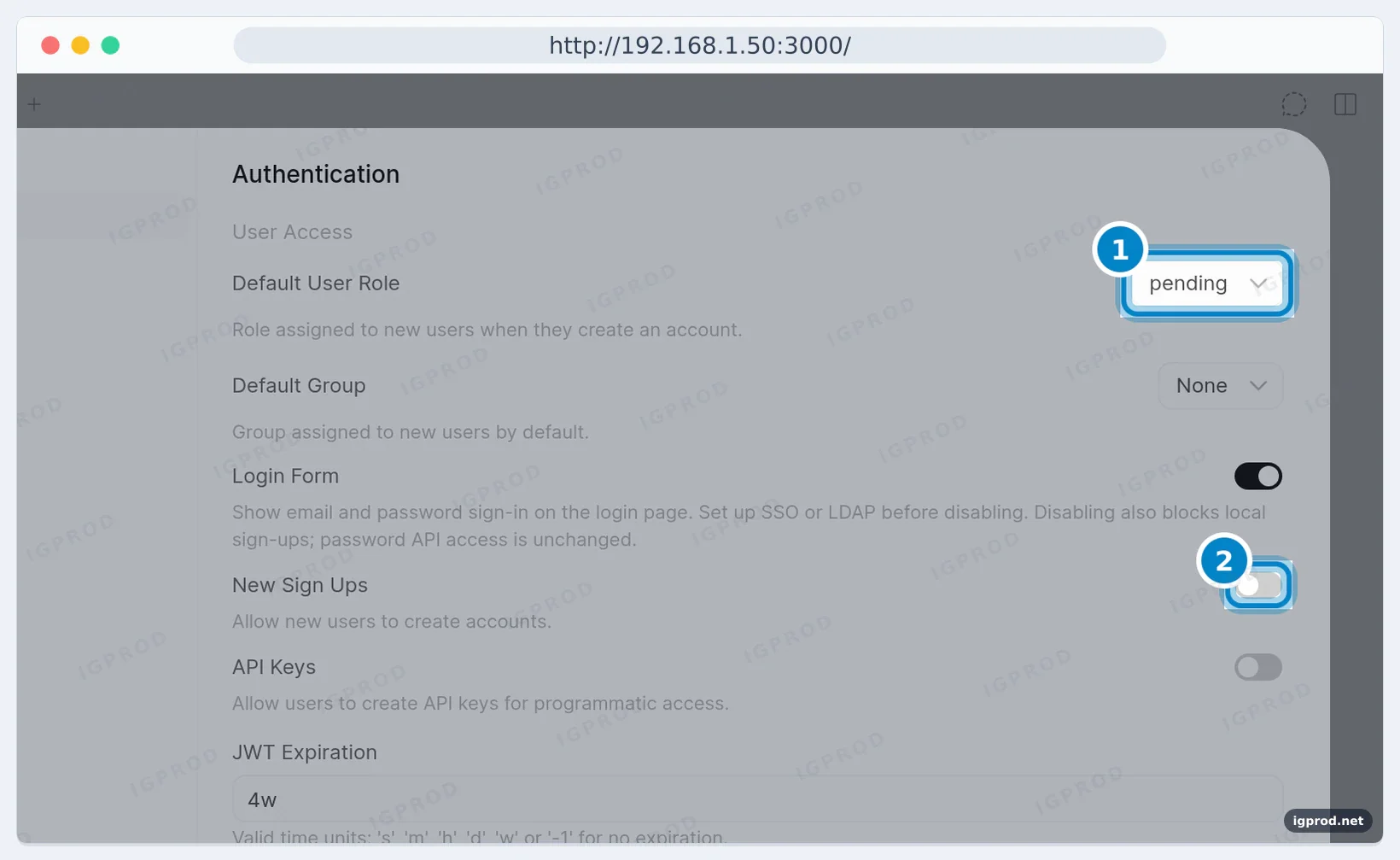
Under Authentication, Open WebUI 0.13.3 starts with New Sign Ups off and Default User Role set to pending: if you turn sign-ups on, each new user waits until an admin accepts them. Logins expire after 4 weeks by default.
Ollama on a Synology NAS
We ran the same Ollama service, without Open WebUI, on a Synology NAS with DSM 7.4.1, 4 CPU cores and no AVX2 support. Pulling the Ollama image took 396 seconds. The small gemma3:270m model downloaded in 20 seconds and answered at 18.53 tokens per second, with the container at 987 MiB.
A NAS has a small CPU and shares its RAM with other apps: Ollama saw 2.8 GiB free on ours. Keep to very small models there. For anything bigger, run Ollama on a PC or a mini PC and point Open WebUI to it with OLLAMA_BASE_URL. Our guide on connecting to a Synology NAS over SSH shows how to run the docker commands there.
The ollama launch command
Recent Ollama versions include ollama launch, which starts a coding tool or an app with a local model. In 0.40.16, its help lists these integrations:
Supported integrations:
  claude          Claude Code
  chatgpt         ChatGPT (aliases: codex-app, codex-desktop, codex-gui)
  hermes          Hermes Agent
  openclaw        OpenClaw (aliases: clawdbot, moltbot)
  opencode        OpenCode
  codex           Codex
  hermes-desktop  Hermes Desktop
  copilot         Copilot CLI (aliases: copilot-cli)
  omp             OMP
  droid           Droid
  dsh             DeepSeek Harness (alias: deepseek-harness)
  kimi            Kimi Code CLI
  muse            Muse Code (aliases: muse-code)
  pi              Pi
  pool            Pool
  cline           Cline
  qwen            Qwen Code
  vscode          VS Code (aliases: code)
These tools run on your own computer, so the command is most useful where Ollama is installed on the desktop. On a server, tools connect to the Ollama API on port 11434 instead. With this compose file, only programs on the server itself can reach that port.
Update Ollama and Open WebUI
In the folder of the compose file, pull the new images and recreate the containers. The models and chats stay in the volumes:
docker compose pull
docker compose up -d
To remove everything, including the downloaded models and all chats, add -v. We did this after the test:
$ docker compose down -v
 Container ollama  Removing
 Container ollama  Removed
 Volume local-ai_open-webui  Removing
 Volume local-ai_ollama  Removing
 Network local-ai_default  Removing
 Volume local-ai_open-webui  Removed
 Volume local-ai_ollama  Removed
Network local-ai_default Removeddocker image rm ollama/ollama:latest ghcr.io/open-webui/open-webui:mainTroubleshooting
Open WebUI does not show the Ollama models
Pull a model first: a new Ollama has none. Then check Admin Panel > Settings > Connections: the Ollama URL must be http://ollama:11434, the service name, not localhost.
The page does not open right after docker compose up
Wait. The first start took about 92 seconds before Open WebUI answered. docker compose ps shows health: starting until then, and docker compose logs -f open-webui shows the progress.
Answers are much slower in the browser than in the terminal
Two things add up: the thinking step of models such as Qwen 3.5, and the background tasks of Open WebUI. Turn off title, follow-up and tags generation (see the first chat section) and try a smaller model.
The server freezes when a model loads
The model is too big for the free RAM. Use a smaller model, stop other heavy containers, and add mem_limit to the Ollama service.
Warning: CORS_ALLOW_ORIGIN IS SET TO '*'
Open WebUI prints this warning when it starts with the default settings. If other people use your server, set CORS_ALLOW_ORIGIN to the address you open Open WebUI with, for example http://192.168.1.50:3000. Several addresses are separated with semicolons.
Warning: You are sending unauthenticated requests to the HF Hub
Open WebUI downloads its files from Hugging Face on the first start. Without a token the download still works, with lower rate limits. You can ignore this warning on a home server.
Frequently asked questions
Does Ollama need a GPU?
No. All our tests ran on CPUs only. A GPU makes answers much faster; the Ollama Docker documentation shows the NVIDIA and AMD setups, which we did not test here.
How much RAM do Ollama and Open WebUI need?
At rest, Ollama used 433.5 MiB and Open WebUI 1.30 GiB in our test. Add the model: 574 MB for qwen3.5:0.8b and 2.4 GB for qwen3.5:2b once loaded.
What port does Open WebUI use?
Port 8080 inside the container. This compose file publishes it on port 3000 of the host ("3000:8080"). Ollama's API uses port 11434.
Which model should I start with?
On a machine with 8 GB of RAM, start with qwen3.5:0.8b. Try a bigger model only when free -m shows room for its full size plus 1.5 GB.
Can I run Ollama on a Synology NAS?
Yes, with very small models. On DSM 7.4.1, gemma3:270m answered at 18.53 tokens per second. Bigger models need more RAM than most NAS units have free.
How do I update Open WebUI?
Run docker compose pull and docker compose up -d in the folder of the compose file. Your chats stay in the open-webui volume.
Where are the models and the chats stored?
The models are in the ollama volume (/root/.ollama in the container) and the chats and settings in the open-webui volume (/app/backend/data). docker compose down -v deletes both.
Can other devices on my network use the Ollama API?
Not with this file: port 11434 is bound to 127.0.0.1. Open WebUI reaches Ollama over the Docker network, and your other devices use Open WebUI on port 3000.
Related guides
- Docker Compose: What Is It and What Are Its Benefits?
- Install Docker Compose on Ubuntu using Docker’s repository
- How to Install Portainer with Docker (2026 Step-by-Step Guide)
- How to create cloudflare tunnel and expose your services with-synology
- Self-Hosting for Beginners: Plan Your First Service
Sources

Leave a comment
Your email address will not be published. Required fields are marked *