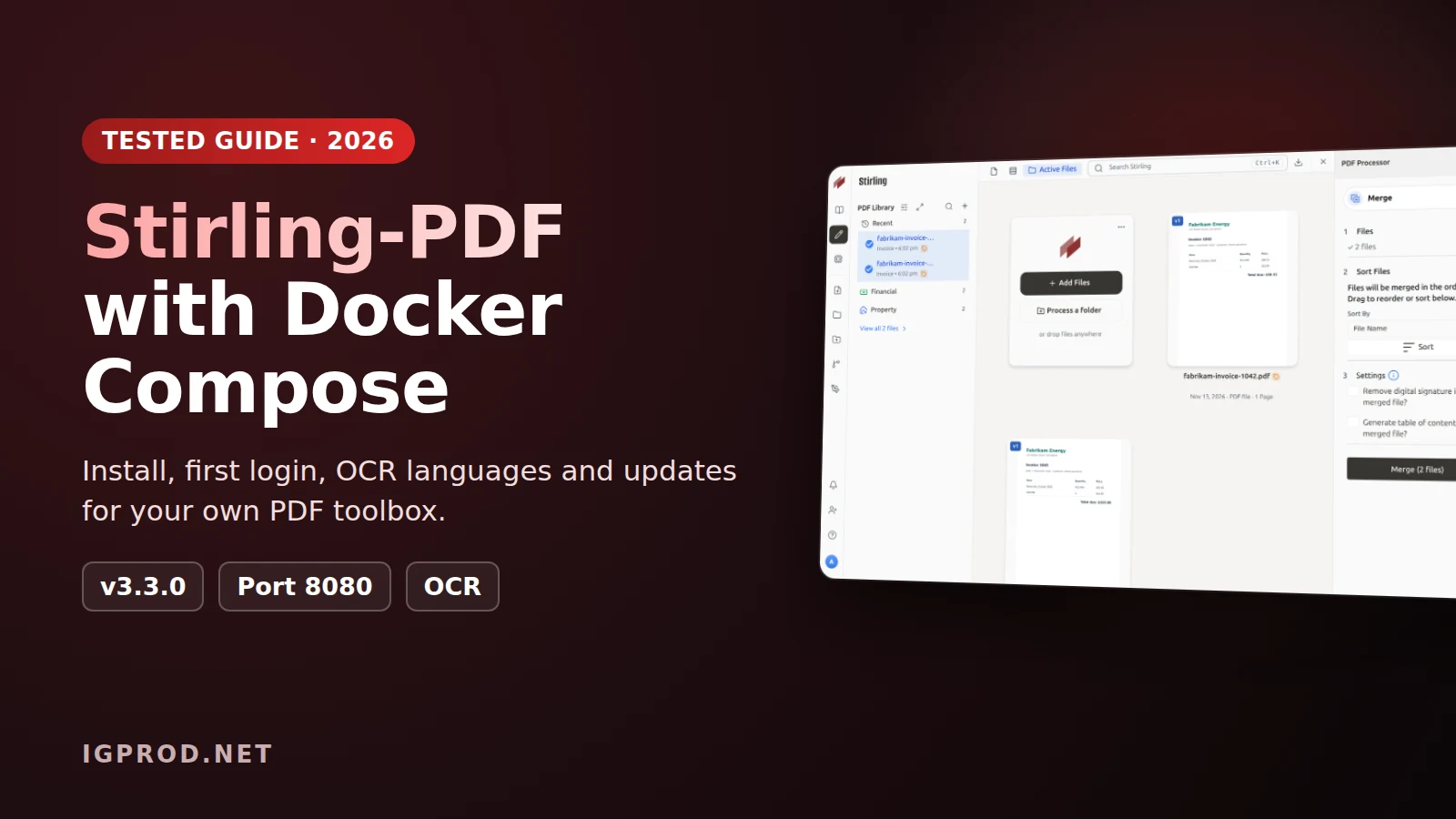
Stirling-PDF is a PDF toolbox that runs on your own server. You open it in a browser to merge, split, compress, convert, sign or OCR PDF files, and the files go only to your server. It is open source, and its free plan covers up to 5 users.
This guide installs Stirling-PDF with the Docker Compose file of the official documentation. Then it shows the first login, three real jobs (merge, OCR and compress), extra OCR languages, a Synology NAS, remote access and updates, with the errors we got on the way.
We tested every step on 13 November 2026 with Stirling-PDF 3.3.0, released on 5 November 2026. The screenshots come from a Linux lab with Docker 29.2 and Compose 2.29. We also ran the same compose file on a Synology NAS with DSM 7.4.1. The PDF files in the screenshots are test files of made-up companies.
Which Stirling-PDF Docker image should you use?
Stirling-PDF has three images. The documentation suggests this much memory for each:
| Tag | Download | Login and users | OCR and Office | Memory |
|---|---|---|---|---|
latest | 1.13 GB | Yes | Yes | 4 GB |
latest-fat | 1.19 GB | Yes | Yes, plus an AI engine that stays off until you turn it on | 6 GB |
latest-ultra-lite | 0.36 GB | No | No: core PDF tools only | 2 GB |
The download sizes are the compressed sizes on Docker Hub. On disk, the latest image used 2.34 GB in our lab. Start with latest: it has the login, the OCR and the Office conversions. All images are built for amd64 and arm64.
The documentation uses the image docker.stirlingpdf.com/stirlingtools/stirling-pdf. The same image is on Docker Hub as stirlingtools/stirling-pdf and on GitHub as ghcr.io/stirling-tools/stirling-pdf. We pulled latest from the first two, and both gave the same image ID. To stay on one version, use a version tag such as 3.3.0, 3.3.0-fat or 3.3.0-ultra-lite.
What you need
- A Linux machine or a NAS with Docker and the Compose plugin. Check with
docker compose version. - Free port 8080, or another port that you choose in the compose file.
- About 2.5 GB of disk space for the image, and enough memory. Right after the start, Stirling-PDF used 1.33 GiB of RAM in our lab and 0.87 GiB on our NAS.
Step 1: Create the folders first
Create a folder for Stirling-PDF and its six data folders before the first start. On a Synology NAS, use /volume1/docker/stirling-pdf.
mkdir -p stirling-pdf && cd stirling-pdf
mkdir -p stirling-data/{configs,logs,customFiles,pipeline,storage,tessdata}
Why first? In our first test we let Docker create the missing folders. Docker created them as root. At startup, Stirling-PDF gave five of them to its own user (UID 1000), but not tessdata:
$ ls -ln stirling-data | awk 'NR>1 {print $1, $3, $4, $NF}'
drwxr-xr-x 1000 1000 configs
drwxr-xr-x 1000 1000 customFiles
drwxr-xr-x 1000 1000 logs
drwxr-xr-x 1000 1000 pipeline
drwxr-xr-x 1000 1000 storage
drwxr-xr-x 0 0 tessdata
Later we could not save an OCR language file in that folder as a normal user:
$ curl -fsSL -o stirling-data/tessdata/spa.traineddata https://github.com/tesseract-ocr/tessdata_fast/raw/main/spa.traineddata
curl: (23) Failure writing output to destination
exit 23
When you create the folders yourself, they belong to you. If Docker already created them, change the owner with sudo chown -R $(id -u):$(id -g) stirling-data.
Step 2: Write docker-compose.yml
Create docker-compose.yml in the stirling-pdf folder with the compose file of the documentation. We used it unchanged:
services:
  stirling-pdf:
    image: docker.stirlingpdf.com/stirlingtools/stirling-pdf:latest
    container_name: stirling-pdf
    ports:
      - '8080:8080'
    volumes:
      - ./stirling-data/configs:/configs
      - ./stirling-data/logs:/logs
      - ./stirling-data/customFiles:/customFiles
      - ./stirling-data/pipeline:/pipeline
      - ./stirling-data/storage:/storage
      - ./stirling-data/tessdata:/usr/share/tessdata
    mem_limit: 4g
restart: unless-stopped'8080:8080': the web interface. To use another port, change only the left number, for example'9000:8080'.configs: the settings (settings.yml), the user database and the keys. This folder is the one to back up.logs,customFiles,pipelineandstorage: logs, your own files for the interface, the watched folders of the pipeline, and stored files.tessdata: extra OCR languages (step 6).mem_limit: 4g: the memory limit. Stirling-PDF sizes its Java memory from it. The log said:Container memory 4096MB: InitialRAM=2%, MaxRAM=70%, MaxMeta=512m.
Step 3: Start Stirling-PDF
docker compose up -d Container stirling-pdf Creating
Container stirling-pdf Created
Container stirling-pdf Starting
Container stirling-pdf StartedThe first start takes some time. In our lab the log showed these lines after about 40 seconds:
Started SPDFApplication in 41.482 seconds (process running for 42.956)
Stirling-PDF running on port: 8080
Check the container. The health check shows healthy when the web interface answers:
docker compose psNAME IMAGE COMMAND SERVICE CREATED STATUS PORTS
stirling-pdf docker.stirlingpdf.com/stirlingtools/stirling-pdf:latest "tini -- /scripts/in…" stirling-pdf 51 seconds ago Up 50 seconds (healthy) 0.0.0.0:8080->8080/tcp, :::8080->8080/tcpThe status page also gives the version:
$ curl -s http://localhost:8080/api/v1/info/status
{"version":"3.3.0","status":"UP"}
Step 4: First login and the new admin password
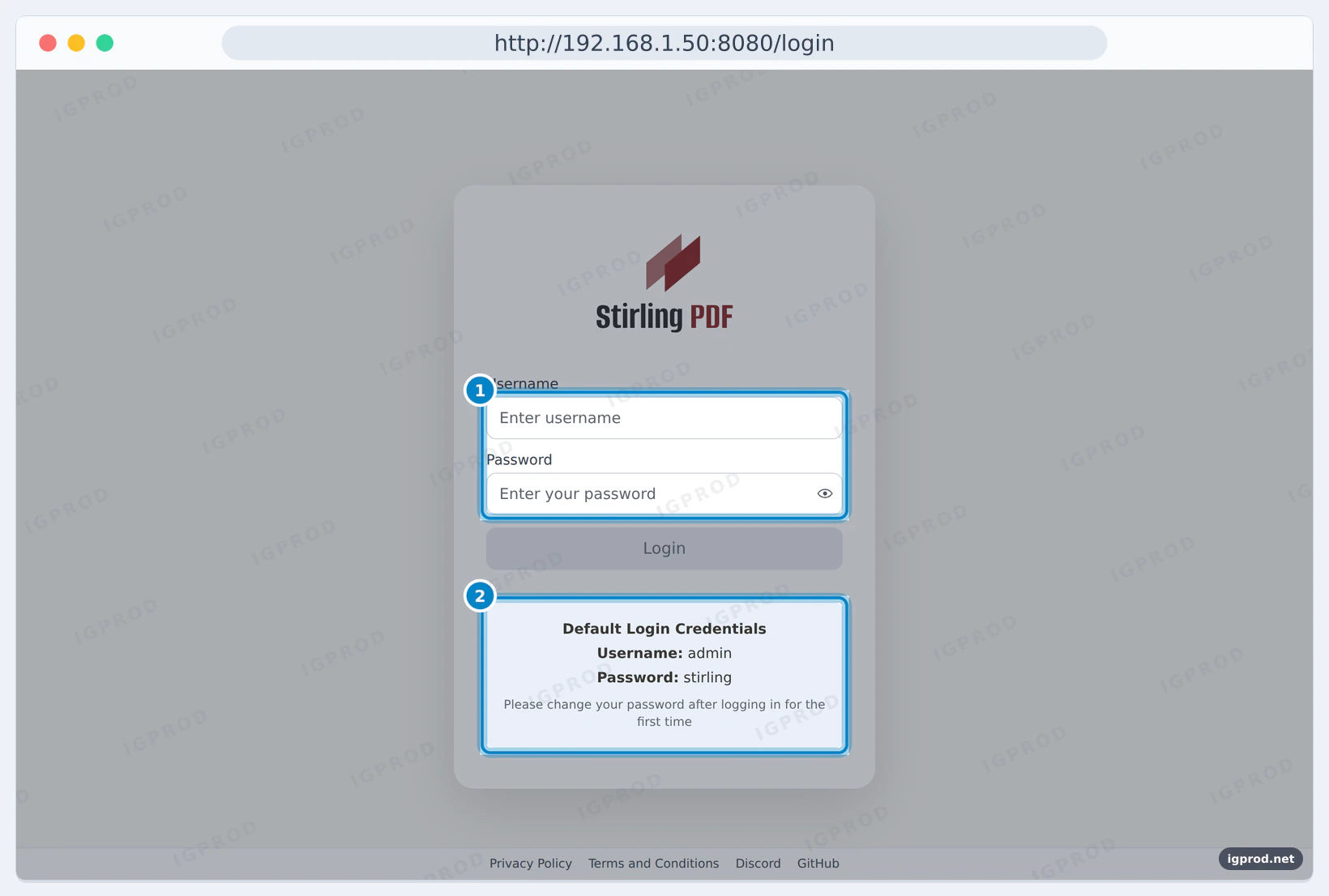
Open http://SERVER-IP:8080 in a browser, for example http://192.168.1.50:8080. Login is on by default, and the page shows the default account: user admin, password stirling.
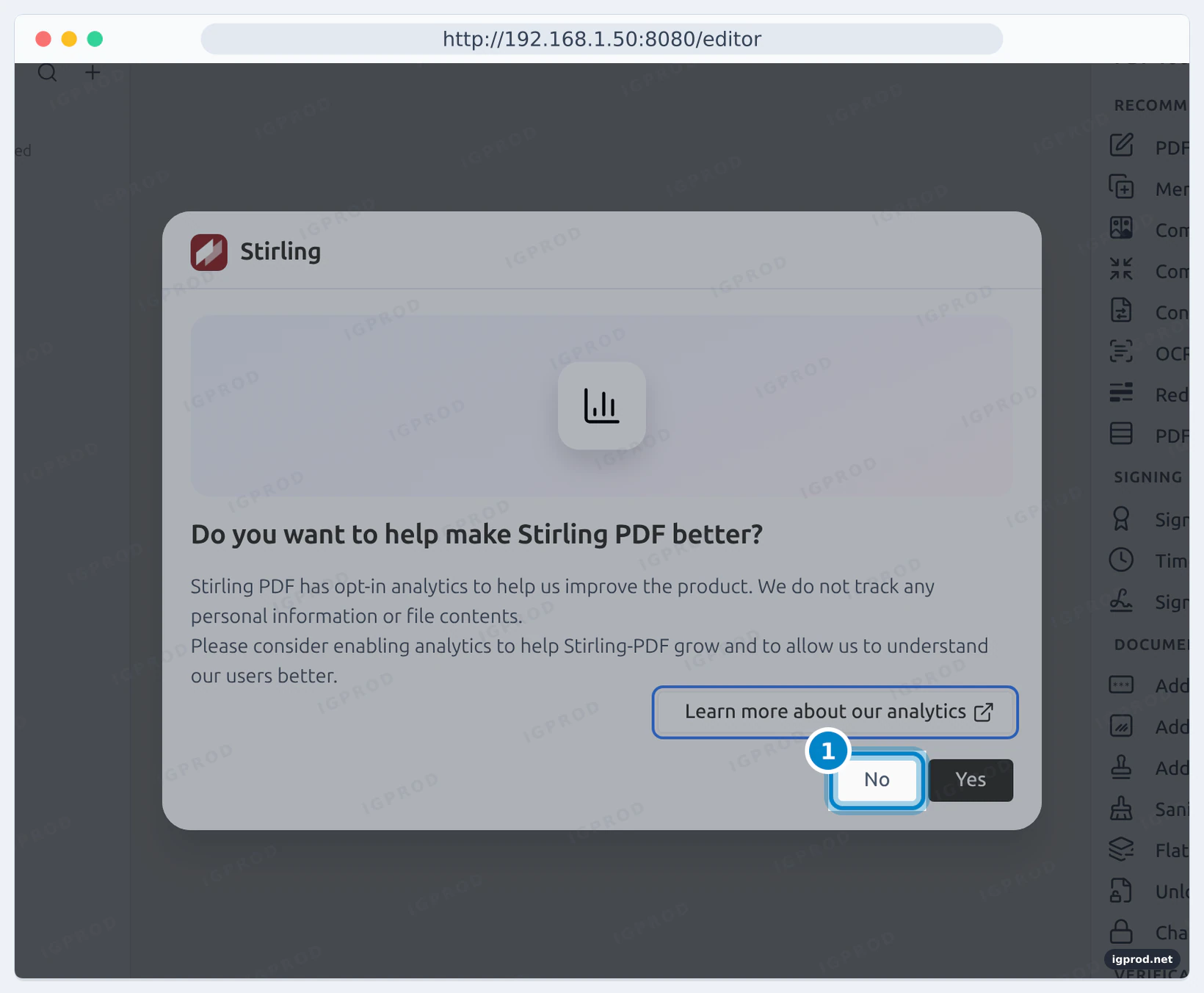
After the first login, Stirling-PDF asks if it can send anonymous usage data. It says that it does not track personal information or file contents. Choose No if you prefer to send nothing.
Then you must replace the default password. The new password needs at least 8 characters. After Change Password, Stirling-PDF signs you out: log in again with admin and the new password.
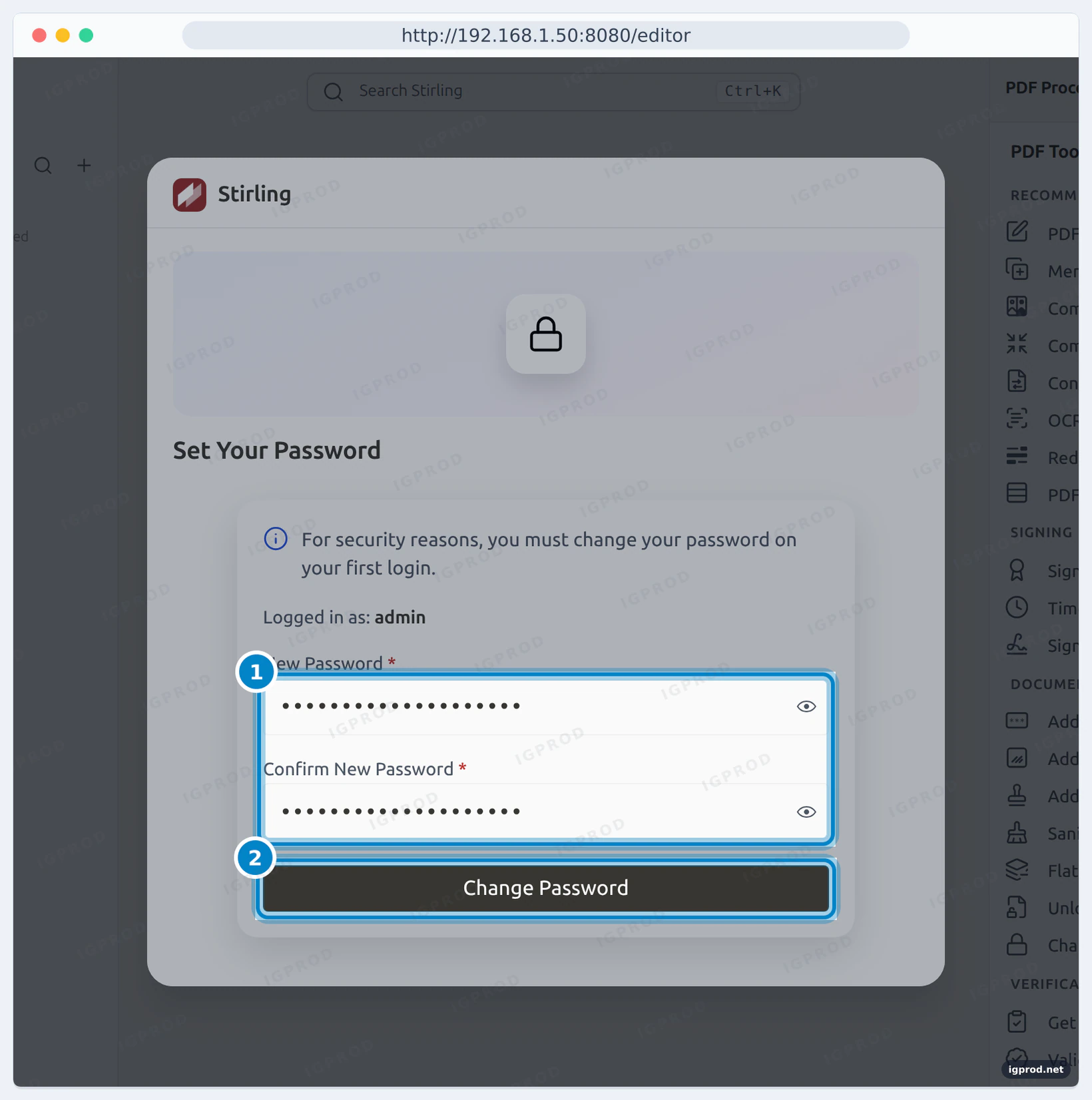
The documentation has two settings that change the login. Put them in an environment: block of the service in the compose file:
SECURITY_INITIALLOGIN_USERNAMEandSECURITY_INITIALLOGIN_PASSWORDcreate your own first admin instead ofadmin/stirling. Stirling-PDF uses them only while its user database is empty, so set them before the first start.SECURITY_ENABLELOGIN=falseremoves the login. Then anyone who can reach the server can use it, so keep this for a private test machine.
    environment:
      SECURITY_INITIALLOGIN_USERNAME: pdfadmin
      SECURITY_INITIALLOGIN_PASSWORD: a-long-password-of-yours
We kept the default login in our tests and did not use these two settings.
Step 5: Merge, OCR and compress a PDF
The tools are in the list on the right. Click a tool, add files with Add Files, and run it. Each tool ends with a Review step and a Download button.
Merge two PDF files
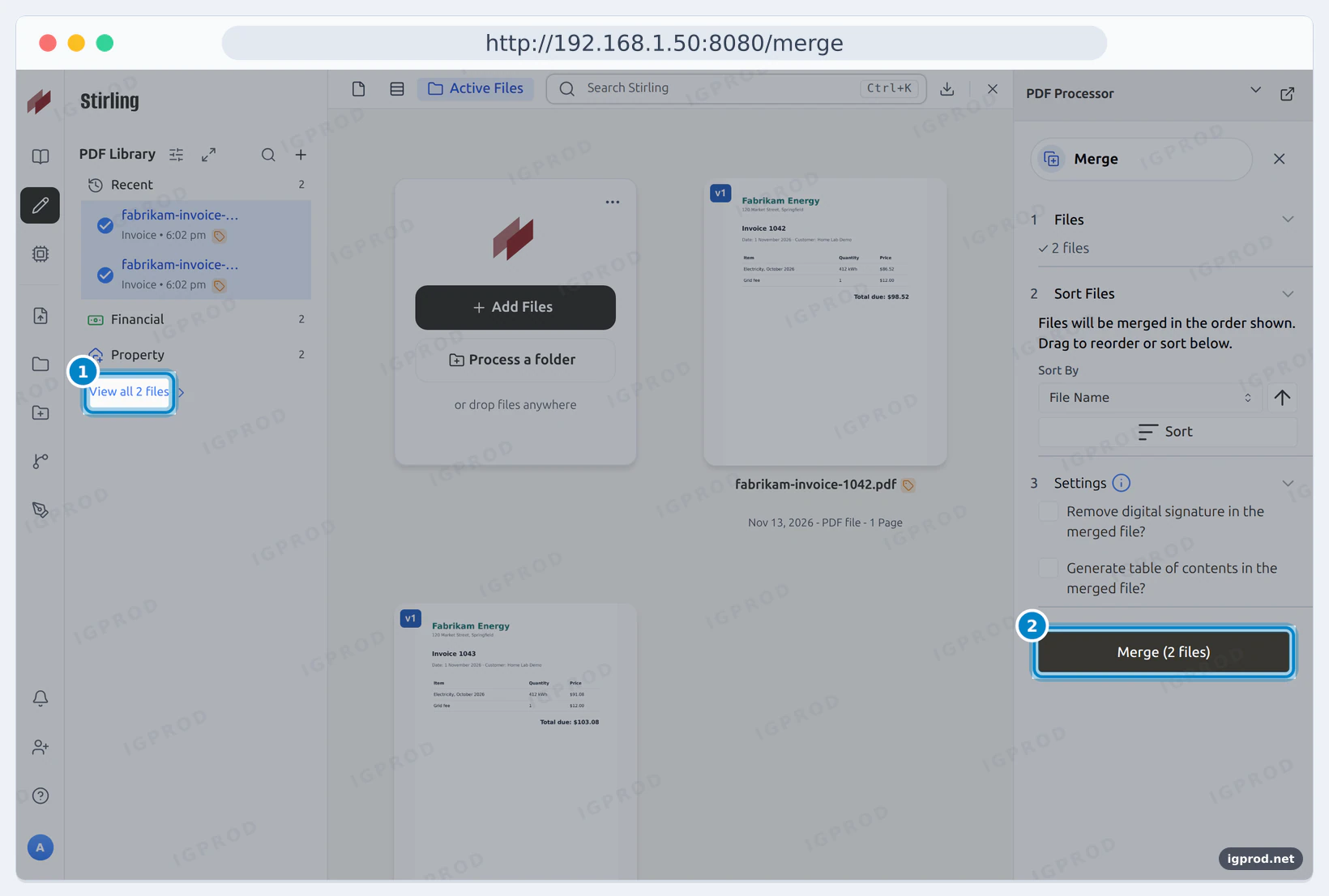
We merged two one-page test invoices. The files are merged in the order shown, and you can sort them by name.
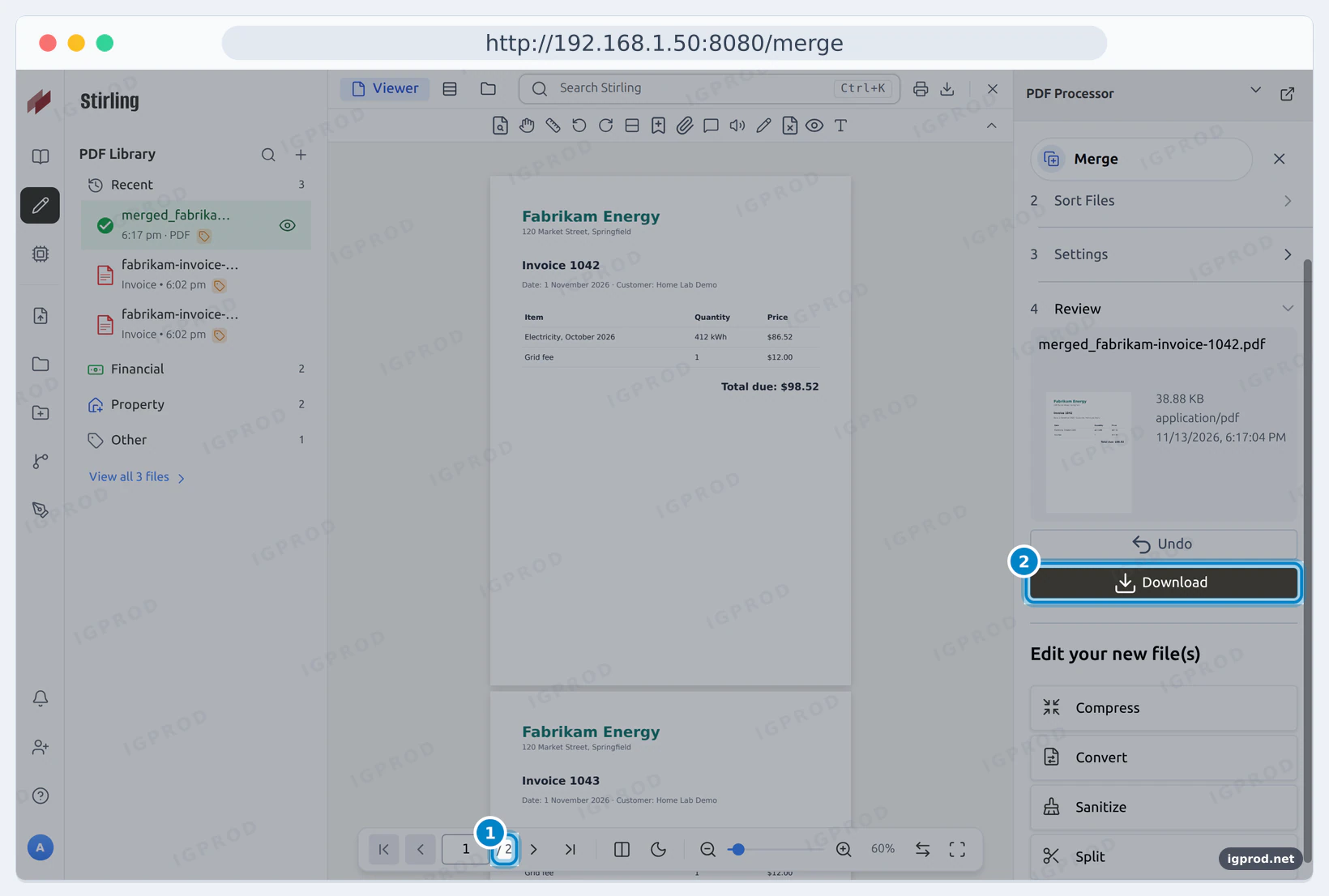
We checked the downloaded file:
$ pdfinfo after/merged_fabrikam-invoice-1042.pdf | grep -E "Pages|File size"
Pages:           2
File size:       39815 bytes
$ pdftotext after/merged_fabrikam-invoice-1042.pdf - | grep Invoice
Invoice 1042
Invoice 1043
OCR a scanned letter
OCR adds a text layer to a scanned PDF, so you can search it and copy its text. Our test letter was a picture only, with no text at all. We used the OCR / Cleanup scans tool with the default mode and English.
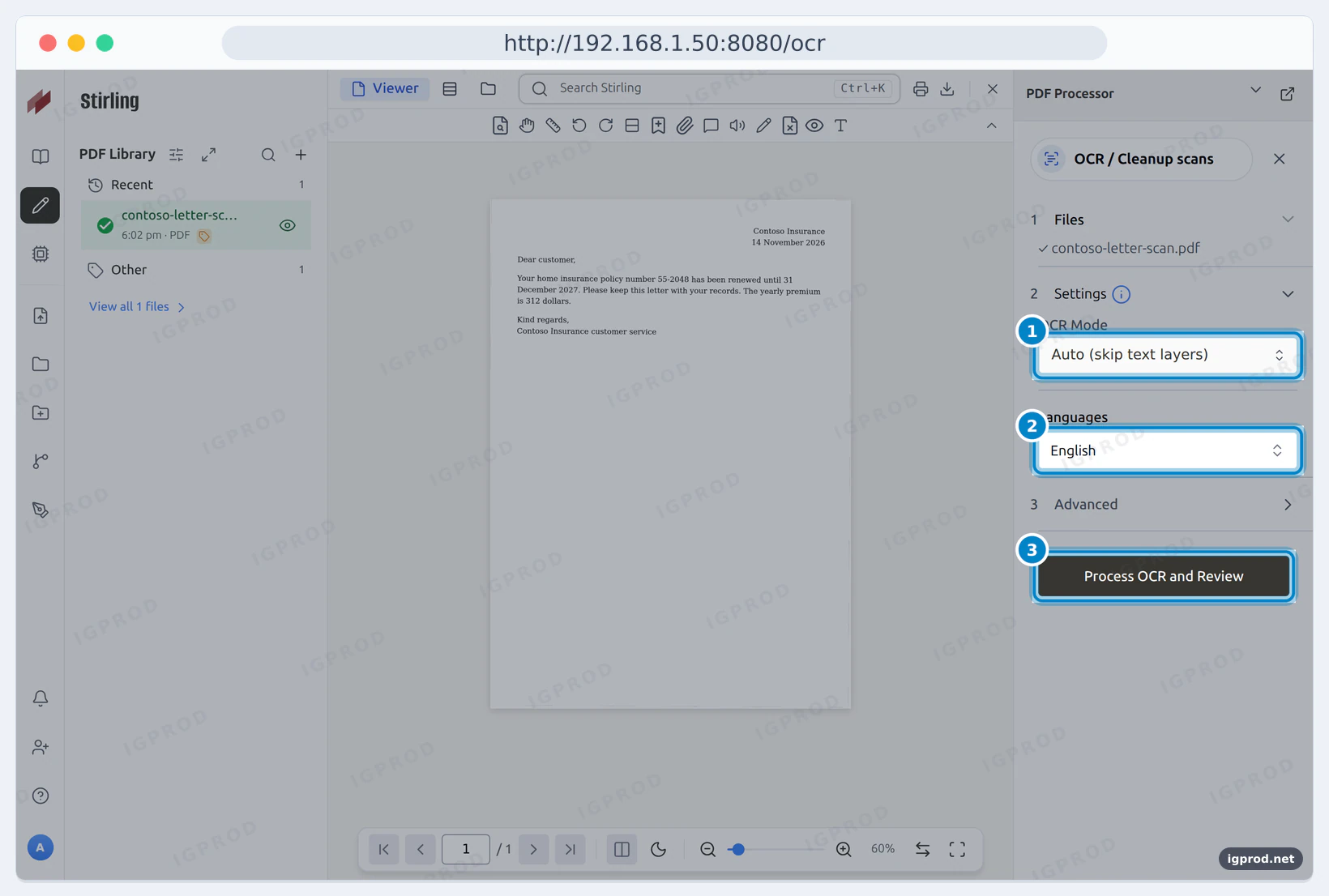
The OCR took a few seconds. Then the search of the viewer found a word that was only pixels before:
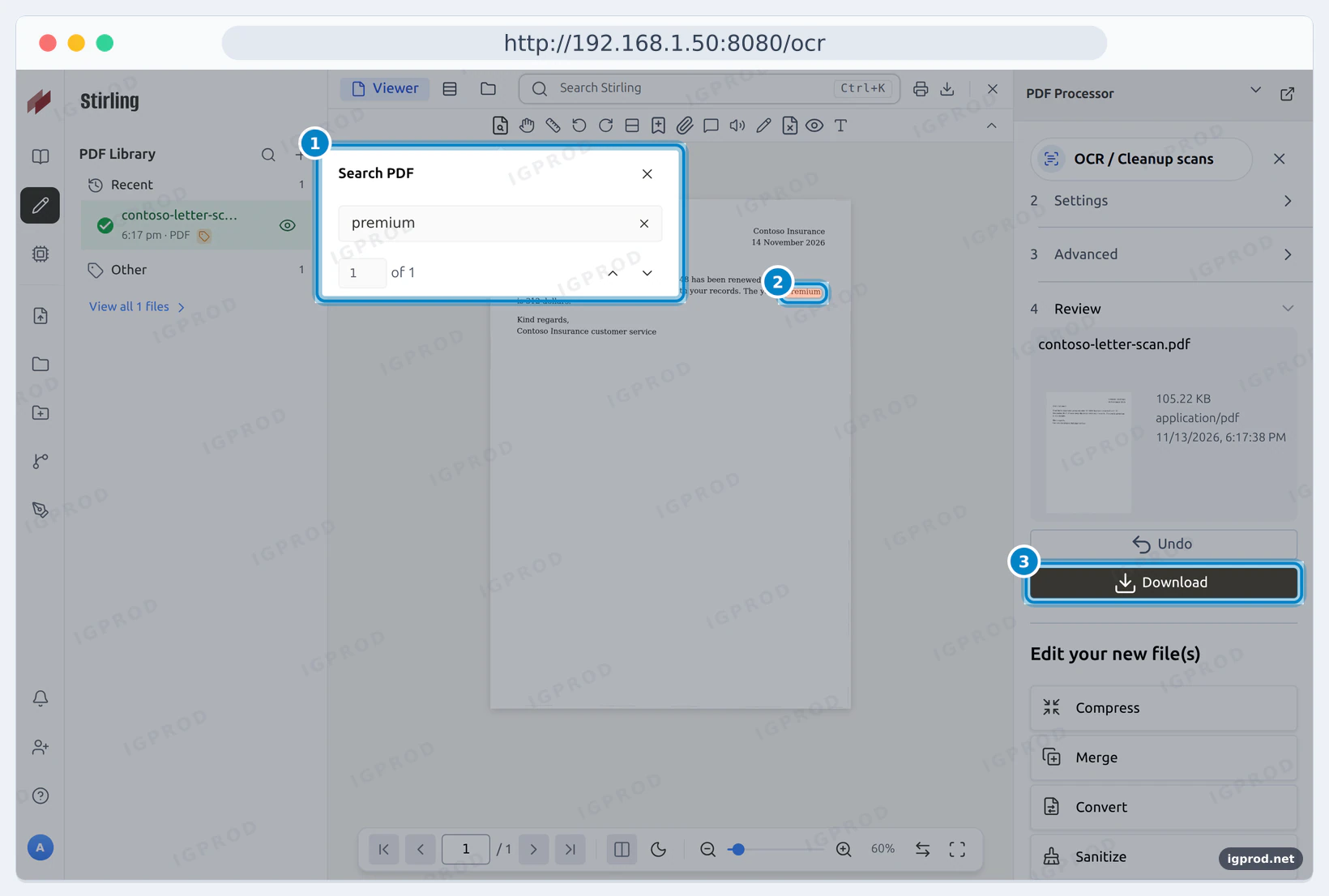
The text layer, before and after:
$ pdftotext before/contoso-letter-scan.pdf - | wc -w
0
$ pdftotext after/contoso-letter-scan.pdf - | wc -w
39
$ pdftotext after/contoso-letter-scan.pdf - | grep policy
Your home insurance policy number 55-2048 has been renewed until 31
Compress a big PDF
Our test brochure had 4 pages of 300 dpi pictures: 11.4 MB. We used Compress with the default settings: compression by quality, level 5.
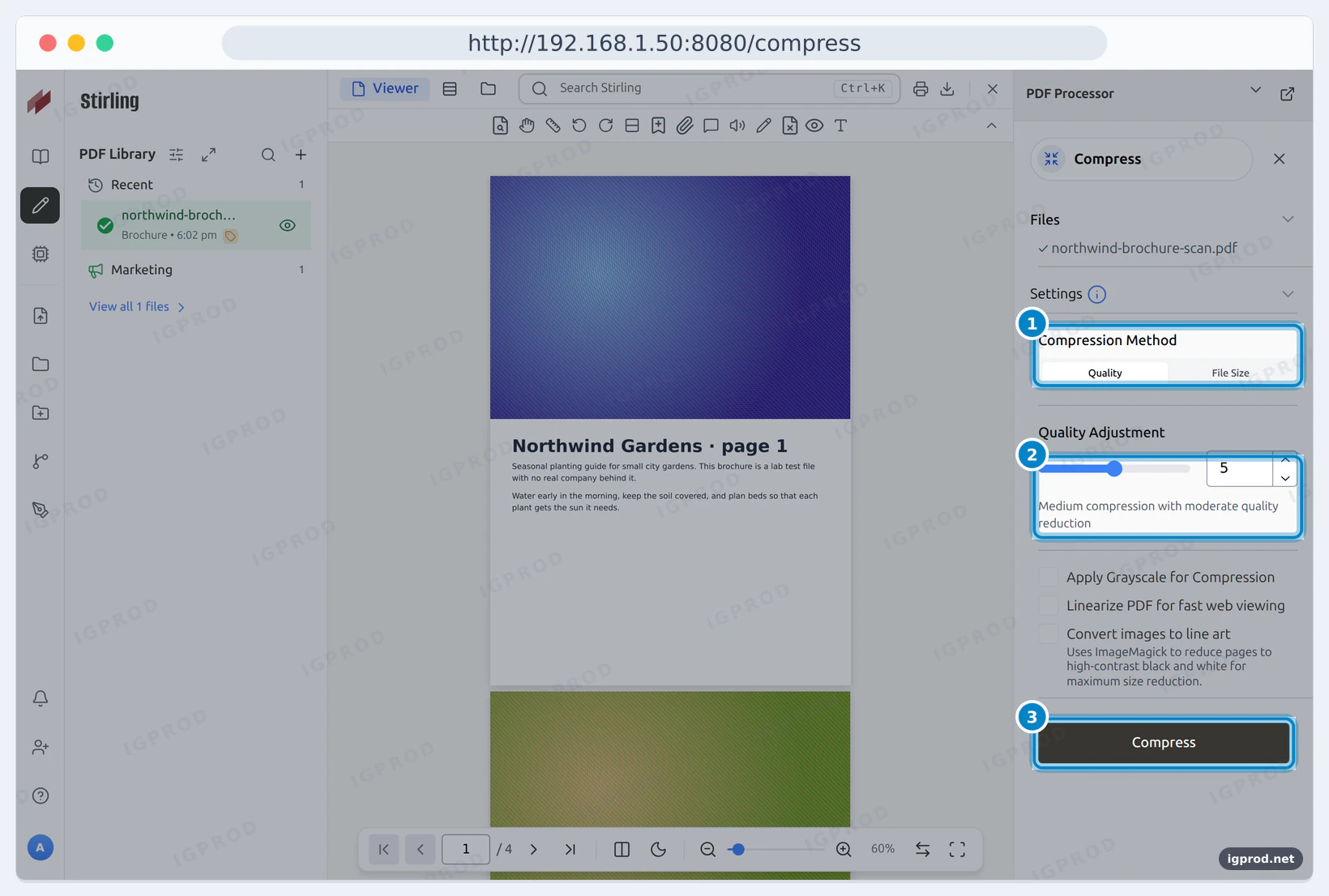
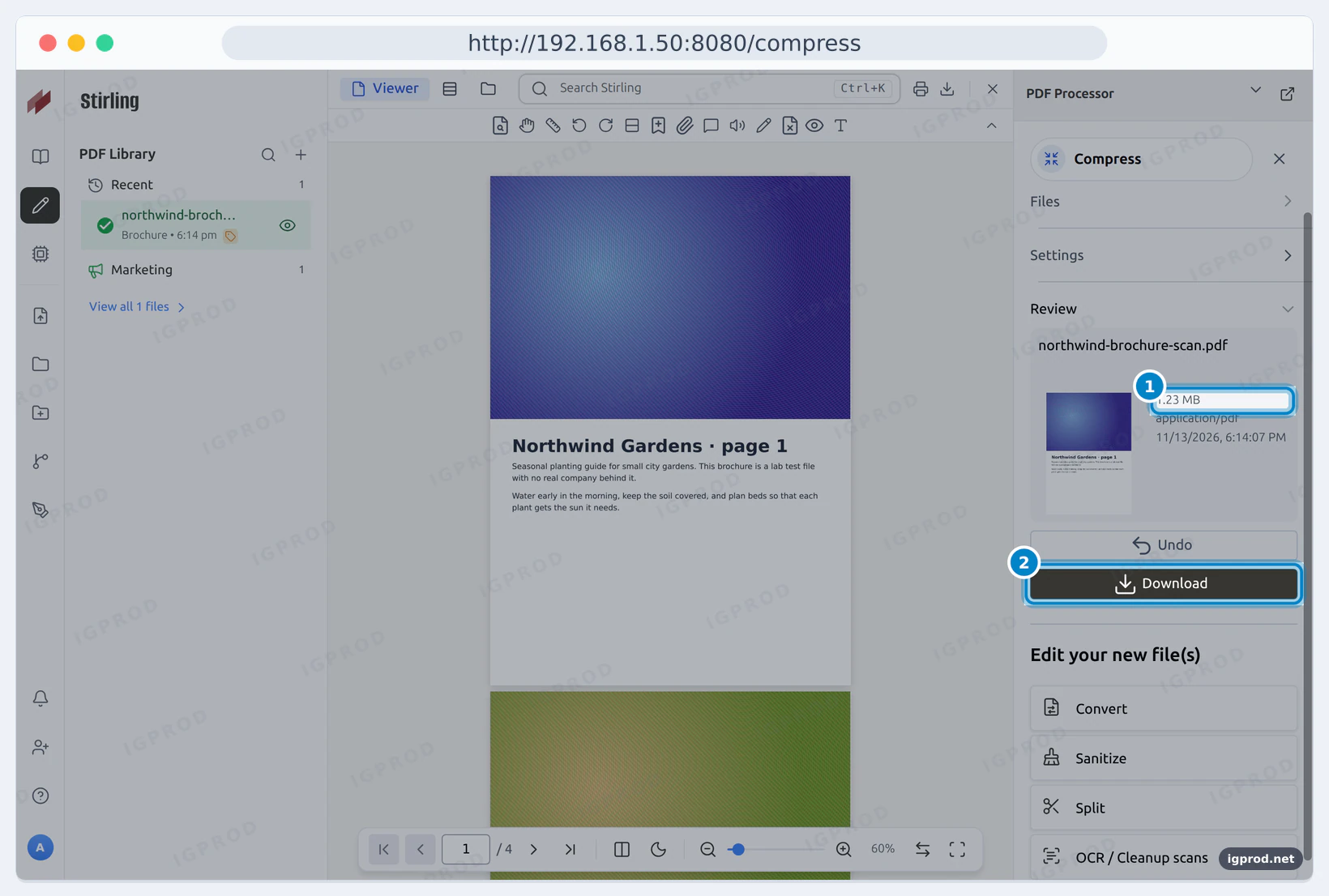
The file went from 11.4 MB to 1.29 MB in about 10 seconds. Stirling-PDF made the pictures smaller (204 instead of 300 pixels per inch) and saved them as JPEG:
$ stat -c '%s %n' before/northwind-brochure-scan.pdf after/northwind-brochure-scan.pdf
11448412 before/northwind-brochure-scan.pdf
1289533 after/northwind-brochure-scan.pdf
$ pdfimages -list before/northwind-brochure-scan.pdf | head -3
page   num  type   width height color comp bpc  enc interp  object ID x-ppi y-ppi size ratio
--------------------------------------------------------------------------------------------
   1     0 image    2481  3507  icc     3   8  image  no         4  0   300   301 3001K  12%
$ pdfimages -list after/northwind-brochure-scan.pdf | head -3
page   num  type   width height color comp bpc  enc interp  object ID x-ppi y-ppi size ratio
--------------------------------------------------------------------------------------------
   1     0 image    1687  2384  rgb     3   8  jpeg   no        20  0   204   204  315K 2.7%
A PDF with only text gains much less. Our one-page test invoice, with the same settings, went from 20,010 to 18,399 bytes, 8% smaller:
$ stat -c '%s %n' before/fabrikam-invoice-1043.pdf after/fabrikam-invoice-1043.pdf
20010 before/fabrikam-invoice-1043.pdf
18399 after/fabrikam-invoice-1043.pdf
Step 6: Add OCR languages
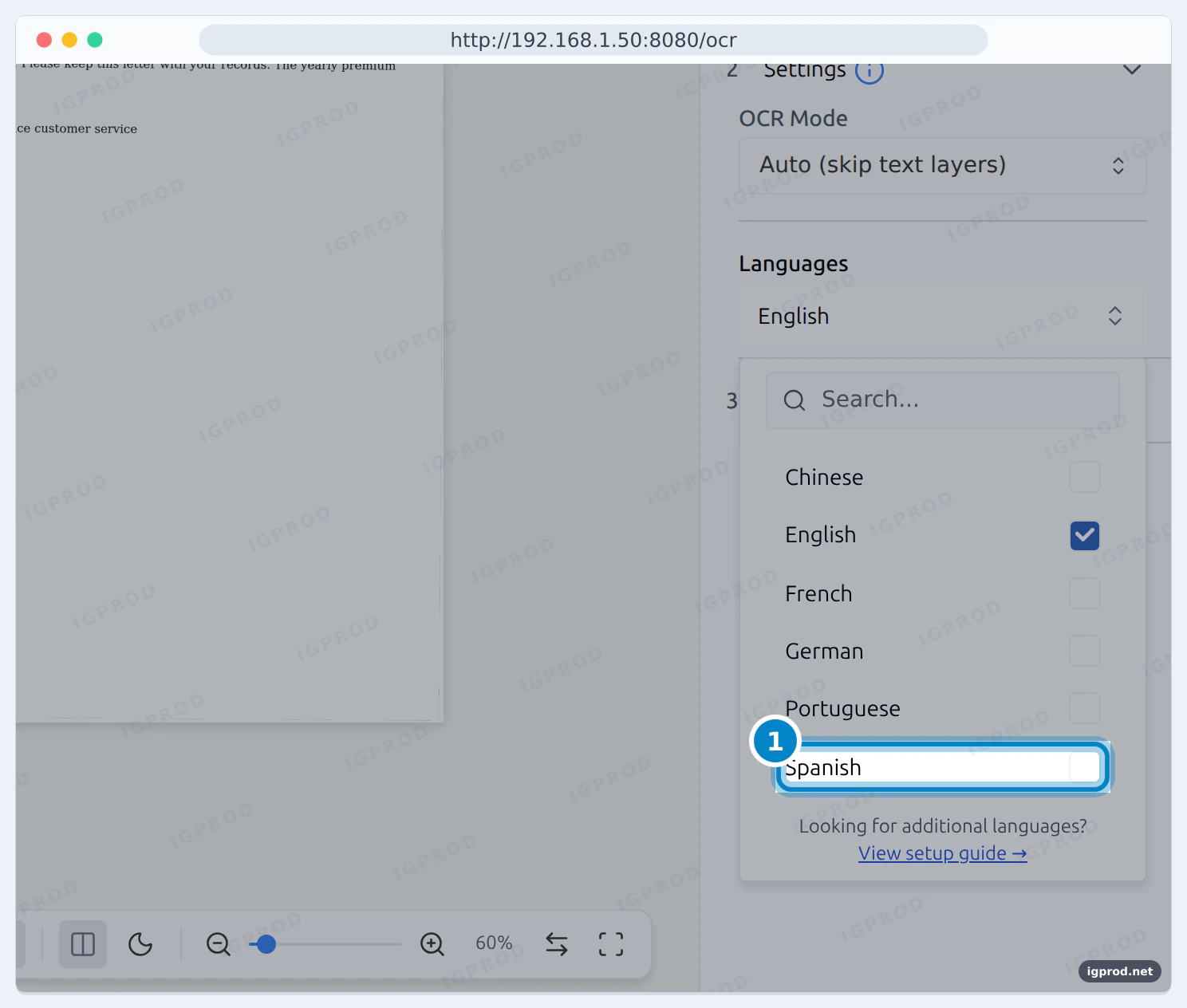
The standard image reads English, German, French, Portuguese and Chinese (Simplified). These are the languages that the OCR tool lists after a fresh install. For another language, put its .traineddata file in the tessdata folder and restart the container. At startup, Stirling-PDF copies the files of that folder into the Tesseract folder of the image. Files that are already there are not replaced.
We added Spanish from the tessdata_fast collection (smaller and faster; tessdata is larger and more accurate):
docker compose down
curl -fsSL -o stirling-data/tessdata/spa.traineddata https://github.com/tesseract-ocr/tessdata_fast/raw/main/spa.traineddata
docker compose up -d$ ls stirling-data/tessdata
spa.traineddata
$ docker exec stirling-pdf ls /usr/share/tesseract-ocr/5/tessdata
chi_sim.traineddata configs deu.traineddata eng.traineddata fra.traineddata osd.traineddata pdf.ttf por.traineddata spa.traineddataAfter the restart, Spanish was in the language list of the OCR tool:
The app can also download languages in Settings > Server > Advanced. In Docker, those files are inside the container, and the documentation warns that they are lost when the container is recreated. The tessdata folder keeps them.
Run Stirling-PDF on a Synology NAS
We ran the same compose file on a Synology NAS with DSM 7.4.1, in /volume1/docker/stirling-pdf, over SSH. Container Manager there has Docker 24.0.2 and Compose 2.20.1. The image download took about 4 minutes.
Our first try had no data folders, to see what DSM does. Docker on DSM does not create missing folders, so the container did not start:
 Container stirling-pdf  Starting
Error response from daemon: Bind mount failed: '/volume1/docker/stirling-pdf/stirling-data/customFiles' does not exist
Create the six folders first, then start again. With the folders, it started:
cd /volume1/docker/stirling-pdf
sudo mkdir -p stirling-data/configs stirling-data/logs stirling-data/customFiles stirling-data/pipeline stirling-data/storage stirling-data/tessdata
sudo docker compose up -d
The NAS is slower than our lab: the login page answered after about 2 minutes, and the log said:
Started SPDFApplication in 74.648 seconds (process running for 88.565)Two log lines are special to DSM. Its kernel does not have a sandbox feature (landlock) that Stirling-PDF uses for LibreOffice and Calibre:
WARNING: LibreOffice sandbox is only partially active on this kernel: lo-sandbox: landlock unavailable, filesystem unconfined
Calibre cannot be confined on this host - Disabling group: Calibre (Affected features: PDF To Epub, Ebook To PDF)
So on DSM 7.4.1, the ebook conversions (PDF to EPUB, ebook to PDF) are off, and LibreOffice, which does the Office conversions, runs with only part of its sandbox. The server and its status page worked. We did not run the PDF tools on the NAS.
The folders that you create with sudo belong to root. At startup, Stirling-PDF gave five of them to its own user, UID 1000, but tessdata stayed with root. Copy OCR language files into it with sudo.
See how to SSH into a Synology NAS for the SSH part. Without SSH, Container Manager can also run this compose file as a project: create the stirling-pdf folder and its six data folders in File Station, then use Project > Create with that folder. We used SSH for this test. If the DSM firewall is on, allow port 8080 for your local network.
Open Stirling-PDF from outside your network
Stirling-PDF has its own login, but keep it off the open internet if you can. For your own use, a VPN to your home network is the simple answer. To share it with other people, put it behind a tunnel or a reverse proxy with HTTPS.
For a quick test, a Cloudflare Quick Tunnel gives a temporary HTTPS address without an account. We opened our lab this way, and Stirling-PDF worked behind it with no change: the status page answered, and the login worked over HTTPS.
$ docker run --rm --network host cloudflare/cloudflared:2026.11.0 tunnel --no-autoupdate --url http://localhost:8080
INF Requesting new quick Tunnel on trycloudflare.com...
INF |  Your quick Tunnel has been created! Visit it at (it may take some time to be reachable):  |
INF |  https://<random-name>.trycloudflare.com                                     |
$ curl -s https://<random-name>.trycloudflare.com/api/v1/info/status
{"version":"3.3.0","status":"UP"}
A Quick Tunnel gets a new random address at each start and has no uptime guarantee: use it only for tests. For a permanent address, create a named Cloudflare Tunnel, and add Cloudflare Access in front of it if only some people should reach the login page.
Update Stirling-PDF
First, back up the stirling-data/configs folder. It holds the settings, the users and a key that Stirling-PDF creates on the first start. The log asks you to keep it:
Generated a new credential encryption key at ./configs/credential-encryption.key. Back this file up: losing it makes stored integration secrets and pipeline supporting files unrecoverable.Then pull the new image and recreate the container:
docker compose pull
docker compose up -d
In our lab, 3.3.0 was already the newest version, so the container kept running:
$ docker compose pull
 stirling-pdf Pulling
 stirling-pdf Pulled
$ docker compose up -d
 Container stirling-pdf  Running
$ docker compose ps --format "{{.Name}} {{.Status}}"
stirling-pdf Up 2 minutes (healthy)
When a new version comes out, up -d recreates the container with it, and your data folders stay. If you pinned a version tag, change the tag in the compose file first.
Troubleshooting
OCR does not work
- The
ultra-liteimage has no OCR. Uselatest. - The language is not in the list: add its file to the
tessdatafolder and restart (step 6). - The PDF already has a text layer: the default mode, Auto (skip text layers), skips those pages. Choose Force (re-OCR all, replace text) to redo them. Strict (abort if text found) stops instead.
Bind mount failed: ... does not exist
Docker on Synology DSM does not create missing folders. Create the six stirling-data folders, then run docker compose up -d again.
Permission denied or curl: (23) in the tessdata folder
Docker created the folder as root. Change its owner (step 1), or create the folders before the first start.
The page on port 8080 does not open
- Wait about a minute after the first start, then check
docker compose psforhealthy. - Read the log with
docker compose logs stirling-pdf. Look forStirling-PDF running on port: 8080. - If another program uses port 8080, change the left side of the port line, for example
'9000:8080', and open port 9000.
The container stops or restarts on big files
The image starts Java with -XX:+ExitOnOutOfMemoryError: when Java runs out of memory, Stirling-PDF stops, and the restart policy starts it again. Give it more memory with mem_limit if the host has it, and check the free memory of the host. The documentation suggests 4 GB for the standard image.
The compressed file is almost as big as before
Compression works mostly on pictures: our scanned brochure became 89% smaller, our text-only invoice 8%. For scans, try a higher level or the File Size method.
Frequently asked questions
What is the default Stirling-PDF login?
User admin, password stirling. Stirling-PDF asks you to set a new password of at least 8 characters on the first login.
What port does Stirling-PDF use?
Port 8080 inside the container. Map it to any free port on the host, for example '9000:8080'.
Is Stirling-PDF free?
Yes. It is open source, and the free plan covers up to 5 users. Paid plans add more seats and features.
Do my PDF files leave my server?
The tools run on your server, and the files go to that server only. The anonymous usage data of the first login is opt-in, and Stirling-PDF says that it does not track file contents.
What is the Stirling-PDF Docker Hub image?
stirlingtools/stirling-pdf. It is the same image as docker.stirlingpdf.com/stirlingtools/stirling-pdf in the documentation.
How do I update Stirling-PDF?
Back up stirling-data/configs, then run docker compose pull and docker compose up -d.
Can Stirling-PDF run on a Synology NAS?
Yes. The compose file of this guide ran on DSM 7.4.1 with Docker 24.0.2, after we created the data folders first. The ebook conversions are off there, because the DSM kernel cannot sandbox Calibre.
Related guides
- Docker Compose: what it is and what are its benefits
- Install Docker Compose on Ubuntu using Docker's repository
- How to SSH into a Synology NAS: enable SSH, root and SSH keys
- Create a Cloudflare Tunnel and expose your services with Synology
- Self-hosting for beginners: plan your first service
Sources

Leave a comment
Your email address will not be published. Required fields are marked *