

Nextcloud is a free, open-source file cloud that you run yourself: your files, synced to your laptop and phone, shared by link, with calendars and contacts, on your own server. This guide sets it up with Docker Compose the way you would run it for real use: PostgreSQL as the database, Redis for caching and file locks, a separate container for background jobs, and Caddy in front for HTTPS. Then it closes what a default install leaves open: the setup warnings, a gap in the client IP address that lets anyone dodge the brute-force protection, two-factor authentication for every account, and a backup that we restored to prove it works.
Tested on 25 and 26 November 2026 with Nextcloud 35.0.3 (image nextcloud:35.0.3-apache), PostgreSQL 18.7, Redis 8.8.4 and Caddy 2.11.9, on a home server with Ubuntu 26.04.1 LTS, Docker Engine 29.10.1 and Docker Compose v5.8.0 at 192.168.1.50, and a laptop on the same network at 192.168.1.21. Every command below ran there, and every screenshot shows its real output.
Quick answer: Nextcloud with Docker Compose, set up for production
In plain words: five containers work together. Nextcloud (the app) keeps your files in a folder on the server, and its accounts, shares and settings in a PostgreSQL database. Redis keeps short-lived data in memory, so pages are fast and two devices cannot change one file at the same moment. A cron container runs Nextcloud's background jobs every 5 minutes. Caddy is the front door: it speaks HTTPS and passes each request to Nextcloud. Only Caddy can be reached from your network.
- Create a folder with two random passwords, kept as Docker secrets.
- Write
compose.yaml(pinned versions, a private network for the database and Redis) and aCaddyfile. - Run
docker compose up -d: Nextcloud installs itself with PostgreSQL in about a minute. - Point the name
cloud.home.arpato the server and trust Caddy's certificate on your devices. - Clear the setup warnings with a few
occcommands. - Set the e-mail server and send a test message.
- Keep
APACHE_DISABLE_REWRITE_IP: "1"in the file, so nobody can choose the IP address Nextcloud sees. - Give each sync app its own app password, then require two-factor authentication for everyone.
- Back up the database and the files, and test a restore before you need it.
What you need
- A Linux server with Docker Engine and the Compose plugin: install Docker Compose on Ubuntu. Ports 80 and 443 must be free on it.
- A name for the server. We used
cloud.home.arpa, a name reserved for home networks, with Caddy's own certificate authority. Add it to your network's DNS (a Local DNS record in Pi-hole or a DNS rewrite in AdGuard Home) or to each device's hosts file. - An authenticator app on your phone for the two-factor step, and a mail account that can send through SMTP.

The production setup at a glance
| Container | Image | Job | Reachable from |
|---|---|---|---|
caddy | caddy:2.11.9-alpine | HTTPS, HSTS, redirects, passes requests to the app | Your network, ports 80 and 443 |
nextcloud | nextcloud:35.0.3-apache | The web app (Apache and PHP) | Caddy only |
nextcloud-cron | nextcloud:35.0.3-apache | Runs cron.php every 5 minutes | No one (it only calls out) |
nextcloud-db | postgres:18.7-alpine | The database | The app, on a private network |
nextcloud-redis | redis:8.8.4-alpine | File locks and shared cache | The app, on a private network |
Step 1: create the folder and the secrets
Nextcloud needs two passwords: one for its PostgreSQL user and one for your admin account. Let the server make them, long and random, and keep them in files instead of writing them into compose.yaml. Docker Compose hands each file to the containers as a secret under /run/secrets/.
mkdir -p ~/nextcloud && cd ~/nextcloud
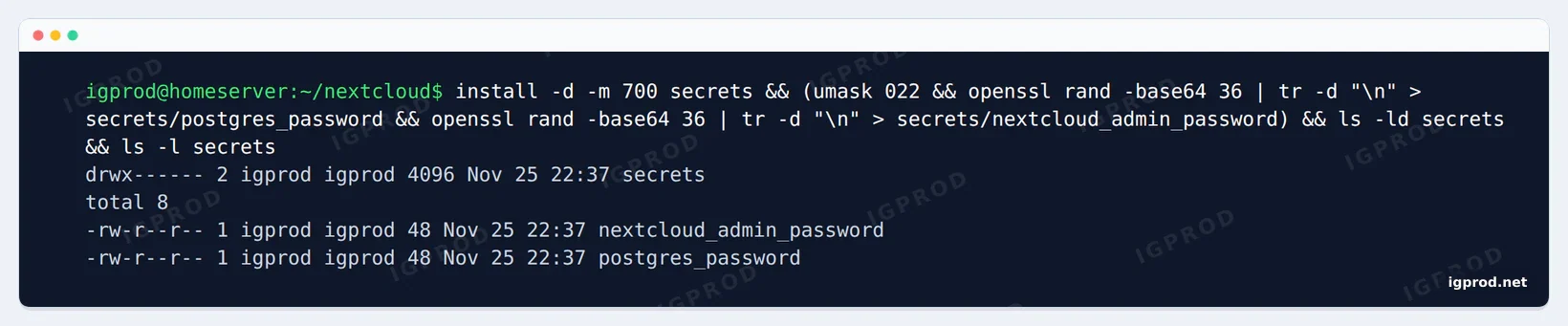
install -d -m 700 secrets && (umask 022 && openssl rand -base64 36 | tr -d "\n" > secrets/postgres_password && openssl rand -base64 36 | tr -d "\n" > secrets/nextcloud_admin_password) && ls -ld secrets && ls -l secrets
The folder is 700: other users on the server cannot even list it. The files inside are 644 because the database container reads its password file as its own postgres user, not as you. Read your admin password once with cat secrets/nextcloud_admin_password and put it in your password manager.
Step 2: write compose.yaml and the Caddyfile
This is the complete file we ended with. Save it as ~/nextcloud/compose.yaml:
services:
  db:
    image: postgres:18.7-alpine
    container_name: nextcloud-db
    restart: unless-stopped
    environment:
      POSTGRES_DB: nextcloud
      POSTGRES_USER: nextcloud
      POSTGRES_PASSWORD_FILE: /run/secrets/postgres_password
    secrets:
      - postgres_password
    volumes:
      - ./db:/var/lib/postgresql
    networks:
      - backend
    healthcheck:
      test: ["CMD-SHELL", "pg_isready -U nextcloud -d nextcloud"]
      interval: 30s
      timeout: 5s
      retries: 5
      start_period: 30s
      start_interval: 5s

  redis:
    image: redis:8.8.4-alpine
    container_name: nextcloud-redis
    restart: unless-stopped
    networks:
      - backend
    healthcheck:
      test: ["CMD", "redis-cli", "ping"]
      interval: 30s
      timeout: 5s
      retries: 5
      start_period: 10s
      start_interval: 5s

  app:
    image: nextcloud:35.0.3-apache
    container_name: nextcloud
    restart: unless-stopped
    depends_on:
      db:
        condition: service_healthy
      redis:
        condition: service_healthy
    environment:
      POSTGRES_HOST: db
      POSTGRES_DB: nextcloud
      POSTGRES_USER: nextcloud
      POSTGRES_PASSWORD_FILE: /run/secrets/postgres_password
      NEXTCLOUD_ADMIN_USER: igprod
      NEXTCLOUD_ADMIN_PASSWORD_FILE: /run/secrets/nextcloud_admin_password
      NEXTCLOUD_TRUSTED_DOMAINS: cloud.home.arpa
      REDIS_HOST: redis
      TRUSTED_PROXIES: 172.29.0.10
      OVERWRITEPROTOCOL: https
      OVERWRITECLIURL: https://cloud.home.arpa
      APACHE_DISABLE_REWRITE_IP: "1"
    secrets:
      - postgres_password
      - nextcloud_admin_password
    volumes:
      - ./html:/var/www/html
      - ./data:/var/www/html/data
    networks:
      - backend
      - frontend

  cron:
    image: nextcloud:35.0.3-apache
    container_name: nextcloud-cron
    restart: unless-stopped
    entrypoint: /cron.sh
    depends_on:
      - app
    volumes:
      - ./html:/var/www/html
      - ./data:/var/www/html/data
    networks:
      - backend
      - frontend

  caddy:
    image: caddy:2.11.9-alpine
    container_name: caddy
    restart: unless-stopped
    depends_on:
      - app
    ports:
      - "80:80"
      - "443:443"
    volumes:
      - ./Caddyfile:/etc/caddy/Caddyfile:ro
      - ./caddy_data:/data
      - ./caddy_config:/config
    networks:
      frontend:
        ipv4_address: 172.29.0.10
        aliases:
          - cloud.home.arpa

networks:
  backend:
    internal: true
  frontend:
    ipam:
      config:
        - subnet: 172.29.0.0/24

secrets:
  postgres_password:
    file: ./secrets/postgres_password
  nextcloud_admin_password:
    file: ./secrets/nextcloud_admin_password
What each part does, and why it is set this way:
- Pinned versions.
nextcloud:35.0.3-apacheinstead oflatest: an update happens when you change the tag, after a backup, never by surprise on a restart. - PostgreSQL 18 keeps its data in
/var/lib/postgresql/18/docker, so the file mounts the parent folder,./db:/var/lib/postgresql. On our server that gavedb/18/docker. A future major version gets its own folder next to it. - Healthchecks with
condition: service_healthy. Nextcloud starts only once PostgreSQL answerspg_isreadyand Redis answersPING, so the first install never races the database. - A private network.
backendisinternal: true: the database and Redis have no published port and no way out to the internet. Redis has no password, as in the image's own examples, because only the app and cron containers can reach it. - Caddy at a fixed address.
172.29.0.10on thefrontendnetwork, andTRUSTED_PROXIESnames exactly that address. The network aliascloud.home.arpalets the containers reach Caddy under the server's name, which Nextcloud's own checks use. OVERWRITEPROTOCOLandOVERWRITECLIURLmake the links in e-mails and inoccoutput start withhttps://cloud.home.arpa.APACHE_DISABLE_REWRITE_IP: "1"closes a gap in the client IP address. Step 7 shows the gap and the fix.- The cron container uses the same image with
entrypoint: /cron.sh. Its schedule is*/5 * * * * php -f /var/www/html/cron.php, the background job setup Nextcloud recommends.
Then the Caddyfile, next to it:
cloud.home.arpa {
	# Caddy's own certificate authority: no public domain needed. With a public domain, delete this line.
	tls internal
	# Browsers keep to HTTPS for this name (Nextcloud's setup check asks for this header).
	header Strict-Transport-Security "max-age=15552000; includeSubDomains"
	# Calendar and contacts apps look for these two addresses.
	redir /.well-known/carddav /remote.php/dav/ 301
	redir /.well-known/caldav /remote.php/dav/ 301
	reverse_proxy app:80
}
tls internal makes Caddy its own certificate authority, so a home name works without a public domain. Check both files before the first start:
docker compose config --quiet && echo "compose.yaml is valid"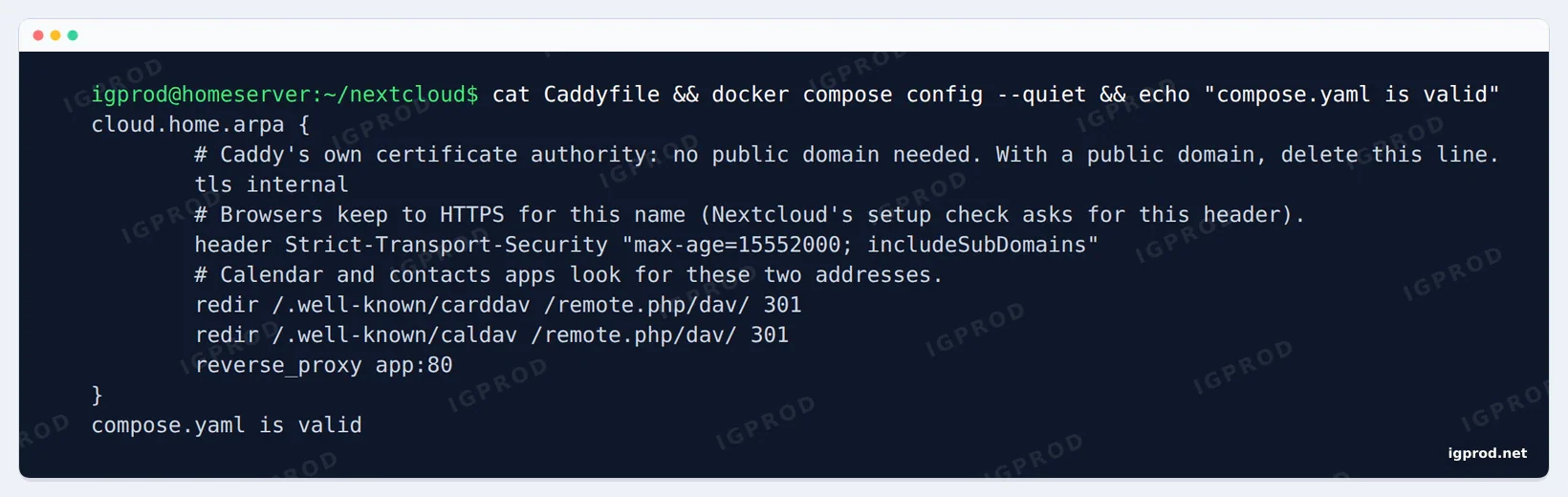
Step 3: start Nextcloud
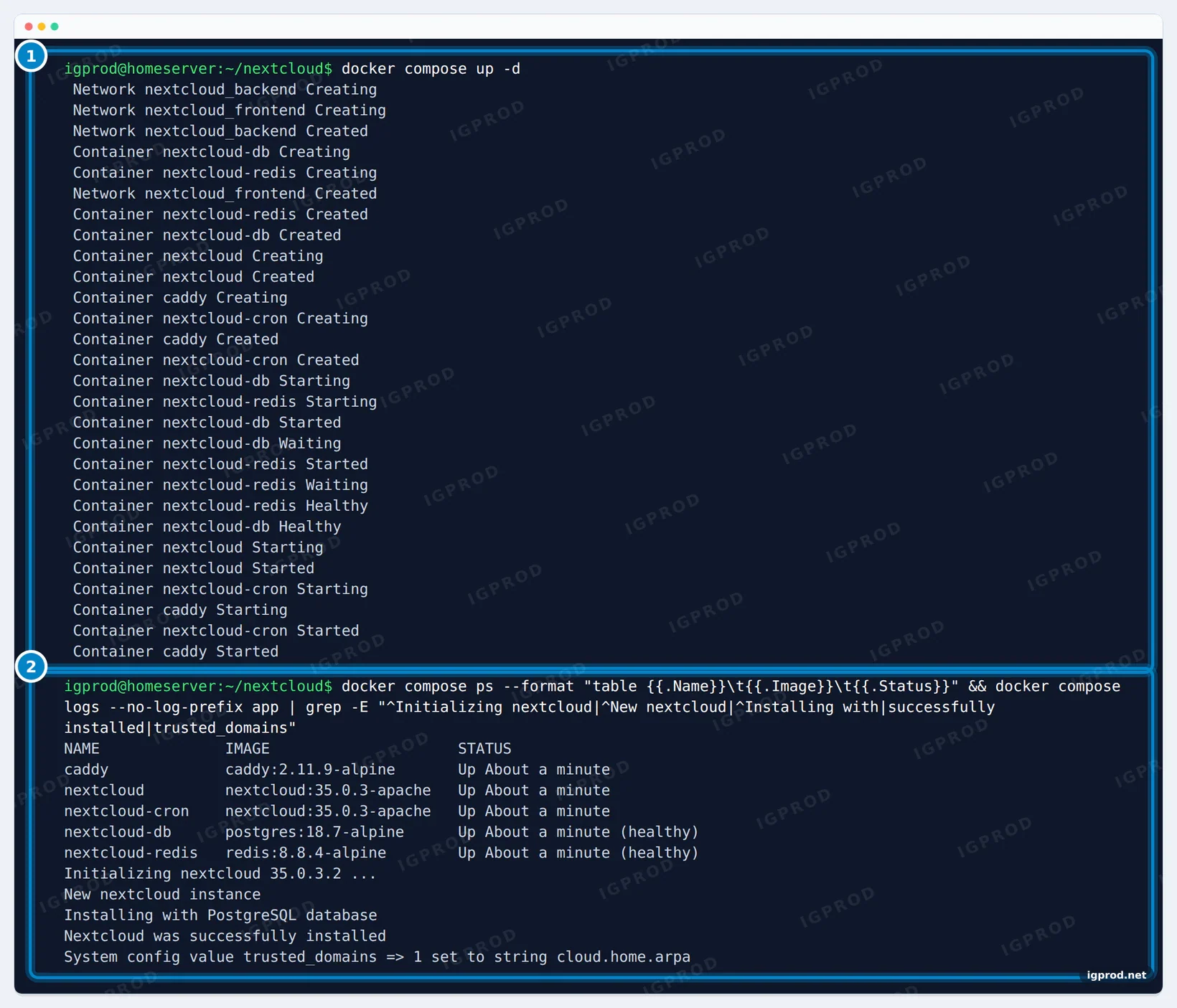
docker compose up -d
docker compose ps --format "table {{.Name}}\t{{.Image}}\t{{.Status}}" && docker compose logs --no-log-prefix app | grep -E "^Initializing nextcloud|^New nextcloud|^Installing with|successfully installed|trusted_domains"
On the first start the app container copies Nextcloud into ./html, creates the database tables and your admin account from the secret, and adds cloud.home.arpa to the trusted domains. It took about a minute.
Step 4: point the name to the server and check HTTPS
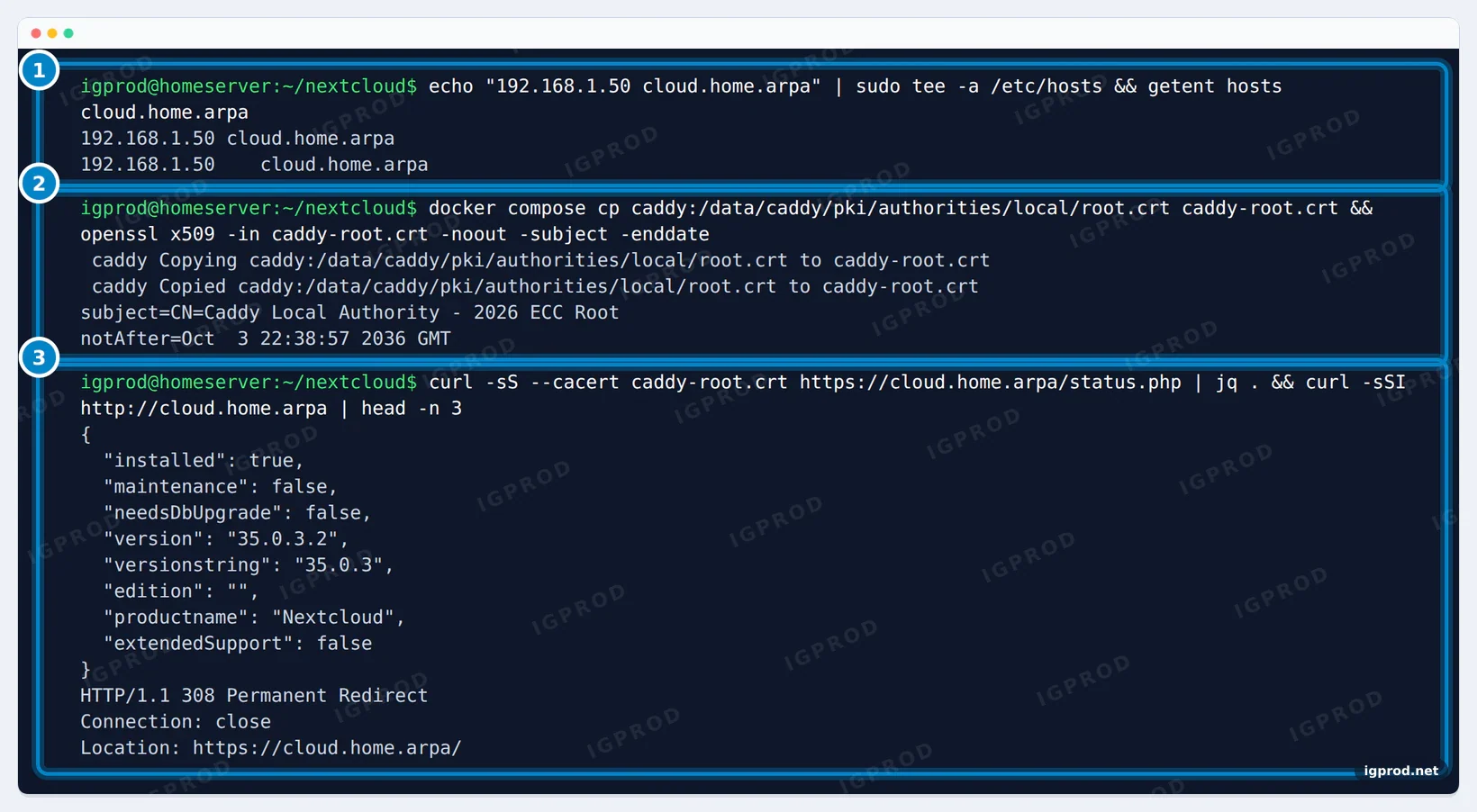
Each device must find cloud.home.arpa at the server's address. We added the line to the server's own hosts file and checked it:
echo "192.168.1.50 cloud.home.arpa" | sudo tee -a /etc/hosts && getent hosts cloud.home.arpaCaddy made its own root certificate on the first start. Copy it out; this file is what your devices must trust:
docker compose cp caddy:/data/caddy/pki/authorities/local/root.crt caddy-root.crt && openssl x509 -in caddy-root.crt -noout -subject -enddate
curl -sS --cacert caddy-root.crt https://cloud.home.arpa/status.php | jq . && curl -sSI http://cloud.home.arpa | head -n 3
Copy caddy-root.crt to each laptop and phone that uses Nextcloud and import it as a trusted root (the same steps as for an mkcert root). The laptop commands on this page also pass it to curl with --cacert, from the laptop's home folder. Only the public certificate leaves the server; Caddy's private key stays in ./caddy_data.
Step 5: clear the setup warnings with occ
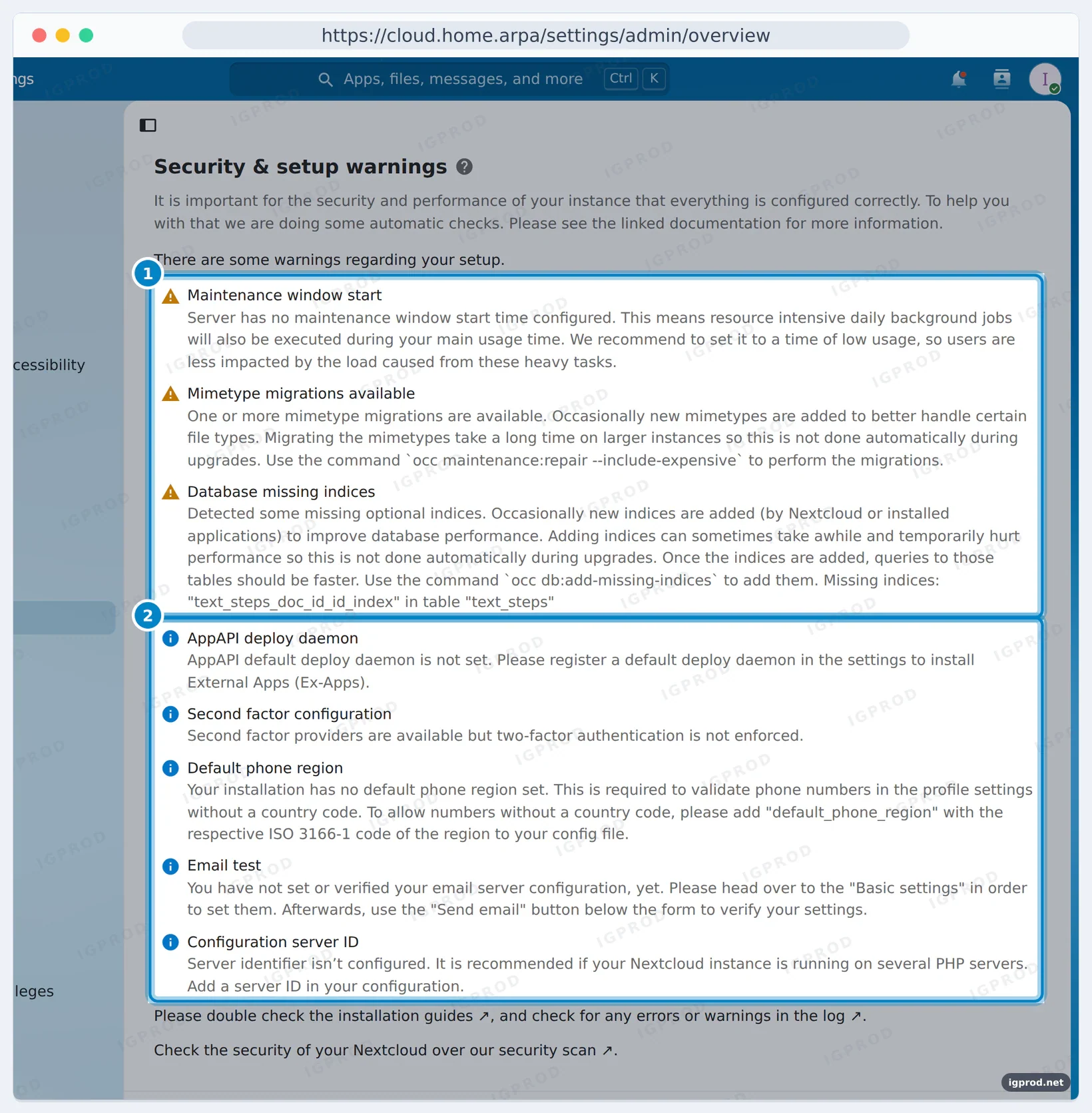
Open https://cloud.home.arpa and log in as igprod (your admin user) with the password from Step 1. Then go to Administration settings > Overview, where Nextcloud runs its security and setup checks.
Nextcloud's admin tool is occ. It must run inside the app container as the web server user, so a small helper saves typing:
cat > occ <<"EOF"
#!/bin/sh
# Runs Nextcloud's occ command in the app container, as the web server user.
exec docker compose exec -u www-data app php occ "$@"
EOF
chmod +x occ && ./occ status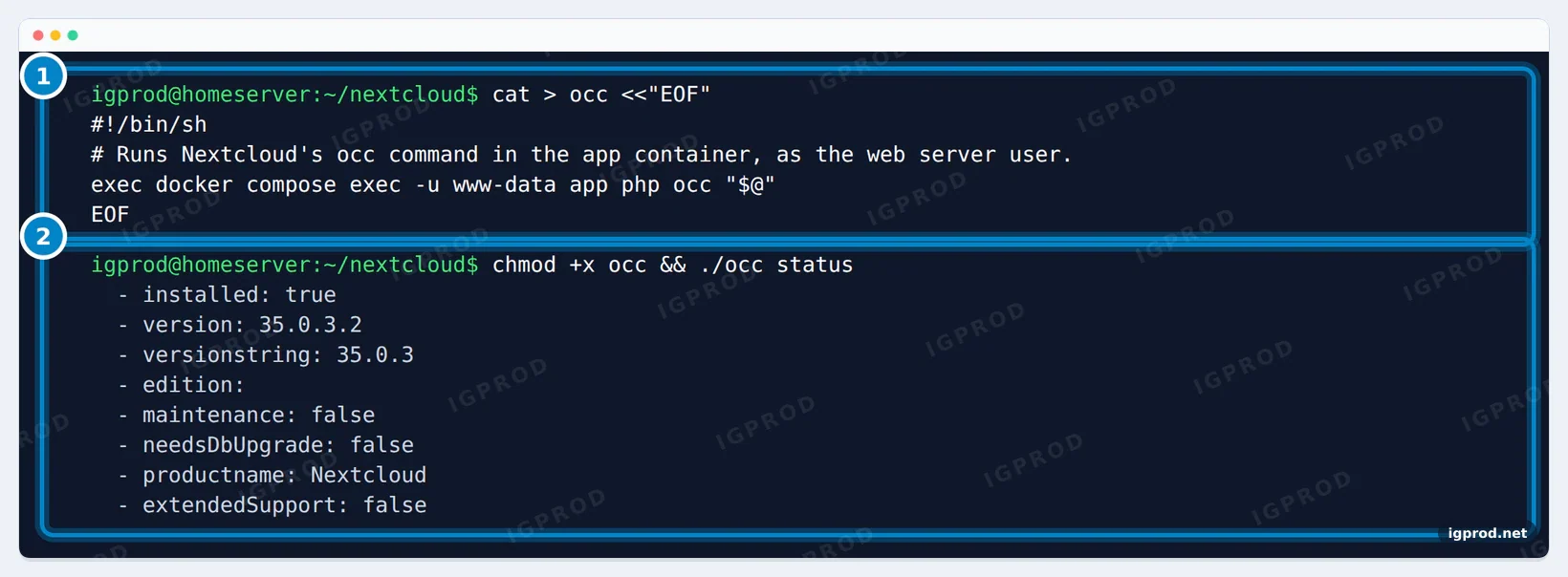
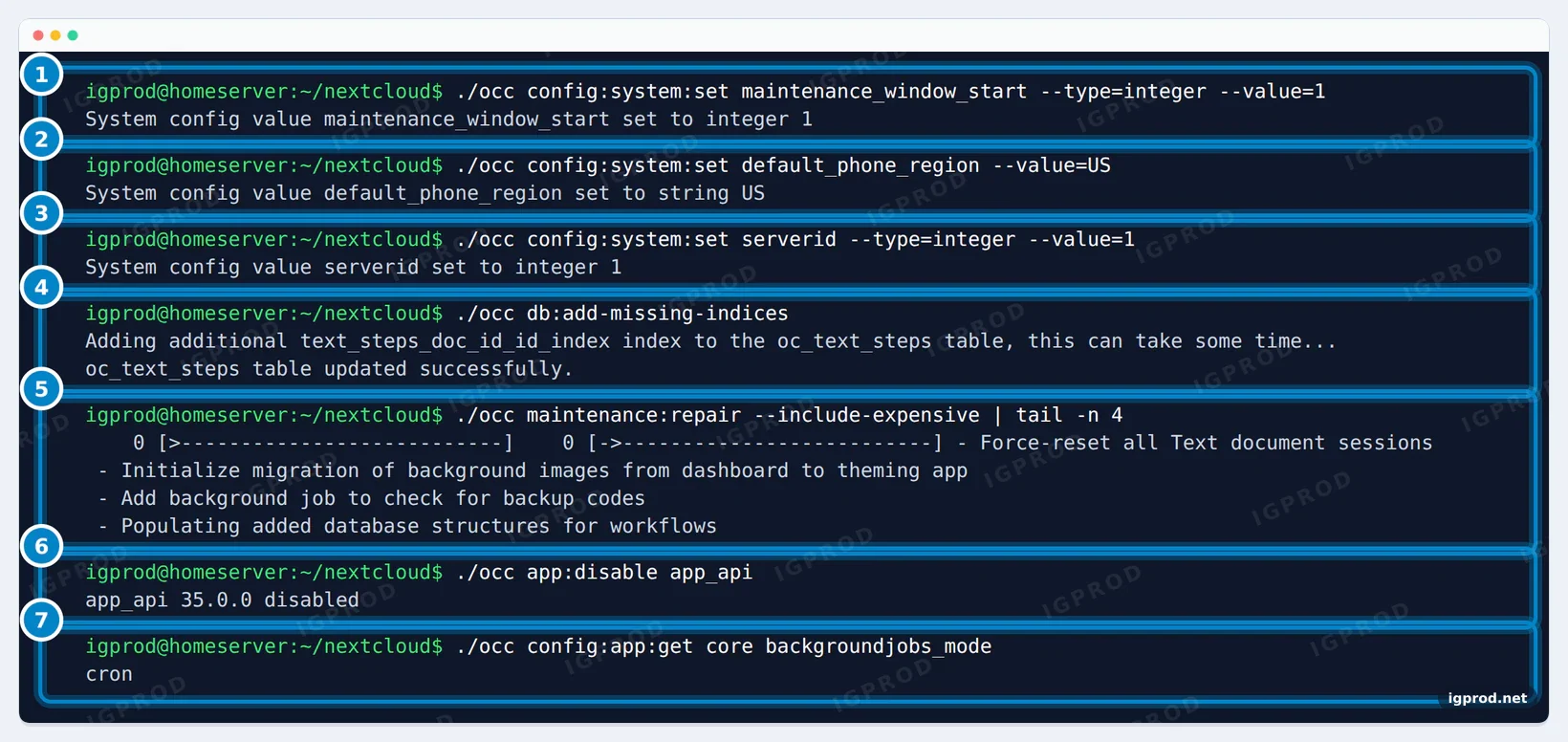
Then one command per item:
./occ config:system:set maintenance_window_start --type=integer --value=1
./occ config:system:set default_phone_region --value=US
./occ config:system:set serverid --type=integer --value=1
./occ db:add-missing-indices
./occ maintenance:repair --include-expensive | tail -n 4
./occ app:disable app_api
./occ config:app:get core backgroundjobs_mode- Maintenance window: heavy daily jobs run from 01:00 UTC, when nobody uses the server.
- Default phone region: use your own country code (
US,GB,DEand so on). - Server ID: any number from 0 to 1023, different on each server if you ever run more than one.
- Missing indices and mimetype migrations:
db:add-missing-indicesandmaintenance:repair --include-expensive. Run them again after each major update. - AppAPI deploy daemon: AppAPI runs "External Apps" in Docker. If you do not use them, disable it.
- Second factor and Email test: Steps 6 and 9.
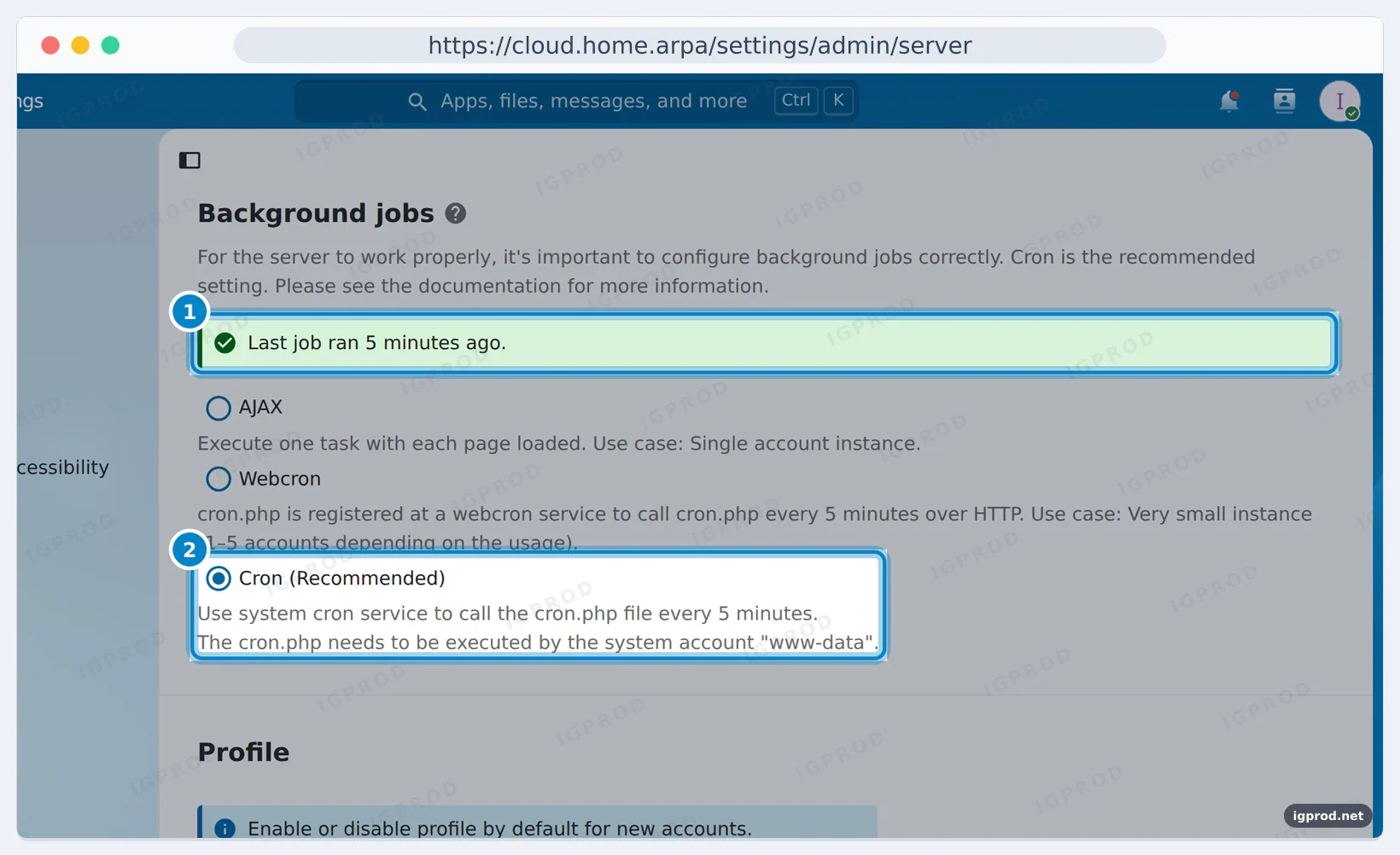
Background jobs need nothing more: the cron container switched Nextcloud to Cron mode on its first run. Check it in Administration settings > Basic settings:
Step 6: set up e-mail and send a test
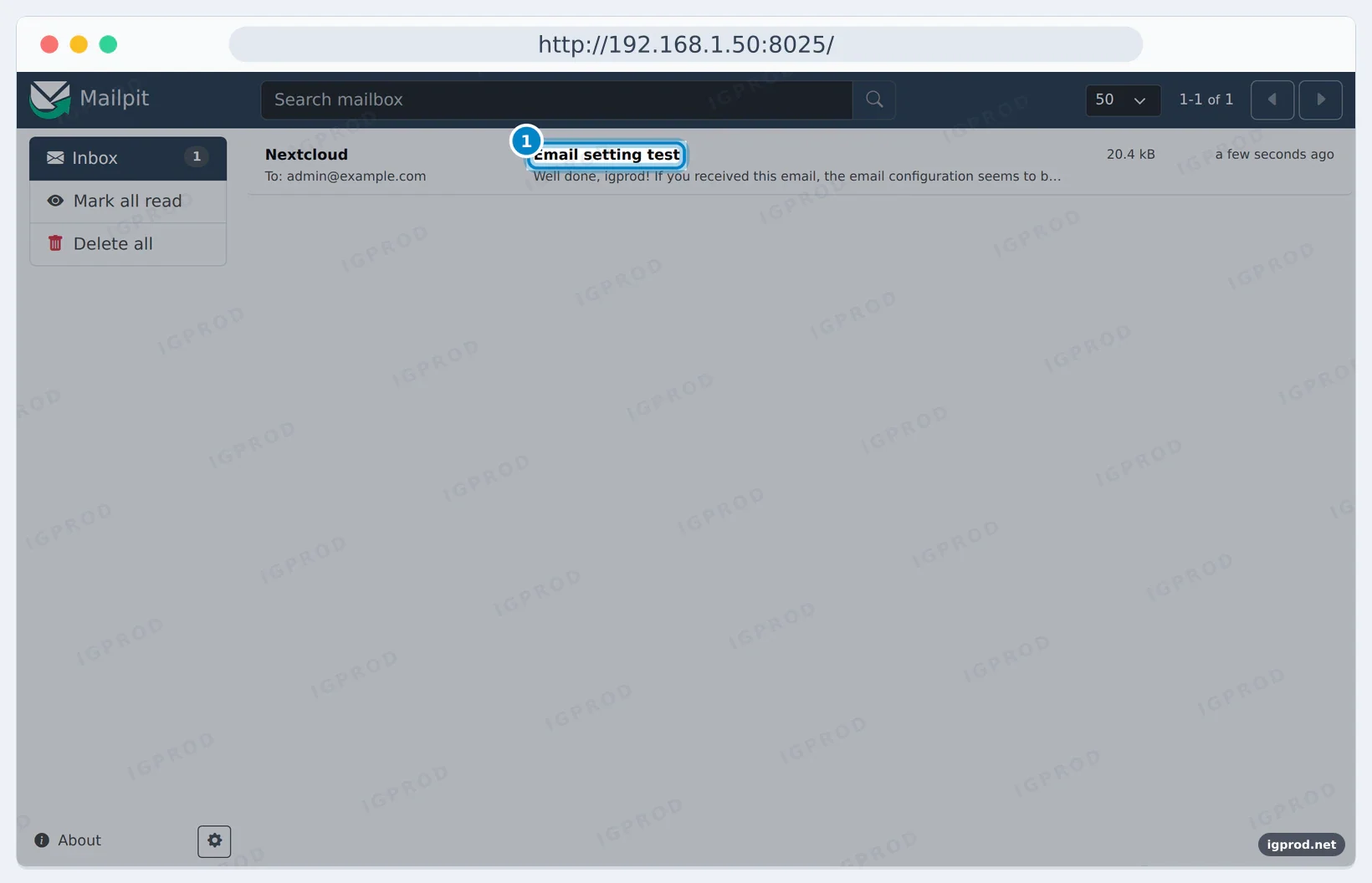
Nextcloud sends password resets, share links and security notices by e-mail. First give your admin account an address; the test is sent there:
./occ user:setting igprod settings email [email protected]In a lab, Mailpit catches every message without sending anything out. We ran it on the home server with this file (skip it if you use your provider's SMTP server):
mkdir -p ~/mailpit && cat > ~/mailpit/compose.yaml <<"EOF"
services:
  mailpit:
    image: axllent/mailpit:v1.34.0
    container_name: mailpit
    restart: unless-stopped
    ports:
      - "1025:1025"
      - "8025:8025"
EOF
cd ~/mailpit && docker compose up -d && docker compose ps --format "{{.Name}}: {{.Image}} {{.Status}}"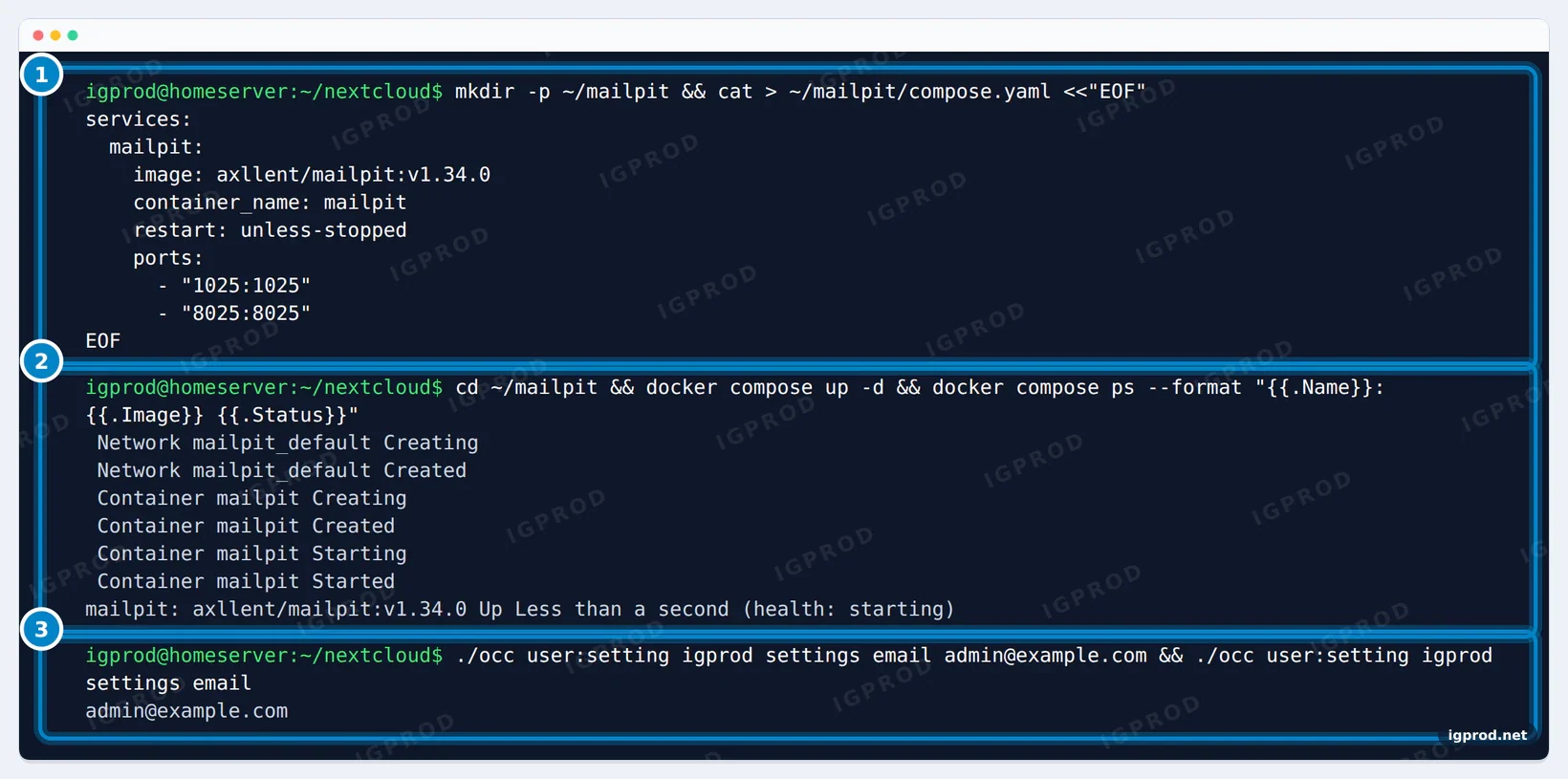
Every other command on the home server runs in ~/nextcloud, so go back there with cd ~/nextcloud.
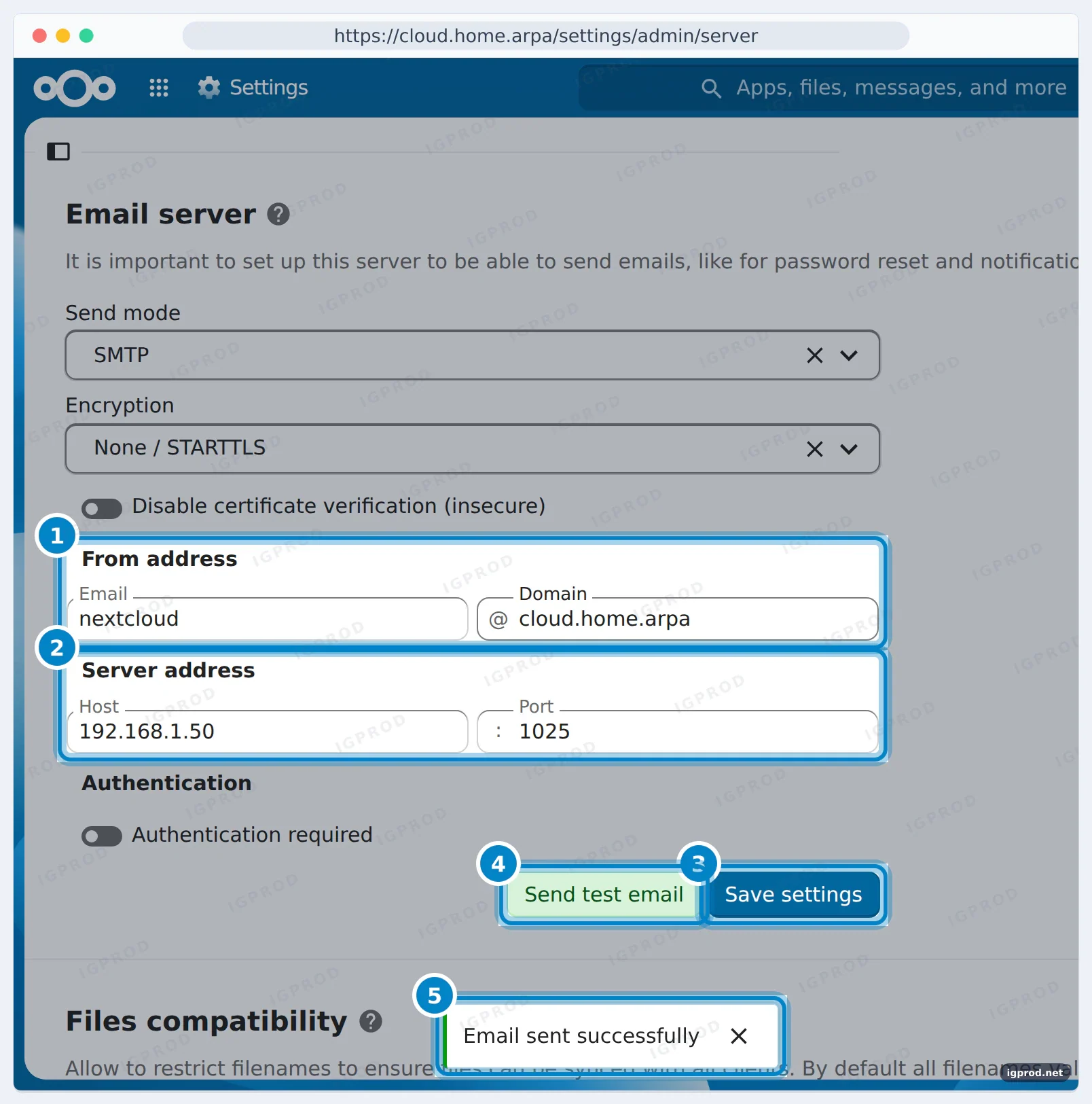
In Administration settings > Basic settings > Email server, set the sender and the server, click Save settings, then Send test email. With a real mail provider, use its server name and port 587 with None / STARTTLS, which switches to STARTTLS when the server offers it, turn on Authentication required with the account's user name and password, and leave Disable certificate verification off.
Step 7: stop clients from choosing their own IP address
Nextcloud slows down logins after failures, per client IP address: that is its brute-force protection. It only works if the address is the real one. The Apache image has a rule for that: it replaces the client address with the X-Real-IP header when the request comes from a private address. Caddy has a private address, and it passes that header on from the client unchanged. So any client can send its own X-Real-IP and pick the address Nextcloud blames.
We tested it from the laptop with a wrong password and a made-up address. Without APACHE_DISABLE_REWRITE_IP in the file:
# on the laptop
curl --cacert caddy-root.crt -sS -o /dev/null -w '%{http_code}\n' -u igprod:not-the-password -H 'X-Real-IP: 203.0.113.9' https://cloud.home.arpa/remote.php/dav/files/igprod/
# on the server
./occ security:bruteforce:attempts 203.0.113.9
docker compose exec app cat /etc/apache2/conf-enabled/remoteip.conf
./occ security:bruteforce:attempts 192.168.1.21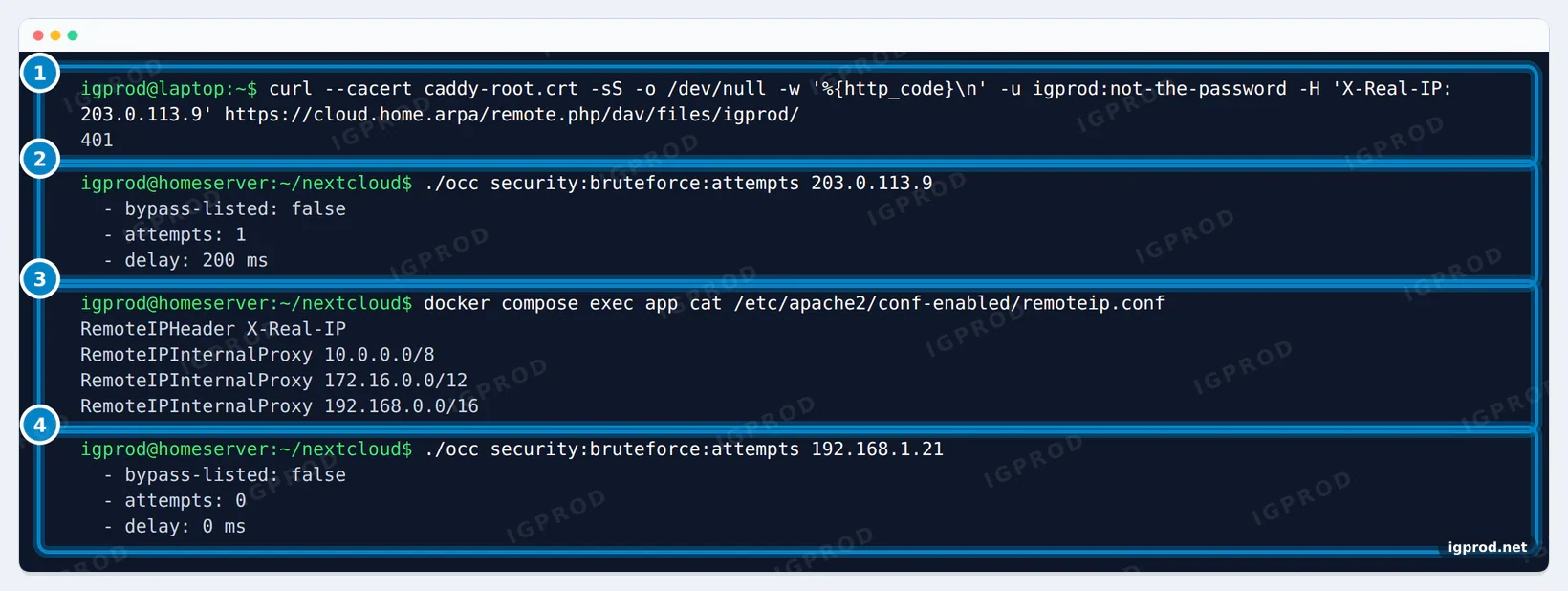
The failure was counted for 203.0.113.9, an address that does not exist, and the laptop's real address stayed at 0. An attacker can change the header on every try and never be slowed down, or send a neighbour's address to get it blocked.
The fix is one line, already in the file of Step 2. With it, the entrypoint turns the header rule off, and Nextcloud reads the address from X-Forwarded-For, which it accepts only from TRUSTED_PROXIES, that is from Caddy. If you started without it, add it and recreate the app:
sed -i '/OVERWRITECLIURL/a\      APACHE_DISABLE_REWRITE_IP: "1"' compose.yaml && grep -n -B2 'APACHE_DISABLE_REWRITE_IP' compose.yaml
docker compose up -d app
docker compose exec app sh -c 'ls /etc/apache2/conf-enabled | grep remoteip || echo "remoteip.conf: not enabled"'
The entrypoint tests only whether the variable exists (${APACHE_DISABLE_REWRITE_IP+x}), so any value turns the rule off, even "0". The same test afterwards:
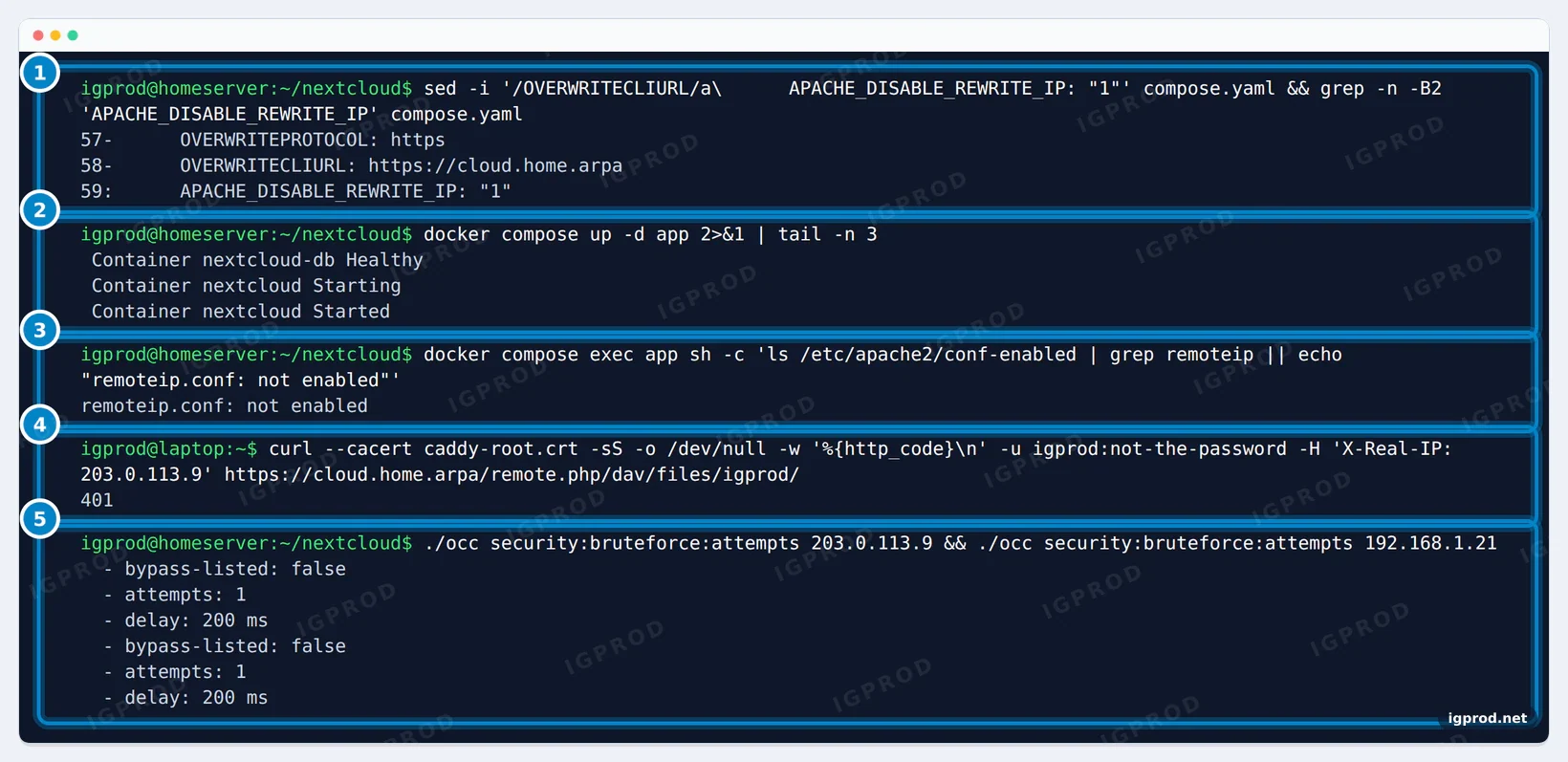
The made-up address got nothing new, and the failure counted for 192.168.1.21, the laptop. We reset both counters afterwards with ./occ security:bruteforce:reset and the address.
Step 8: give each app its own app password
Sync apps, calendar apps and scripts should never use your account password. Give each one an app password: you can revoke it alone, and it keeps working once two-factor authentication is on. The Security page itself asks you to create one for each app before you switch on a second factor.
In Personal settings > Security > Devices & sessions, type a name such as laptop-backup and click Create new app password:
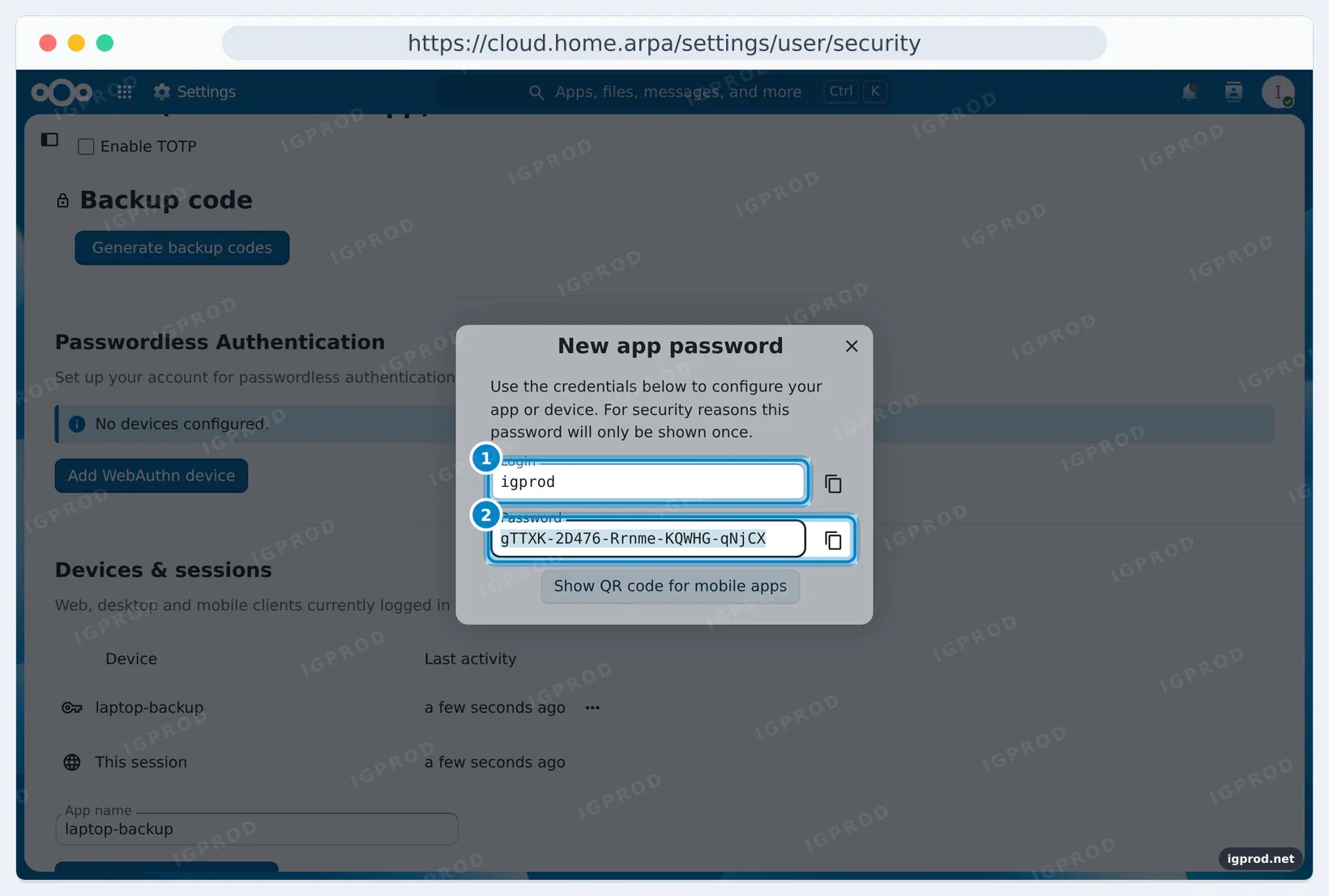
We used it from the laptop over WebDAV, the protocol behind the sync apps. curl reads it from ~/.netrc, a file only you can read, so the password never appears in a command line or in the shell history. The first command asks for it without showing what you type:
(umask 077 && read -rs -p 'App password: ' P && printf 'machine cloud.home.arpa login igprod password %s\n' "$P" > ~/.netrc) && ls -l ~/.netrc
printf 'Nextcloud upload test from the laptop\n' > notes.txt && curl --netrc --cacert caddy-root.crt -sS -T notes.txt -o /dev/null -w '%{http_code}\n' https://cloud.home.arpa/remote.php/dav/files/igprod/notes.txt
curl --netrc --cacert caddy-root.crt -sS https://cloud.home.arpa/remote.php/dav/files/igprod/notes.txt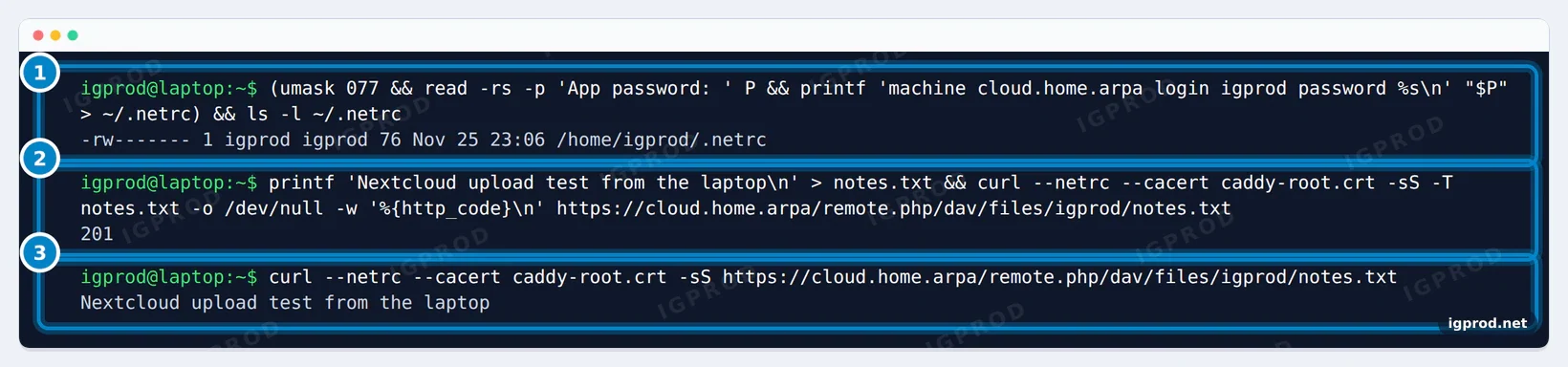
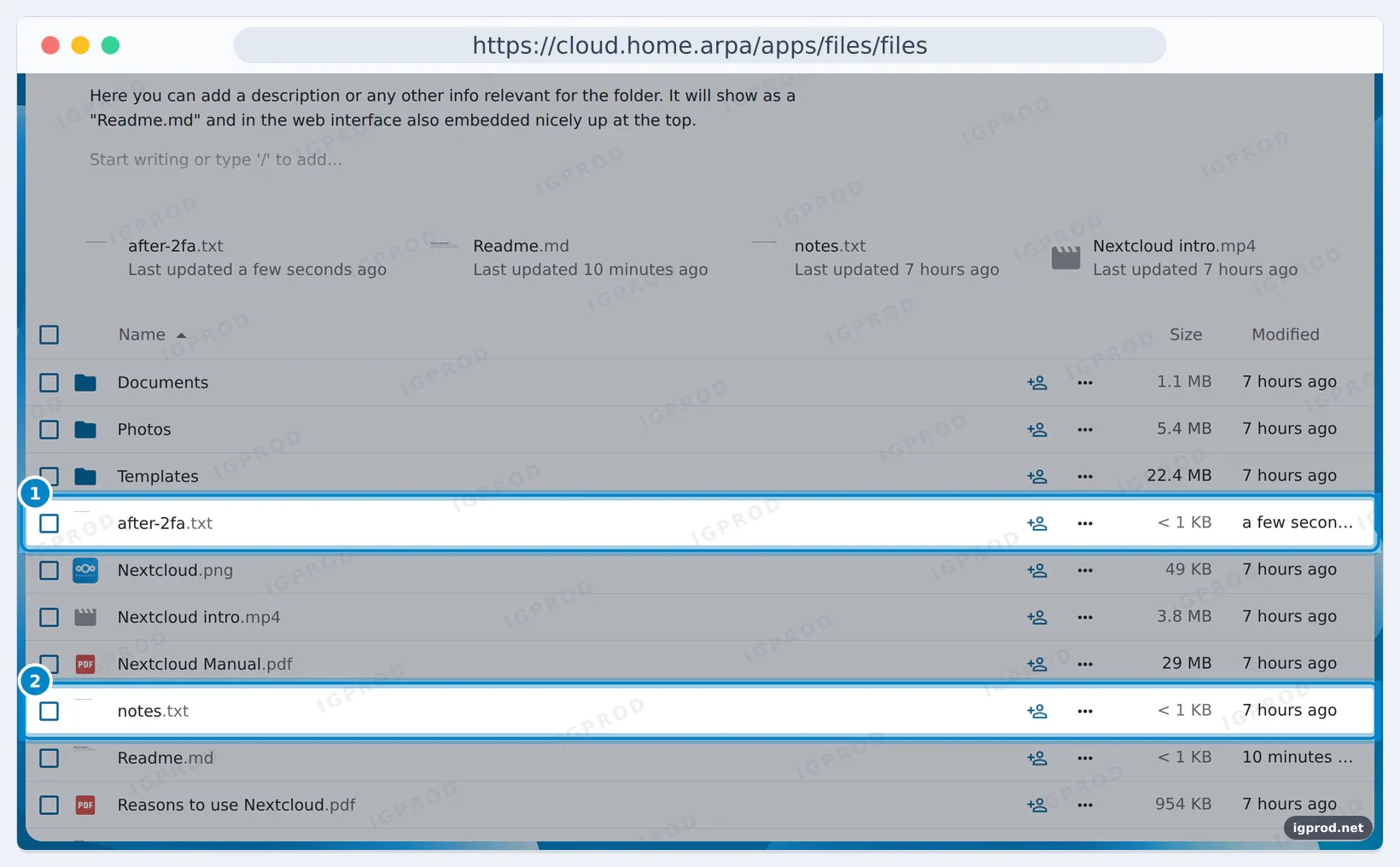
The file is in Nextcloud, as the picture at the top of this page shows. Desktop and phone apps ask for the same login and app password, or use Show QR code for mobile apps in the same dialog.
Step 9: two-factor authentication for every account
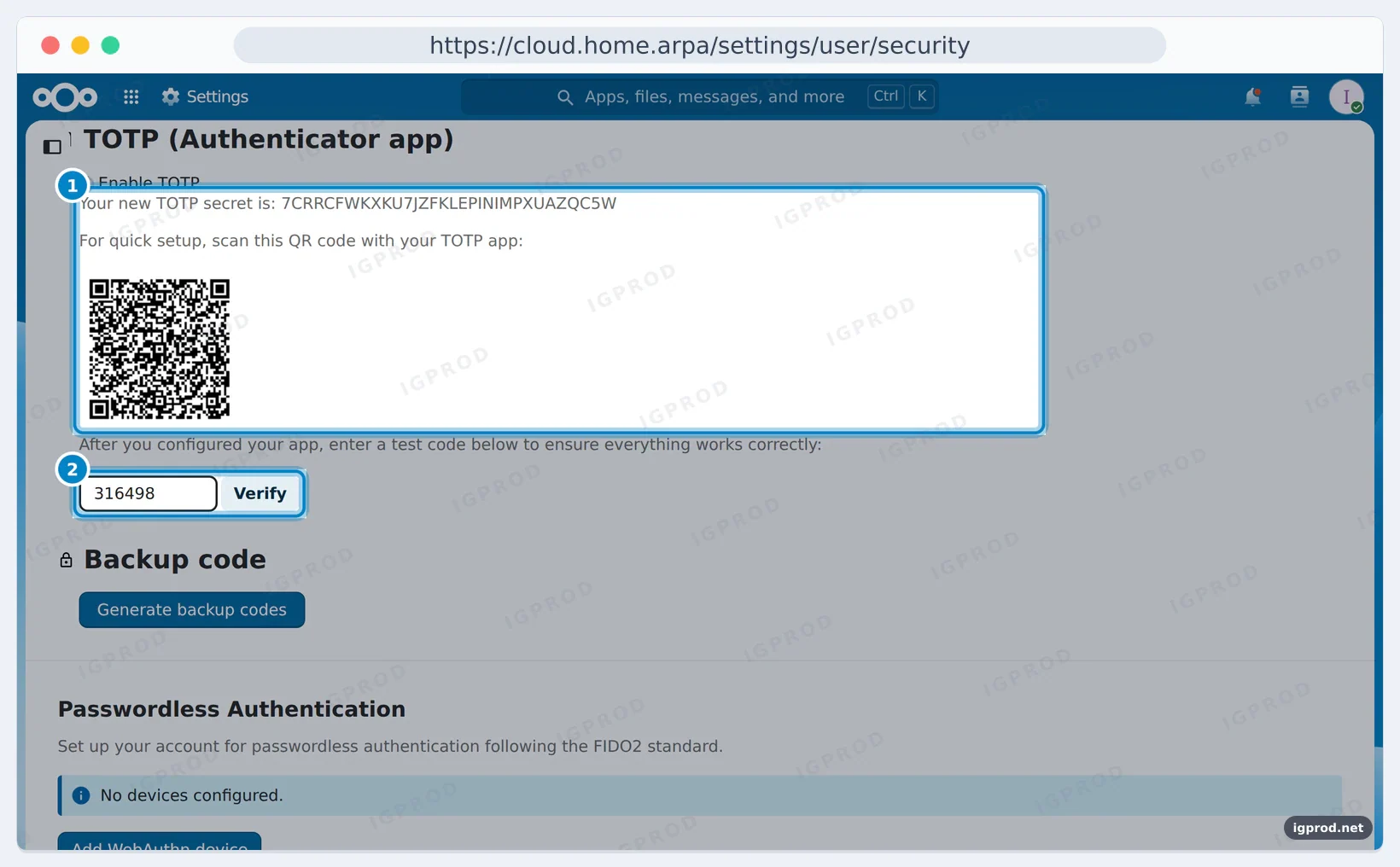
Set it up for your own account first, so you cannot lock yourself out. In Personal settings > Security, tick Enable TOTP, scan the QR code with your authenticator app, type the code it shows and click Verify:
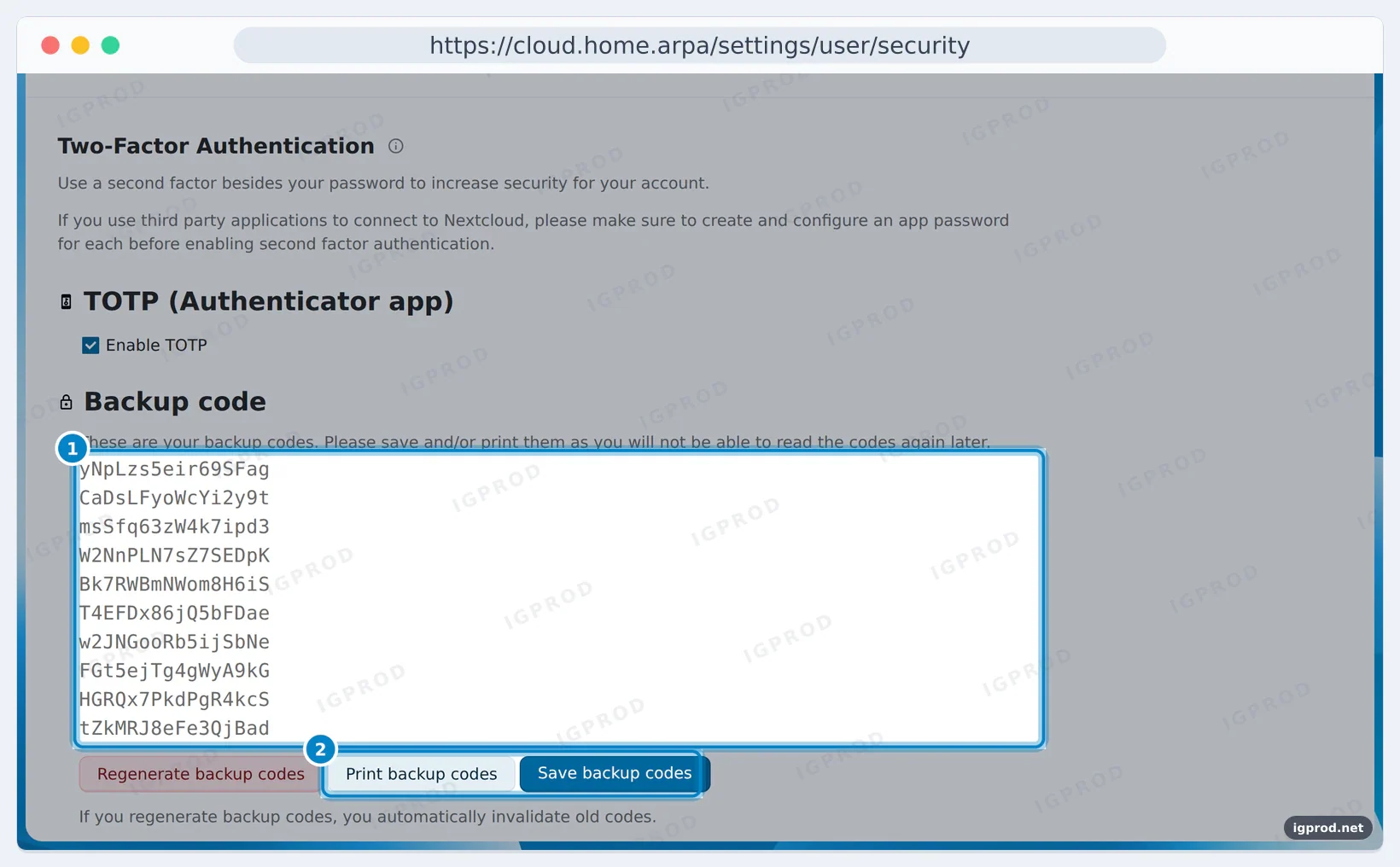
Then click Generate backup codes in the same page:
Now require it for everyone. Users without a second factor are asked to set one up at their next login:
./occ twofactorauth:state igprod
./occ twofactorauth:enforce --on
./occ twofactorauth:enforce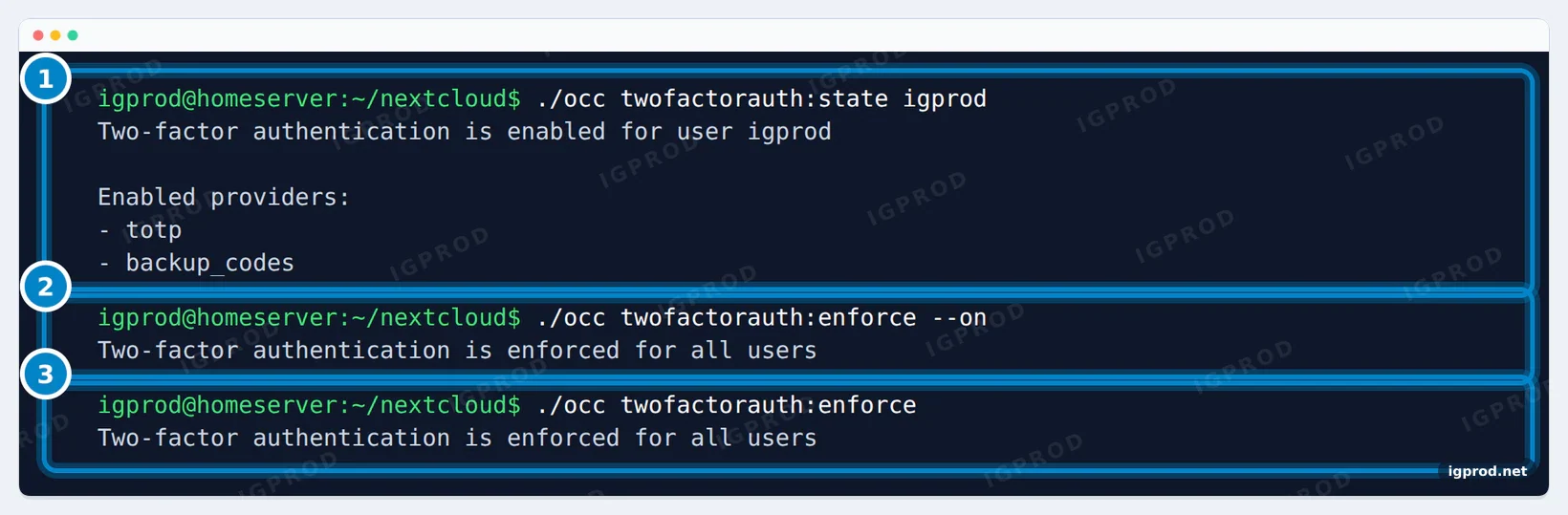
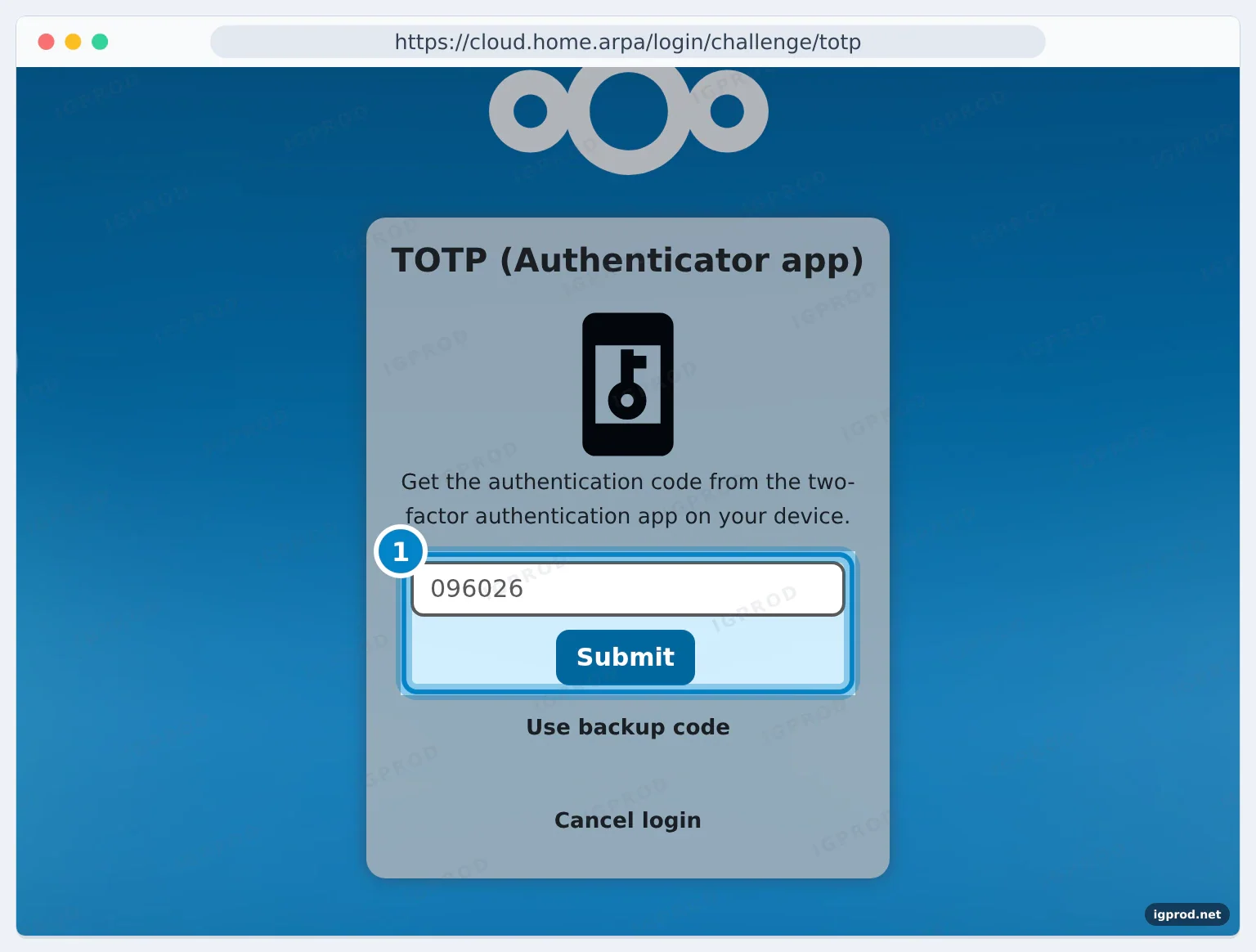
Last, the check that matters for your apps: with two-factor authentication on, the account password alone no longer opens WebDAV, and the app password still does.
read -rs -p 'Nextcloud password: ' P && curl --cacert caddy-root.crt -sS -o /dev/null -w '%{http_code}\n' -u "igprod:$P" https://cloud.home.arpa/remote.php/dav/files/igprod/
printf 'Uploaded after 2FA was enforced\n' > after-2fa.txt && curl --netrc --cacert caddy-root.crt -sS -T after-2fa.txt -o /dev/null -w '%{http_code}\n' https://cloud.home.arpa/remote.php/dav/files/igprod/after-2fa.txt
Step 10: back up Nextcloud
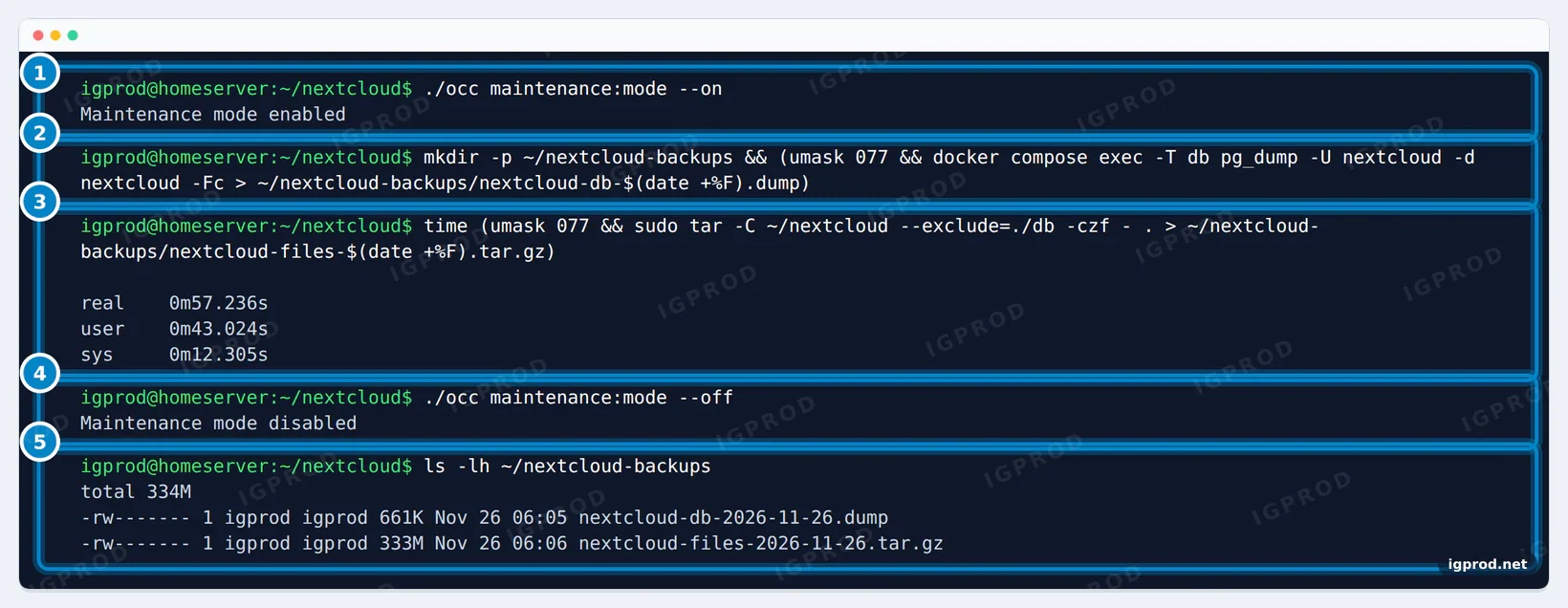
A backup is two things taken at the same moment: a dump of the database and a copy of the files. Maintenance mode stops all changes in between. We copied the whole folder except db, which the dump replaces: it holds the config, the data, the apps, the secrets and Caddy's certificate authority, so the same stack can start again from it.
./occ maintenance:mode --on
mkdir -p ~/nextcloud-backups && (umask 077 && docker compose exec -T db pg_dump -U nextcloud -d nextcloud -Fc > ~/nextcloud-backups/nextcloud-db-$(date +%F).dump)
time (umask 077 && sudo tar -C ~/nextcloud --exclude=./db -czf - . > ~/nextcloud-backups/nextcloud-files-$(date +%F).tar.gz)
./occ maintenance:mode --off
ls -lh ~/nextcloud-backups
sudo is needed to read the data folder, which belongs to the web server user. umask 077 makes both files readable by you only: they hold your passwords and every user's files. Copy them off the server, to another disk and to a second place, and plan for the minute of maintenance mode at night.
Step 11: test the restore
A backup you have never restored is a hope. We deleted a file, emptied the trash bin so only the backup could bring it back, then restored everything:
# on the laptop
curl --netrc --cacert caddy-root.crt -sS -X DELETE -o /dev/null -w '%{http_code}\n' https://cloud.home.arpa/remote.php/dav/files/igprod/notes.txt && curl --netrc --cacert caddy-root.crt -sS -o /dev/null -w '%{http_code}\n' https://cloud.home.arpa/remote.php/dav/files/igprod/notes.txt
# on the server
./occ trashbin:cleanup --all-users
./occ maintenance:mode --on && docker compose stop app cron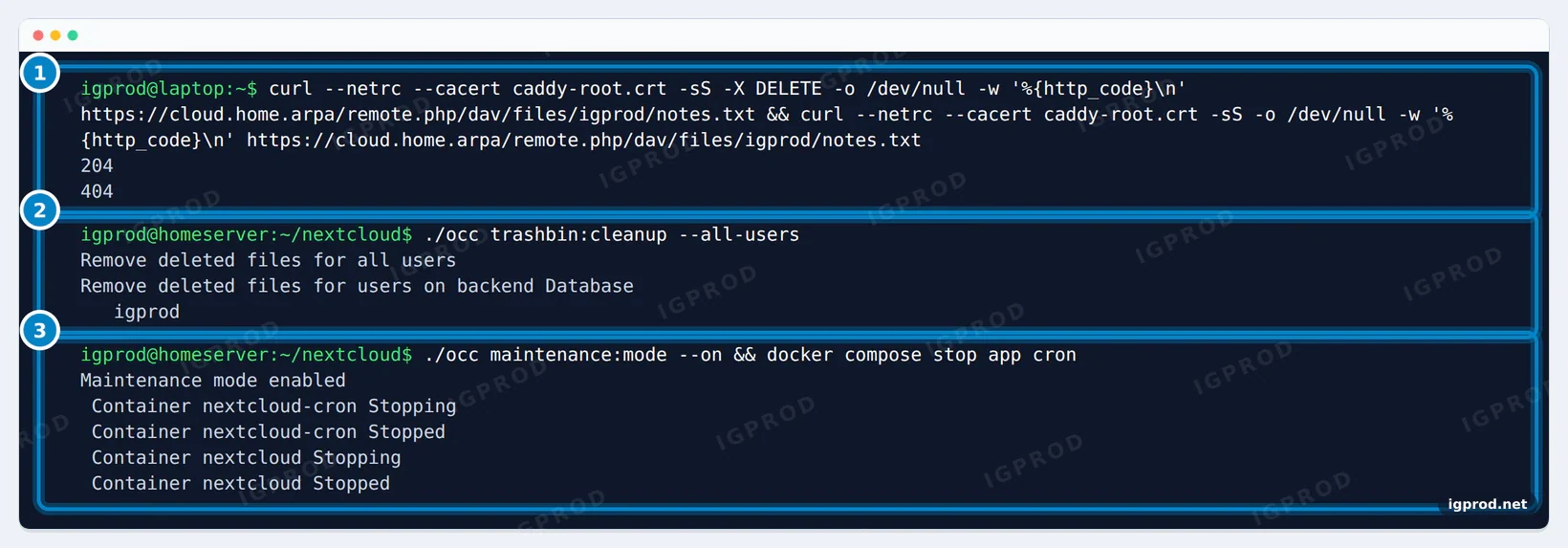
Move the current folders aside instead of writing over them, so no file added after the backup stays behind. Then drop the database and load the dump. App and cron are stopped, so nothing holds a connection to it:
sudo mv html html.before-restore && sudo mv data data.before-restore && sudo tar -C ~/nextcloud -xzf ~/nextcloud-backups/nextcloud-files-2026-11-26.tar.gz ./html ./data && sudo ls -ld html data
docker compose exec -T db dropdb -U nextcloud nextcloud && docker compose exec -T db createdb -U nextcloud -O nextcloud nextcloud && docker compose exec -T db pg_restore -U nextcloud -d nextcloud < ~/nextcloud-backups/nextcloud-db-2026-11-26.dump && echo "database restored"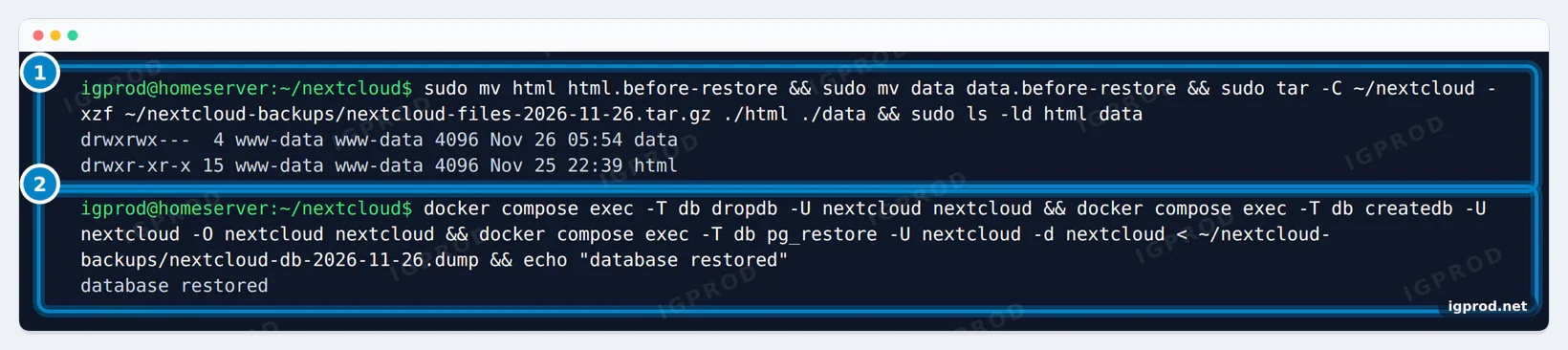
Empty Redis, which still holds the state from before, start the containers and leave maintenance mode. The copy was taken in maintenance mode, so the restored settings start in it too. maintenance:data-fingerprint tells the sync apps that the server went back in time, so they do not delete or overwrite files without asking:
docker compose exec redis redis-cli FLUSHALL && docker compose start app cron && sleep 15 && ./occ maintenance:mode --off && ./occ maintenance:data-fingerprint
# on the laptop
curl --netrc --cacert caddy-root.crt -sS https://cloud.home.arpa/remote.php/dav/files/igprod/notes.txt
# on the server
sudo rm -rf html.before-restore data.before-restore && ./occ status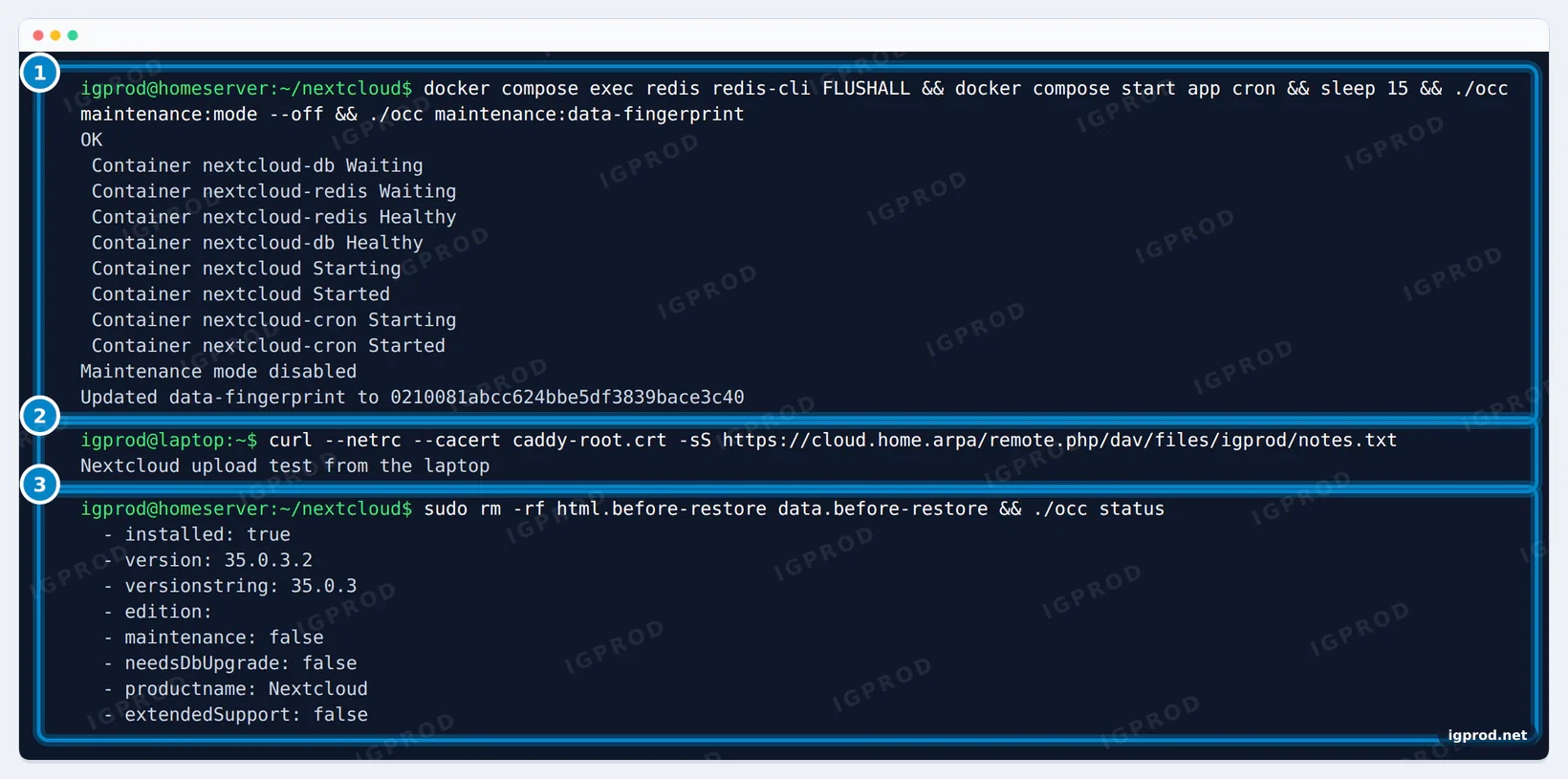
Step 12: final checks
The overview again, after every step:
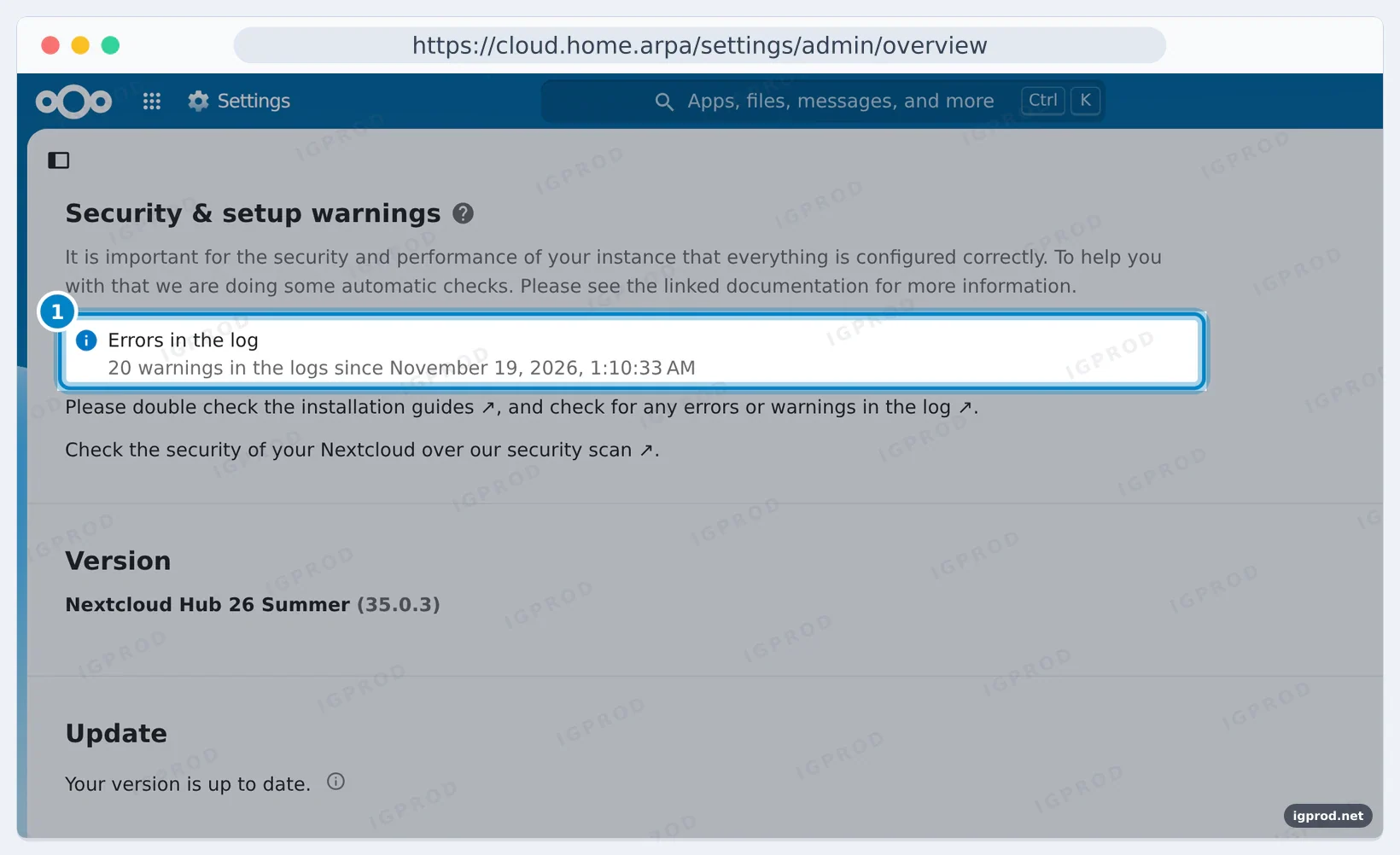
To read those warnings yourself, summarize the log. Every one dates from the first background jobs on 25 November, among them the jobs of the AppAPI app disabled in Step 5. The check counts the last 7 days ("since November 19" on 26 November), so the note goes away once these entries are a week old:
docker compose exec -u www-data app cat data/nextcloud.log | jq -r '"\(.time[0:10]) \(.message[0:58])"' | sort | uniq -c
And what runs, and what it costs:
docker compose ps --format "table {{.Name}}\t{{.Status}}\t{{.Ports}}"
docker stats --no-stream --format "table {{.Name}}\t{{.CPUPerc}}\t{{.MemUsage}}" nextcloud nextcloud-cron nextcloud-db nextcloud-redis caddy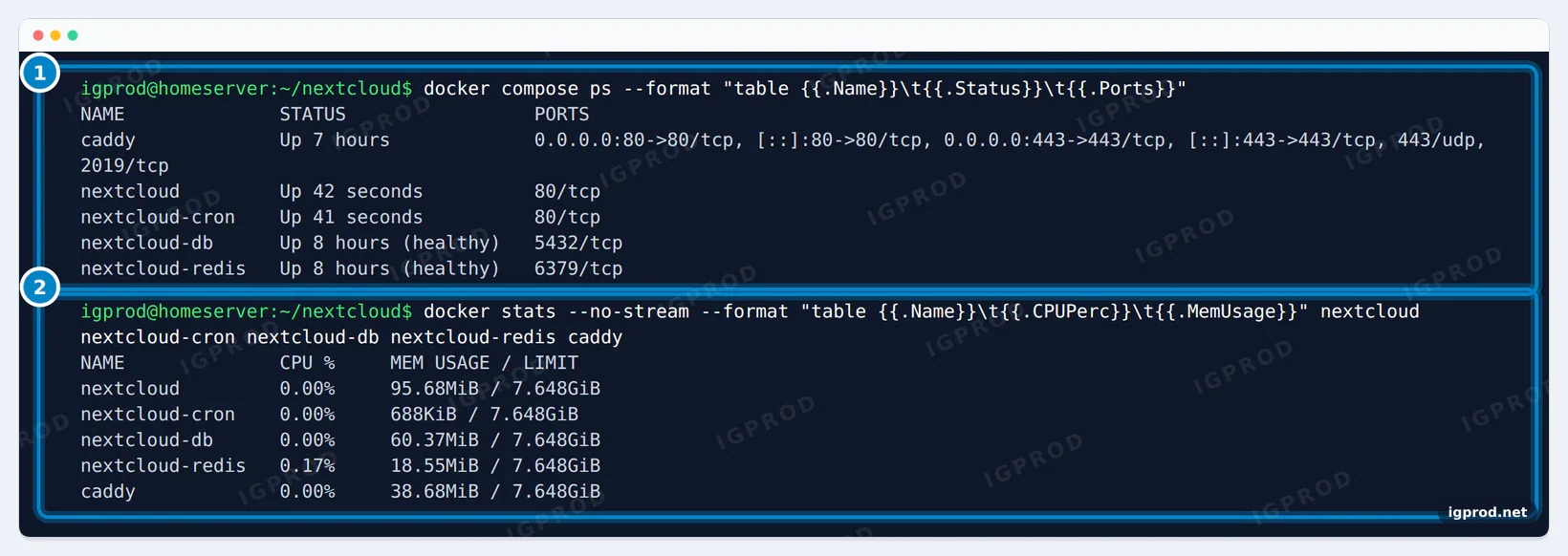
Production checklist
| Setting | What it prevents | Checked in |
|---|---|---|
| Passwords as Docker secrets in a 700 folder | Passwords in compose.yaml, in shell history or readable by other users | Step 1 |
backend network with internal: true | Database and Redis reachable from the network | Step 12 |
| Pinned image tags | Surprise major updates on a restart | Step 2 |
| HTTPS with HSTS, HTTP sent to HTTPS (308) | Passwords and files sent in clear | Step 4 |
APACHE_DISABLE_REWRITE_IP: "1" and TRUSTED_PROXIES | Clients choosing the IP address the brute-force protection sees | Step 7 |
| App passwords for every app | Your account password stored in apps and scripts | Step 8 |
| Two-factor authentication enforced | A stolen password being enough to log in | Step 9 |
| Backup in maintenance mode, files 600, restore tested | Losing everything, or a backup that does not restore | Steps 10 and 11 |
Troubleshooting
"Last background job execution ran 56 years ago"
We saw this error right after the first start: no background job had run yet. It went away after the cron container's first run, five minutes later. If it stays, check that nextcloud-cron is up with docker compose ps.
A password box opens when you save a setting
That is Nextcloud's password confirmation: it asks for your account password again before it changes admin or security settings. We met it at Save settings in Step 6, at Create new app password in Step 8 and at Enable TOTP in Step 9. Type the password and the change goes through.
WebDAV or a sync app answers 401 with the right password
Two-factor authentication is on for that account, so the account password alone no longer works for apps (Step 9). Create an app password for the app.
Every login failure comes from the same address, or from a strange one
Check ./occ security:bruteforce:attempts with your own address after a wrong password. If the count lands on Caddy's address, TRUSTED_PROXIES does not match Caddy; if it lands on any address a client sends, the header rule of Step 7 is still on.
"Errors in the log" on a new server
Summarize the log as in Step 12. One-time notes from the first background jobs are normal; anything new after your changes is worth reading in full with ./occ log:tail.
What we did not test
A public domain with a Let's Encrypt certificate (we used tls internal), the Nextcloud desktop and phone apps (we used WebDAV with curl), Nextcloud Office, Talk, the All-in-One image, an upgrade to a new major version, object storage as primary storage, server-side encryption, Fail2ban or CrowdSec rules for Nextcloud, IPv6 and ARM boards. Everything else on this page ran on the machines described at the top.
Frequently asked questions
Is Nextcloud free?
Yes. Nextcloud Server is open source under the AGPL, and the Docker image is free. The company behind it sells support contracts for businesses.
Should I use the nextcloud image or Nextcloud All-in-One?
The nextcloud image used here is maintained by community volunteers and, in its own words, designed for expert use: you choose the database, the proxy and the backups, as on this page. Nextcloud All-in-One is maintained by Nextcloud GmbH and sets those parts up for you, with less control. We tested only the image.
Which database should Nextcloud use in Docker?
PostgreSQL, as here, or MariaDB/MySQL. Without database variables the image falls back to SQLite, which Nextcloud's system requirements list as "only recommended for testing and minimal-instances".
Does Nextcloud need Redis?
For more than one user, yes. With REDIS_HOST set, the image configures Redis for file locking and the shared cache, next to APCu for the local cache. On our server occ showed memcache.locking and memcache.distributed on Redis and memcache.local on APCu.
How much memory does Nextcloud use in Docker?
At rest, about 214 MiB for the five containers: 95.68 MiB for the app, 60.37 MiB for PostgreSQL, 38.68 MiB for Caddy, 18.55 MiB for Redis and under 1 MiB for cron. Large uploads, previews and many users take more.
How do I update Nextcloud in Docker?
Back up first (Step 10), change the image tag in compose.yaml and run docker compose up -d; the image runs the upgrade when it starts. Go one major version at a time: Nextcloud cannot skip major releases. Then run Step 5's index and repair commands again. We did not run an upgrade in this test.
How do I reach Nextcloud from outside my home?
The safest way is a VPN such as Tailscale: your devices reach the server as if they were at home, and no port is open to the internet. A public domain also works, but we did not test it here: put the domain in the Caddyfile and in compose.yaml in place of cloud.home.arpa, remove tls internal, and Caddy gets a public certificate once ports 80 and 443 reach it from the internet. Then keep Nextcloud updated and watch the brute-force counters.
Related guides
- Install Docker Compose on Ubuntu using Docker’s repository
- Local HTTPS with mkcert: Fix NET::ERR_CERT_AUTHORITY_INVALID for Self-Hosted Apps and Synology
- Tailscale 101: What It Is, Setup on Linux, SSH, Exit Node and Docker (2026)
- Vaultwarden with Docker Compose: HTTPS, Admin Token, Backups and a Tested Restore (2026)
- Install Immich with Docker Compose and Synology
- Pi-hole v6 with Docker Compose: Install, Setup, Blocklists, Per-Device Groups and Hardening (Tested)
- AdGuard Home 1.0 with Docker Compose: Install, Setup, Per-Device Rules and Hardening (Tested)
- Fix Nginx Proxy Manager Real IP Behind Docker and Cloudflare
Sources
- nextcloud Docker image (README: variables, reverse proxy, Redis)
- Nextcloud admin manual: reverse proxy configuration
- Nextcloud admin manual: background jobs
- Nextcloud admin manual: two-factor authentication
- Nextcloud admin manual: backup
- Nextcloud admin manual: restoring a backup
- Nextcloud admin manual: upgrades
- Nextcloud admin manual: system requirements
- Nextcloud admin manual: occ command
- PostgreSQL Docker image
- Caddy documentation: reverse_proxy
- Caddy documentation: tls (internal)
- Mailpit

Leave a comment
Your email address will not be published. Required fields are marked *