

Forgejo is a free, self-hosted code forge: Git repositories, issues, pull requests, a package registry and its own CI system, Forgejo Actions, in one program on your own server. Think of it as a private GitHub for your home lab or small team. This guide runs it with Docker Compose the way you would for real use: PostgreSQL for the data, Caddy for HTTPS, Git over SSH on its own port, sign-in with two-factor codes, a CI runner on a separate machine, and nightly backups that we restored to prove they work.
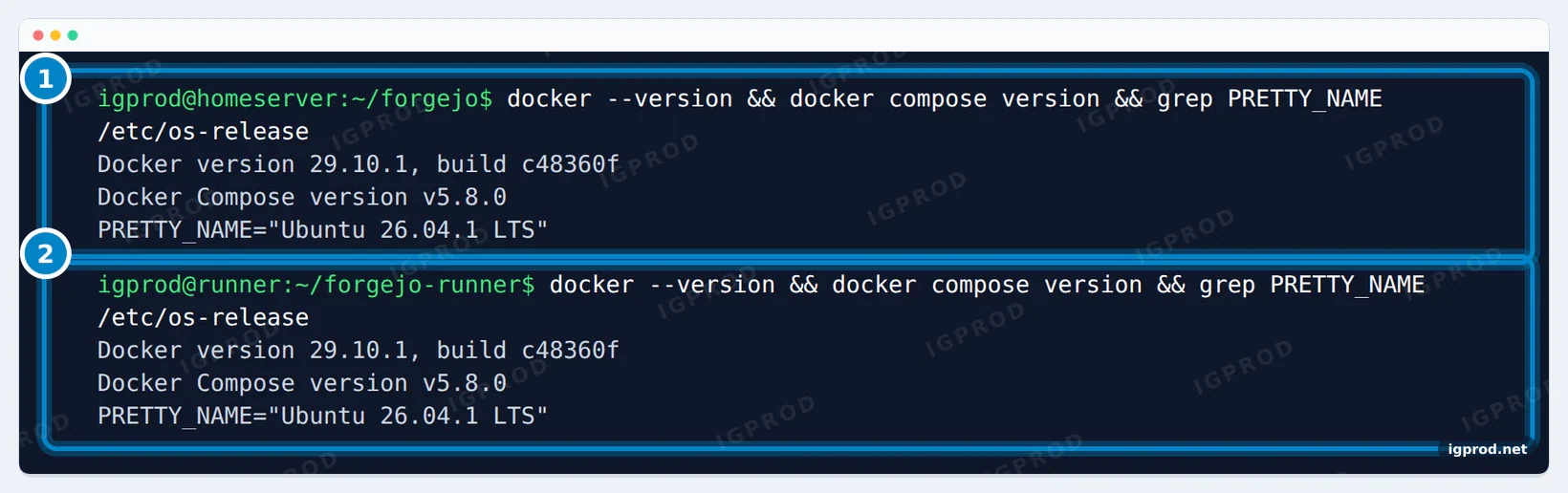
Tested on 26 November 2026 with Forgejo 15.0.12, the long-term support release (image codeberg.org/forgejo/forgejo:15.0.12), PostgreSQL 18.7, Caddy 2.11.9 and Forgejo Runner 13.2.2. The home server (192.168.1.50) and the runner machine (192.168.1.60) both ran Ubuntu 26.04.1 LTS with Docker 29.10.1 and Docker Compose v5.8.0; a laptop on the same network (192.168.1.21) did the Git work. Every command below ran there, and every screenshot shows its real output.
Quick answer: Forgejo with Docker Compose, set up for production
In plain words: three containers run on the server. Forgejo is the website and the Git server. PostgreSQL stores accounts, issues and settings; your repositories are plain folders on disk. Caddy is the front door: it gives Forgejo an HTTPS address and is the only part that the web side of your network can reach. Git over SSH uses port 222, so the server's own SSH keeps port 22. A second, small machine runs your CI jobs, so a bad build can never touch the server that holds your code.
- Write
compose.yamland aCaddyfile, with the database password in a private file. - Run
docker compose up -d --wait: Forgejo 15 LTS starts with PostgreSQL behind Caddy. - Create the admin account from the command line; the web installer is switched off.
- Point
git.home.arpato the server and trust Caddy's certificate on your devices. - Turn on two-factor sign-in, add your SSH key, check the server's fingerprint, then clone and push.
- Keep the trusted-proxy line in the file, so nobody can fake the address Forgejo logs.
- Register a Forgejo Actions runner on a second machine and run a first workflow.
- Back up every night with a systemd timer, and test a full restore before you need it.
Forgejo or Gitea?
Forgejo started in October 2022 as a fork of Gitea, after a for-profit company took over the Gitea project, and became a hard fork in early 2024. It lives under Codeberg e.V., a non-profit association. The two still look alike, and Forgejo's own version string shows its roots (15.0.12+gitea-1.22.0 in our log), but they now develop separately.
| Forgejo | Gitea | |
|---|---|---|
| Who is behind it | Community project under Codeberg e.V., a non-profit | Gitea Ltd, a company |
| Code and license policy | Only free software, developed on Forgejo itself | Open core, with a copyright assignment for contributions (as Forgejo's comparison page puts it) |
| Long-term support | One LTS a year: 15.0 is supported until 15 July 2027, the next LTS (19.0) is due 15 April 2027 | Not covered here |
| Moving between them | From Gitea up to 1.22, through Forgejo 10.0 | Not covered here |
For a home or small-team server, Forgejo is the safe pick if you want a community-run project with yearly LTS releases; that is what we tested. If you already run Gitea 1.23 or newer, the Forgejo docs do not offer an upgrade path, so plan a fresh install and migrate repositories instead.
What you need
- A Linux server with Docker and the Compose plugin: install Docker Compose on Ubuntu. Ports 80, 443 and 222 must be free. At rest, Forgejo, PostgreSQL and Caddy used about 284 MiB of memory together.
- A second machine (or a VM) with Docker for the CI runner. Any small box works; the job image we used takes 1.8 GB of disk.
- A name for the server. We used
git.home.arpa, a name reserved for home networks. Add it to your home DNS (a Local DNS record in Pi-hole or a DNS rewrite in AdGuard Home) or to each device's hosts file, as we did. - A laptop with Git and OpenSSH, and an authenticator app on your phone.
The setup at a glance
| Container | Image | Job | Reachable from |
|---|---|---|---|
caddy | caddy:2.11.9-alpine | HTTPS on 443, redirect from 80, HSTS | Your network |
forgejo | codeberg.org/forgejo/forgejo:15.0.12 | The website (port 3000 inside) and Git over SSH | Caddy only for the web; port 222 for SSH |
forgejo-db | postgres:18.7-alpine | The database | Forgejo only, on an internal network |
forgejo-runner | data.forgejo.org/forgejo/runner:13.2.2 | Picks up CI jobs and starts a container for each | Nothing: it only calls Forgejo |
Step 1: Write the files and the database password
On the server, make a folder for everything and a private folder for the database password. The password is random and never typed by hand:
mkdir -p ~/forgejo && cd ~/forgejo
install -d -m 700 secrets && (umask 022 && openssl rand -base64 36 | tr -d "\n" > secrets/postgres_password) && ls -ld secrets && ls -l secrets
The folder is private (700), so other users on the server cannot read it. The file inside stays readable (644) because two containers that run as different users read it: PostgreSQL to set the password, Forgejo to log in.
Create compose.yaml in ~/forgejo:
name: forgejo

services:
  db:
    image: postgres:18.7-alpine
    container_name: forgejo-db
    restart: unless-stopped
    environment:
      POSTGRES_USER: forgejo
      POSTGRES_DB: forgejo
      POSTGRES_PASSWORD_FILE: /run/secrets/postgres_password
    secrets:
      - postgres_password
    volumes:
      - ./db:/var/lib/postgresql
    networks:
      - backend
    healthcheck:
      test: ["CMD-SHELL", "pg_isready -U forgejo -d forgejo"]
      interval: 10s
      timeout: 5s
      retries: 5

  forgejo:
    image: codeberg.org/forgejo/forgejo:15.0.12
    container_name: forgejo
    restart: unless-stopped
    depends_on:
      db:
        condition: service_healthy
    environment:
      USER_UID: "1000"
      USER_GID: "1000"
      FORGEJO__database__DB_TYPE: postgres
      FORGEJO__database__HOST: db:5432
      FORGEJO__database__NAME: forgejo
      FORGEJO__database__USER: forgejo
      FORGEJO__database__PASSWD__FILE: /run/secrets/postgres_password
      FORGEJO__server__DOMAIN: git.home.arpa
      FORGEJO__server__ROOT_URL: https://git.home.arpa/
      FORGEJO__server__SSH_DOMAIN: git.home.arpa
      FORGEJO__server__SSH_PORT: "222"
      FORGEJO__security__INSTALL_LOCK: "true"
      FORGEJO__security__REVERSE_PROXY_TRUSTED_PROXIES: 172.30.0.10/32
      FORGEJO__service__DISABLE_REGISTRATION: "true"
      FORGEJO__service__REQUIRE_SIGNIN_VIEW: "true"
      FORGEJO__cache__ADAPTER: twoqueue
    secrets:
      - postgres_password
    volumes:
      - ./data:/data
      - /etc/localtime:/etc/localtime:ro
    ports:
      - "222:22"
    networks:
      - backend
      - frontend
    healthcheck:
      test: ["CMD", "curl", "-fsS", "-o", "/dev/null", "http://localhost:3000/api/healthz"]
      interval: 1m
      timeout: 5s
      retries: 3
      start_period: 1m
      start_interval: 2s

  caddy:
    image: caddy:2.11.9-alpine
    container_name: caddy
    restart: unless-stopped
    ports:
      - "80:80"
      - "443:443"
    volumes:
      - ./Caddyfile:/etc/caddy/Caddyfile:ro
      - ./caddy_data:/data
      - ./caddy_config:/config
    networks:
      frontend:
        ipv4_address: 172.30.0.10

networks:
  backend:
    internal: true
  frontend:
    ipam:
      config:
        - subnet: 172.30.0.0/24

secrets:
  postgres_password:
    file: ./secrets/postgres_password
What each part does, and why it is set this way:
- Pinned versions.
15.0.12is the current patch of Forgejo 15, the LTS release supported until 15 July 2027. A pinned tag means an update happens only when you choose it. - Two networks.
backendisinternal: true: PostgreSQL can talk to Forgejo and nothing else, not even the internet.frontendlinks Forgejo and Caddy, with a fixed subnet so Caddy always has the address172.30.0.10. Forgejo's web port 3000 is not published at all; only Caddy reaches it. - Password from a file. PostgreSQL reads
POSTGRES_PASSWORD_FILE; Forgejo readsFORGEJO__database__PASSWD__FILE. Any Forgejo setting can be given asFORGEJO__section__KEY, and the__FILEending reads the value from a file, so the password is not incompose.yaml. INSTALL_LOCKskips the web installer. Without it, the first person to open the site would set it up. You create the admin account from the command line in Step 3.REVERSE_PROXY_TRUSTED_PROXIEStells Forgejo to believe the client address only when it comes from Caddy. Step 9 shows what happens without it.DISABLE_REGISTRATIONandREQUIRE_SIGNIN_VIEW: nobody can create an account on their own, and nothing is visible without signing in.twoqueuecache: Forgejo's recommended settings suggest it for instances without much activity. It keeps often-used items in memory, up to a fixed number of entries.- SSH on 222.
"222:22"sends port 222 on the server to the SSH server inside the container, andSSH_PORT: "222"puts that port in the clone addresses Forgejo shows. The server's own SSH stays on 22. - Health check. The Forgejo image has none, so Docker cannot tell "started" from "ready". The check calls
/api/healthz, which tests the database and the cache;start_interval(Docker 25 or newer) checks every 2 seconds while Forgejo starts. - PostgreSQL 18. Version 18 images keep their data in
/var/lib/postgresql/18/docker, so the folder mounted is/var/lib/postgresql.
Create the Caddyfile next to it:
git.home.arpa {
	# A home name: Caddy's own certificate authority signs the certificate.
	tls internal
	header Strict-Transport-Security "max-age=31536000"
	reverse_proxy forgejo:3000
}
tls internal makes Caddy sign the certificate with its own certificate authority, because a home name cannot get a public certificate. HSTS tells browsers to use HTTPS only. Caddy redirects plain HTTP to HTTPS by itself. Then check the file:
docker compose config --quiet && echo "compose.yaml is valid"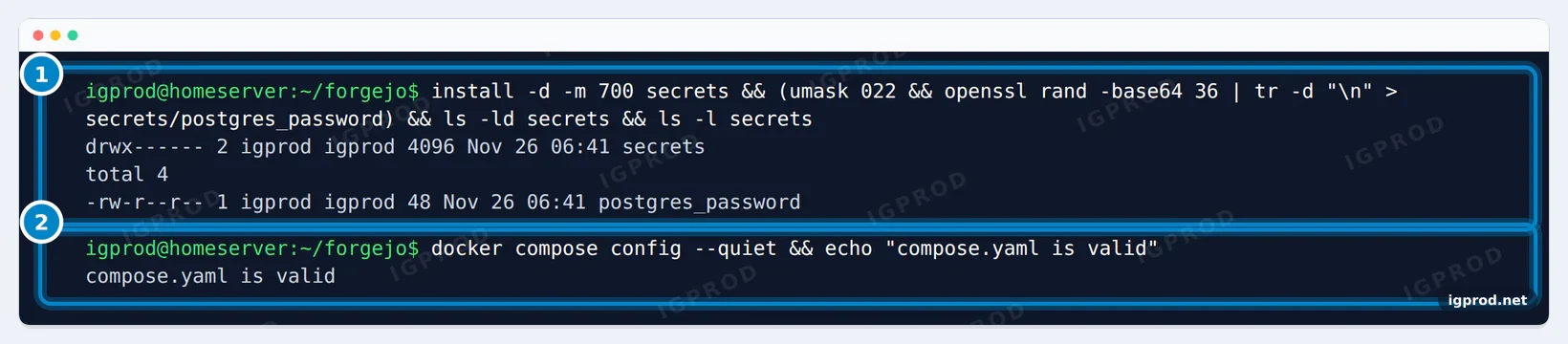
Step 2: Start Forgejo
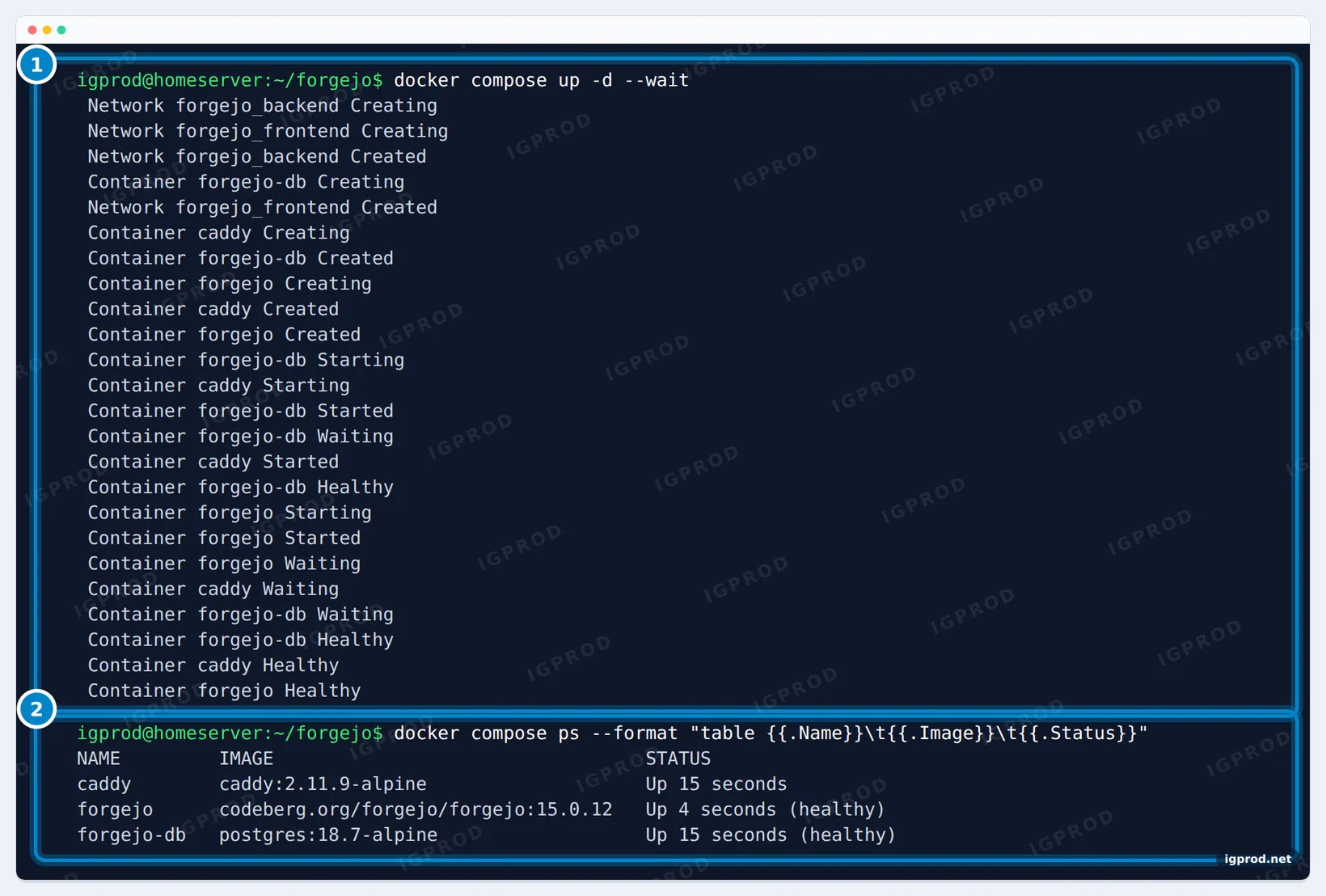
docker compose up -d --wait
docker compose ps --format "table {{.Name}}\t{{.Image}}\t{{.Status}}"
With --wait, Compose returns only when every container with a health check reports healthy. Without the health check, the command came back while Forgejo was still starting, and the first requests in that second or two got 502 from Caddy.
Then read Forgejo's start-up log and the settings it wrote:
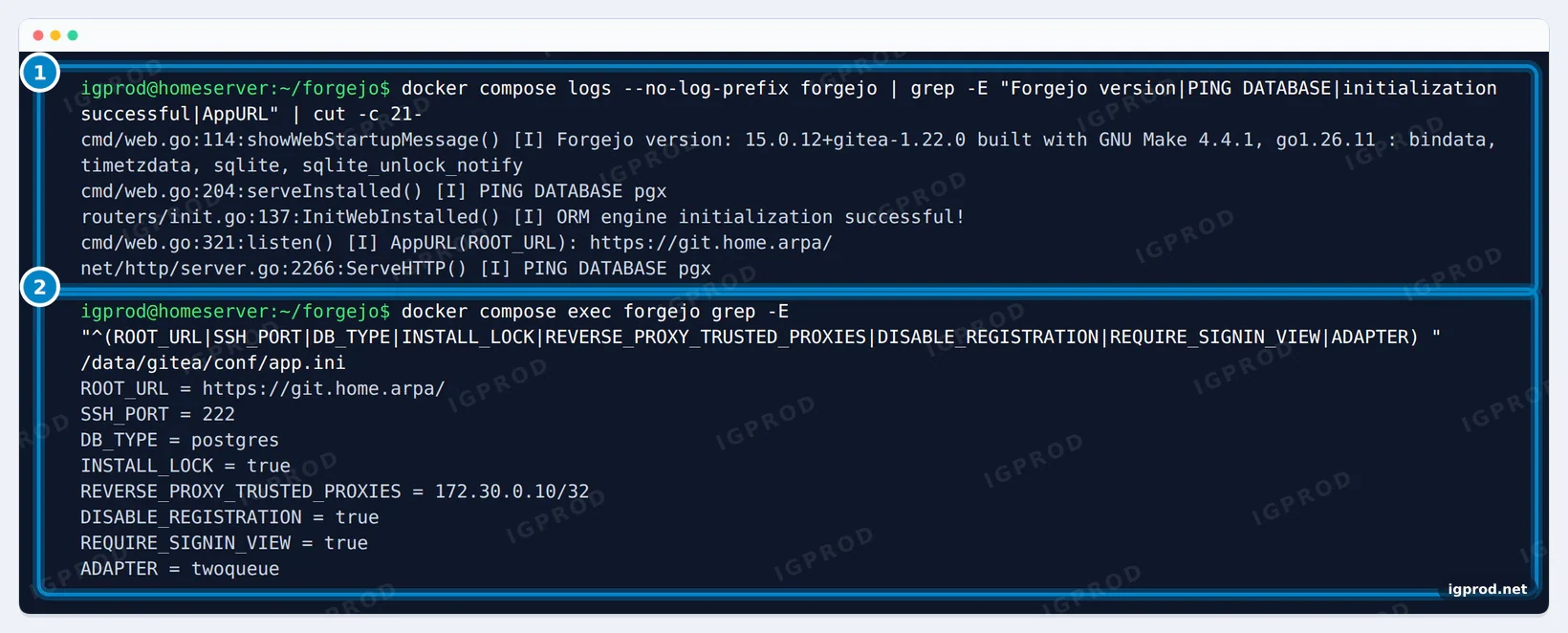
docker compose logs --no-log-prefix forgejo | grep -E "Forgejo version|PING DATABASE|initialization successful|AppURL" | cut -c 21-
docker compose exec forgejo grep -E "^(ROOT_URL|SSH_PORT|DB_TYPE|INSTALL_LOCK|REVERSE_PROXY_TRUSTED_PROXIES|DISABLE_REGISTRATION|REQUIRE_SIGNIN_VIEW|ADAPTER) " /data/gitea/conf/app.ini
The log shows Forgejo 15.0.12 talking to PostgreSQL (PING DATABASE pgx) and its public address https://git.home.arpa/. The environment variables end up in /data/gitea/conf/app.ini, the file Forgejo reads; the folder is still called gitea for compatibility.
Step 3: Create the admin account
docker compose exec -u git forgejo forgejo admin user create --admin --username igprod --email admin@example.com --random-password --must-change-password-u git runs the command as the user that owns Forgejo's files. Keep --must-change-password: Forgejo forces a new password at the first sign-in for every account except the very first one, unless this option is given. Use your own e-mail address instead of admin@example.com. Keep the generated password for Step 4.

Step 4: Reach git.home.arpa over HTTPS
Point the name to the server on every device that uses Forgejo. On the server itself (for the checks below):
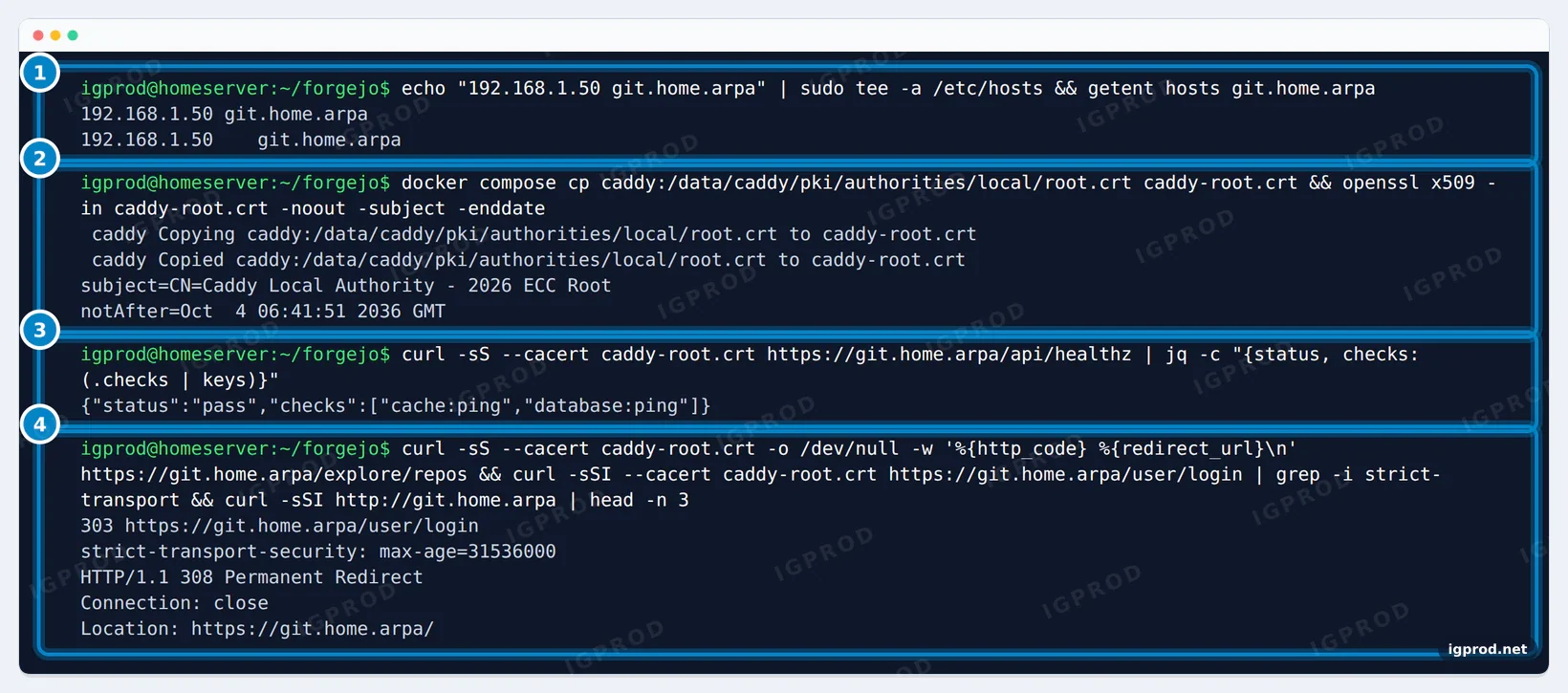
echo "192.168.1.50 git.home.arpa" | sudo tee -a /etc/hosts && getent hosts git.home.arpaCopy Caddy's root certificate out of its container. Install this file as a trusted root on your laptop and phone (and in Step 11 on the runner machine); it is not secret, but keep the server's copy of the matching key safe:
docker compose cp caddy:/data/caddy/pki/authorities/local/root.crt caddy-root.crt && openssl x509 -in caddy-root.crt -noout -subject -enddateThen check that Forgejo, the database and the security settings answer as planned:
curl -sS --cacert caddy-root.crt https://git.home.arpa/api/healthz | jq -c "{status, checks: (.checks | keys)}"
curl -sS --cacert caddy-root.crt -o /dev/null -w '%{http_code} %{redirect_url}\n' https://git.home.arpa/explore/repos && curl -sSI --cacert caddy-root.crt https://git.home.arpa/user/login | grep -i strict-transport && curl -sSI http://git.home.arpa | head -n 3
/api/healthz reports pass for the cache and the database (jq only shortens that answer; install it with sudo apt install jq or leave that part out). The explore page answers 303 to the sign-in page because of REQUIRE_SIGNIN_VIEW, every HTTPS answer carries the HSTS header, and plain HTTP gets a 308 redirect to HTTPS.
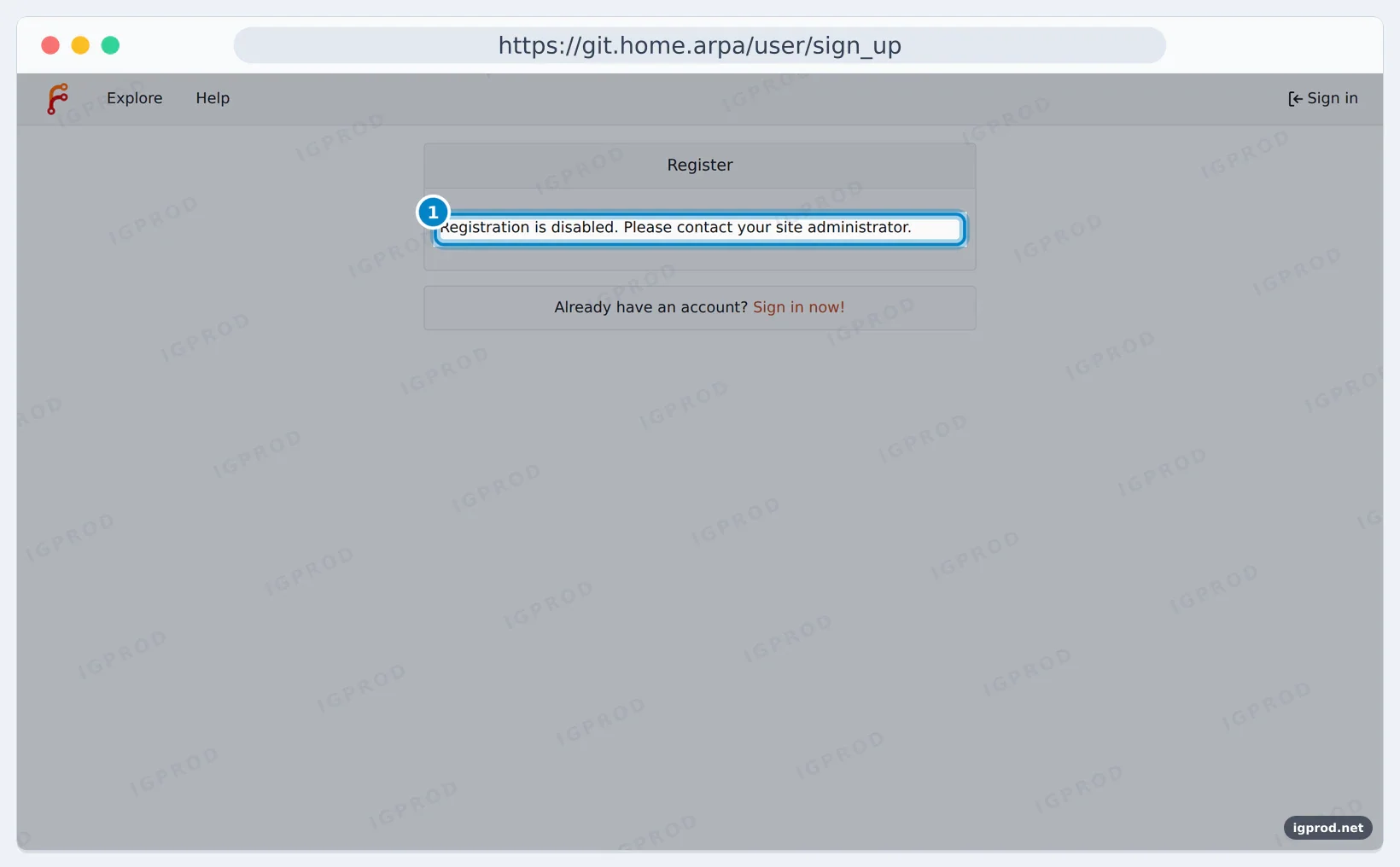
And signed out, the Register page refuses new accounts:
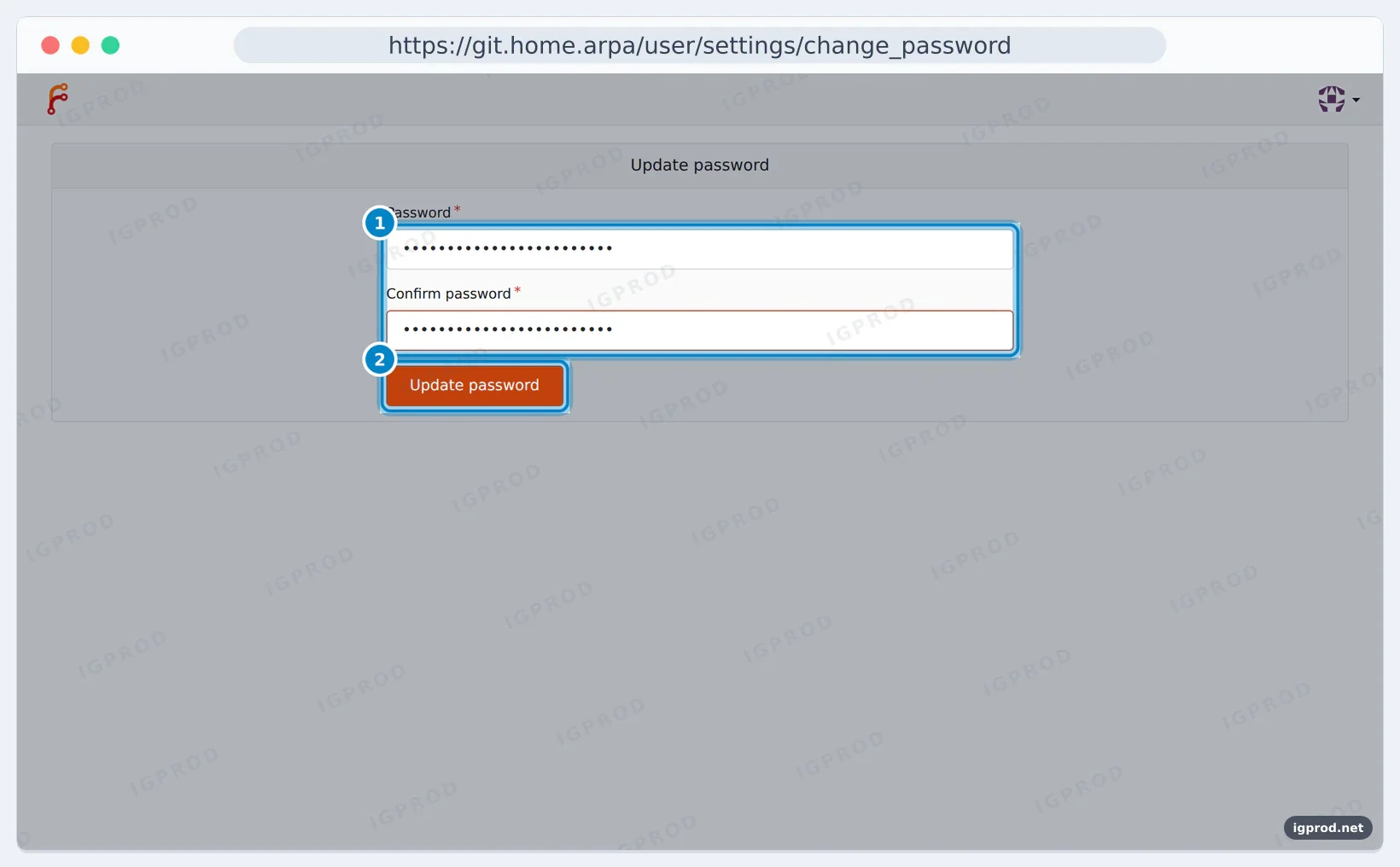
Now open https://git.home.arpa in your browser and sign in as igprod with the password from Step 3. Forgejo asks for a new one right away:
Prefer certificates your browsers already trust? mkcert is another way to get local HTTPS.
Step 5: Turn on two-factor sign-in
- Open your avatar menu, then Settings > Security, and choose Enroll into two-factor authentication.
- Scan the QR code with your authenticator app (or type the secret shown under it).
- Type the six-digit code from the app into Passcode and press Verify.
- Save the single-use recovery key in your password manager. Forgejo shows it once; it is your way in if you lose the phone.
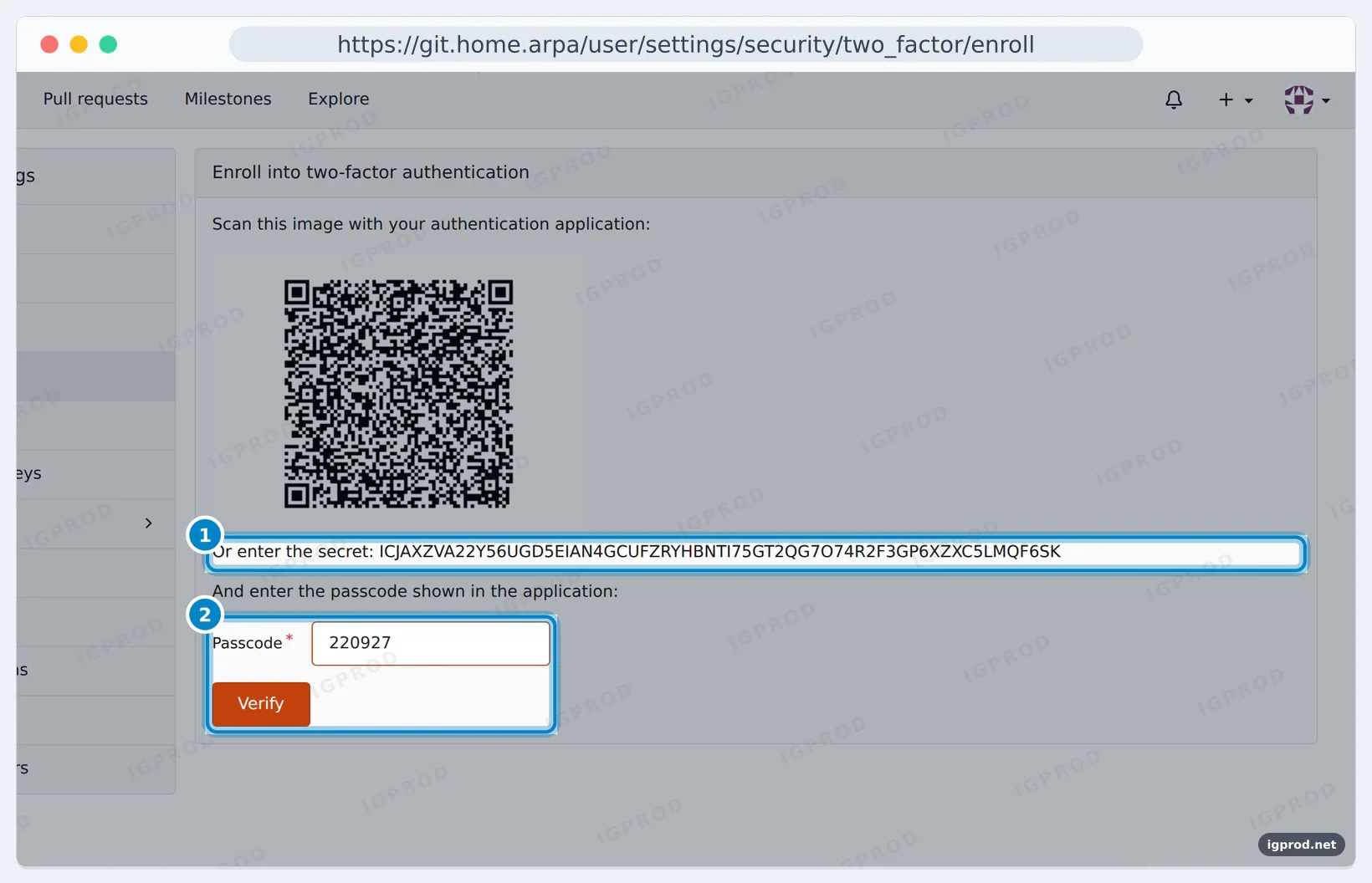
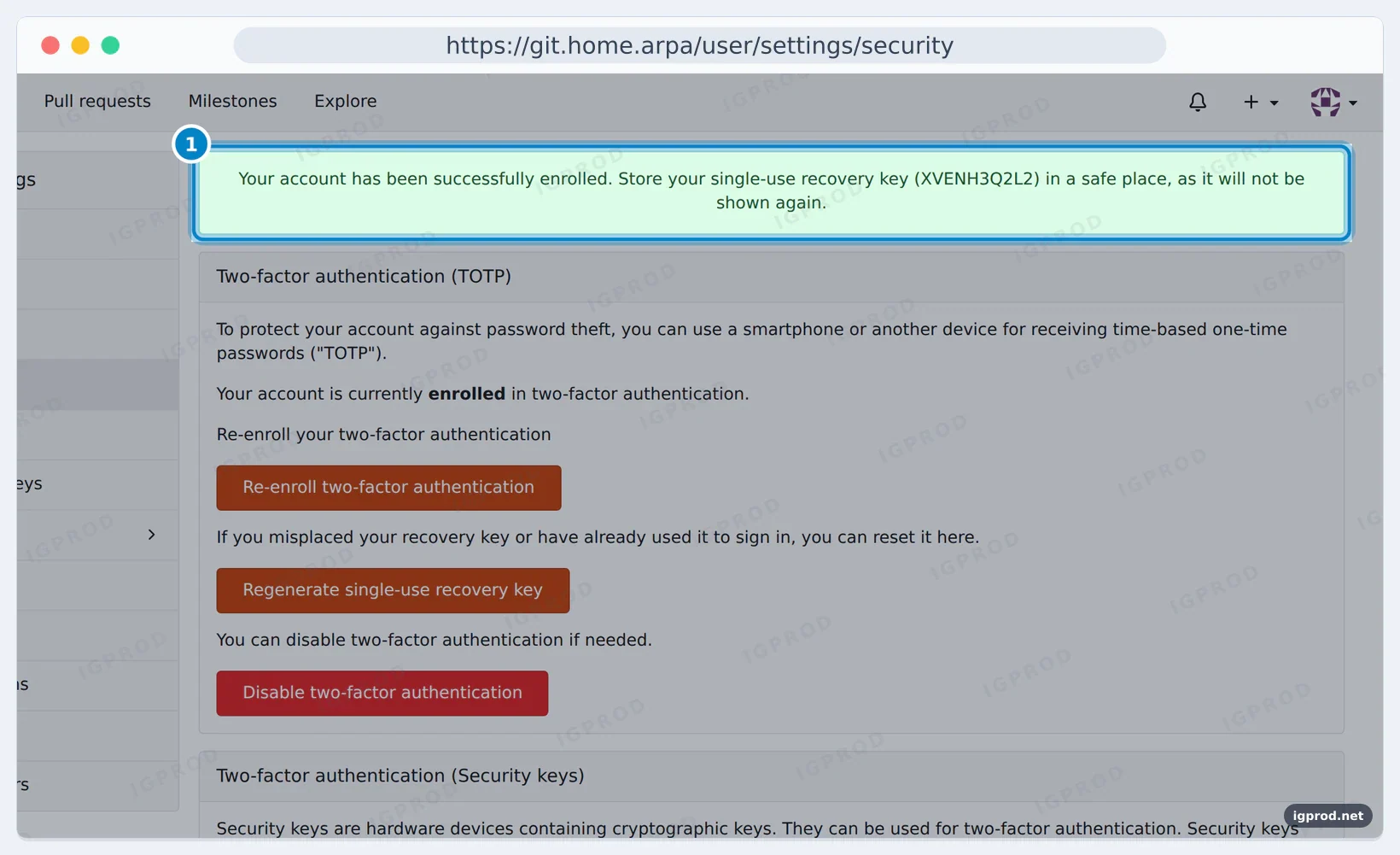
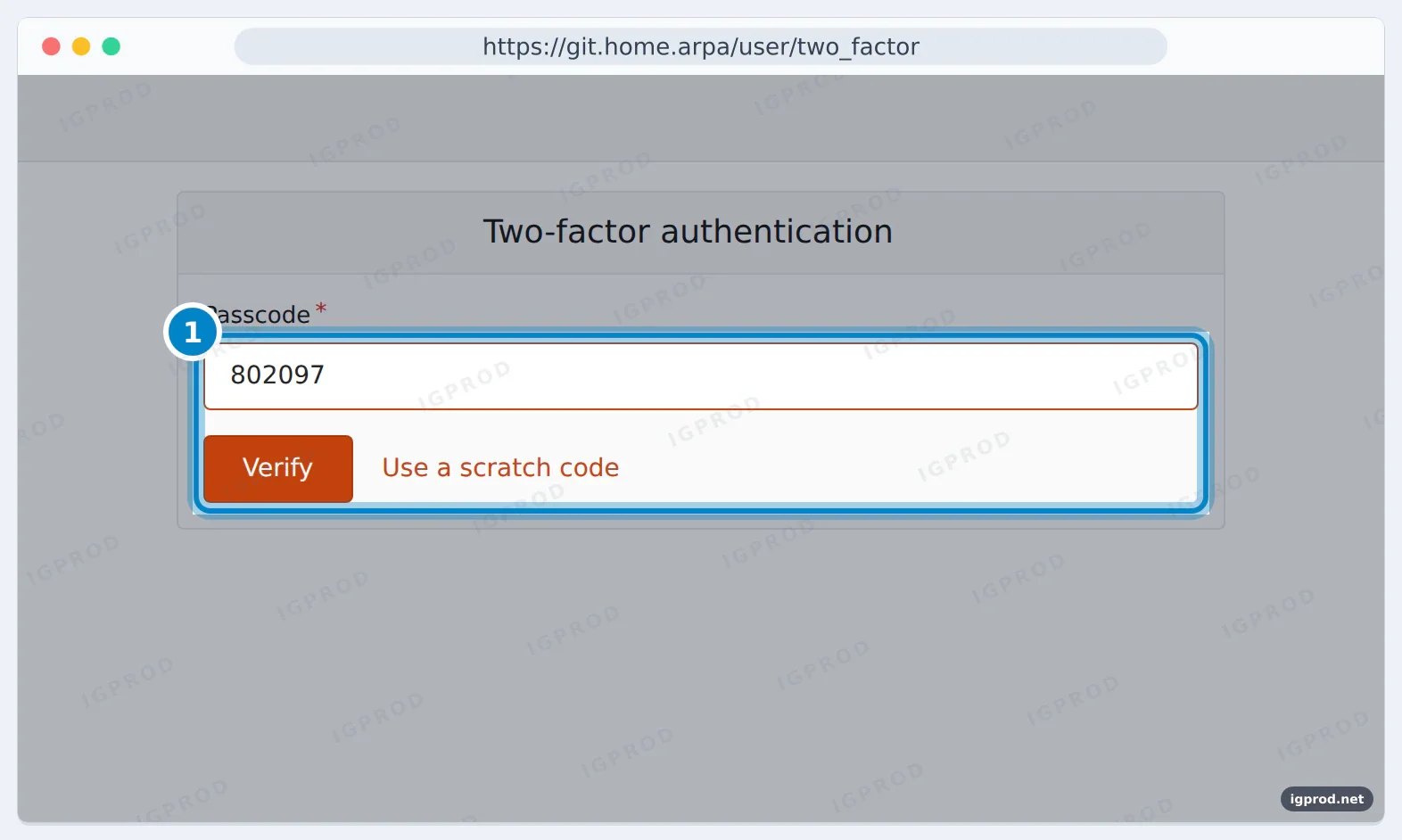
Sign out and back in: after the password, Forgejo asks for a code from the app. The link Use a scratch code on the same page takes the recovery key.
Step 6: Add your SSH key
On the laptop, make a key with a passphrase, load it into your SSH agent so you type the passphrase once per session, and print the public half:
ssh-keygen -t ed25519 -C "igprod@laptop"
ssh-add
ssh-add -l && cat ~/.ssh/id_ed25519.pub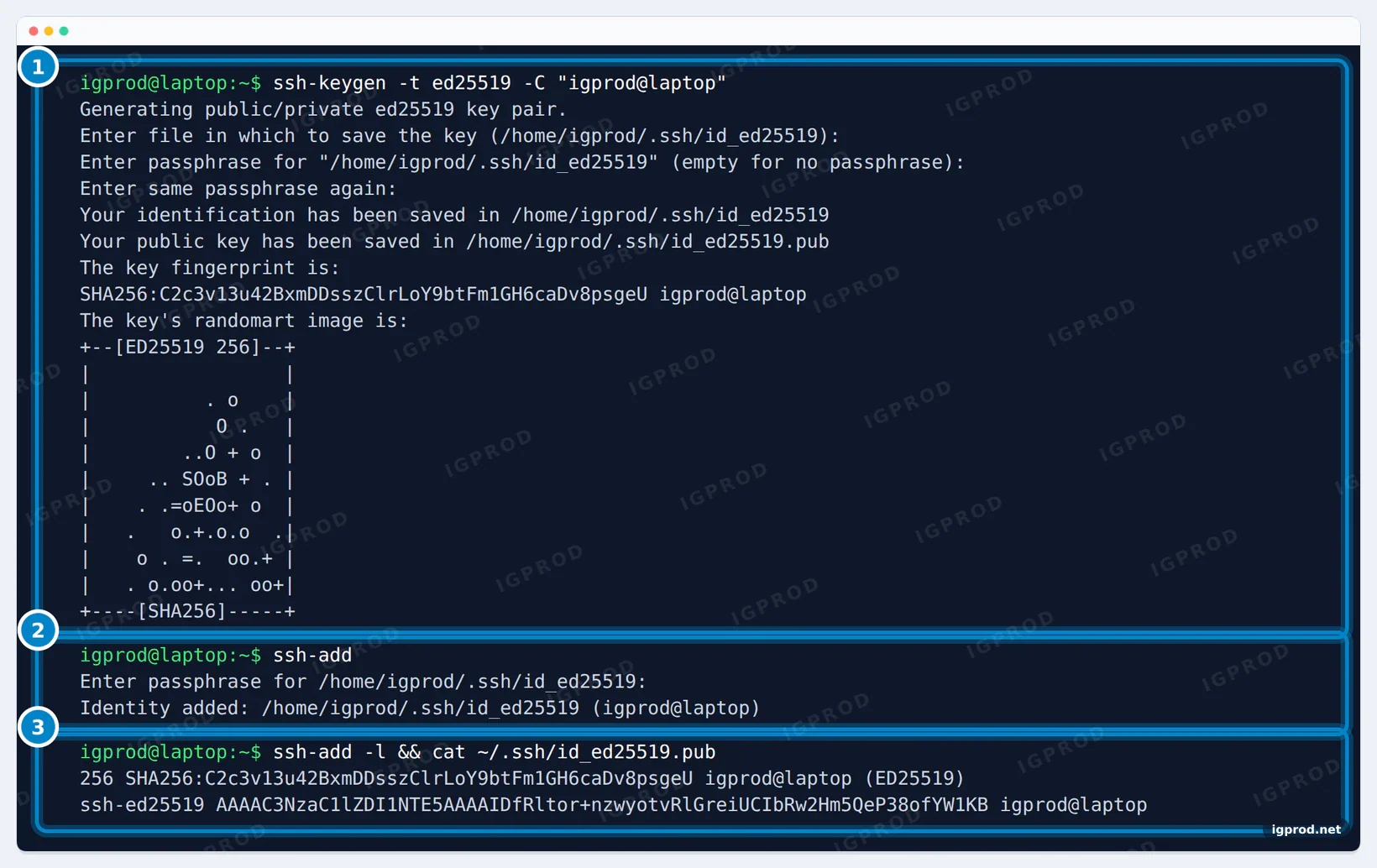
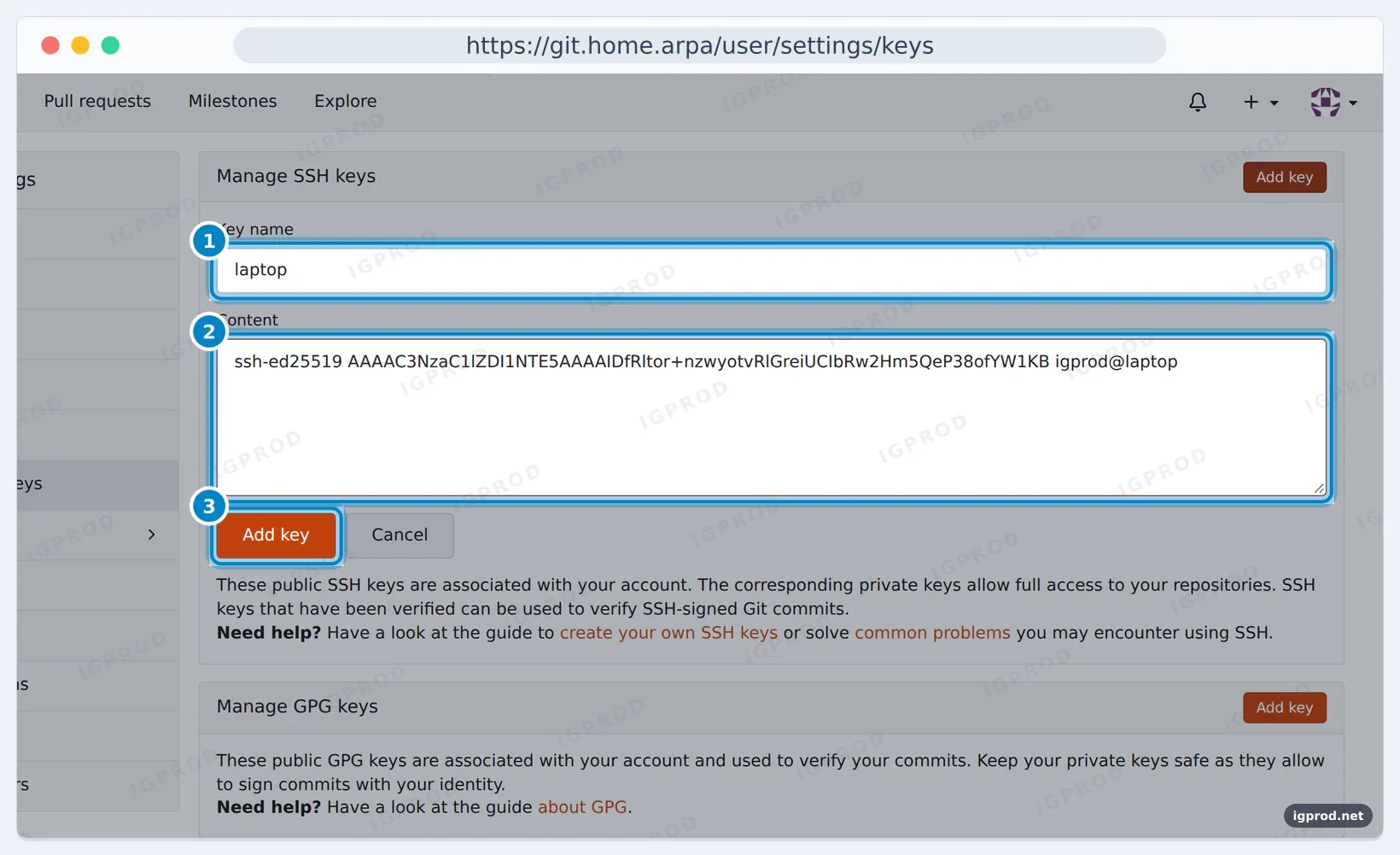
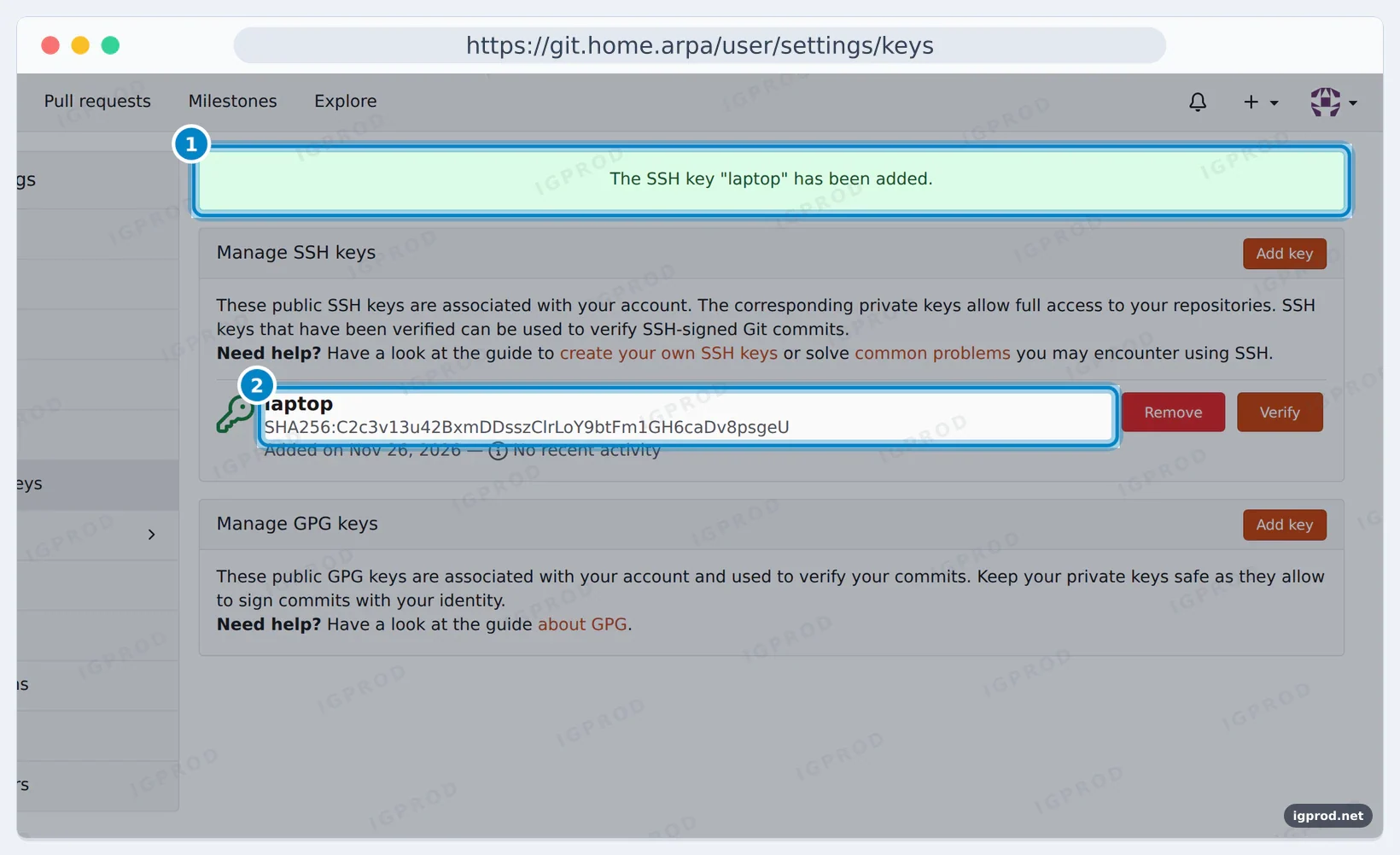
In Forgejo, open Settings > SSH / GPG keys, press Add key next to Manage SSH keys, give the key the device's name and paste the line that starts with ssh-ed25519:
Step 7: Check the server's SSH fingerprint
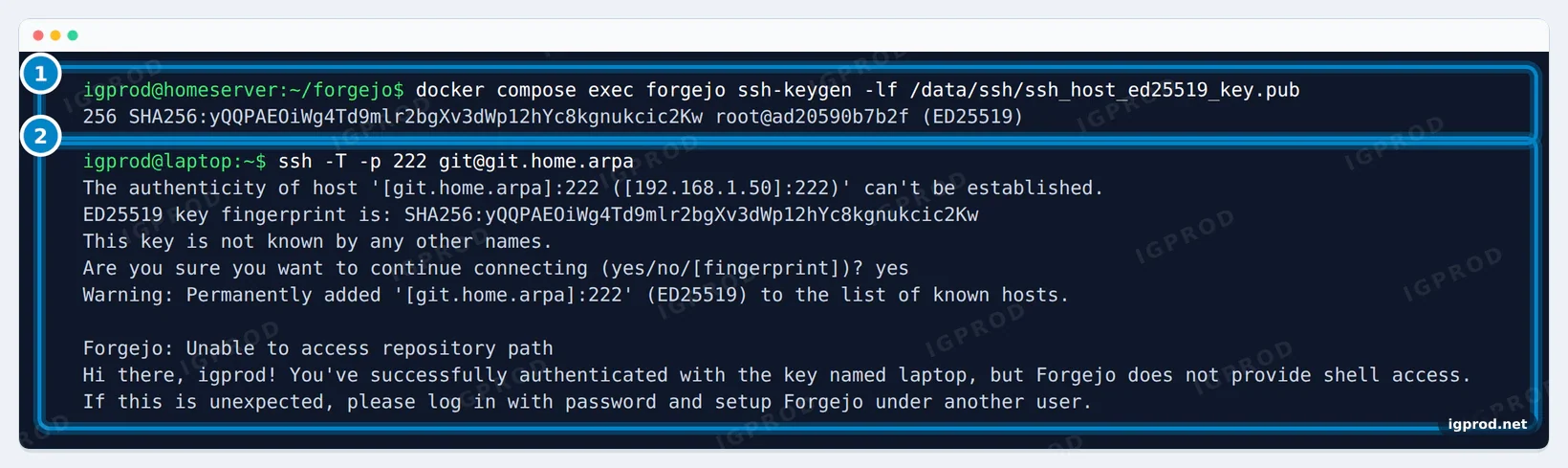
The first SSH connection asks you to trust the server's key. Check it instead of typing yes blindly. On the server:
docker compose exec forgejo ssh-keygen -lf /data/ssh/ssh_host_ed25519_key.pubOn the laptop, compare the fingerprint in the question with that one, and answer yes only if they match:
ssh -T -p 222 git@git.home.arpaBoth showed SHA256:yQQPAEOiWg4Td9mlr2bgXv3dWp12hYc8kgnukcic2Kw. The greeting means the key works; Forgejo never gives a shell. On a brand-new server, the line Forgejo: Unable to access repository path can appear above it: the folder for repositories is created with the first repository, and the line was gone after Step 8.
Step 8: Create a repository and push over SSH
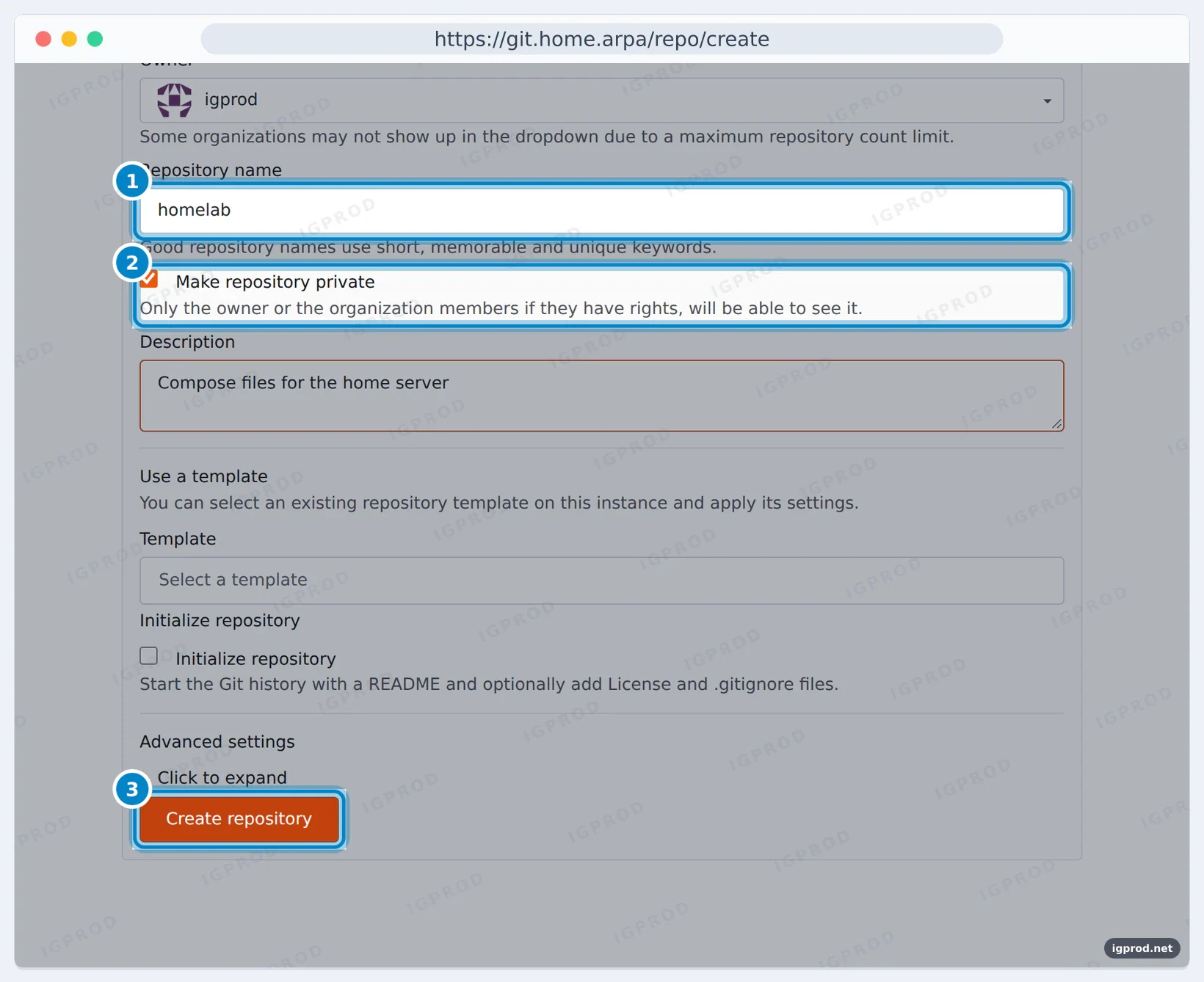
Press + > New repository, name it, tick Make repository private, and leave it empty (you push the first commit):
On the empty repository's page, choose SSH to see the clone address:
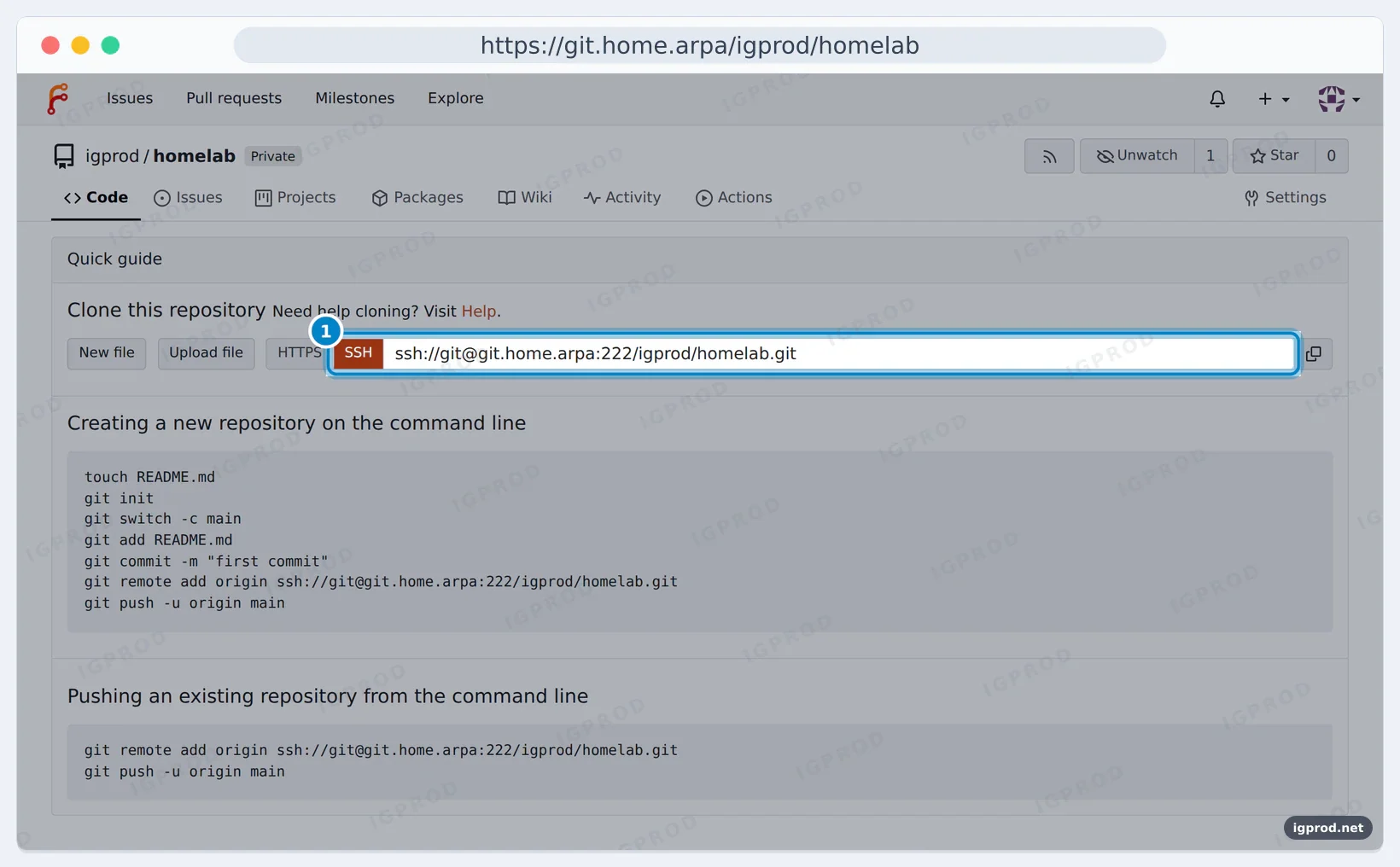
On the laptop, set the name and e-mail that go into commits, clone, add a file and push:
git config --global user.name "igprod" && git config --global user.email admin@example.com && git config --global init.defaultBranch main
git clone ssh://git@git.home.arpa:222/igprod/homelab.git
cd homelab && printf "# homelab\n\nCompose files for the home server.\n" > README.md && git add README.md && git commit -m "Add README" && git push -u origin main
ssh -T -p 222 git@git.home.arpa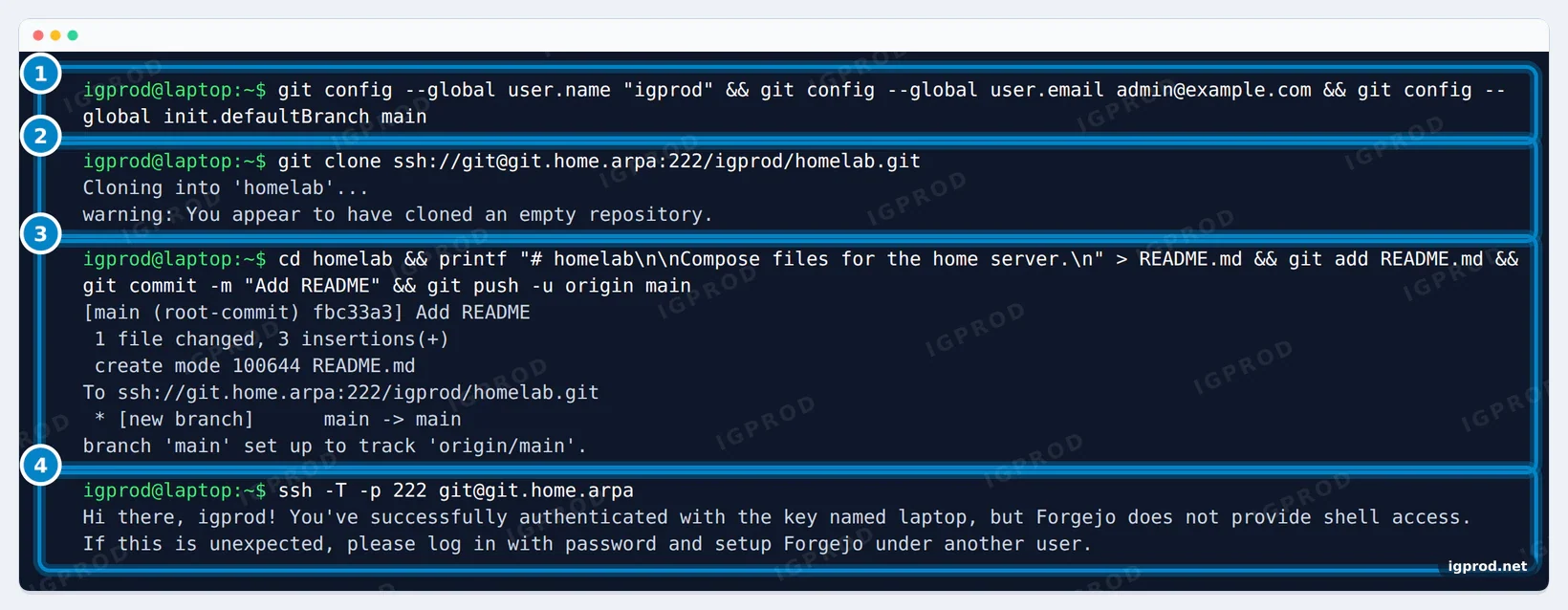
Step 9: Check that nobody can fake their address
Forgejo writes each client's address into its log, and tools such as fail2ban read it from there to block attackers. Behind Caddy, the real address arrives in the X-Forwarded-For header. The question is whose header Forgejo believes.
We first ran Forgejo without the REVERSE_PROXY_TRUSTED_PROXIES line. Forgejo 15's container then trusts every proxy, and a container on the same Docker network could pick the address Forgejo logs:
docker compose exec forgejo grep -E "^REVERSE_PROXY_(LIMIT|TRUSTED_PROXIES) " /data/gitea/conf/app.ini
docker run --rm --network forgejo_frontend alpine:3.24 wget -qO /dev/null --header "X-Forwarded-For: 203.0.113.9" "http://forgejo:3000/api/healthz?spoof-test" && docker compose logs --no-log-prefix forgejo | grep "spoof-test" | cut -c 21-
Forgejo's docs carry a security note for v15 LTS about this default (* in container images before 16.0.0): with a web port that others can reach and reverse-proxy sign-in (ENABLE_REVERSE_PROXY_AUTHENTICATION) turned on, it "can have devastating consequences to security", because Forgejo would then believe any client about who they are. Version 16 changed the default; 15 LTS keeps it, so set the line yourself. With the line from Step 1, Forgejo believes the header only from Caddy's address. The same test again:
docker run --rm --network forgejo_frontend alpine:3.24 wget -qO /dev/null --header "X-Forwarded-For: 203.0.113.9" "http://forgejo:3000/api/healthz?spoof-test" && docker compose logs --no-log-prefix forgejo | grep "spoof-test" | cut -c 21-Then, from the laptop, send the same fake header through Caddy (caddy-root.crt is the file from Step 4, copied to the laptop):
curl -sS --cacert caddy-root.crt -o /dev/null -w "%{http_code}\n" -H "X-Forwarded-For: 203.0.113.9" "https://git.home.arpa/api/healthz?from-laptop"And on the server, read what Forgejo logged for it:
docker compose logs --no-log-prefix forgejo | grep "from-laptop" | cut -c 21-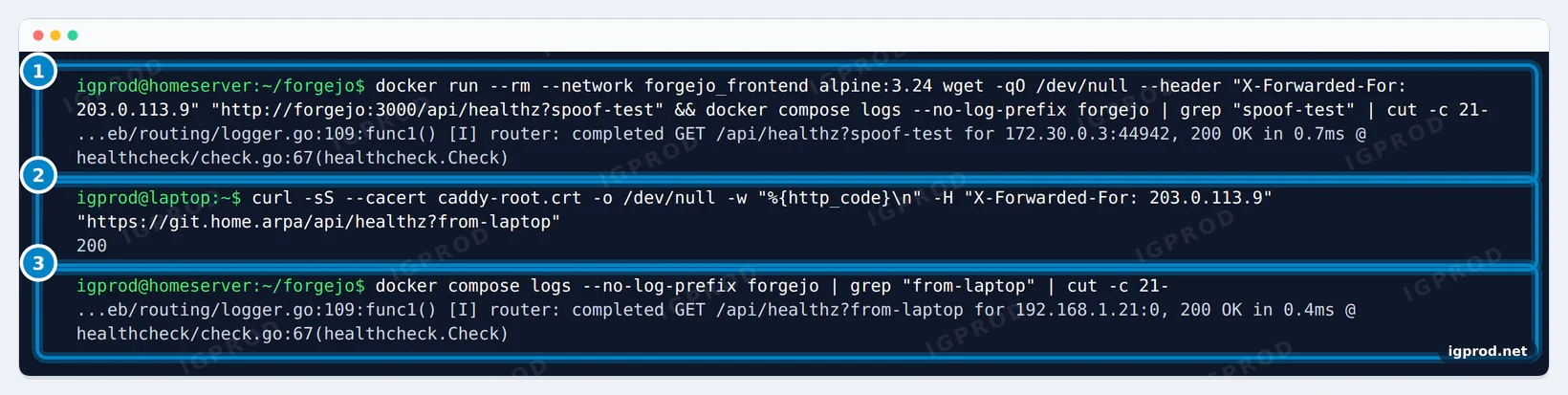
The fake 203.0.113.9 is gone in both cases: the container shows up as itself, and the laptop shows up as 192.168.1.21, because Caddy sets the header itself instead of passing on the client's. Real client IPs behind a reverse proxy explains the same idea for Nginx Proxy Manager, and CrowdSec vs Fail2ban shows why bans need the right address.
Step 10: Register a Forgejo Actions runner
Forgejo Actions runs CI jobs (tests, builds, checks) when you push, with workflows written like GitHub Actions. The jobs run on a separate program, Forgejo Runner. Put it on its own machine: a workflow is code that anyone with write access to a repository can change, and Forgejo's security notes describe what a hostile workflow can reach. On a separate box, the worst case is that box, not the server with your repositories and database.
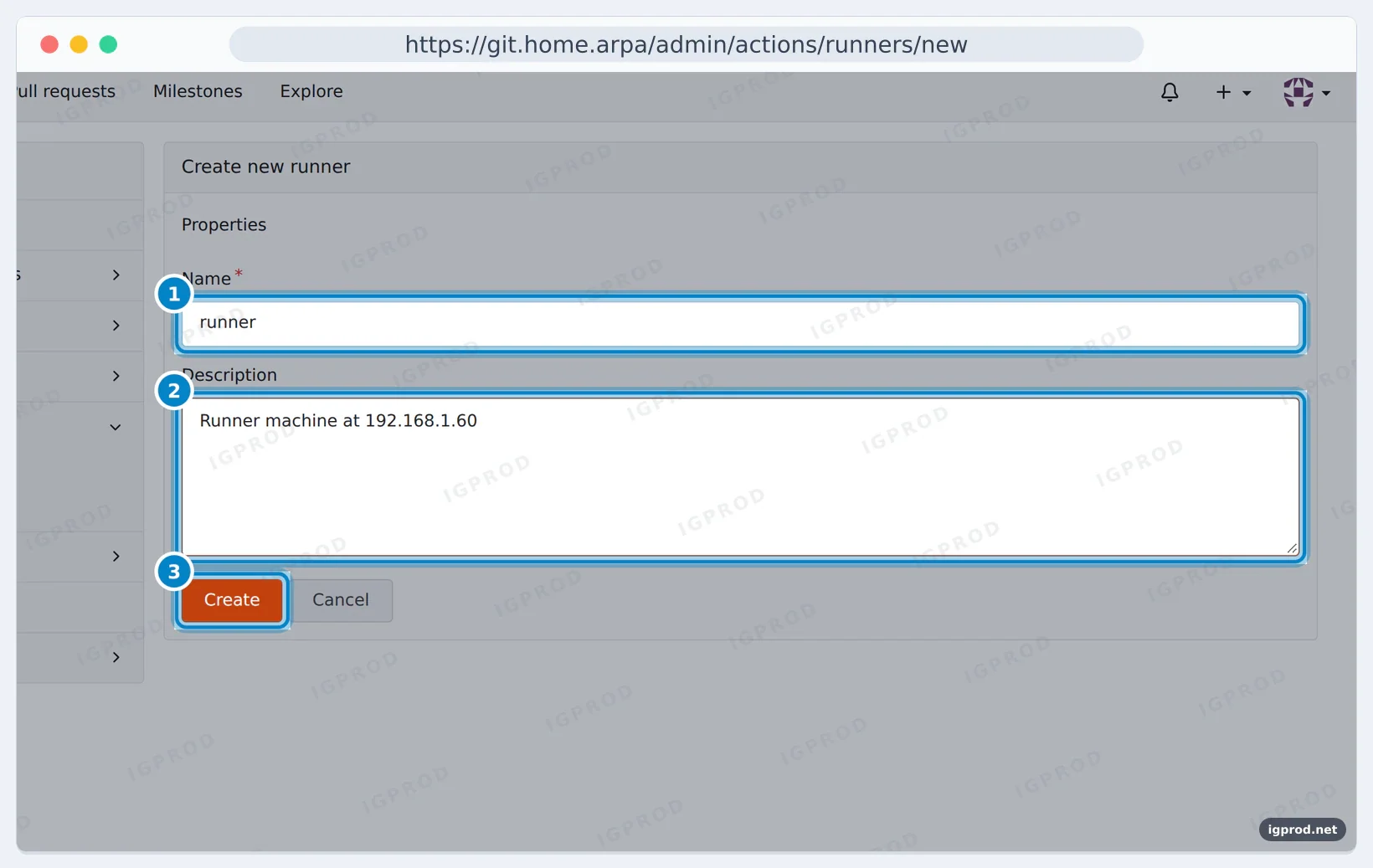
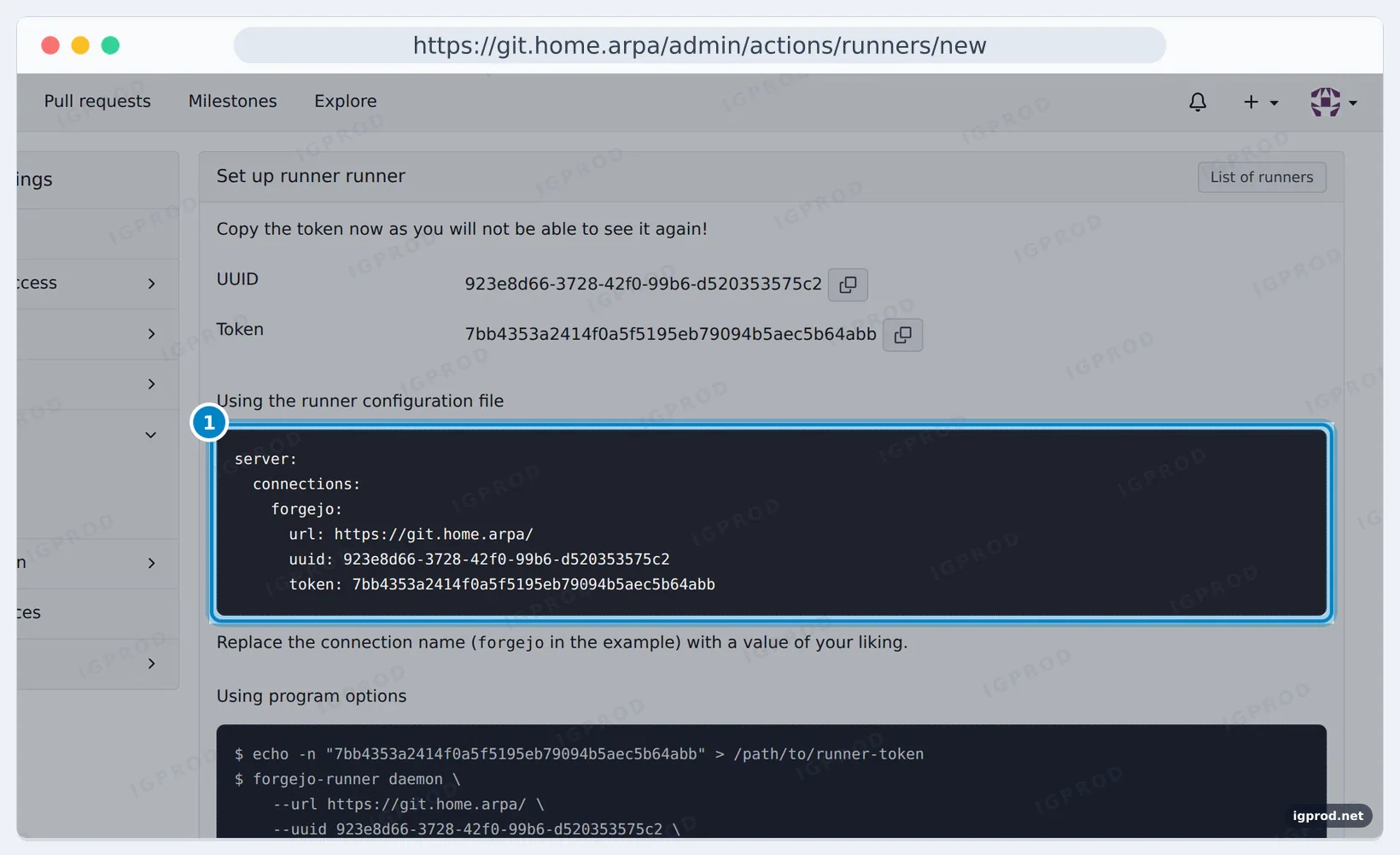
- Open Site administration > Actions > Runners and press Create new runner. A runner made here serves every repository on the server.
- Give it a name and a description, then press Create.
- Copy the UUID and the token from the next page. In Forgejo's words: "Copy the token now as you will not be able to see it again!"
Step 11: Set up the runner machine
On the runner machine, make a folder for the runner and its data:
mkdir -p ~/forgejo-runner/data && cd ~/forgejo-runnerThe runner must reach git.home.arpa and trust Caddy's certificate. Copy caddy-root.crt from the server's ~/forgejo folder into this folder (with scp or a USB stick), then:
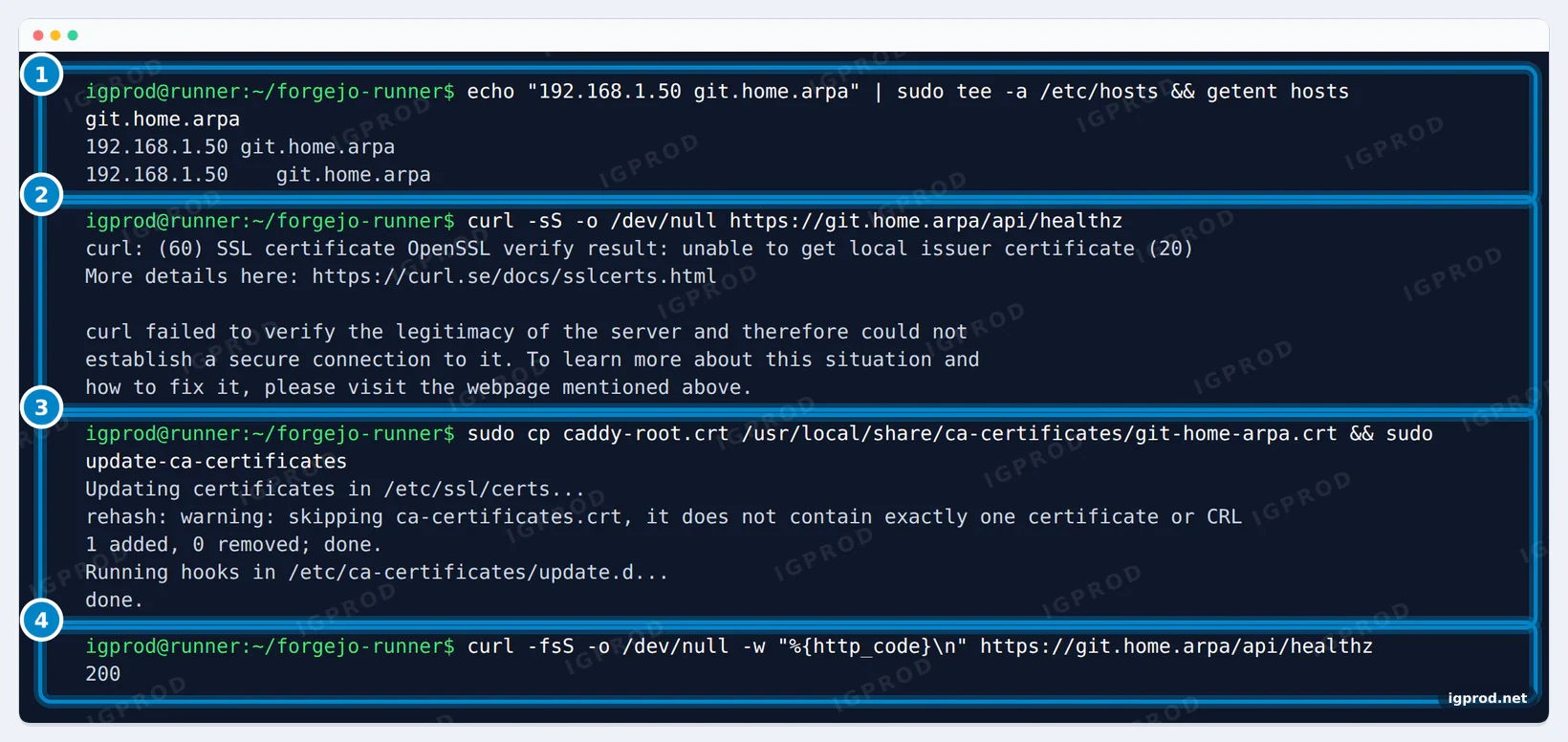
echo "192.168.1.50 git.home.arpa" | sudo tee -a /etc/hosts && getent hosts git.home.arpa
curl -sS -o /dev/null https://git.home.arpa/api/healthz
sudo cp caddy-root.crt /usr/local/share/ca-certificates/git-home-arpa.crt && sudo update-ca-certificates
curl -fsS -o /dev/null -w "%{http_code}\n" https://git.home.arpa/api/healthz
The first curl fails with error 60: the machine does not know Caddy's certificate authority yet. update-ca-certificates adds it to the system list (the rehash warning is normal on Ubuntu), and the second curl gets 200. With a public domain and a public certificate you would skip the certificate part, and with a home DNS record you would skip the hosts line.
Create ~/forgejo-runner/compose.yaml:
name: forgejo-runner

services:
  runner:
    image: data.forgejo.org/forgejo/runner:13.2.2
    container_name: forgejo-runner
    restart: unless-stopped
    command: forgejo-runner daemon --config /data/config.yml
    group_add:
      - "${DOCKER_GID}"
    volumes:
      - ./data:/data
      - /var/run/docker.sock:/var/run/docker.sock
      - /etc/ssl/certs/ca-certificates.crt:/etc/ssl/certs/ca-certificates.crt:ro
    extra_hosts:
      - "git.home.arpa:192.168.1.50"
And ~/forgejo-runner/data/config.yml, with the UUID from Step 10:
log:
  level: info

runner:
  timeout: 1h
  # Node-based actions (actions/checkout) trust the home certificate authority too.
  envs:
    NODE_EXTRA_CA_CERTS: /etc/ssl/certs/ca-certificates.crt
  labels:
    - docker:docker://node:26-trixie

cache:
  enabled: false

container:
  # Each job gets its own network, no privileges and no Docker socket.
  network: ""
  privileged: false
  docker_host: "-"
  # Jobs reach git.home.arpa and trust its certificate.
  options: --add-host=git.home.arpa:192.168.1.50 --volume /etc/ssl/certs/ca-certificates.crt:/etc/ssl/certs/ca-certificates.crt:ro
  valid_volumes:
    - /etc/ssl/certs/ca-certificates.crt

server:
  connections:
    forgejo:
      url: https://git.home.arpa/
      uuid: PASTE-THE-RUNNER-UUID-HERE
      token_url: file:/data/runner-token
The settings that matter:
labels: a workflow that saysruns-on: dockerruns in a freshnode:26-trixiecontainer (Debian with Node.js 26 and Git).token_urlreads the token from the file, soconfig.ymlholds no secret and you can keep it in Git.privileged: false,network: ""anddocker_host: "-"are the defaults; keep them. A privileged job could take over the runner machine, an empty network gives each job its own isolated network, and"-"keeps the Docker socket out of the jobs.optionsandvalid_volumesgive every job the namegit.home.arpaand the machine's certificate list (which now includes Caddy's), soactions/checkoutcan fetch your code over HTTPS.NODE_EXTRA_CA_CERTSdoes the same for actions written in Node.js.cacheis off: the runner's cache server needs extra network setup between jobs and the runner. Jobs work without it; they only download their dependencies again.
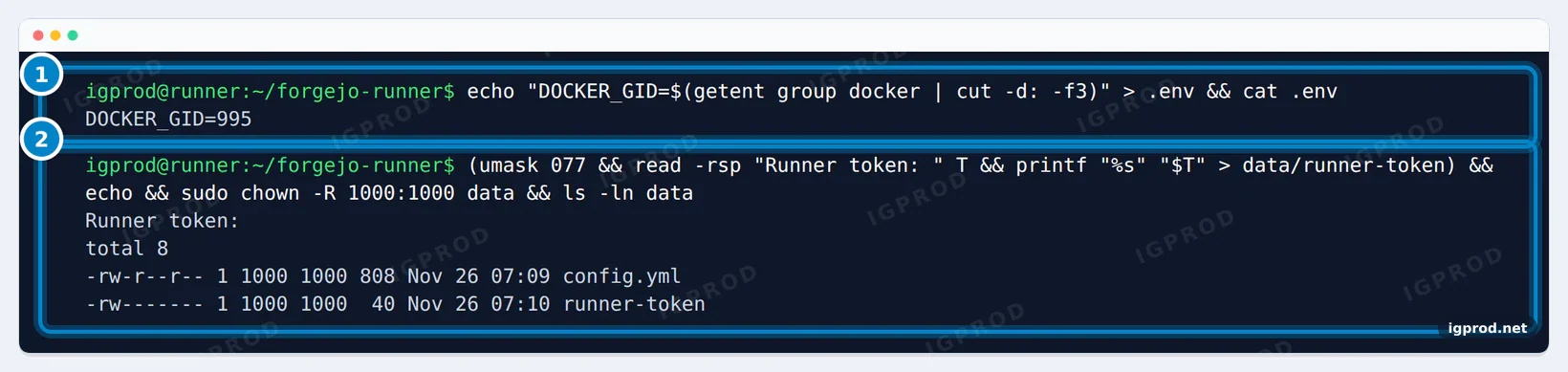
The runner container needs two more things from this machine: the number of the docker group, so it may use the Docker socket, and the token, in a file only it can read. The token prompt does not show what you paste, and the token stays out of your shell history:
echo "DOCKER_GID=$(getent group docker | cut -d: -f3)" > .env && cat .env
(umask 077 && read -rsp "Runner token: " T && printf "%s" "$T" > data/runner-token) && echo && sudo chown -R 1000:1000 data && ls -ln data
The runner image runs as user 1000, so data and both files in it belong to that user. runner-token is 600: no one else on the machine can read it.
Start the runner and read its log:
docker compose config --quiet && echo "compose.yaml is valid"
docker compose up -d
docker compose logs --no-log-prefix runner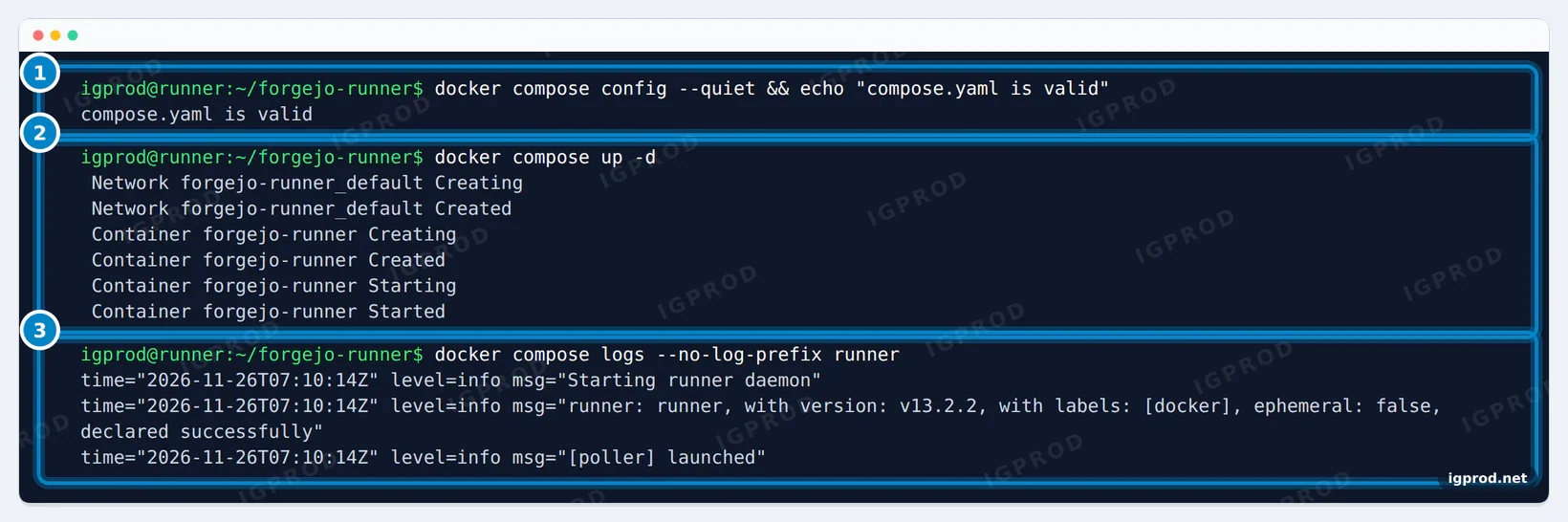
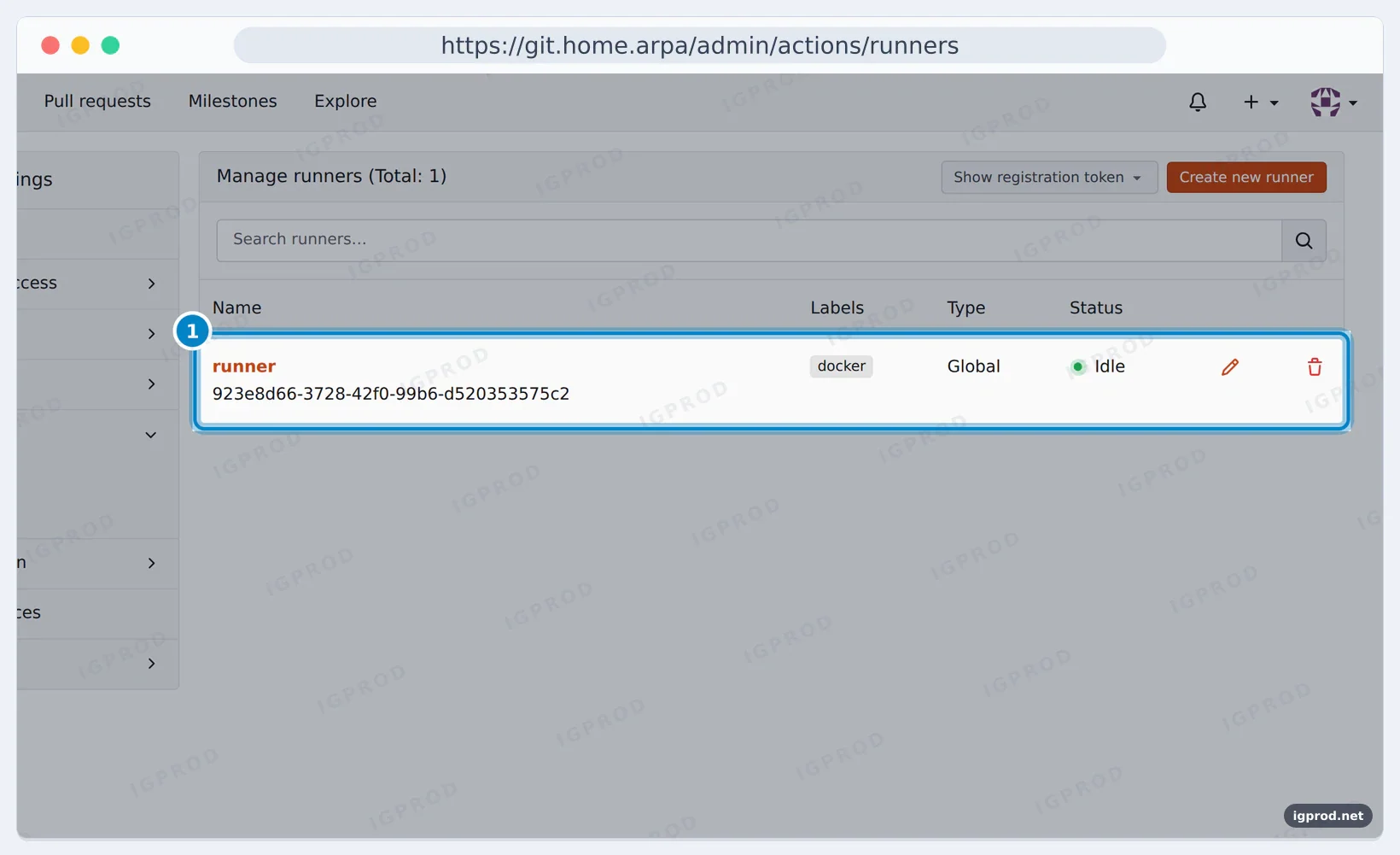
Back in Site administration > Actions > Runners, the runner shows as Idle, with the label docker:
Step 12: Run your first workflow
Workflows live in .forgejo/workflows/ in the repository. On the laptop, create ~/homelab/.forgejo/workflows/check.yaml:
name: check
on: [push]

jobs:
  check:
    runs-on: docker
    steps:
      - uses: actions/checkout@v7
      - name: Show what was checked out
        run: |
          git log -1 --oneline
          cat README.md
actions/checkout@v7 comes from data.forgejo.org, Forgejo's own copy of common actions (the runner log names it for each task). Commit and push:
cd homelab && git add .forgejo/workflows/check.yaml && git commit -m "Add a check workflow" && git push
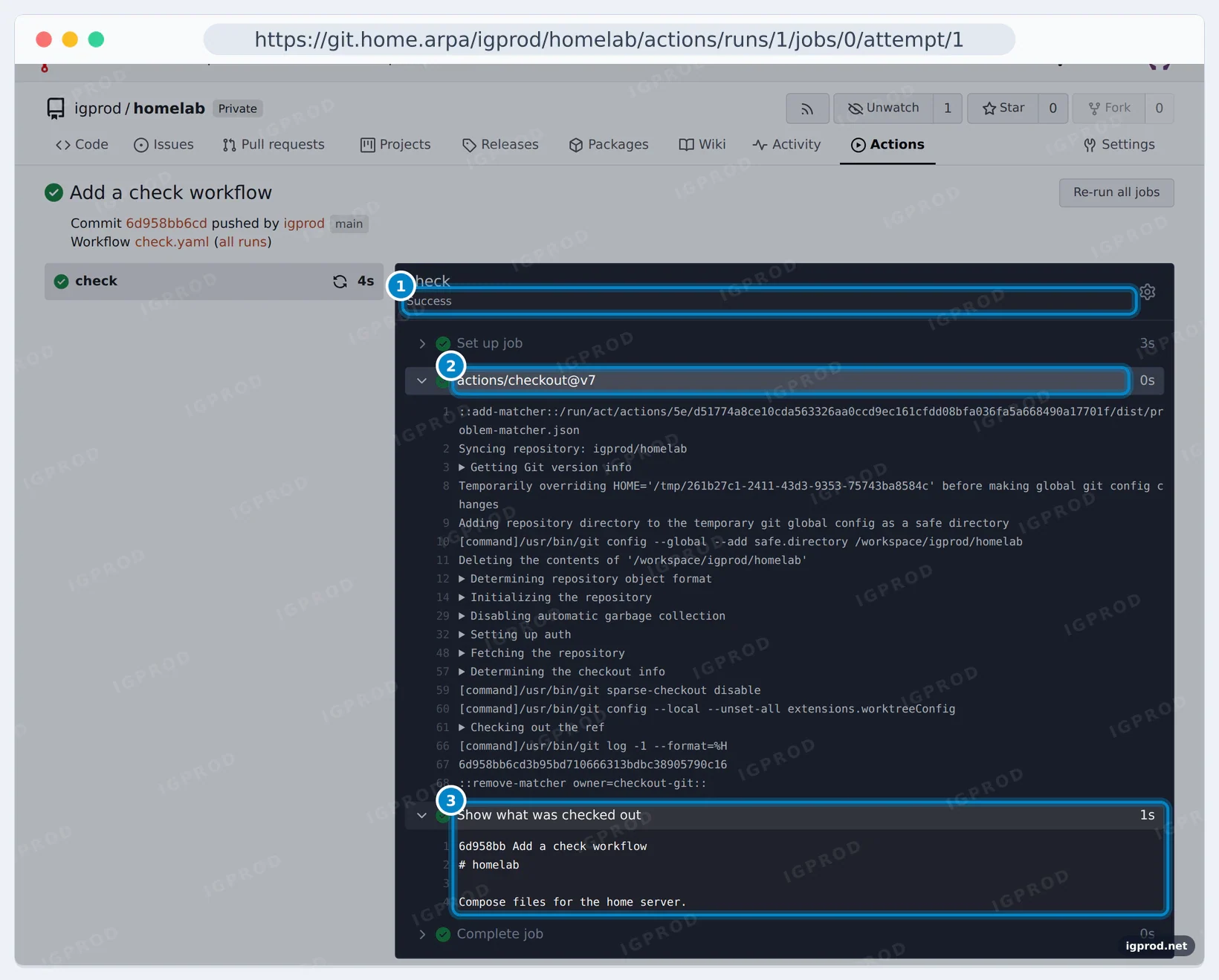
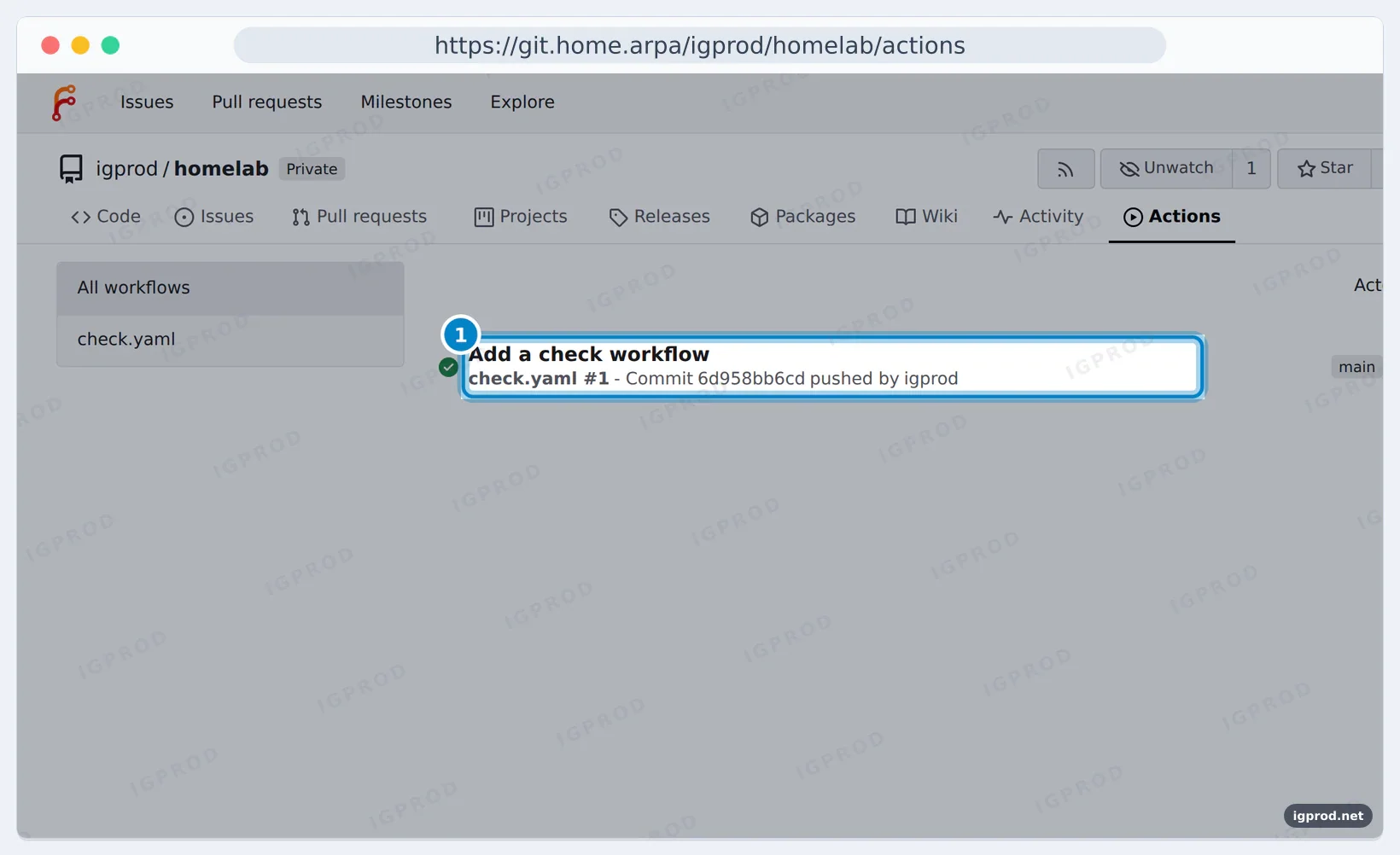
The run shows up under the repository's Actions tab. It passed in 4 seconds; the job page at the top of this guide shows its log: actions/checkout fetched the code over HTTPS, and the next step printed the commit and the README.
A useful next workflow for a repository of Compose files: scan it for leaked secrets on every push with Gitleaks.
Step 13: Back up every night
Forgejo keeps data in two places: the database and the data folder (repositories, SSH host keys, app.ini with its secret keys). Its docs strongly recommend stopping Forgejo during a backup, so both match. This script stops Forgejo, dumps the database, packs the folder (without the raw database files, which the dump replaces) and starts Forgejo again, even if a step fails. Save it as ~/forgejo/backup.sh; change the two paths if your user is not igprod:
#!/bin/sh
# Forgejo backup: a database dump and the files, with Forgejo stopped for a consistent copy.
set -eu
DIR=/home/igprod/forgejo
DEST=/home/igprod/forgejo-backups
DAY=$(date +%F)

install -d -m 700 "$DEST"
cd "$DIR"
docker compose stop forgejo
trap 'docker compose start forgejo' EXIT
docker compose exec -T db pg_dump -U forgejo -d forgejo -Fc > "$DEST/forgejo-db-$DAY.dump"
tar czf "$DEST/forgejo-files-$DAY.tar.gz" --exclude=./db -C "$DIR" .
# Two weeks of backups stay on this disk. Copy them to another disk as well.
find "$DEST" -name 'forgejo-*' -mtime +14 -delete
Two systemd units run it every night. ~/forgejo/forgejo-backup.service:
[Unit]
Description=Forgejo backup (database dump and files)
Requires=docker.service
After=docker.service

[Service]
Type=oneshot
ExecStart=/usr/local/sbin/forgejo-backup
~/forgejo/forgejo-backup.timer (Persistent=true runs a missed backup after the server was off at 03:30):
[Unit]
Description=Daily Forgejo backup

[Timer]
OnCalendar=*-*-* 03:30:00
Persistent=true

[Install]
WantedBy=timers.target
Install them, enable the timer and check the next run:
sudo install -m 750 backup.sh /usr/local/sbin/forgejo-backup && sudo install -m 644 forgejo-backup.service forgejo-backup.timer /etc/systemd/system/ && sudo systemctl daemon-reload && sudo systemctl enable --now forgejo-backup.timer
systemctl list-timers forgejo-backup.timer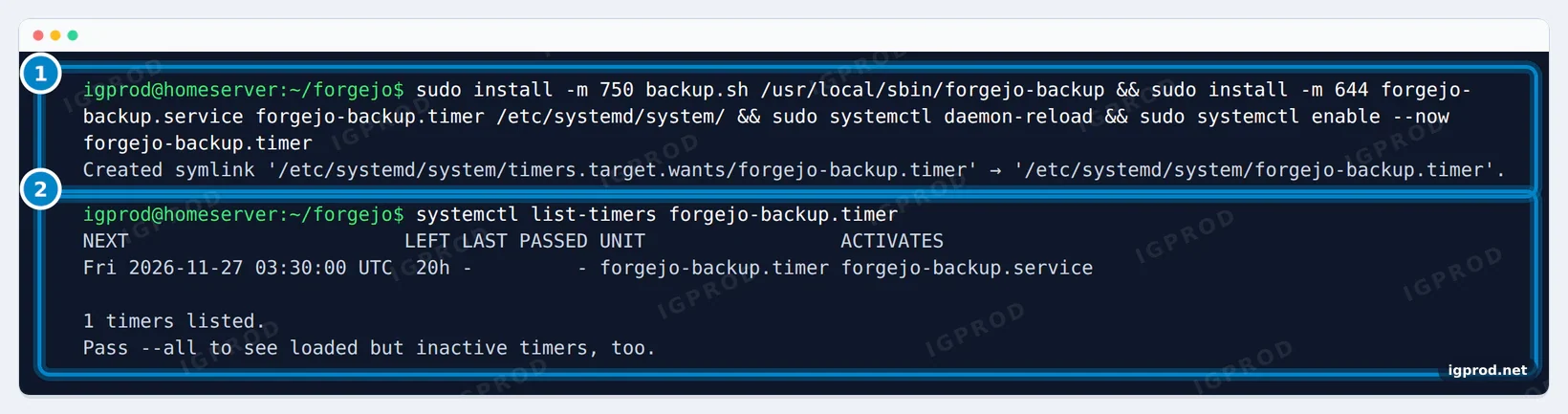
Run it once now and look at what it wrote:
sudo systemctl start forgejo-backup.service && sudo ls -l ~/forgejo-backups
sudo tar tzf ~/forgejo-backups/forgejo-files-$(date +%F).tar.gz | grep -E "app.ini|ssh_host_ed25519_key$|homelab.git/HEAD|root.key|postgres_password"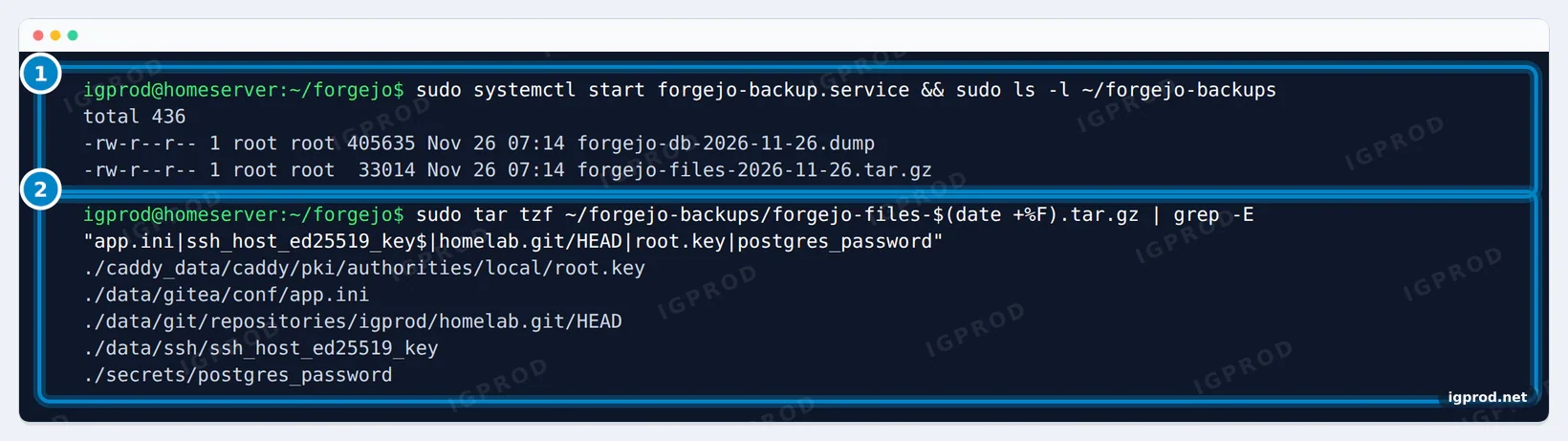
The archive holds Caddy's certificate authority key, app.ini with Forgejo's secret keys, the repositories, the SSH host key and the database password. Treat it like a password safe: the folder is 700 and owned by root, and any copy you keep elsewhere should be encrypted. Keep one copy off this machine (another disk or your NAS): a backup on the same disk dies with it.
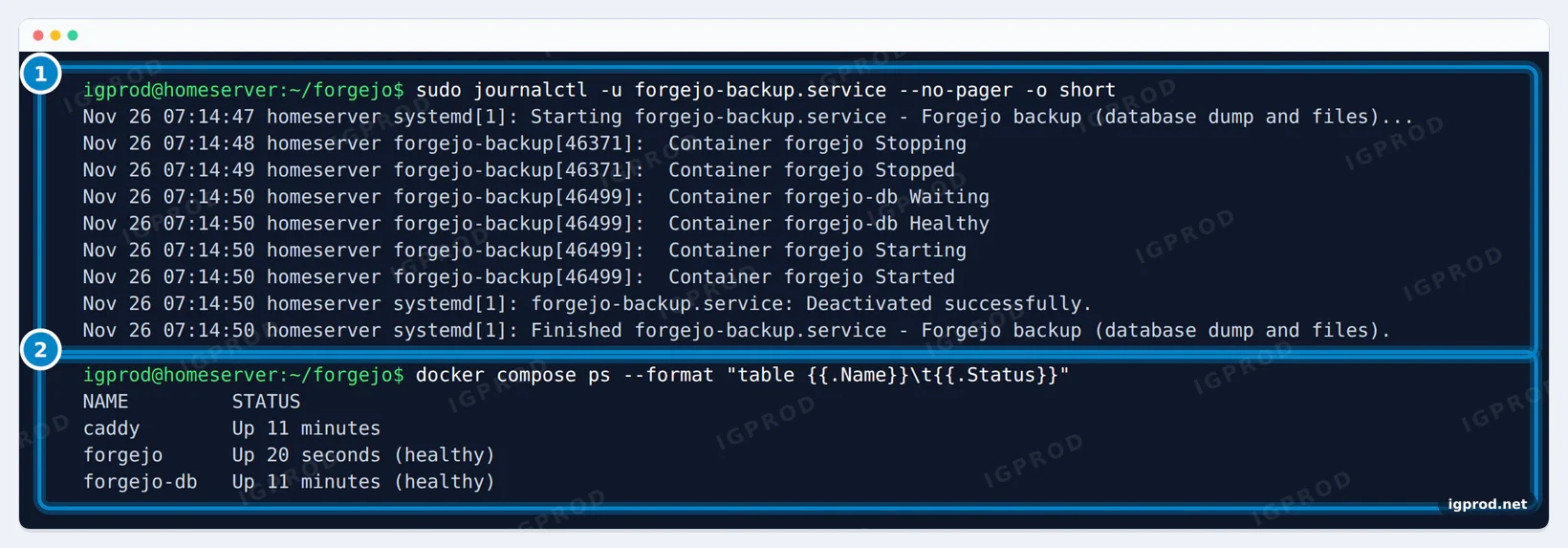
sudo journalctl -u forgejo-backup.service --no-pager -o short
docker compose ps --format "table {{.Name}}\t{{.Status}}"
Forgejo stopped at 07:14:49 and started again at 07:14:50: on this small server, the dump and the archive took about a second. Large repositories take longer, which is why the timer runs at night.
Step 14: Test a full restore
A backup counts only once a restore worked. Run this test now, while the server holds only test data, or on a spare machine with a copy of the backups: if a backup were broken, this is where you would find out. We deleted the whole ~/forgejo folder, as if the disk had died, and kept only the backups:
docker compose down && cd ~ && sudo rm -rf ~/forgejo && ls ~Make the folder again and unpack the archive into it (use the date of your backup):
mkdir ~/forgejo && cd ~/forgejo
sudo tar xzf ~/forgejo-backups/forgejo-files-2026-11-26.tar.gz -C ~/forgejo && ls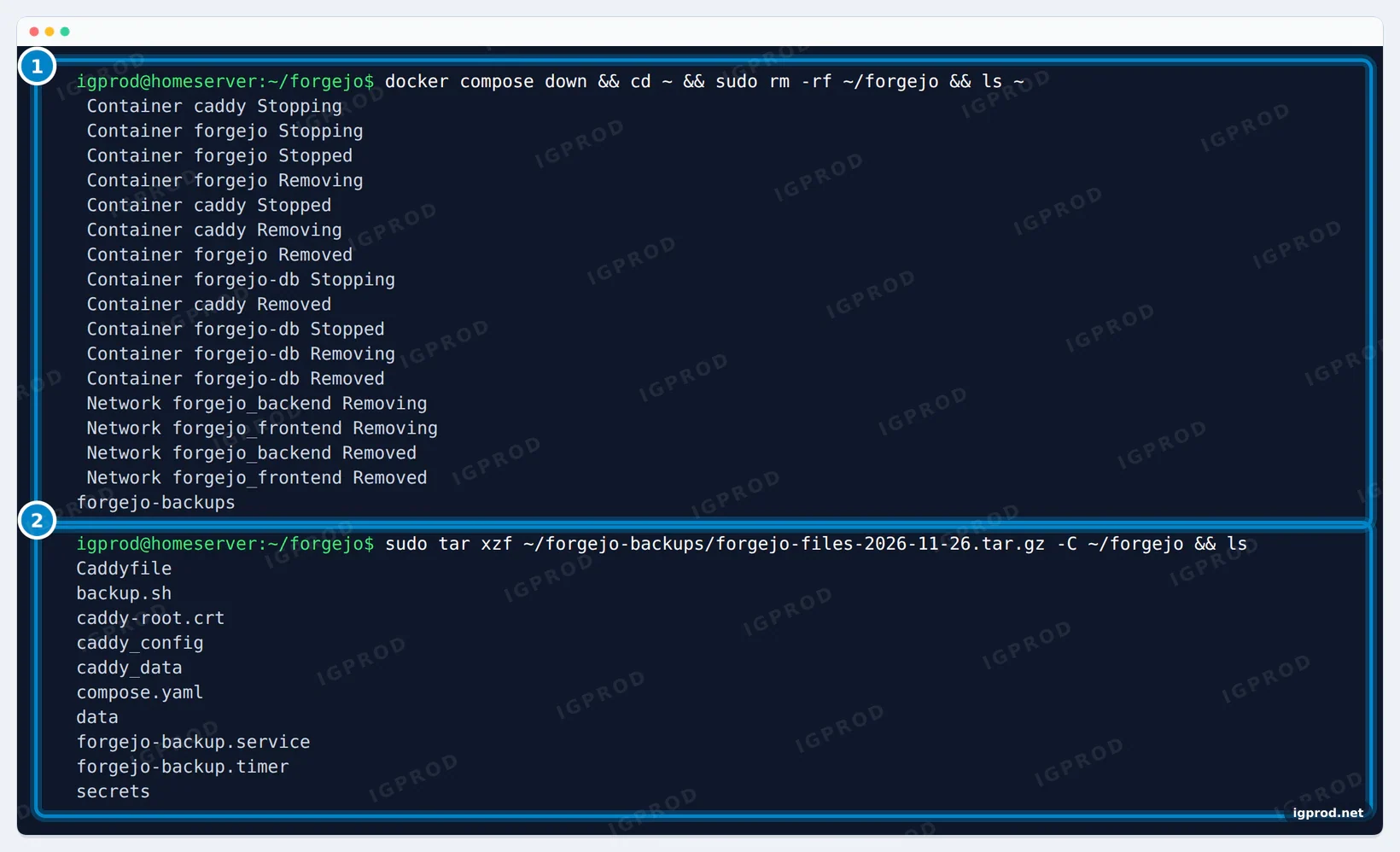
Start only PostgreSQL, which creates an empty database, load the dump, then start the rest:
docker compose up -d --wait db
sudo cat ~/forgejo-backups/forgejo-db-2026-11-26.dump | docker compose exec -T db pg_restore -U forgejo -d forgejo --exit-on-error && echo "database restored"
docker compose up -d --wait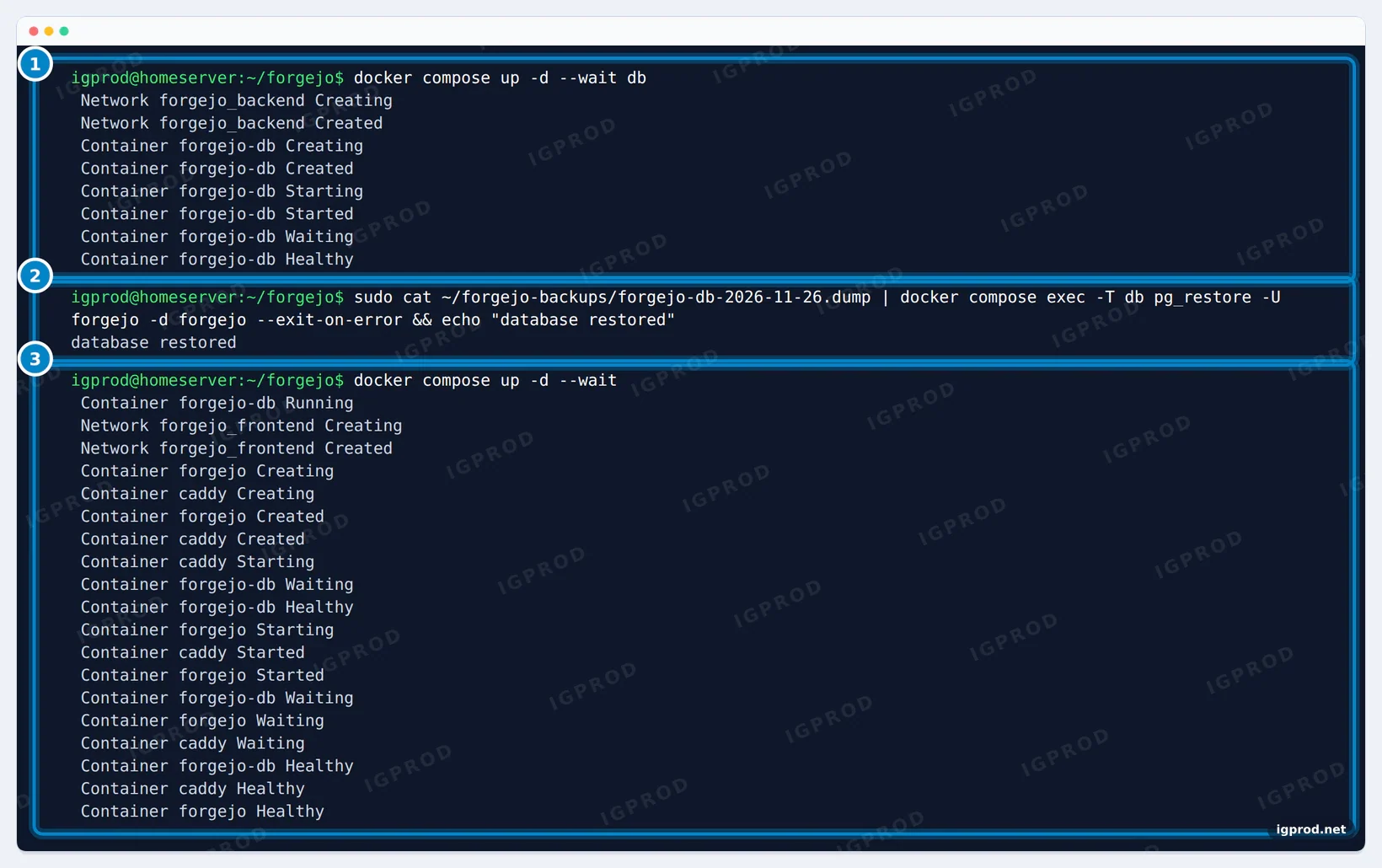
Rebuild the file that maps SSH keys to accounts, as Forgejo's backup docs advise after a restore:
docker compose exec -u git forgejo forgejo admin regenerate keys && docker compose ps --format "table {{.Name}}\t{{.Status}}"On the laptop, pull, test SSH and push a change:
cd homelab && git pull && ssh -T -p 222 git@git.home.arpa
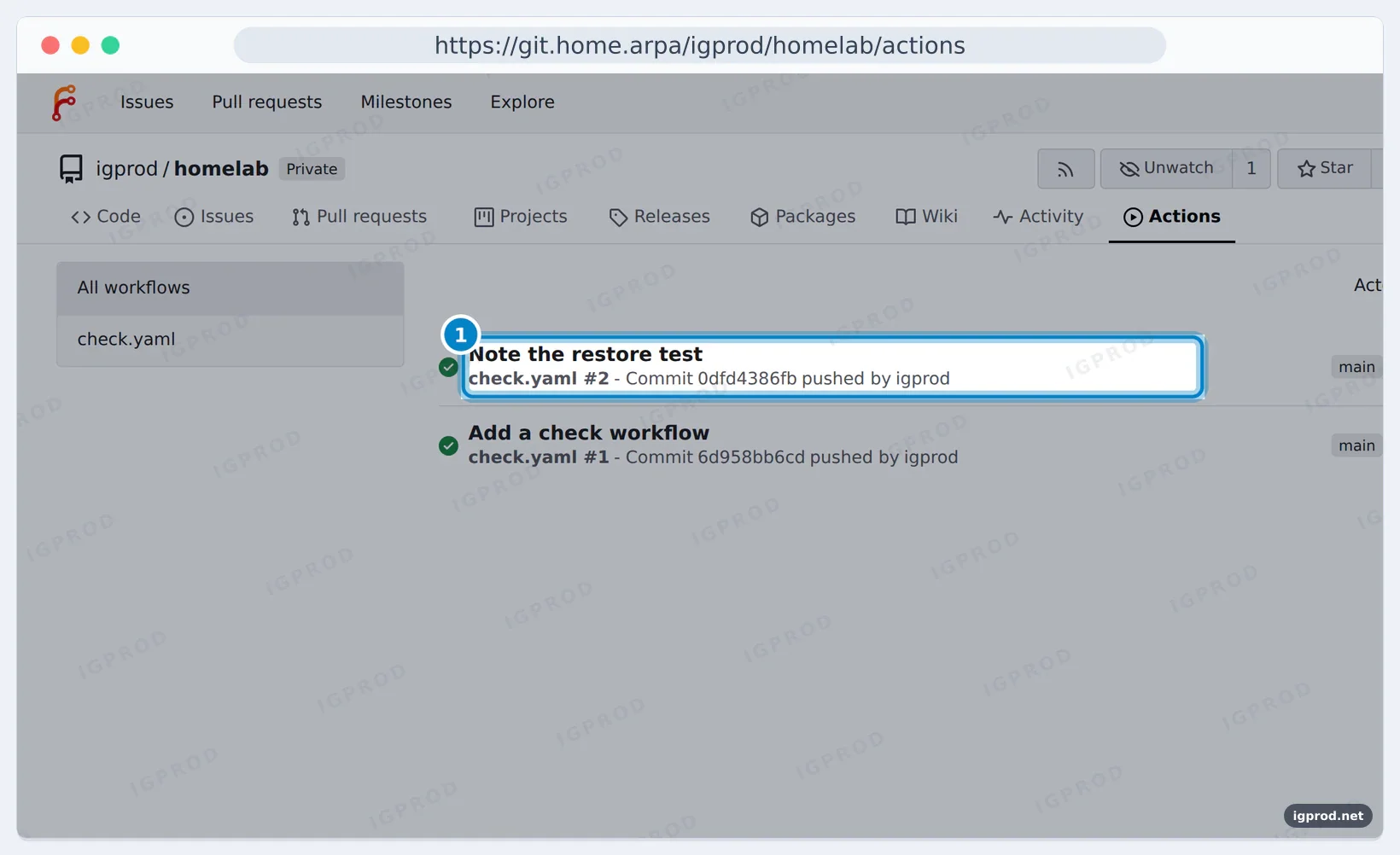
cd homelab && echo "Restored from a backup on $(date +%F)." >> README.md && git commit -qam "Note the restore test" && git push
On the runner machine, the log shows the runner waiting through the restore and then picking up the new job without a restart:
docker compose logs --no-log-prefix --since 15m runner | tail -n 4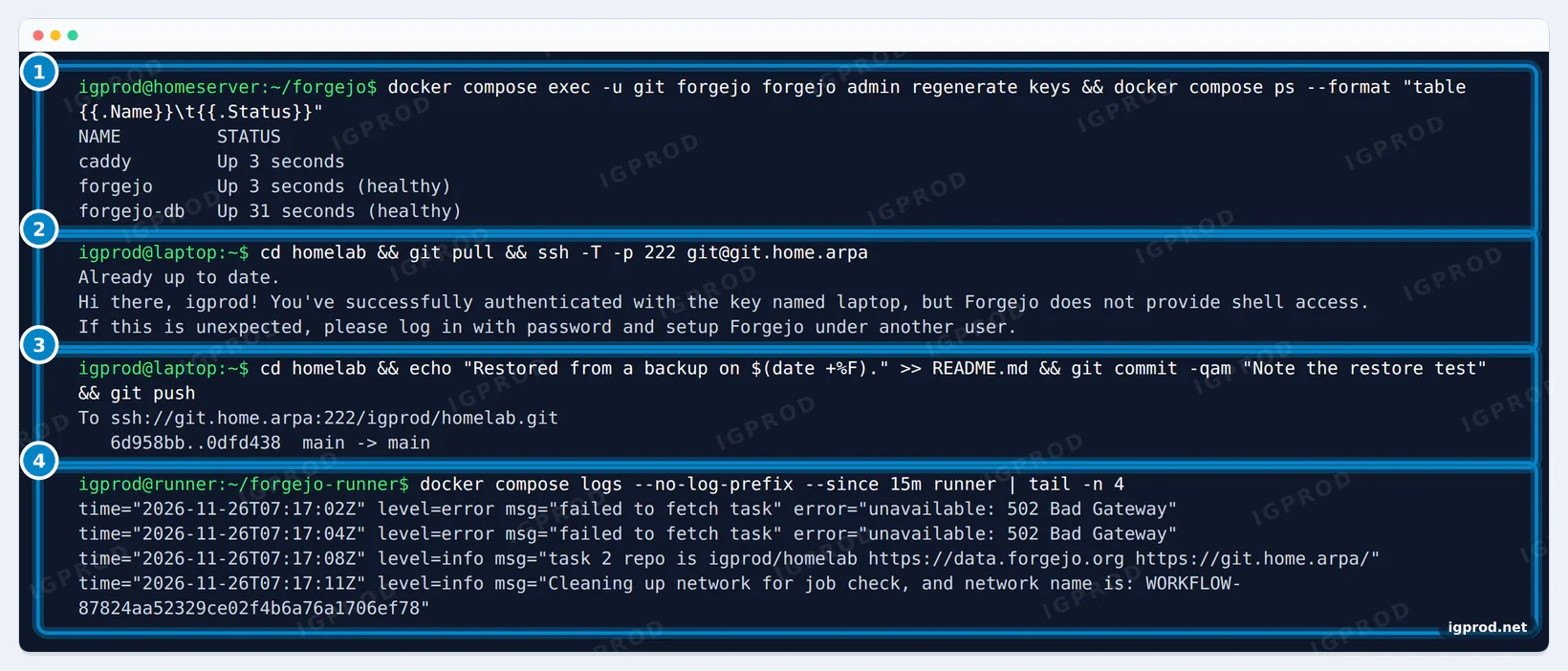
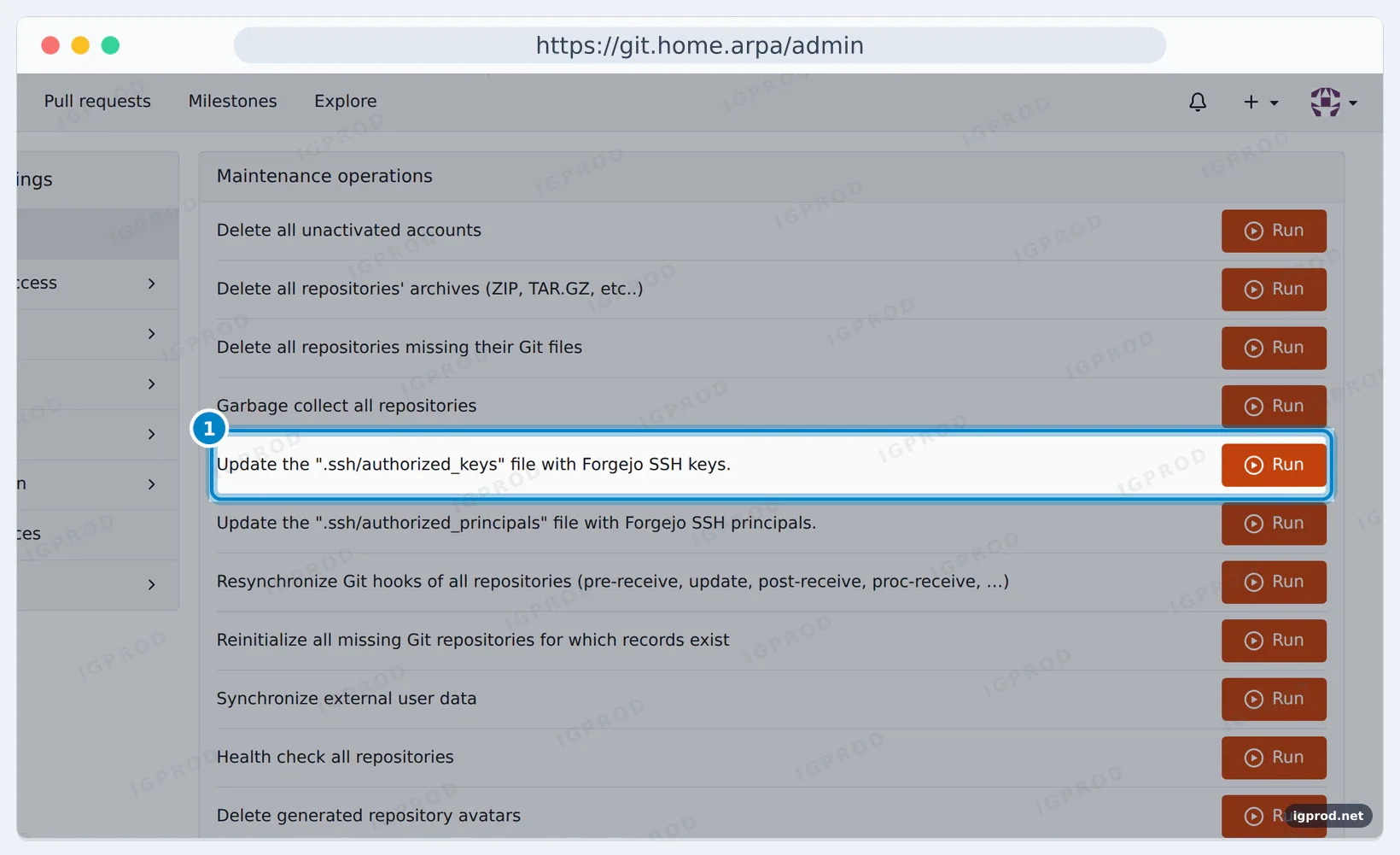
The laptop did not warn about a changed host key: the server's SSH keys came back with the archive. Without them, every client would see a warning and have to trust the server again. The same SSH keys task is in the browser under Site administration > Dashboard:
How much it uses
On the server:
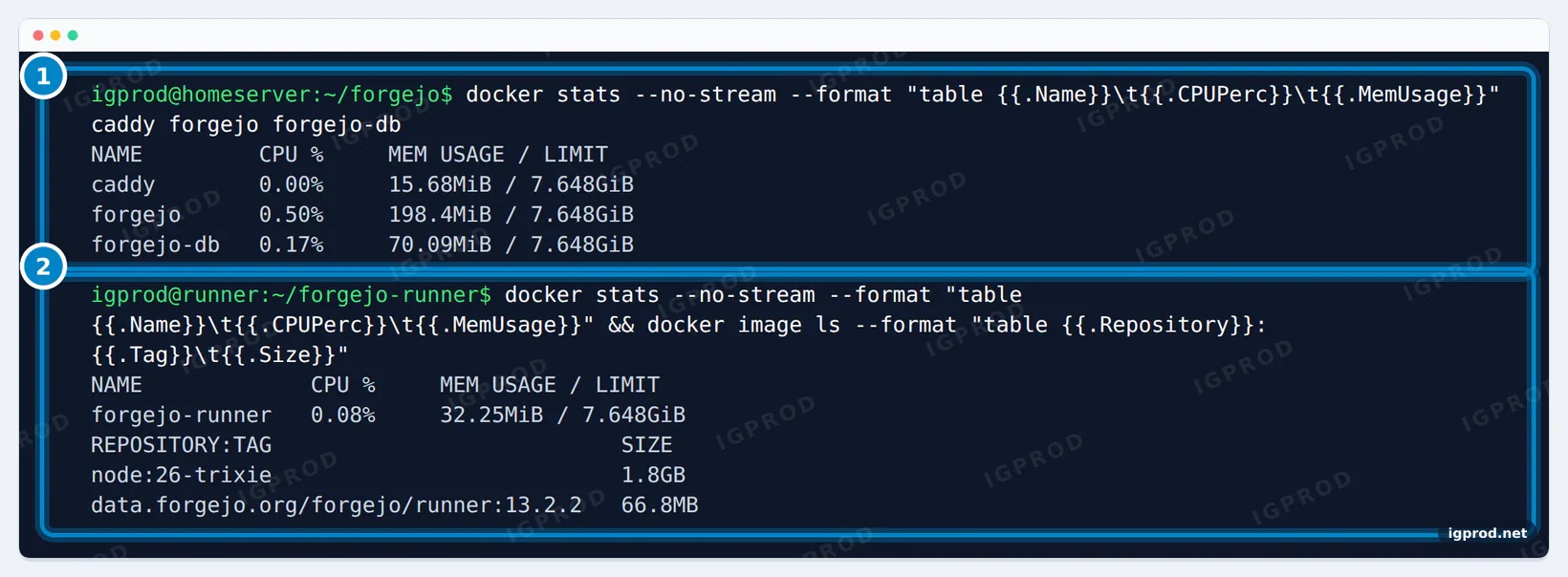
docker stats --no-stream --format "table {{.Name}}\t{{.CPUPerc}}\t{{.MemUsage}}" caddy forgejo forgejo-dbOn the runner machine:
docker stats --no-stream --format "table {{.Name}}\t{{.CPUPerc}}\t{{.MemUsage}}" && docker image ls --format "table {{.Repository}}:{{.Tag}}\t{{.Size}}"| Container | Memory at rest |
|---|---|
forgejo | 198.4 MiB |
forgejo-db | 70.09 MiB |
caddy | 15.68 MiB |
| Server total | about 284 MiB |
forgejo-runner (runner machine) | 32.25 MiB, plus each job while it runs |
These numbers come from a server with one user and one small repository; large repositories, many users and busy CI take more. On the runner machine, the job image node:26-trixie takes 1.8 GB of disk.
Updating Forgejo
Stay on the 15 LTS line until you choose to move: when a new 15.0 patch is out, read its release notes, run the backup service (sudo systemctl start forgejo-backup.service), change the tag in compose.yaml, then run docker compose pull and docker compose up -d --wait. Update the runner image the same way on its machine. Moving to the next LTS (19.0, due in April 2027) is a bigger step: follow Forgejo's upgrade guide for it. We did not run an upgrade in this test.
Troubleshooting
"Forgejo: Unable to access repository path" when testing SSH
It appeared on a brand-new server, before any repository existed, above an otherwise normal greeting. The folder for repositories is created with the first repository; after Step 8 the line was gone.
curl: (60) or the runner cannot connect
The machine does not trust Caddy's certificate authority. Install caddy-root.crt as in Step 11 before you start the runner. If the runner already runs, recreate it with docker compose up -d --force-recreate: the certificate list is mounted when the container starts.
The runner log shows "failed to fetch task" with 502 or connection refused
Forgejo was down or restarting. The runner asks again every 2 seconds and carries on by itself: during our restore test it logged these errors, then ran the next job.
Forgejo did not ask the new admin to change the password
Add --must-change-password to forgejo admin user create. Without it, Forgejo does not force a new password on the very first account it creates.
The authenticator code is refused right after you used it
Forgejo does not accept the same code twice. Signing in twice within the same 30 seconds needs the next code from the app.
A workflow stays waiting
runs-on must match a runner label. The runner here has docker; a workflow with runs-on: ubuntu-latest waits for a runner with that label.
Frequently asked questions
Is Forgejo free?
Yes. Forgejo is free software with no paid edition, developed by its community under Codeberg e.V., a non-profit. You pay only for the server it runs on.
Forgejo or Gitea: which one should I use?
Both run the same kind of forge. Pick Forgejo for a community-run project with one LTS release a year (15.0 is supported until 15 July 2027). Forgejo can take over a Gitea install up to version 1.22, through Forgejo 10.0; newer Gitea versions need a fresh install and a repository migration.
Does Forgejo Actions run GitHub Actions workflows?
The syntax is the same and many actions work, as actions/checkout@v7 did here, but it is not a drop-in copy of GitHub. Workflows live in .forgejo/workflows/, and runs-on names your runner's labels, not GitHub's machines.
How much RAM does Forgejo need?
On our server, about 284 MiB at rest for Forgejo, PostgreSQL and Caddy together, and 32.25 MiB for an idle runner on the second machine. Busy servers with large repositories need more, and CI jobs use memory on the runner machine, not on the server.
Should Forgejo use SQLite or PostgreSQL?
Forgejo's recommended settings suggest SQLite for low to moderate activity and PostgreSQL or MySQL for high activity. We used PostgreSQL so the server can grow (more users, many CI runs) without moving the data later. With SQLite, there is one less container, and backing up the data folder covers the database.
Can Git over SSH use port 22?
Only if nothing else uses port 22, and on most servers the system's own SSH does. Port 222 avoids moving it; SSH_PORT makes Forgejo show the right clone address, as in Step 8.
Can I migrate my repositories from GitHub?
Yes: the New repository page links to Migrate repository, which copies a repository (and, with a token, issues and pull requests) from GitHub and other forges. We did not test a migration here.
How do I reach Forgejo from outside my home?
The safest way is a VPN such as Tailscale: your devices reach the server as if they were at home, and no port is open to the internet. We did not expose this server publicly.
Related guides
- Install Docker Compose on Ubuntu using Docker’s repository
- Self-Hosting for Beginners: Plan Your First Service
- Local HTTPS with mkcert: Fix NET::ERR_CERT_AUTHORITY_INVALID for Self-Hosted Apps and Synology
- Tailscale 101: What It Is, Setup on Linux, SSH, Exit Node and Docker (2026)
- Gitleaks 101: Find Leaked Keys in Git History, Remove Them and Block the Next One (2026)
- How to Install Uptime Kuma with Docker (2026 Step-by-Step Guide)
- Vaultwarden with Docker Compose: HTTPS, Admin Token, Backups and a Tested Restore (2026)
- Fix Nginx Proxy Manager Real IP Behind Docker and Cloudflare
Sources
- Forgejo docs v15: installation with Docker
- Forgejo docs v15: reverse proxy
- Forgejo docs v15: recommended settings
- Forgejo docs: backups and backup restoration
- Forgejo docs v15: Forgejo Runner installation with Docker
- Forgejo docs v15: Forgejo Runner registration
- Forgejo docs v15: Forgejo Actions security
- Forgejo docs v15: upgrade guide
- Forgejo docs v15: Gitea migration
- Forgejo release schedule
- Forgejo: comparison with Gitea
- PostgreSQL Docker image
- Caddy documentation: reverse_proxy
- Caddy documentation: tls (internal)

Leave a comment
Your email address will not be published. Required fields are marked *